
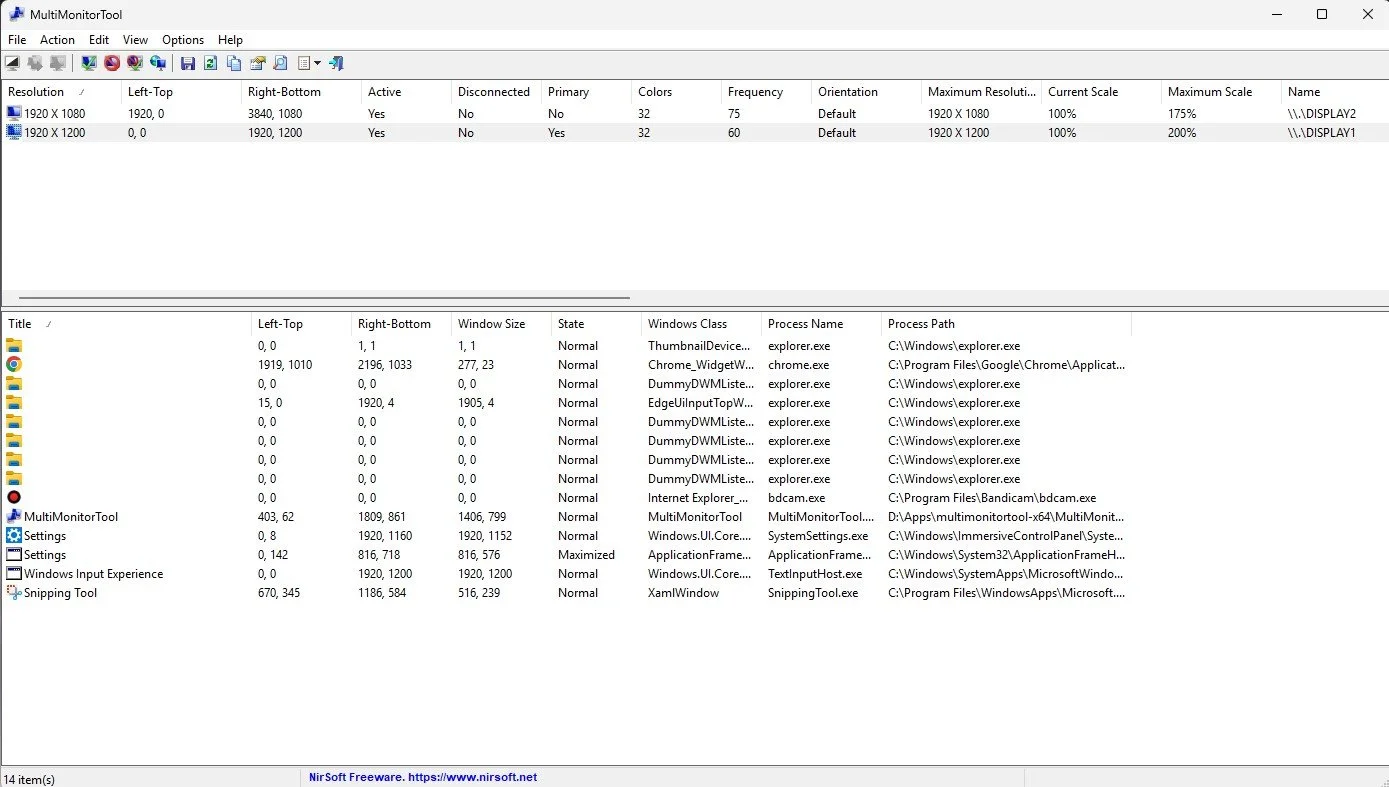
MultiMonitorTool
Back in January, I was very pleased because I had finally found some open source software, DisplayMagician, which allowed me to quickly and easily alter my display profile and run specific games and applications on my second monitor. Prior to this I would find that some programs just wouldn’t stay put, once they were dragged or otherwise cajoled to display on the monitor of my choice. They would continuously snap back to the primary display, regardless of my actions. DisplayMagician solved this issue and did so with aplomb. Or it did, until last weekend when I upgraded my PC from Windows 10 to 11. Then it stopped working. I therefore did some digging online and it became apparent that this is a known issue that is currently being addressed by its creator, Terry McDonald.
Back in January, I was very pleased because I had finally found some open source software, DisplayMagician, which allowed me to quickly and easily alter my display profile and run specific games and applications on my second monitor. Prior to this I would find that some programs just wouldn’t stay put, once they were dragged or otherwise cajoled to display on the monitor of my choice. They would continuously snap back to the primary display, regardless of my actions. DisplayMagician solved this issue and did so with aplomb. Or it did, until last weekend when I upgraded my PC from Windows 10 to 11. Then it stopped working. I therefore did some digging online and it became apparent that this is a known issue that is currently being addressed by its creator, Terry McDonald.
I hope all goes well with Mr McDonald’s troubleshooting but as there is no timeframe for a fix, I found myself today back where I had started at the beginning of the year, with regard to looking for a suitable tool to change primary monitors on the fly. Which then led me to discover MultiMonitorTool by Nirsoft (Nir Sofer). According to the developer “MultiMonitorTool is a small tool that allows you to do some actions related to working with multiple monitors. With MultiMonitorTool, you can disable/enable monitors, set the primary monitor, save and load the configuration of all monitors, and move windows from one monitor to another. You can do these actions from the user interface or from command-line, without displaying the user interface”. It is also free (although you can make a donation) and is regularly updated.
I am happy to report that MultiMonitorTool works and works well. However, having previously used software for this task that simply required me to click on an icon, I found swapping display profiles from a command line, or clicking on the MultiMonitorTool application window somewhat fiddly. Like so many PC users, I like my desktop and icons laid out just so and I’m fussy about how I do things. Therefore, I decided to write a batch file that could toggle between making monitor 1 and monitor 2 the primary display. It took me a while to remember how to do this but I got there eventually. I then created a shortcut but pinning it to my taskbar proved problematic. Once I got around this, I then encountered an error when running the batch file via the shortcut. Possibly due to permissions and the fact that the MultiMonitorTool was outside of the system32 directory. My simple task was getting steadily more complex.
I next decided to create a script to run the batch file for me and then pin a shortcut to the script to my taskbar. However, my memory of .vbs files is worse than my memory of .bat files. So this time I turned to Google Gemini for assistance which produced a simple script according to my needs. All that was required after this, was a custom icon for the .vbs file shortcut. I possibly spent more time perusing icon files than I did actually resolving the problem. Needless to say, I now have a convenient icon on my taskbar that I can use to change my primary display designation, prior to launching certain games and applications. It works quickly and with minimal hassle. Furthermore, I saved myself $40 by not buying the Steam version of DisplayFusion which does the same thing as MultiMonitorTool.
I turned on my laptop this morning for the first time in 4 months. I knew it was that long because I hadn’t connected the laptop to the new Netgear router that I bought at the end of April. Unsurprisingly, as I haven’t used this device for a while there were multiple Windows updates to be installed. This process took over an hour, so while the various updates were being downloaded and installed, I turned my attention to my Amazon Echo Dot which loiters in the corner of our lounge, doing very little to justify its existence. At present this device is mainly used as a glorified timer for cooking, which seems a bit of a waste given it’s alleged capabilities. Hence, I decided to see if I could increase its functionality while waiting for Windows to do its update thing. More on this later. Let us for the meantime return to the small matter of the operating system updates. Once they were completed, I immediately installed Chris Titus Tech’s Windows Utility and started removing unnecessary features and bloat, as well as disabling invasive services.
Before we begin, let me clearly state that this is not a comprehensive installation guide for installing Steam OS on your PC. Mainly because the variety of hardware that can be present in any PC makes each installation a somewhat bespoke affair. Hence I have decided to provide a list of bullet points of the various steps and issues I encountered during my installation, last week. Consider it advance warning of things you may encounter if you install this operating system. As ever, if this is something that you are intending to do, I would advise allowing yourself a suitable amount of time so you can accommodate any issues should they arise. It is entirely possible that this may be a two hour job for the technically literate running the most generic or commonplace hardware. However, I suspect that a lot of people undertaking this project will run into variations of the same problems that I encountered.

I am intrigued by the growth of the IndieWeb, owning your domain and static websites. I certainly agree with the notion of not relying on big corporations and I have an ongoing project to divest my dependency on software produced by major market players. However, although I own my own domain, my website is hosted by Squarespace. I’ve not really had any problems with them over the last 11 years and I would describe our business relationship as equitable. However, the monthly subscription price has increased over time and is likely to keep on doing so. It has crossed my mind as to whether there is a suitable alternative. However, if I were to migrate Contains Moderate Peril elsewhere I suspect it would be logistically complex and problematic.

I like learning new skills and starting projects. I regularly undertake such things with varying results. However, if they don’t work out that’s not a problem. You have to try something to see if you like it. I’ll add “within sensible parameters” as a caveat to the last statement. And it’s perfectly fine to discover that something isn’t for you. I like certain genres of video games, music, films and books. I am comfortable wearing certain types of clothes and not others. I’m picky about colours. I’ll even go so far as to say that I won’t drink out of any mug that’s just lying around. If I don’t like the joke, logo or overall aesthetic of it, I ain’t using it. However, I digress. Let’s get things back on track and talk about projects. This year I have wound down several websites and have decided not to move forward with making YouTube videos. I have focused my energy on improving my website and adding functionality. I am also trying to broaden the scope of my writing.
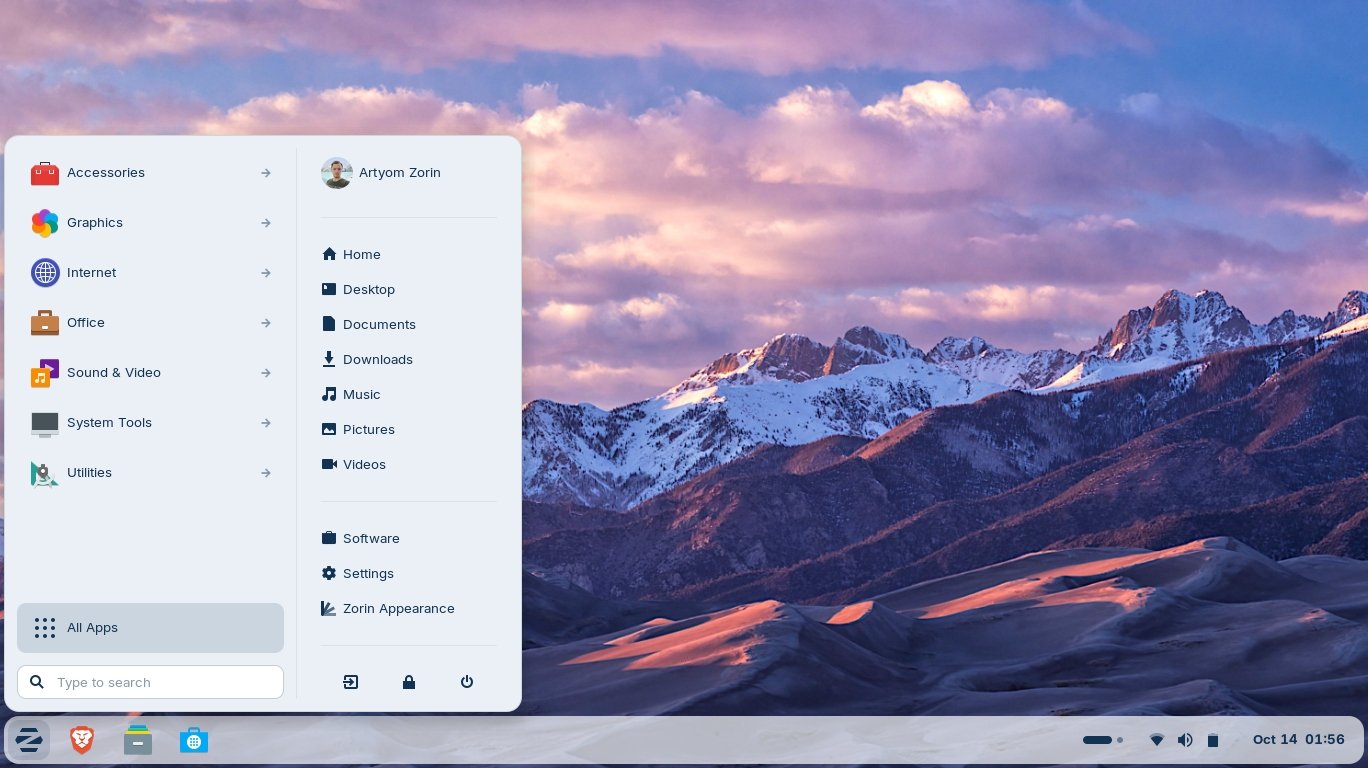
It’s funny how it is often the little things that become the proverbial straw that breaks the Camel’s back. I have been struggling for a while with the overall performance and functionality of my Windows 11 PC. The operating system is bloated, slow and buggy. It all too often commits that unpardonable sin of trying to do my thinking for me and enables some stupid feature by default. Despite having good specifications, my PC takes too long to boot up for my liking and is becoming too much of a wild card with regard to whether it will co-operate or not when I try and undertake a simple task. As someone who is very particular in their PC habits, IE I see my PC as a tool that I use on the terms that suit me. Hence, I find the faux enthusiasm that accompanies each uncalled for “improvement” that results in me losing agency, singularly antagonising. Then a minor issue arose recently that escalated into a thorn in my flesh and I decided that it was time that something must be done.
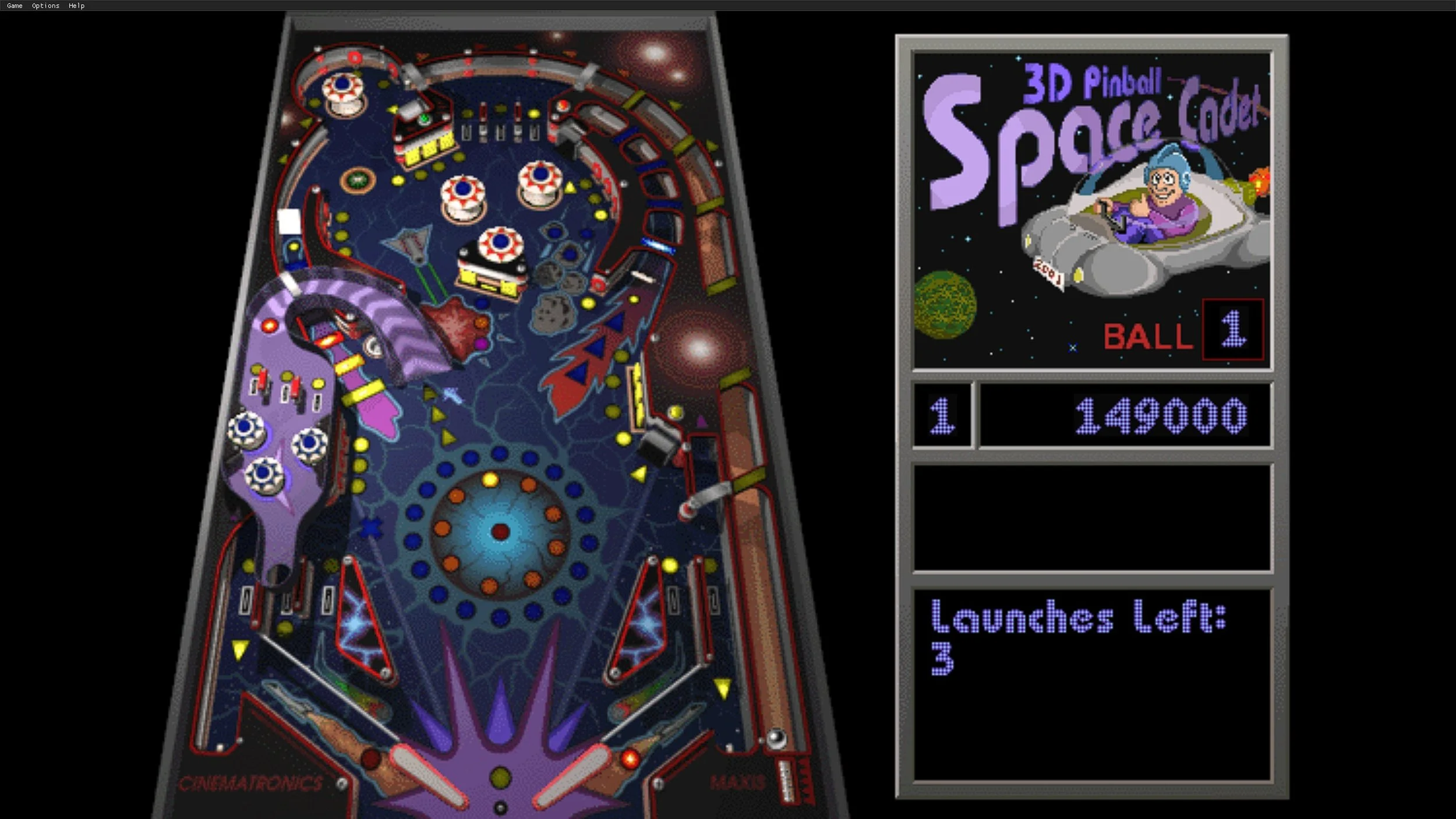
This is a post about the power of nostalgia and how sometimes, interacting with something from your past, be it physically or mentally, can produce a very strong and tangible emotional reaction. In some instances, this can be the result of something that you have specifically set out to do. On other occasions you can wander into a sense of nostalgia purely by chance. Today I experienced a very strong sense of nostalgia while watching a YouTube video and then again when I sought to replicate what I had seen. The video showed someone installing Windows 95 on to an old 486 PC from that era. The Window’s start up sound really touched a nerve (but in a good way) and then when the guy in the video launched Space Cadet 3D Pinball, a game that shipped with the operating system, I felt a strong compulsion to track down a copy and install the game myself, thus revisiting something that was an integral part of my life in 1995.

For the last few months I have being using Google Gemini. I subscribed so I could access a wider spectrum of services and evaluate it effectively. I also wanted to dispel some of the hysteria that accompanies any conversation about Large Language Models and Artificial Intelligence. The results were initially interesting and Google Gemini proved useful when researching material for blog posts. It is good at providing summaries about well documented subjects. I wrote a post about food banks recently and it distilled a lot of data into a manageable amount, which was ideal for my article. Google Gemini has also produced some visual basic scripting and simple batch files that have allowed me to automate processes on my PC. Such as changing the default monitor, or screen resolution at the click of an icon. However, I found this AI struggled with in-depth software troubleshooting and that its ability to create images varies greatly depending on the subject.

The UK Government has formerly announced its intention to ban under-16s from using social media. This is due to increasing public pressure that “something must be done” about the perceived iniquities of many online platforms. However, as with most complex social problems of this nature, no one has any clear or practical ideas as to what that “something” is. It remains a nebulous, non-specific panacea and clearly someone else’s job to identify and implement. As ever, why choose a nuanced and multifaceted solution to a complex problem, when it is far easier and politically expedient to just “ban” something. The former requires effort and a degree of thinking. If such an approach fails it also means that those who came up with it now carry the can. The latter dumps the problem in the lap of various third parties, who can then be conveniently blamed when the ill conceived policy fails.

Yesterday we changed internet service providers. We moved from EE (formerly BT) to Plusnet. The transition went surprisingly well, mainly due to the existing infrastructure remaining the same. We’ve had fibre to the premises (FTTP) since 2022 so this was essentially an administrative change. The previous ISP terminated their service at 1:30 AM in the morning, while I was playing Star Trek Online. By 6:30 AM I received a message from Plusnet that the new service was live. It took about an hour to configure the new Netgear Nighthawk RS100 router (I bought my own) and get all our household devices attached to the new network. The connection is running at exactly the same speed and stability as it had under the previous supplier. At present a 1Gbps connection is sufficient for our needs. The main factor that has driven this change is cost. We are currently paying £28 per month for internet access which is a competitive price in the UK.

In 1990 I was working at the DWP (Department for Work and Pensions). I had just taken the role of Computer Support Officer where I administered user access to the mainframe and provided first line support to staff using the terminals. That summer the office moved to a PC based network and the project was undertaken by the newly formed Siemens Nixdorf company. To cut a long story short I befriended one of the contract engineers and over the next 9 months he became an unofficial mentor to me. Technically he was only supposed to train me in the most basic of fashions but he liked the fact that I was always asking questions and effectively ended up schooling me in PC and server architecture, network administration and the associated protocols. For me this was the best way to learn. It was not a case of coming to grips with theory in a classroom environment. It was learning by doing and having direct and exclusive access to a source of knowledge and experience.
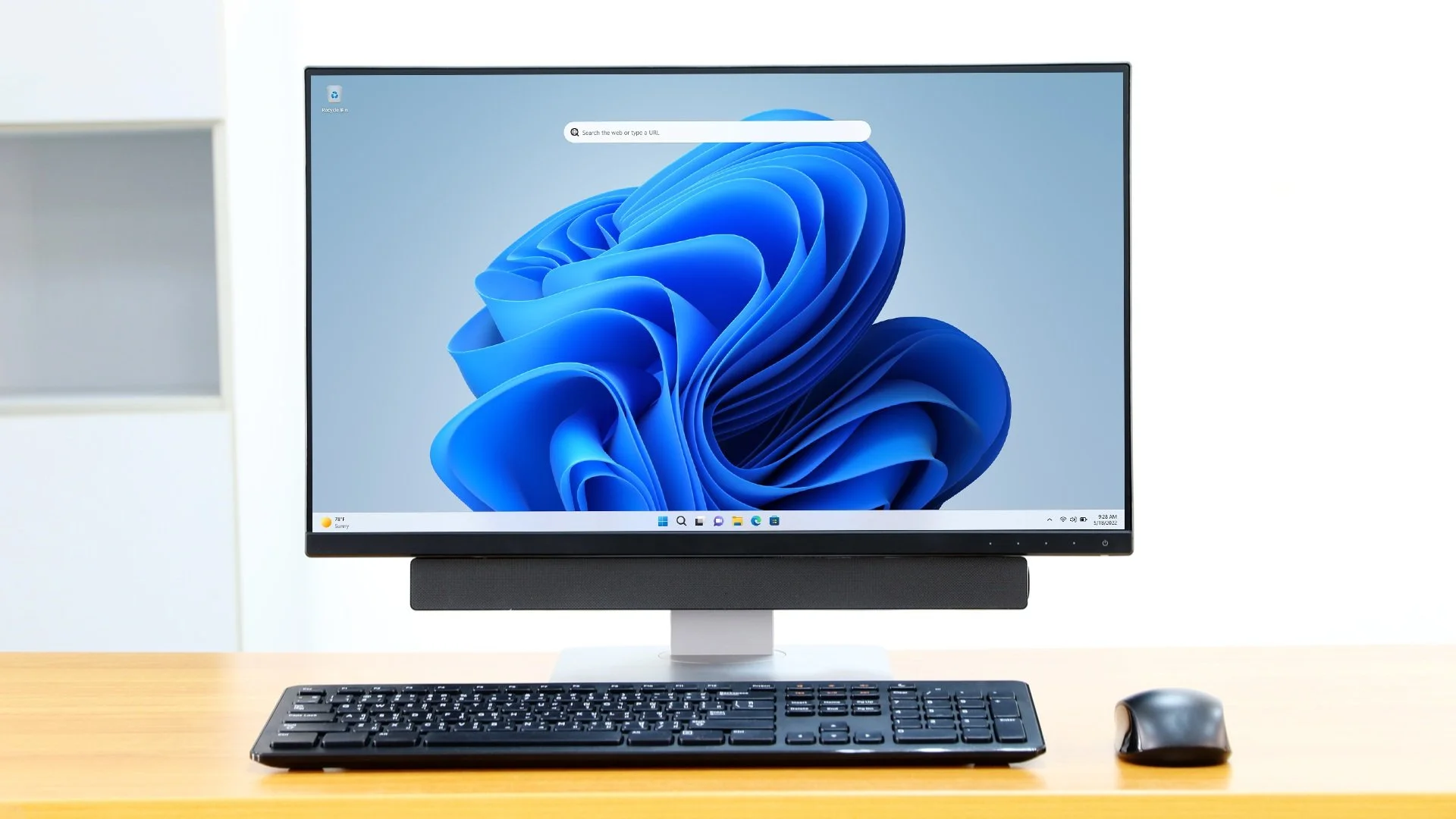
My Windows 11 PC is a cobbled together mess of upgrades, customisations and workarounds. It seems okay at first glance, mainly because my desktop is well organised and I don’t allow too many apps to start on boot up. But beneath this superficial veneer of efficiency and optimisation is a bloated mess. Every Windows update adds yet more spurious features which slows performance and tries to harvest your data. Windows is no longer a user friendly operating system that you buy and use without impediment. It is now a sprawling live service that actively gets in the way of your productivity so that it can make a buck off your inconvenience. There was a time when you could quickly learn its processes and foibles, so you could customise it into the tool you needed. Nowadays I have to continuously use third party tools to get Windows to do many of the things I want, or to access functionality that Microsoft has obtusely decided to restrict.
As the New Year is still young, I have embarked upon several new projects that I’ve been planning since Autumn last year. These undertakings have gone beyond the planning stage and are currently being implemented. The fun thing about the phrase “implemented” in this context is that it implies that it is by far the easiest and most straightforward part of the process. The initial brainstorming of ideas has been completed. A cogent and detailed plan has been written. The costing of materials and time required have been determined. These are the hard parts. All that remains is to “just do it”. It should be a piece of piss (a British phrase indicating that something is easy). It virtually “implements” itself. However, that is a load of bollocks. Because there is always scope for something to go wrong. It may well start as something minor and innocuous but it all too often ends in a “problem cascade”.

This time last year I made a decision to replace Microsoft Office or Office 365 as it is currently known. Mainly because I only use Outlook out of the entire suite of software. This project stalled because I couldn't easily import my existing email archive into Mozilla Thunderbird. Hence the status quo has been perpetuated. However, there is an ongoing cost associated with this software as well as some wider considerations about ethics and privacy which is why I have returned to this matter. Although this time I wish to replace not only Office 365 but all the other "production tools" I use to write and browse the internet. I have managed to make some progress towards this goal but it has been hard to adapt. Mainly because I had everything set up to my liking. Although alternatives are available, they're never exactly alike and require a lot of fine tuning to be deemed satisfactory.
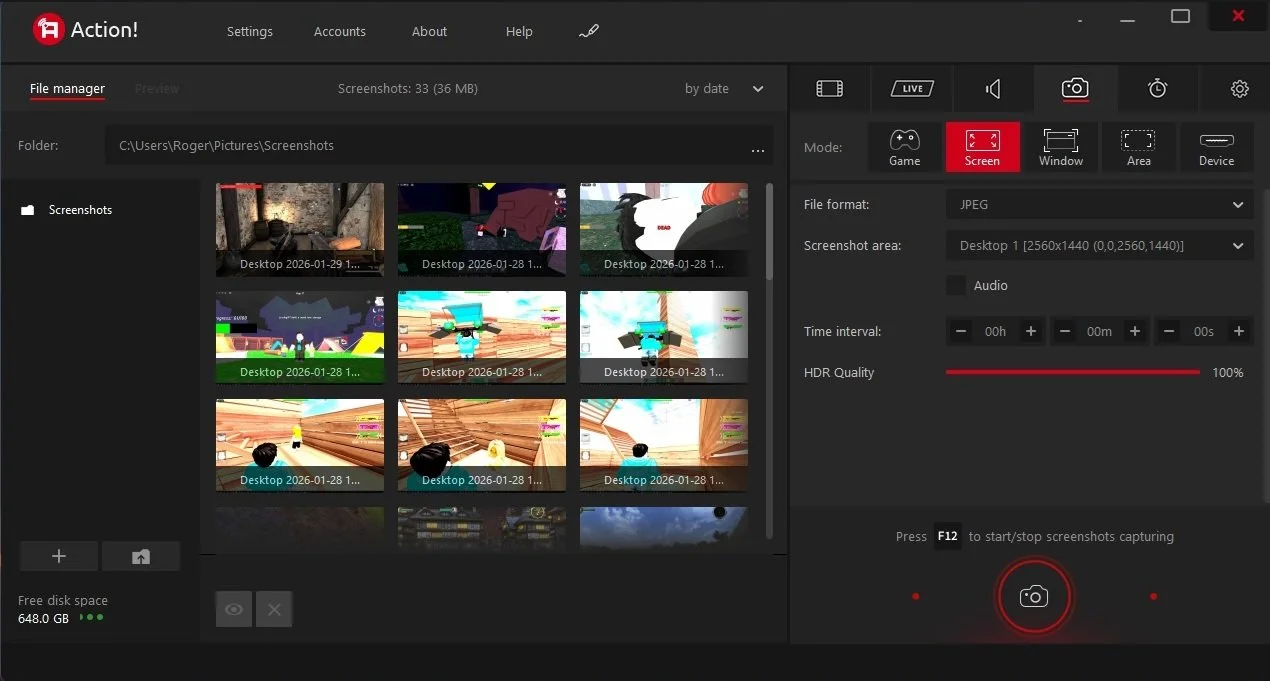
Last summer I wrote a post about my experiences using various screen capture software. At the time I was using Bandicam which suited all my needs. I had configured the software to launch at Windows start-up and had a hotkey assigned to capture images from my primary monitor. Hence I could quickly grab a screenshot from my desktop or when playing a game. However, this changed in November 2025, when I bought two new monitors. Both of which supported HDR (High Dynamic Range). Although they provide superior picture quality, HDR has a knock-on effect on Bandicam. Screen capture images and video look over exposed. Hence I had to stop using the software and find an alternative. Fortunately the same company has been developing an alternative product with HDR support; Bandi Camera. So I swapped to this software. The screenshots were far better but the functionality of the app was lacking.
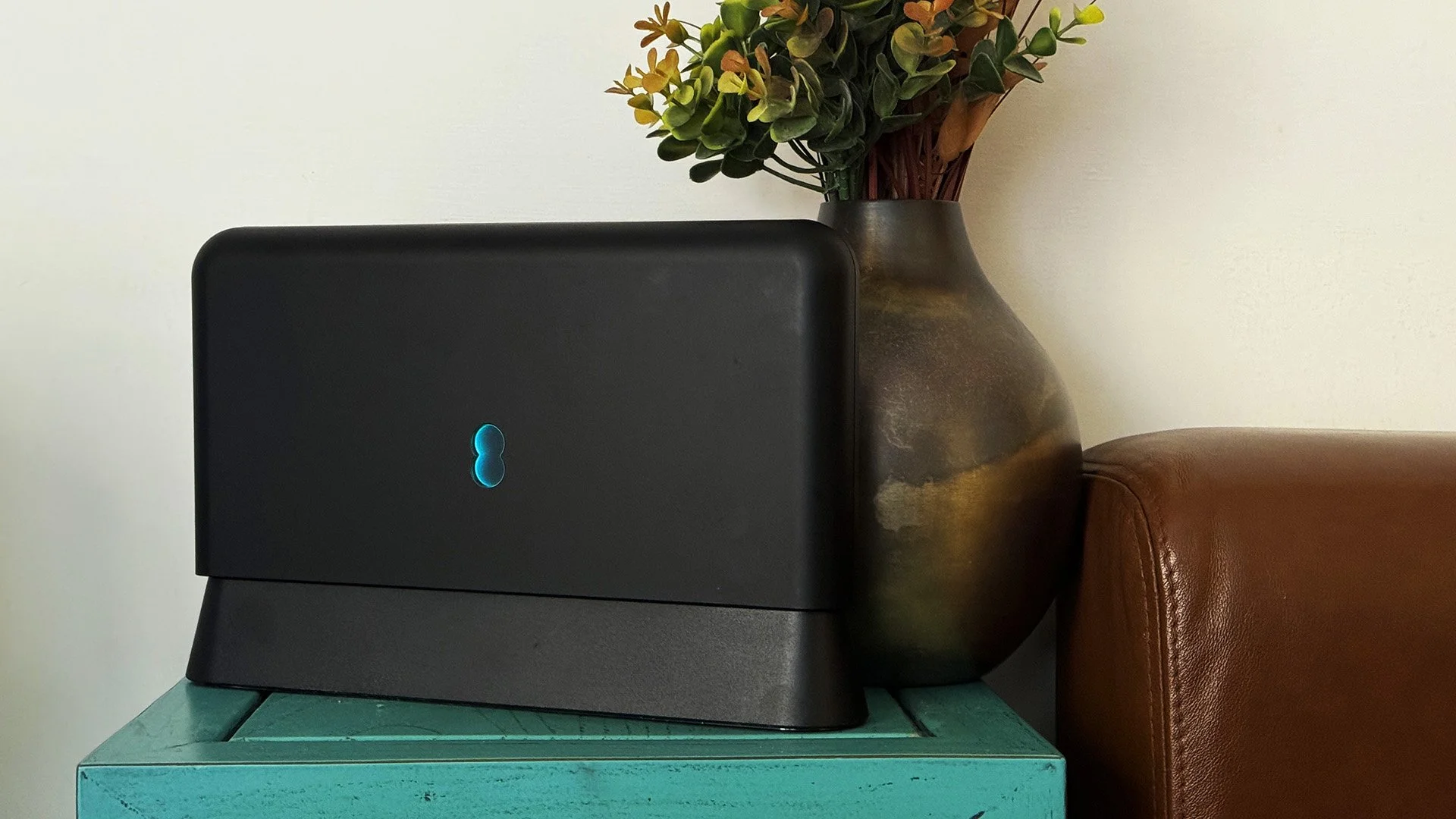
Our home has a 1 Gbps “fibre to the premises” internet connection. It has proven reliable since it was installed in June 2022. Our internet service provider EE (part of the BT group) are neither the best of worst suppliers. The monthly cost is not especially competitive and so we may be looking to move providers next Easter. However, that is a matter for the future. For the present there is a more immediate issue. Starting on Friday 21st November, our internet connection has started randomly dropping. Furthermore, both the Wi-Fi extender in the lounge and the wireless printer in my office have become disconnected from the network. It was as if their details had been erased from the router. I suspected that a recent firmware upgrade may be the culprit although EE denies it. However there are posts online from other customers with similar technical issues.

A couple of times a year, Mrs P asks me to copy onto her laptop, all the pictures that I’ve taken over recent months, as well as those that have been shared with us via WhatsApp. She then diligently whittles them down into a manageable amount which we then print off and put in our photo album. Yes we’re of the generation that still likes to print off hard copies of photos and from time to time look at them nostalgically. We have several albums with photographs in chronological order and numerous frames placed around the house, filled with pictures of family. The bulk of the photos are 4x6 inches (10x15 cm). We use an online photo printing service for the majority of our pictures and visit a local store with a self-service photographic department to print off specific pictures for bespoke frames. The original photos, now neatly organised, are backed up and archived.
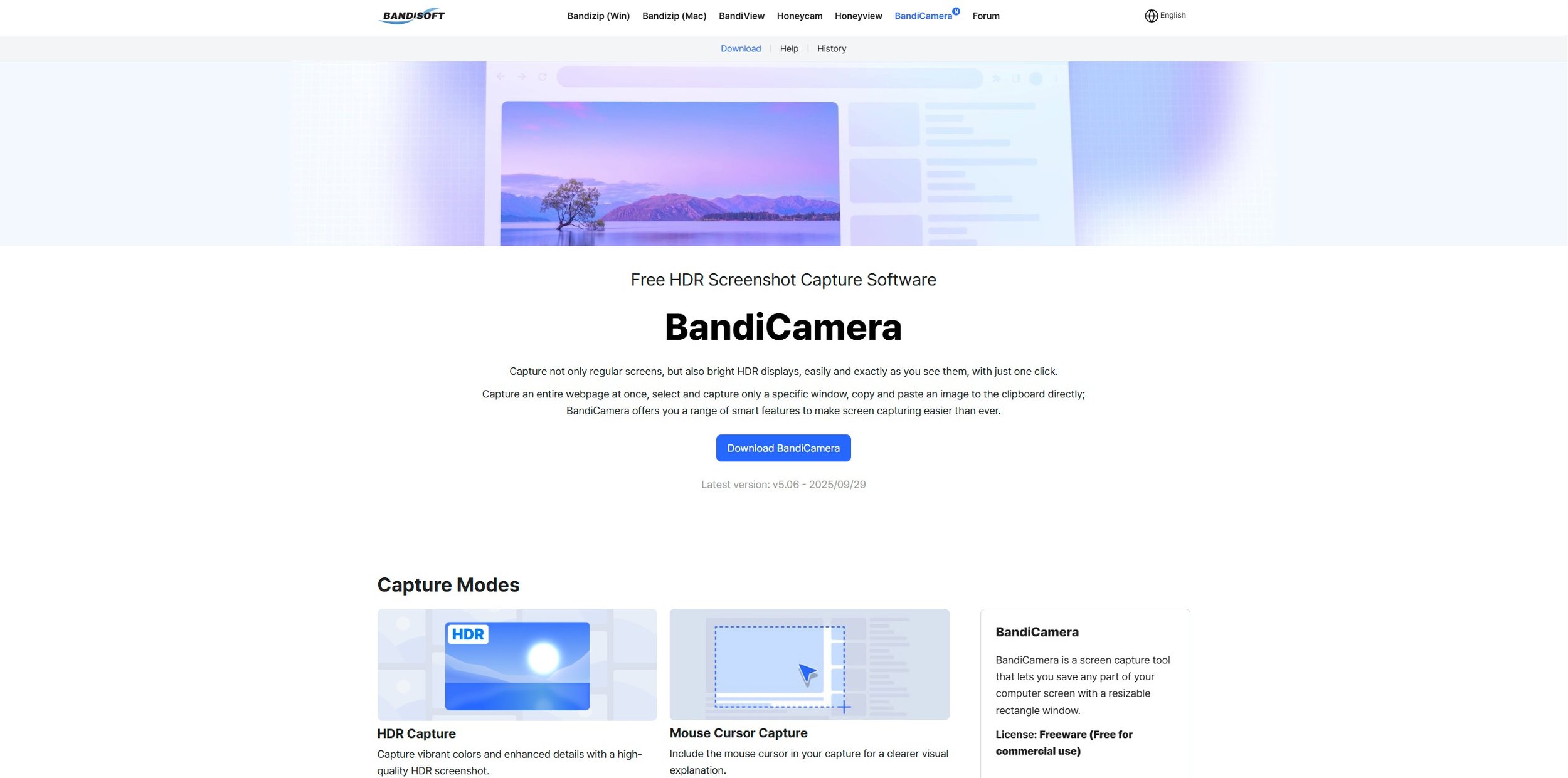
I take a lot of screen captures of video games and Windows apps, usually for blog posts. I use both Bandicam and Windows Snipping Tool to do this and have set up various hotkeys to make the process easy. Of late, the screen captures that I’ve taken have all suffered from washed out colours, regardless what tool I used to take them. I checked to see if both these apps needed to be updated but they are running the latest versions. Hence I was initially stumped as to why this problem had started happening. After some thought, I deduced that the only new elements in my PC hardware were my two new monitors. Both of which support HDR. Google Gemini quickly informed me that this was a known issue and taking screen captures from an HDR enabled device resulted in an excessively bright image that looked over exposed.
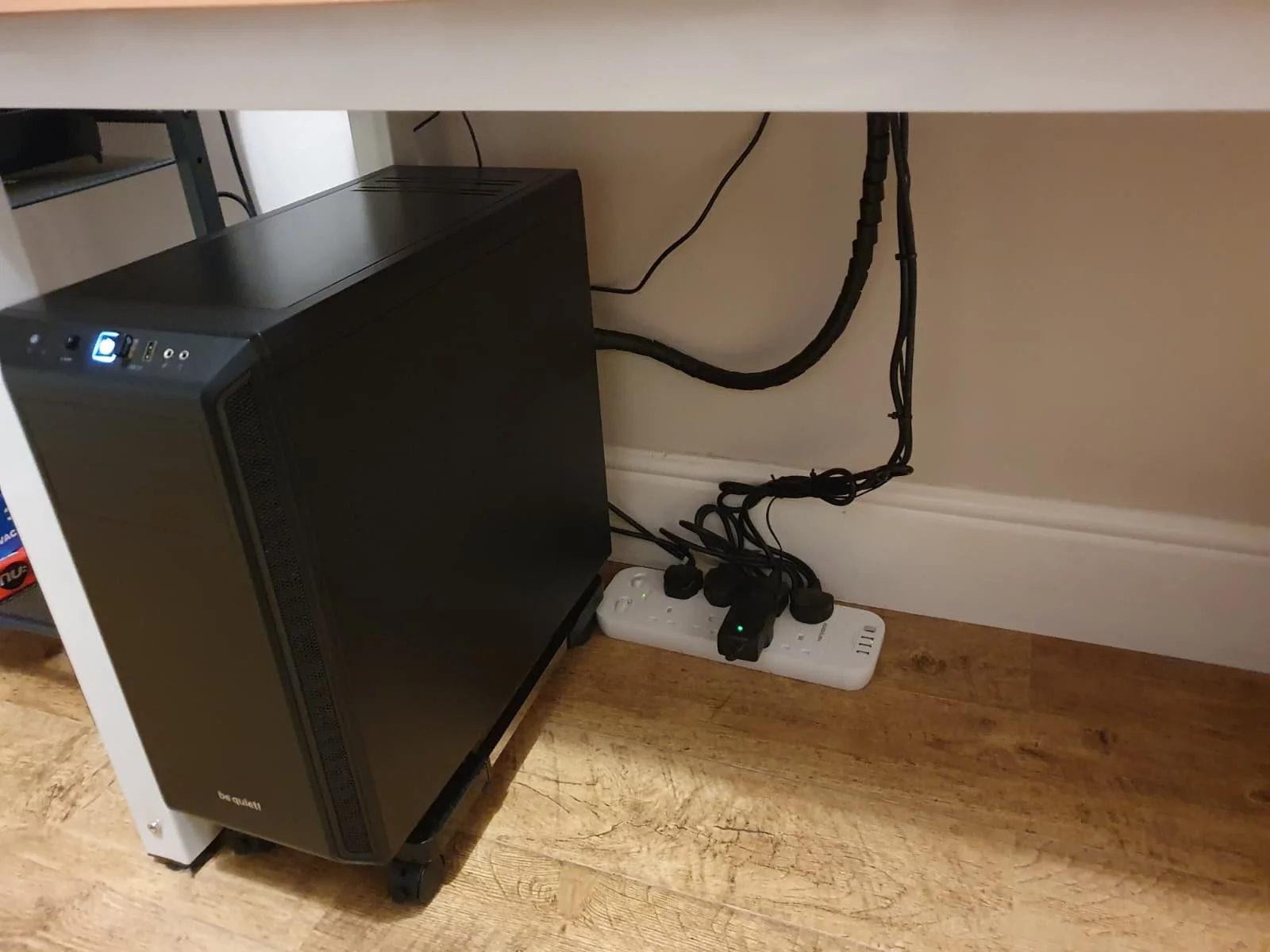
I recently bought two new monitors and a stand for my PC tower case. Today I thought I’d take the opportunity to disconnect every peripheral, clear my desk and then after a thorough clean, reassemble everything ensuring good cable management. I even went so far as to buy a new power extension lead so I could reorganise where everything was plugged in and therefore be able to isolate specific hardware. It seemed such a simple, straightforward task on paper. The reality was much different. It took me over three hours to sort out, mainly due to the fact that I don’t “bend” so well these days. During this Herculean task, my watch kept on notifying me that my heart rate was “high”. However, I regularly took breaks and fortified myself with gin for medicinal reasons. I am pleased with the results of this task.
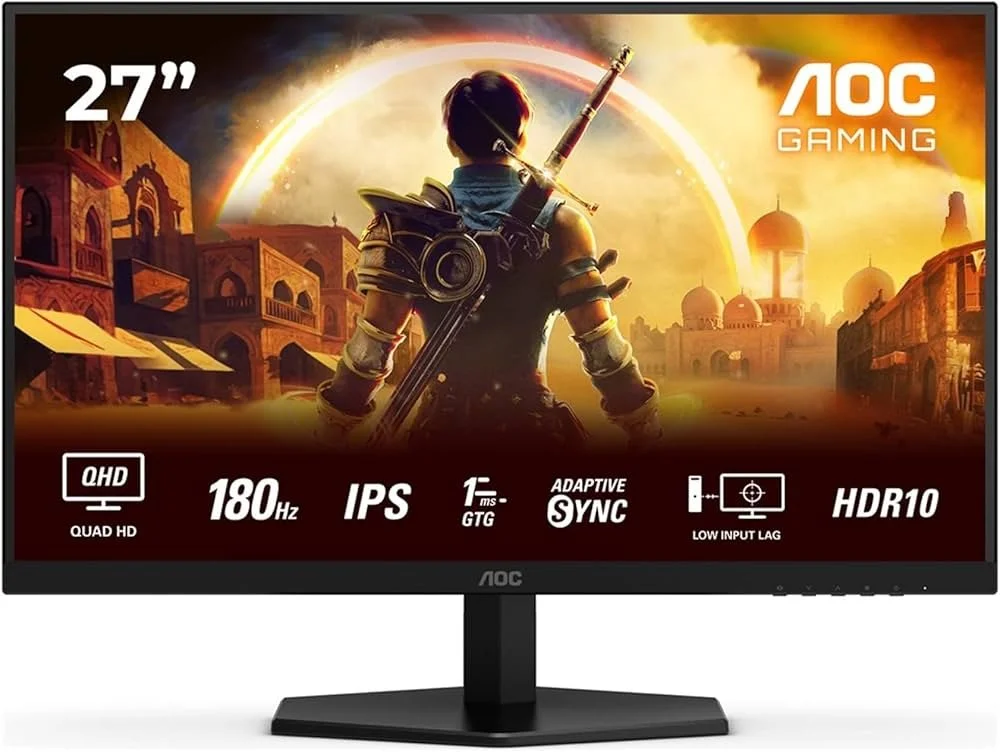
I use two monitors with my PC, as I find having the additional screen “real estate” invaluable when writing or playing games. Both monitors that I’ve been using up to now are somewhat old and they are not exactly the same size or resolution, although both are FHD. I have previously written about the problems I’ve had trying to get certain games and programs to display on specific monitors and the lengths I’ve had to go to to resolve this issue. To cut a long story short, I recently decided to replace both monitors with larger models with a higher resolution. Mainly because my eyesight is not what it used to be. I see best when working with a bright screen that can produce clear text. New monitors would also address my ongoing screen output problem. Hence, I set myself a reasonable budget and began researching appropriate replacements.

In July the UK Government introduced the Online Safety Act which requires age checks for accessing sexually explicit content online. As a result of this, Pornhub, the 19th most visited site on the internet, has reported a 77% decline in UK traffic. Furthermore, according to the UK regulatory body, OFCOM (The Office of Communications), overall visits to pornographic websites from the UK have fallen by 33%. Naturally, those who championed this legislation are claiming a moral and political victory. However, once you consider what these facts actually mean, they paint a somewhat different and potentially more worrying picture. It would be staggeringly naïve to think that UK visitors to Pornhub have ceased visiting such sites due to the age verification requirements. The more likely explanation is that UK porn consumers are now using VPNs to circumnavigate these restrictions and that this traffic to Pornhub is now recorded as coming from elsewhere.
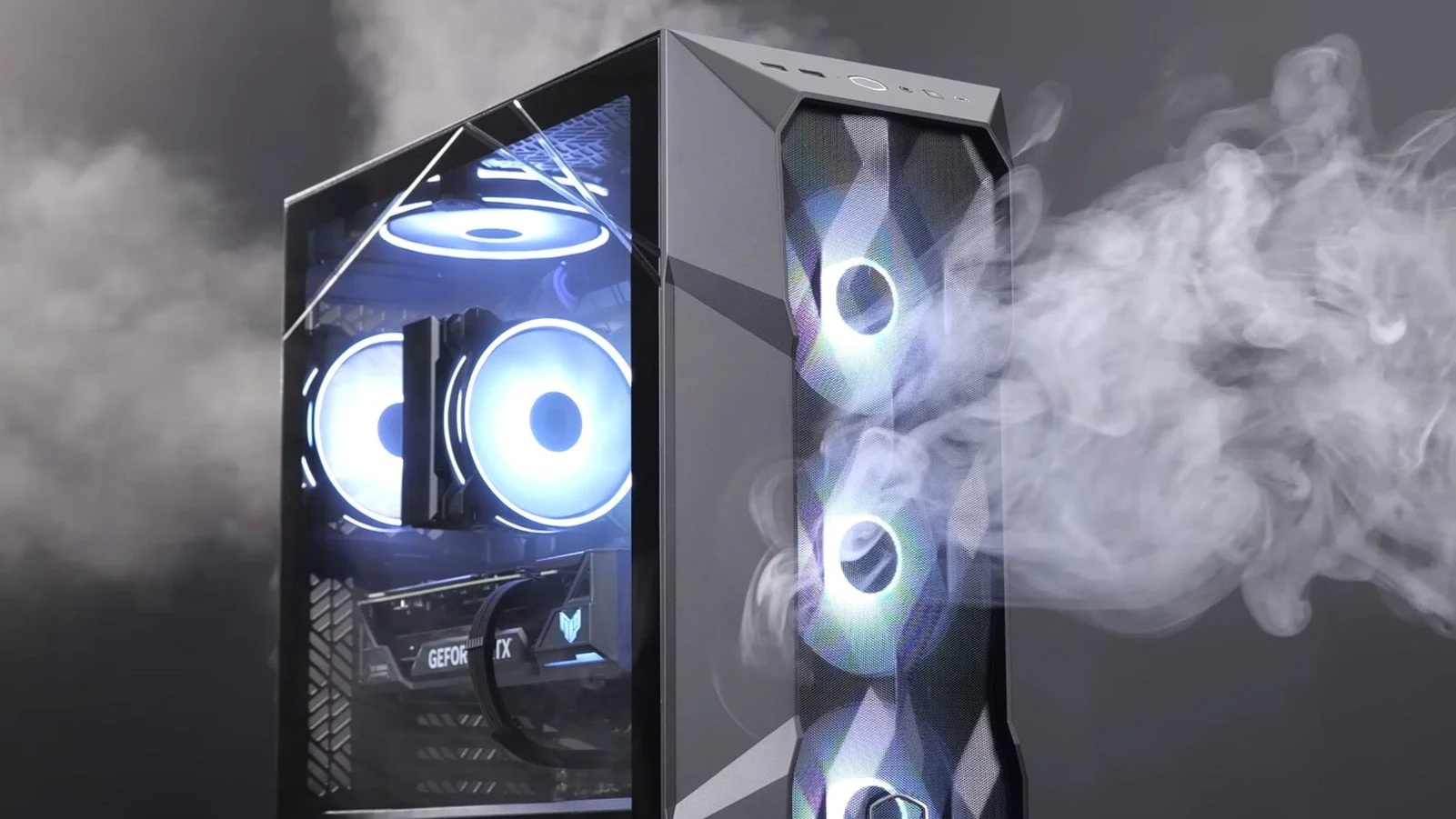
It may be a case of preaching to the Choir but dust contamination in your PC causes overheating, decreased performance, and potential hardware failure. This mainly occurs due to dust restricting airflow, impeding components such as heat sinks and creating short circuits from conductive particles. Fluff builds up and restricts cooling fans, forcing them to work harder. Heat build can lead to issues like system crashes, lagging, and even permanent damage to the motherboard and CPU. Over time, it can shorten the lifespan of the computer and in severe cases, poses a fire hazard. When I used to work in IT contracting, I used to see the effects of dust contamination all the time. PC placed on carpet tiles or on top of desks and surrounded by other objects. I remember one PC replacement project I was working on where we found an old PC with a dead mouse in it. It was desiccated by the heat.

Usually I don’t have a problem with internet access when Mrs P and I are travelling. My phone data plan is sufficient for Google Maps and social media usage. Once we reach our hotel, it’s just a question of connecting to the free Wi-Fi or if need be, buying upgraded access. It’s seldom that expensive. When I went on holiday to Croatia this summer, I bought a bespoke data plan before arriving that granted me extra internet access. Our hotel in Makarska also had very robust internet access. Hence, regardless of being out and about or by the pool, I never had any issues getting online. The ubiquity of internet access means we often take it for granted. I seldom go to places in the UK or abroad that don’t have advanced IT infrastructure. Until this week.
Back in January, I was very pleased because I had finally found some open source software, DisplayMagician, which allowed me to quickly and easily alter my display profile and run specific games and applications on my second monitor. Prior to this I would find that some programs just wouldn’t stay put, once they were dragged or otherwise cajoled to display on the monitor of my choice. They would continuously snap back to the primary display, regardless of my actions. DisplayMagician solved this issue and did so with aplomb. Or it did, until last weekend when I upgraded my PC from Windows 10 to 11. Then it stopped working. I therefore did some digging online and it became apparent that this is a known issue that is currently being addressed by its creator, Terry McDonald.
As part of our increasing dependency upon software, we have also grown accustomed to its associated foibles, especially the negative ones. Today, I upgraded my blog from Squarespace 7.0 to 7.1 and my PC operating system from Windows 10 to 11. I started early in the morning and ensured that all my personal data was backed up. My default expectation was that both processes would go wrong in some way, shape or form. Let’s take a moment to consider this mindset, which is born out of experience. It is now taken as read that whatever you upgrade, be it an app on your phone or a program on your PC, that it’s going to be problematic. It won’t be a seamless transition and you’ll end up having to do some sort of troubleshooting. Despite our lives becoming more dependent on such software, the quality of these products seems to be deteriorating. What a sorry state of affairs.
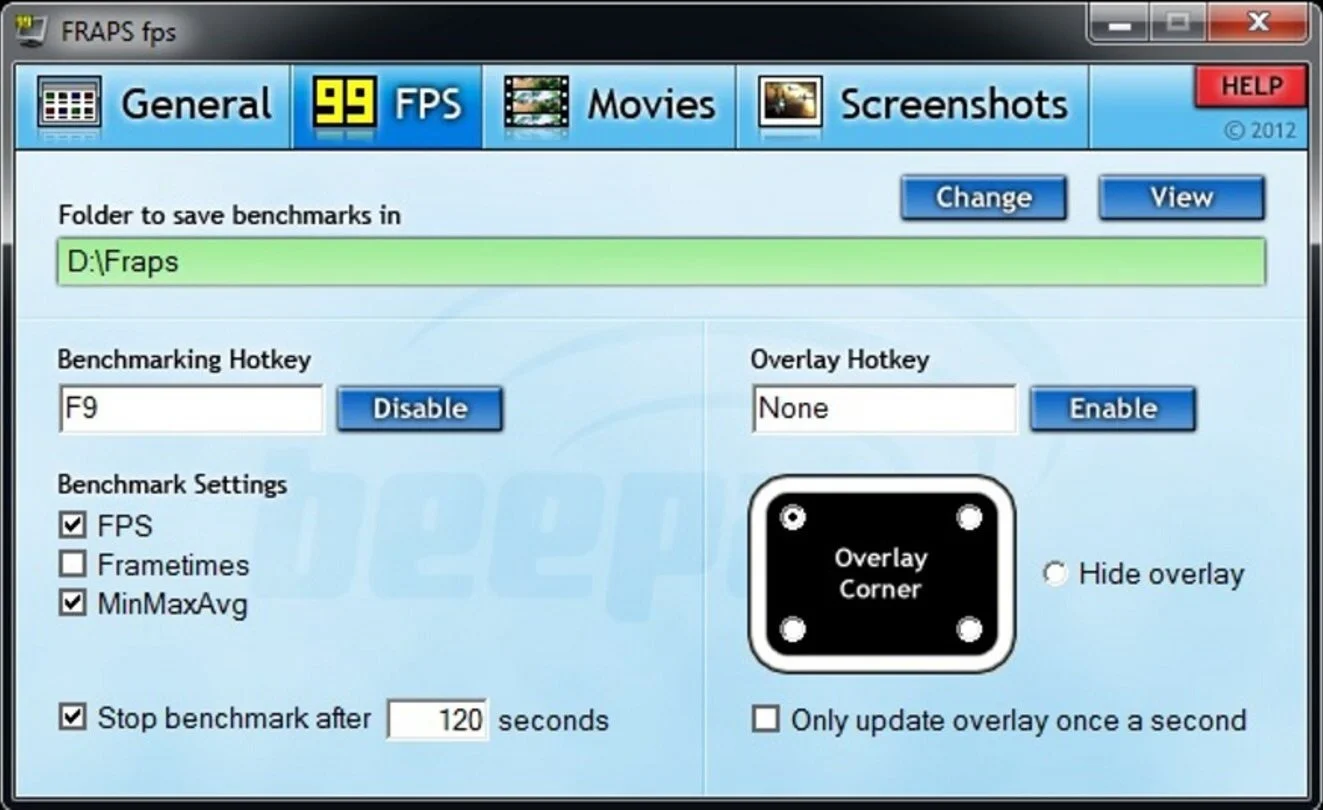
The ability to take a screen capture of a video game that you’re playing, or an open application or browser tab, is just something we take for granted. Windows 10/11 have a built-in tool called Snip & Sketch that is simple to use. Most of the games that I play have a specific hotkey for taking screenshots and a default directory to store them. Similarly, the latest builds of Windows also include the Xbox Game Bar software, which allows you to capture video from any application that you’re running on your PC. You can then edit via Clipchamp which is the successor to the old Windows Movie Maker. I believe the macOS comes with comparable default software. The absence of such apps today would be noticeable. However, there was a time when such things were not considered standard features.
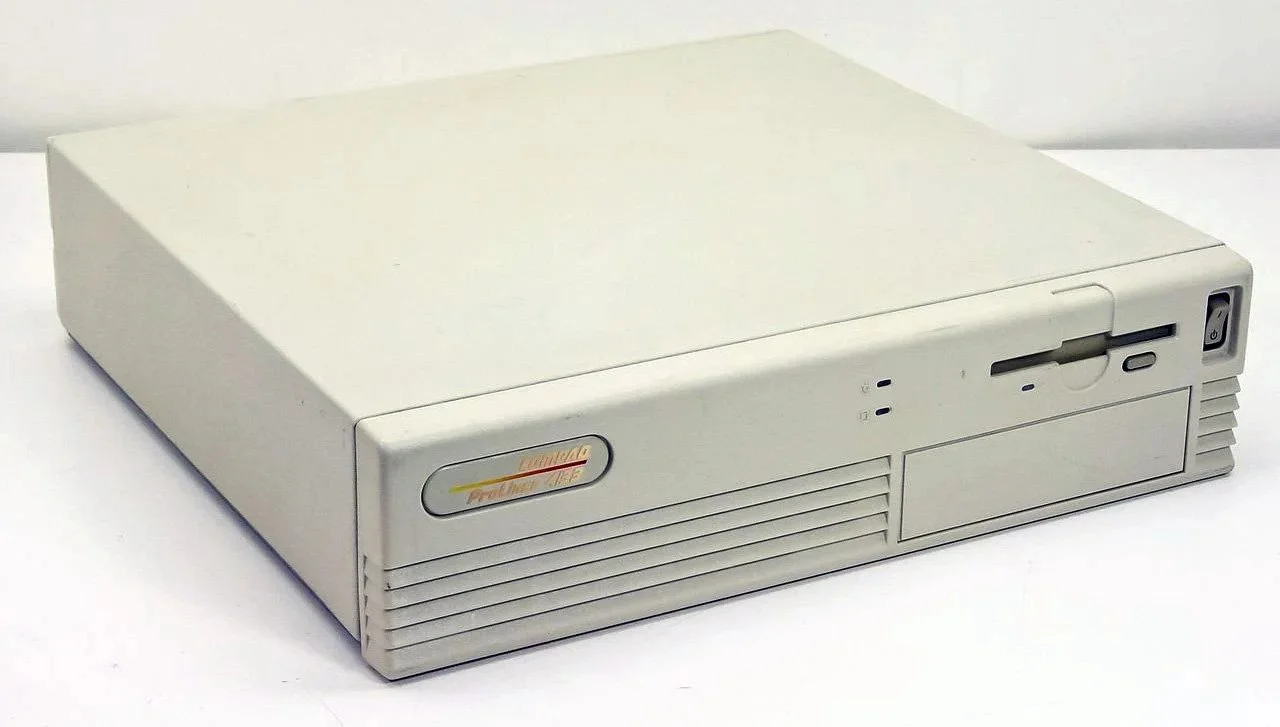
30 years ago, in early 1995, I bought my first PC, a second hand Compaq Prolinea 4/33. It had an Intel 486 DX processor, 340MB HDD, 4MB RAM, 3½-inch floppy disk drive and a 14-inch monitor with a screen resolution of 1024 x 768. It ran Windows 3.11 installed via MS-DOS 6.22. It didn’t come with a soundcard or a CD-ROM drive. I believe I paid around £750 or so at the time, which was approximately half its original retail price. This model was 2 or 3 years old when I bought it. However, at this time, PC specifications did not change as quickly as they do these days. Hence, this was a good starting point for someone new to computing. I subsequently upgraded the processor to a 486 DX2, increased the RAM to 16MB and installed a Creative Labs Sound Blaster AWE32 soundcard and CD-ROM drive.

Three months ago, I wrote a blog post regarding how I wasn’t going to replace my phone because I was pretty much done with the endless treadmill that is “upgrade culture”. At the time my Google Pixel 6 was three years old but continued to serve all my smartphone needs. So I signed up for a new “SIM only” contract with Vodafone and went about my business, feeling somewhat pleased with myself. However, “needs must when the devil vomits into your kettle”, to quote Blackadder. I recently noticed that the screen on my phone was coming away from the main enclosure. There was a distinct curve along the right hand edge, as if there was something inside the phone applying pressure outwards. Sadly, that is precisely what was happening. I searched online to see if this was a known issue and was subsequently introduced to the problem known as battery bulge.

I had a novel experience (at least for me) this morning. I went to the cashpoint (that’s an ATM for those outside the UK) at my local supermarket, only to find it out of service. I had an imminent haircut appointment and no cash to pay my barber, who doesn’t take card payments. Fortunately, the supermarket did “cashback” so I bought a loaf of bread and some milk, paid £23 for them and was given £20 in cash. It’s a useful facility that I have never used until today. Usually I just make sure that I have a float of cash available but today the cashpoint being unavailable threw a spanner in the works. If the store did not do “cashback” then I would have had to reschedule my haircut. This minor hiccup got me thinking about our dependence on technology in our daily lives. A point that was further brought home, as my barber told me he had recently visited Spain and was affected by the national power outage.

I last bought a new phone in March 2022. At the time I decided to move away from Samsung after a decade of brand loyalty and try the Google Pixel 6. Let it suffice to say that I have found this handset to be most satisfactory. I like the size. It fits into the front pocket of my jeans. Its overall performance is very good and it has no issue running any of the apps that I regularly use. Subsequent software updates have improved some aspects of the camera, which initially had a poor zoom. Overall the good points of the Google Pixel 6 outweigh its flaws. Hence despite being 3 years old I am happy to keep using it. I have looked at what the subsequent iterations of the Google Pixel have to offer and I really don’t see any significant improvements or benefits. So despite being offered a handset upgrade by Vodafone, I have decided against one.
DisplayMagician
I recently wrote about the problems I was having trying to play several MMORPGs on my second monitor. The games in question do not have any settings to output to display number 2 and if you drag the game window from the primary monitor to the secondary, then the game either snaps back immediately to its original location or returns there after closing the client. As I suspected, I’m not the only person to be inconvenienced by this issue. A Google search found a cunning piece of open source software called DisplayMagician that resolves the problem. Written by Terry McDonald, DisplayMagician is designed to change your display profile and then run the game or application you select, on the monitor of your choice. It can also select specific audio devices and start extra programs, if required. It will then reset your settings back to the way they were, once you close the game or application.
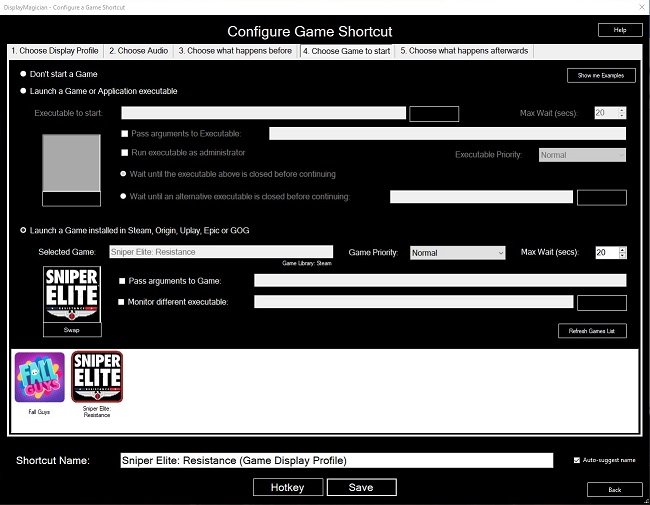
I recently wrote about the problems I was having trying to play several MMORPGs on my second monitor. The games in question do not have any settings to output to display number 2 and if you drag the game window from the primary monitor to the secondary, then the game either snaps back immediately to its original location or returns there after closing the client. As I suspected, I’m not the only person to be inconvenienced by this issue. A Google search found a cunning piece of open source software called DisplayMagician that resolves the problem. Written by Terry McDonald, DisplayMagician is designed to change your display profile and then run the game or application you select, on the monitor of your choice. It can also select specific audio devices and start extra programs, if required. It will then reset your settings back to the way they were, once you close the game or application.
DisplayMagician allows you to create multiple display setups using Windows 10/11 and save them as profiles. These profiles can then be associated with various games, ensuring they are output to the preferred monitor. Furthermore, when associating a profile with a specific game, additional commands can be added such as launching Steam or switching audio to a headset. Once all the desired data has been entered, DisplayMagician can create a game shortcut library for your favourite games, making the entire process convenient and easy. Upon exiting the game or application, DisplayMagician restores your default monitor settings and will even run an additional command to reset any peripheral settings, such as steering wheels and game controllers, if a bespoke configuration has been used.
So far, I have successfully set up game shortcuts for Fall Guys, Guild Wars 2 and Sniper Elite Resistance. All of which now display on my second monitor which is a FHD display. This is far more convenient for screen and video captures, as the monitor has a 16:9 aspect ratio. My primary monitor, which I use for writing, has a 16:10 aspect ratio, which confuses YouTube and other content sharing services. Hence, I am very pleased with DisplayMagician as it does exactly what it purports to do, with the minimum of hassle. It is easy to configure, unobtrusive and isn’t resource hungry. I just have to launch an app and then click on a game shortcut and a problem that has bugged me for years, is resolved. Furthermore, DisplayMagician is free of charge, although I do think it is worthwhile to make a donation to its creator, to ensure that they continue development.
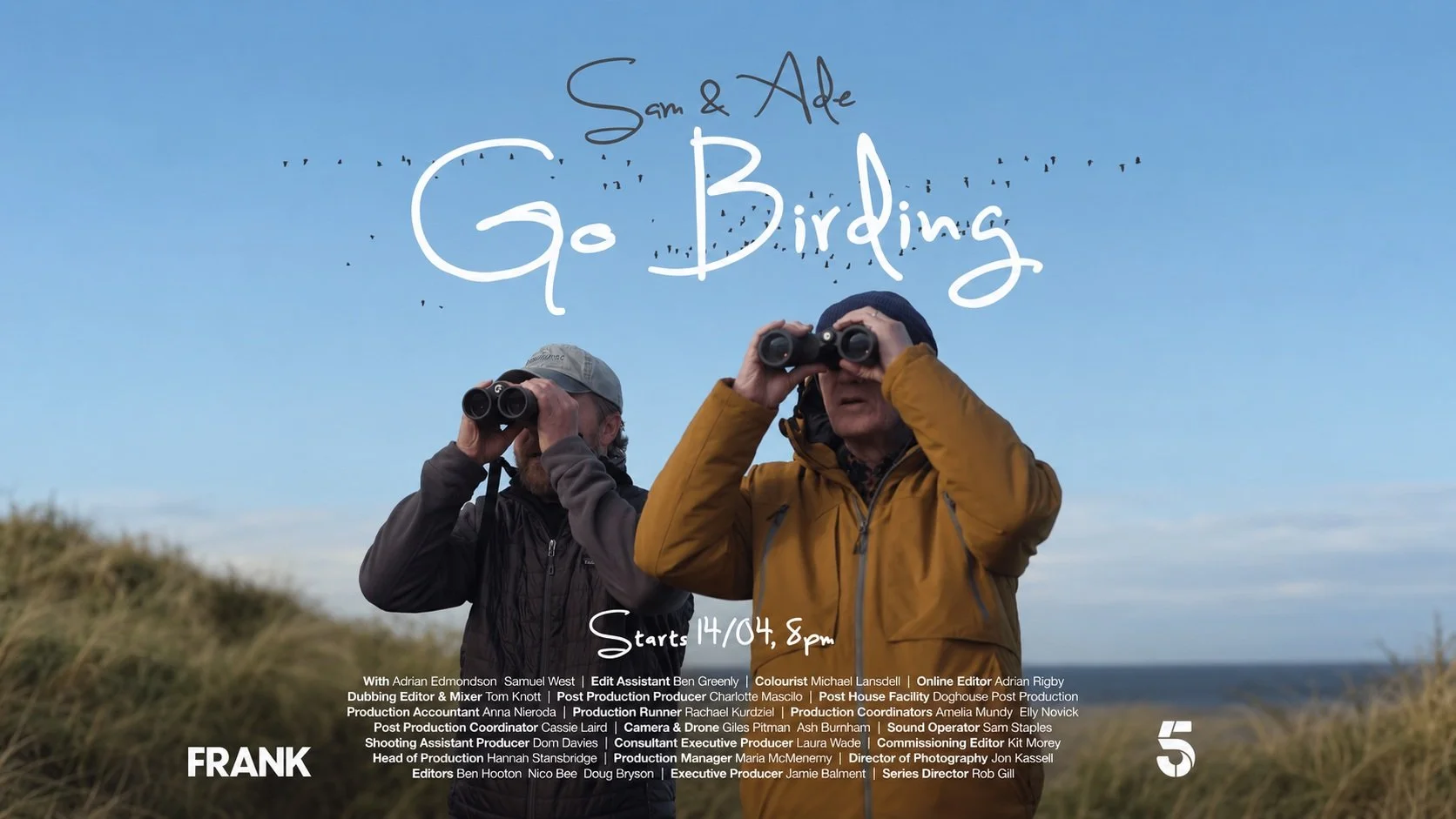
It has become a popular TV formula to find two celebrities or television personalities and put them into an informal documentary style show. While the pair nominally undertake the task at hand, the emergent banter between the two is the alleged television gold. Hence we had Mortimer and Whitehouse: Gone Fishing which became a big hit. Then there’s shows such as Extraordinary Escapes with Sandi Toksvig and Perfect Pub Walks with Bill Bailey where the presenter is joined by a different celebrity guest each episode. Again it is the off topic chats that make these shows interesting variations on pure documentaries. All of which brings me nicely to Sam & Ade Go Birding. I missed this show when it was first broadcast in the UK in April this year. I caught five minutes of a repeat recently while channel hopping and was so intrigued by the premise, I immediately went to the appropriate on demand player and watched the first episode. Over the next two evenings I watched the remaining two instalments. All of which was a wonderful change of pace from the frenetic and boisterous enthusiasm of mainstream entertainment. Two guys go bird watching. One is an expert, the other isn’t. Banter ensues along with some superb wildlife photography. This is calming, tranquil and relaxing viewing.
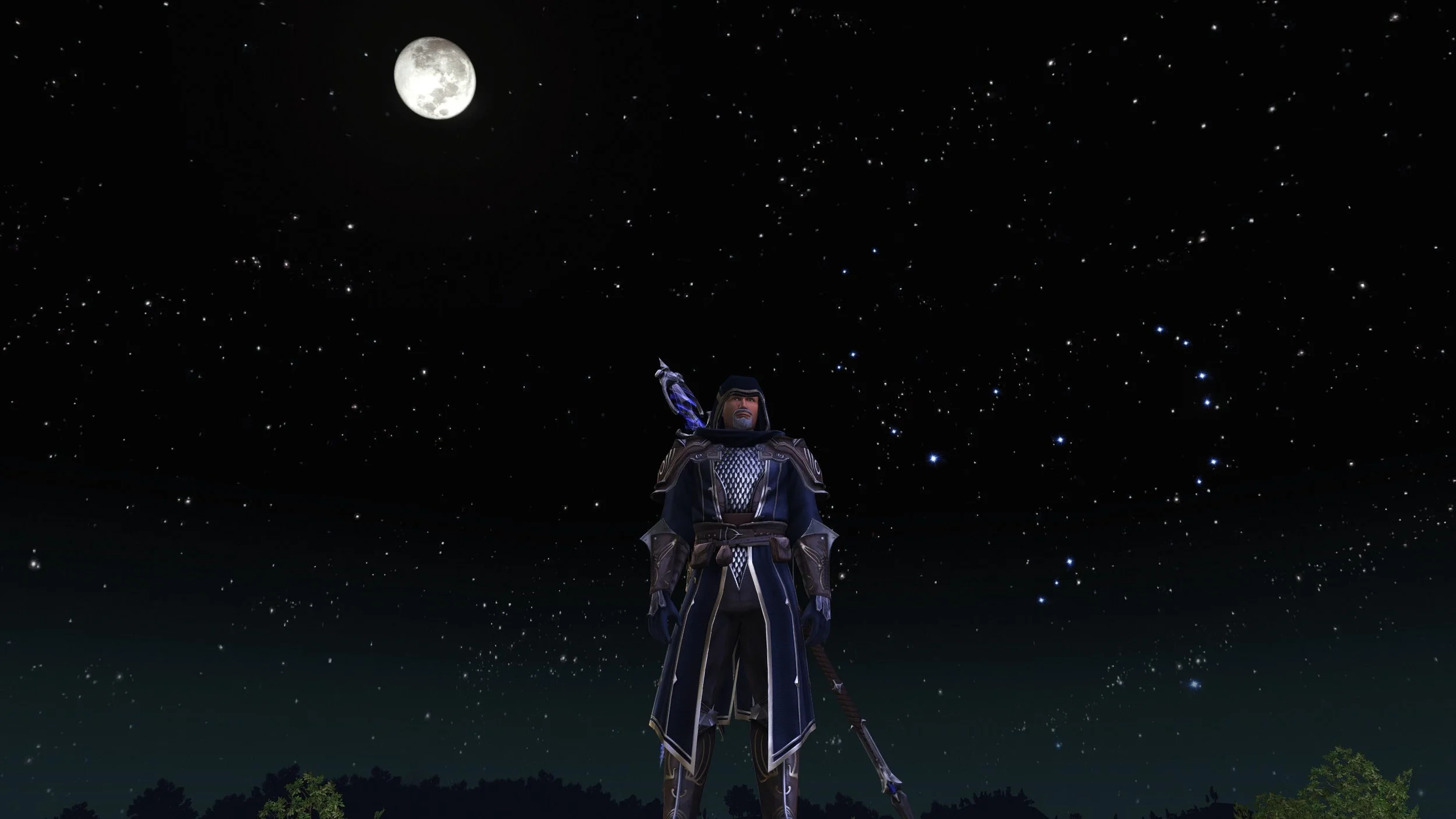
Are video games becoming easier? It’s a perennial subject that is frequently discussed by those who play them. Often the question of whether they have actually become easier is not the focus of the debate, as it seems to be broadly recognised that it is the case. Instead, discussion of this matter tend to drift into the rectitude of this change. Debate’s of this nature are usually awash with subjective opinions and personal preferences which are then put forward as objective facts. It’s not just a question of video games becoming easier, it’s the fact that making them easier is “wrong” and those who want them as such are “not proper gamers” etc. The hours that have been lost to this pointless, tedious debate are uncountable. However, I digress. Let us return to the matter of video games becoming easier, because although fans discuss this a lot and have plenty to say, you don’t often hear from the developers on this subject.

Thinking Out Loud is a recurring post where I write about thoughts and ideas that have recently occurred to me. As ever the intention is not to develop these ideas into full blown blog posts, although they often the could be. Instead I just collate a few sentences to express my point and leave it at that. The idea being that if anyone else wants to pick up the conversation they can do so in the comments section below. On this occasion the various points are all technology based. I’ve been busy of late with several projects, such as building a new website and creating some widgets specifically for it. Like most technical projects things don’t often go as planned and problems occur unexpectedly. Hence, I thought why not make a themed instalment of Thinking Out Loud this time round? It’s something that I may well do this again in the future. As ever, feel free to make your thoughts known.

Mainstream films are easy to recommend to people. They’re usually formulaic, work within clear parameters and they’re not controversial. Most people, when viewing such film on someone else’s suggestion, are left with a fairly simply choice. Did they like it or not? Whatever the outcome, no feathers are ruffled. No one looks at you askance afterwards and says “why the hell did you think I’d like that piece of shit”? If something like this happens, then you have clearly not recommended a mainstream film. Perhaps you’ve suggested something that’s a little more of an acquired taste. Something niche, from a very specific sub-genre. Which brings me neatly to Blazing Magnum AKA Strange Shadows in an Empty Room (1976). The US title gives the impression that this film is a hard boiled cop thriller, like so many others that followed in the wake of Dirty Harry. But there’s a clue in the European title. Yes, this movie has more than just a whiff of a giallo about it.
I turned on my laptop this morning for the first time in 4 months. I knew it was that long because I hadn’t connected the laptop to the new Netgear router that I bought at the end of April. Unsurprisingly, as I haven’t used this device for a while there were multiple Windows updates to be installed. This process took over an hour, so while the various updates were being downloaded and installed, I turned my attention to my Amazon Echo Dot which loiters in the corner of our lounge, doing very little to justify its existence. At present this device is mainly used as a glorified timer for cooking, which seems a bit of a waste given it’s alleged capabilities. Hence, I decided to see if I could increase its functionality while waiting for Windows to do its update thing. More on this later. Let us for the meantime return to the small matter of the operating system updates. Once they were completed, I immediately installed Chris Titus Tech’s Windows Utility and started removing unnecessary features and bloat, as well as disabling invasive services.

In the year 1860, Baron Victor Frankenstein (Peter Cushing) faces execution by guillotine for the murders perpetrated by the creature he created. With the assistance of a hunchback named Karl (Oscar Quitak) he avoids death by beheading the priest who came to give him the last rites. The priest’s body is then mistakenly buried by the authorities. Three years later, Victor, now using the name Doctor Stein, has established himself as a prosperous physician in Karlsbrück, serving both affluent patients and the poor at a paupers’ hospital. Hans Kleve (Francis Matthews), a junior member of the medical council, recognises Victor and being an admirer, seeks to become his apprentice. Victor and Hans then undertake an experiment to transplant Karl’s living brain into a new, more refined body, rather than a grotesque monstrosity the Baron has previously made. Karl is eager to have a new healthy body, especially after encountering Margaret Conrad (Eunice Gayson), the charming new assistant at the hospital.

This movie questionnaire was originally created by Alexander from Cinemaniac Reviews. Sadly, I believe that website is now defunct. However, that doesn’t in anyway invalidate the questionnaire itself which has some very good questions about your relationship with cinema. Some of my answers to the questions posed are about films that I enjoy, as opposed to those that are considered cinematic classics. However, I have answered some questions more seriously than others, especially the one about undeserving recipients of the Best Film Oscar. I struggled with a couple of questions because I no longer go the cinema as frequently as I did 10 years ago. This is mainly due to the fact that a lot of the films I find interesting end up going straight to streaming after very brief theatrical releases. Some do not even get shown in cinemas. Hence I view far more at home. But I digress. On with the questions and answers. Feel free to comment below and share your views.

Star Trek is slightly older than me by 14 months. I was born on December 18th 1967. Star Trek was first broadcast in the US on 8th September 1966. Hence this show has always been part of the prevailing pop culture that surrounded me, as I grew up. I first began watching Star Trek as a young child in the early seventies. It would be repeated on the BBC in the early evening on Fridays and it became a family ritual to sit down together and watch it. As a seven or eight year old, it left a great impression upon me and was in many ways, the television highlight of the week. Star Trek along with Doctor Who certainly started my interest in science fiction. Star Trek was also one of the first shows that introduced me to tie-in marketing. I remember seeing in a toy shop, near to my school at the time, a Dinky Klingon Battle Cruiser and was flabbergasted that such a thing existed. I immediately coveted it but sadly never obtained one.

It is obligatory to start these sorts of posts by reiterating the standard mantra that you should not be driven by your websites stats and that the data they contain can be unreliable. Although a sound philosophy in principle, it is actually more nuanced than that. Such data can be useful for growth if used wisely. I have never been coy about trying to increase my readership. For me it seems an integral aspect of blogging. Over the course of 2026, the traffic to Contains Moderate Peril has doubled. A lot of that is down to curious spikes in visits which seems to be AI scraping the entire site. Setting aside these anomalies, more people are reading posts and a lot are doing so via the site’s RSS feed. All of which is fine by me as growing the audience for this blog was a goal for this year, I am quite pleased by this development and the ongoing progress. I hope it continues.
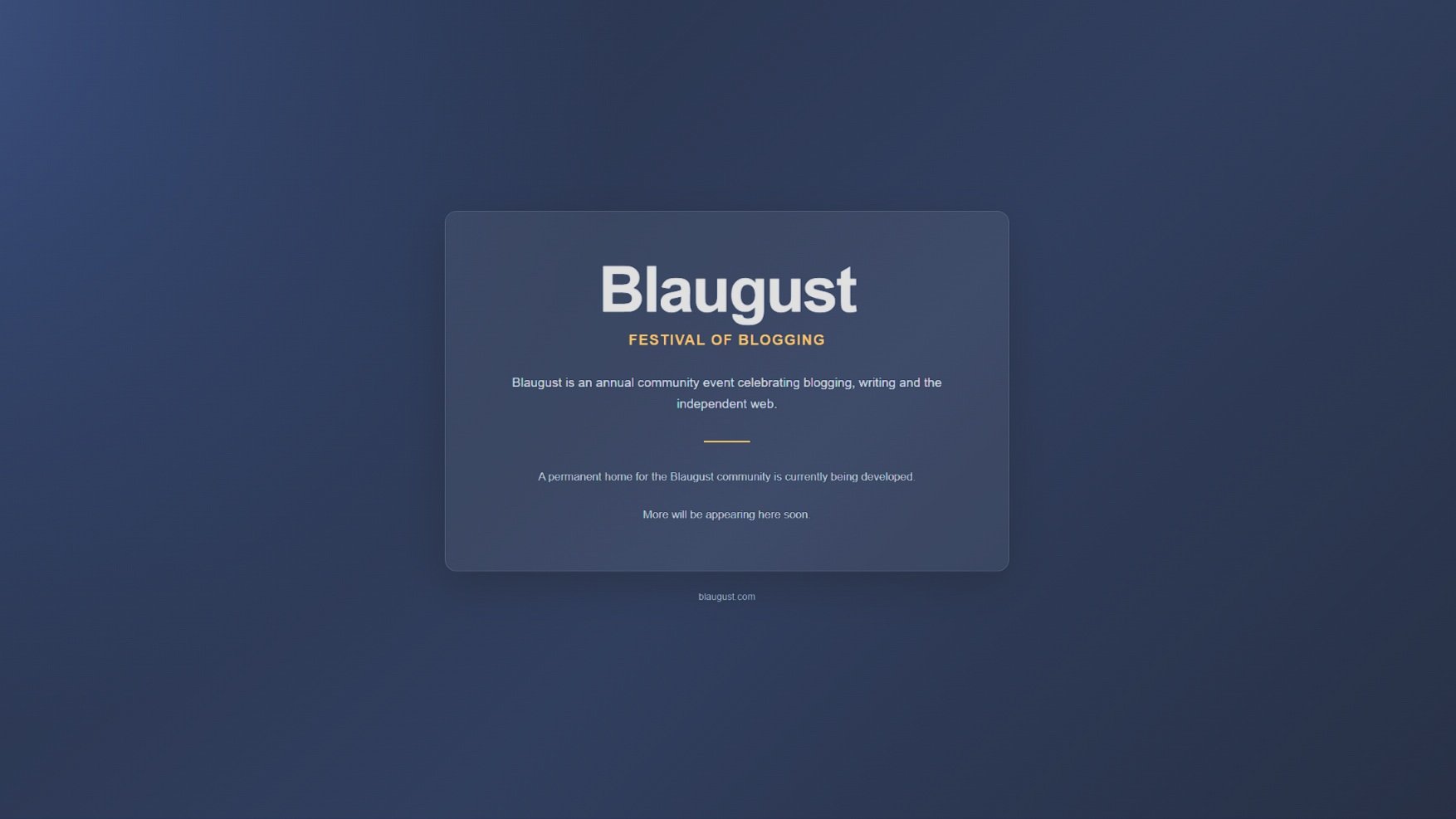
There is a subtle difference between being rash and being proactive. Being rash means acting too fast without thinking about the results, while being proactive is a question of acting early with careful planning. Why have I mentioned this? Well prima facie information indicates that recent Blaugust participants are interested in an “official” online presence for the annual festival of blogging, other than that existing Discord server. That seems perfectly reasonable to me. Not everyone likes using Discord and I do worry that they may reduce its free functionality at some point in the future. With regard to there being a Blaugust platform of some kind, there is a consensus that it doesn’t need to be some sort of sprawling commercially hosted website running on Wix or such like. Those sorts of site require funding, a degree of admin and possibly private data management. It also a bit too “corporate” if you like. Hence the logical compromise is to have a static site. Let it suffice to say, that has been done.
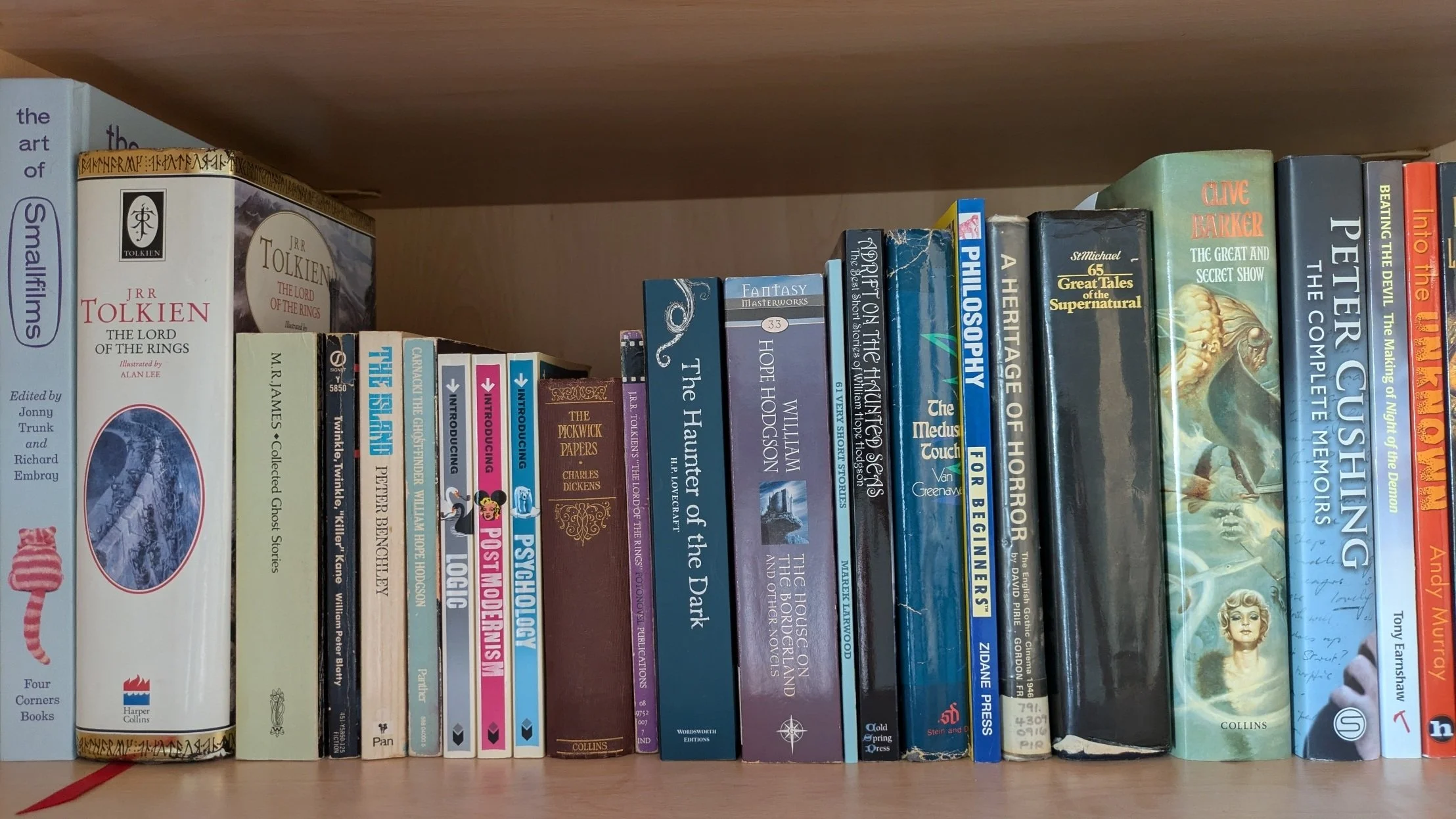
First off, credit where credit is due. I pilfered the idea for this post from Mark Rogers who writes the Newsonaut blog. Apparently it’s a questionnaire that has been doing the rounds across various indie blogs for a while. However, it happens to ask some interesting questions about one’s reading habits. I read a book every month or so and I supplement this by listening to a lot of audiobooks. Yes, I’m aware they’re not the same thing entirely but both offer a means to consume and digest a book. Hence I am not interested in this “popular” internet debate and won’t waste my time on it here. I advocate reading in all its variant forms. Be it sitting in an armchair and perusing a grimoire while smoking a Meerschaum, to reading an article online on your phone or PC. I’d rather that people read in some shape or form, than not at all. As Mark Twain wisely said, “The man who does not read has no advantage over the man who cannot read”. So without further ado, here are my answers to the “five Ws of Reading”.

When I was a child, I quickly learned never to say within earshot of my parents that I was bored. It was quickly met with a response along the lines of “an intelligent mind is never bored” or more worryingly “if you’ve got nothing to do, I’ll find you something” which meant a chore or Herculean task. Being a child of the seventies and due to my parents fundamentalist approach to declarations of boredom, I quickly discovered numerous ways to occupy myself. The default solution was a book or comic. I always liked reading as a child and had plenty of books to choose from. I also had numerous of comics as an alternative to a hefty tome. I would also draw and paint. My father use to work during the summer holidays as a design draftsman and as a result, we always had plenty of paper in our house. Then of course there were toys and such like. Hence I learned the art of keeping myself busy.

Judging by the posts I’ve read, it would appear that Blaugust 2026: Festival of Blogging has been well received by those who participated in it. That is most satisfying to know, especially in light of the fact that this is the first year the event has been run without our founder who sadly past away in July. It has also become clear that Blaugust is reaching a far wider and diverse audience and most definitely is no longer the exclusive province of bloggers from one particular community. There has been healthy discussions on our Discord server about whether this year event needs to adapt to accommodate the modern blogosphere. Questions such as whether or not there needs to be a dedicated Blaugust website have been raised and explored. Should every site participating have an RSS feed? How, if required, should comments be handled. Inevitably, the subject of the use of AI in blogging still remains a controversial issue.
Before we begin, let me clearly state that this is not a comprehensive installation guide for installing Steam OS on your PC. Mainly because the variety of hardware that can be present in any PC makes each installation a somewhat bespoke affair. Hence I have decided to provide a list of bullet points of the various steps and issues I encountered during my installation, last week. Consider it advance warning of things you may encounter if you install this operating system. As ever, if this is something that you are intending to do, I would advise allowing yourself a suitable amount of time so you can accommodate any issues should they arise. It is entirely possible that this may be a two hour job for the technically literate running the most generic or commonplace hardware. However, I suspect that a lot of people undertaking this project will run into variations of the same problems that I encountered.
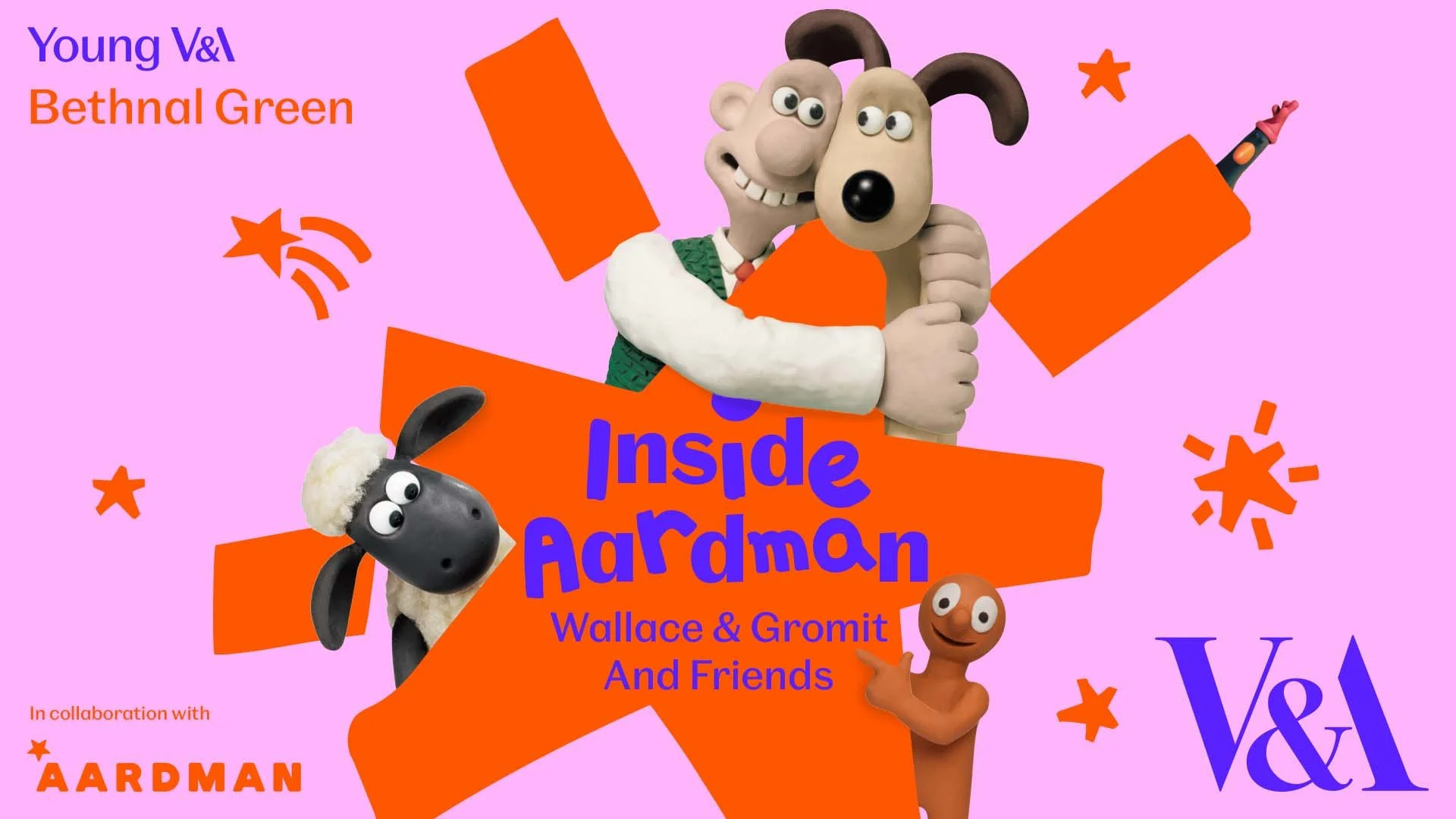
Today I visited the Inside Aardman: Wallace & Gromit and Friends exhibition at the Young V&A Museum at Bethnal Green. The exhibition which celebrates 50 years of Aardman Animations, provides visitors with a unique, behind the scenes view of the art of stop-motion animation. It also explores how Aardman’s iconic characters and worlds are designed, crafted and brought to life. From the initial concept artwork to the final visual effects, this event demonstrates the methods and techniques employed by Aardman. The exhibition features early scripts, sketch artists initial concept art, models, sets and numerous famous puppets. Furthermore this event is firmly pitched at children and families, with a wealth of interactive activities demonstrating the various techniques on display. The curators of the exhibition have also made it clear that they wish to encourage future generation to consider a career in the creative arts.

Exit 8 is a sophisticated and claustrophobic psychological thriller directed by Genki Kawamura, which skilfully transforms a minimalist indie walking-simulator game into a cinematic existential enigma. This overtly metaphorical film renders the repetitive nature and drudgery of modern working life into a physical environment in which the lead character is trapped and must find a way out. A random, brutal maze filled with an atmosphere of indifference to the lab rats that find themselves trapped within. Or is it their personal guilt that has put them there? Genki Kawamura’s psychological mystery draws inspiration from the Japanese video game of the same name, as well as from the cyclical nature of Groundhog Day and endless corridors of the Overlook Hotel in Kubrick’s The Shining. Although there are jump scares and some ghoulish imagery, this is not a horror vehicle. Instead this is a disquieting psychological drama with a strong sense of morality.

After a very productive month of writing, we come to the final Blaugust 2026 Group Project writing prompt. It is titled lessons learned and is usually a chance to reflect on the festival and whether or not it has been to one’s satisfaction. Have you achieved your goals? What have you gained from the experience? Those sorts of things. It also poses two further questions; “What is the best piece of advice you’ve ever been given?” and “what’s the best advice you’ve ever given to someone else?” for your consideration. I’ll address the questions shortly. Firstly let’s mull over this years event and assess how it’s gone.
Some video games lend themselves to being set aside and resumed at a later date with zero consequences. These are often casual games with no major goals other than having fun while playing them. Fall Guys is a great example of this. You have a cartoony avatar that participates in zany group races, filled with obstacles. You run, jump, climb but the controls are far from difficult. You may well become skilled but such things are mitigated by the other players as they stumble around. You’re not at the mercy of apex players or “try hards”. It is not a game about winning and mastering techniques. The fun comes from playing it and the unique experience you have each time. I’ve been playing this game, on and off, since it’s launch in 2020 and in that time I have only ever won once (winning requires you to win a series of 4 to six individual races). However, whenever I pick up my controller and play Fall Guys, I have fun and the game lifts my spirits.
I am intrigued by the growth of the IndieWeb, owning your domain and static websites. I certainly agree with the notion of not relying on big corporations and I have an ongoing project to divest my dependency on software produced by major market players. However, although I own my own domain, my website is hosted by Squarespace. I’ve not really had any problems with them over the last 11 years and I would describe our business relationship as equitable. However, the monthly subscription price has increased over time and is likely to keep on doing so. It has crossed my mind as to whether there is a suitable alternative. However, if I were to migrate Contains Moderate Peril elsewhere I suspect it would be logistically complex and problematic.

I wrote a post 18 month’s ago regarding whether a directors cut of a film is superior by default to the version originally shown in cinemas. Obviously the answer was no and I then went on to give three examples of films where I think the theatrical release is better to lengthier or substantially altered director’s cut that was subsequently made available at a later date. This time round in this post, I would like to do the complete opposite. I shall provide some examples of films that I think are significantly improved by a longer cut or a substantially, restructured edit. Note some of these examples are technically not a “director’s cuts” but a restoration or reconstruction of the director’s original vision. I shall endeavour to highlight what specific material or broader changes make each respective film “better”. As ever, all of these examples are a matter of subjective opinion and my views are presented as such, not “fact”.
I like learning new skills and starting projects. I regularly undertake such things with varying results. However, if they don’t work out that’s not a problem. You have to try something to see if you like it. I’ll add “within sensible parameters” as a caveat to the last statement. And it’s perfectly fine to discover that something isn’t for you. I like certain genres of video games, music, films and books. I am comfortable wearing certain types of clothes and not others. I’m picky about colours. I’ll even go so far as to say that I won’t drink out of any mug that’s just lying around. If I don’t like the joke, logo or overall aesthetic of it, I ain’t using it. However, I digress. Let’s get things back on track and talk about projects. This year I have wound down several websites and have decided not to move forward with making YouTube videos. I have focused my energy on improving my website and adding functionality. I am also trying to broaden the scope of my writing.

Song lyrics can be powerful things. They can capture the mood and spirit of an era. They can also make powerful socio-political points. Or they can simply be pleasing to the listener by their use of language and playfulness. They can stick in your mind for both deep and trivial reasons. Mishearing them is also a common problem but that is a separate blog post. On this occasion I thought it would be worthwhile exploring the subject of song lyrics of note. Hence I have collated some that I find interesting, wise or just entertaining. These aren’t necessarily my favourite songs of all time, because I like so many. Instead these are some of the ones that sprang to mind when I was preparing this post. I have decided to have the selected lyrics first and the name of the artists afterwards, so that the emphasis is placed upon the words from the song. Although is is more than likely that you’ll be able to identify the songs from the lyrics immediately, or at least for some of them.
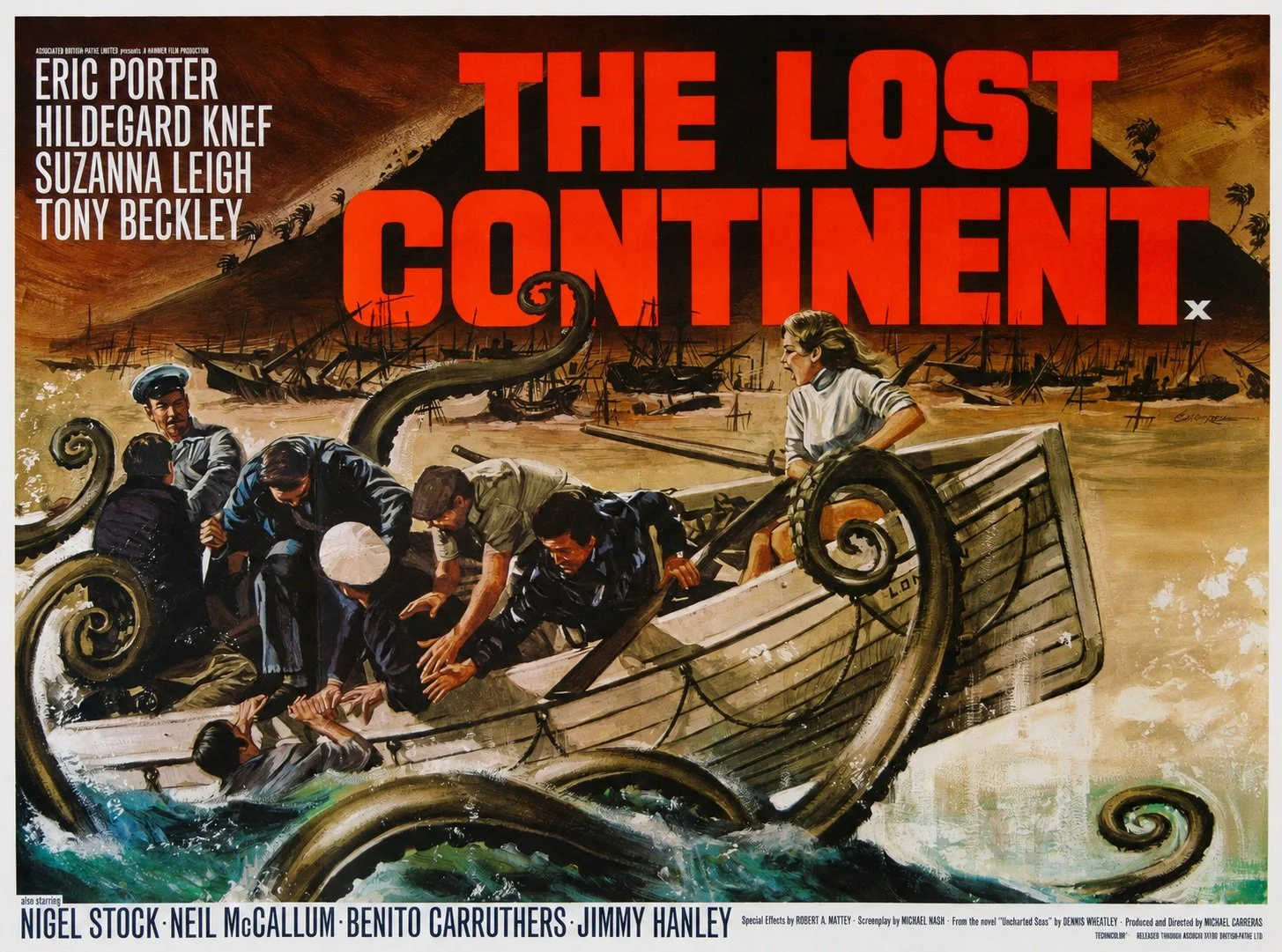
In 1968 the dilapidated freighter Corita hastily leaves Freetown to avoid a customs inspection. Captain Lansen (Eric Porter) has a cargo of dangerous explosives which he is smuggling so he can finally retire. His ship’s passengers also have reasons for leaving in a hurry. Dr. Webster (Nigel Stock), together with his daughter Unity (Suzanna leigh), is relocating due to his indiscretions with patients and illegal operations. Alcoholic pianist Harry Tyler (Tony Beckley) is aimlessly drifting from port to port. Eva Peters (Hildegard Knef) is fleeing from her husband with stolen bearer bonds which she intend to use to buy back her son from his evil clutches Caracas. Ricaldi (Ben Carruthers), a questionable lawyer, is pursuing Eva to retrieve the stolen bonds. First officer Hemmings (Neil McCallum) suggests that the ship should return to Freetown after an imminent Hurricane warning. The Captain asks the passengers and they are unanimous that they do not wish to return. However a mutinous crew, the bad weather and the instability of the explosives force everyone to abandon ship. The survivors find themselves adrift in a lifeboat surrounded by a strange carnivorous seaweed.
It was my blogging anniversary on the 16th August. I’ve been writing and sharing my post online for 19 years, via various different websites and blogs. This current iteration of Contains Moderate Peril has been around since August 2015. To date it has 2,171 posts including this one. Quantity does not necessarily equate to quality but there are some articles I am proud of and feel that they make their point effectively.
This week’s Blaugust 2026 Group Project writing prompt is an important topic. Namely, staying motivated. I prepared a fairly lengthy post with some advice and ideas to keep people focused and writing. Then I checked it against the post I wrote last year and the year before that, going back to blogging events from 2012. All of these posts broadly said the same thing, so I decided to scrap what I had composed for today and to go with a simpler approach. I shall answer the questions Krikket posed for this writing prompt. Fellow blogger Bhagpuss has also done so and as ever, his thoughts are interesting and well expressed. Here are my answers.
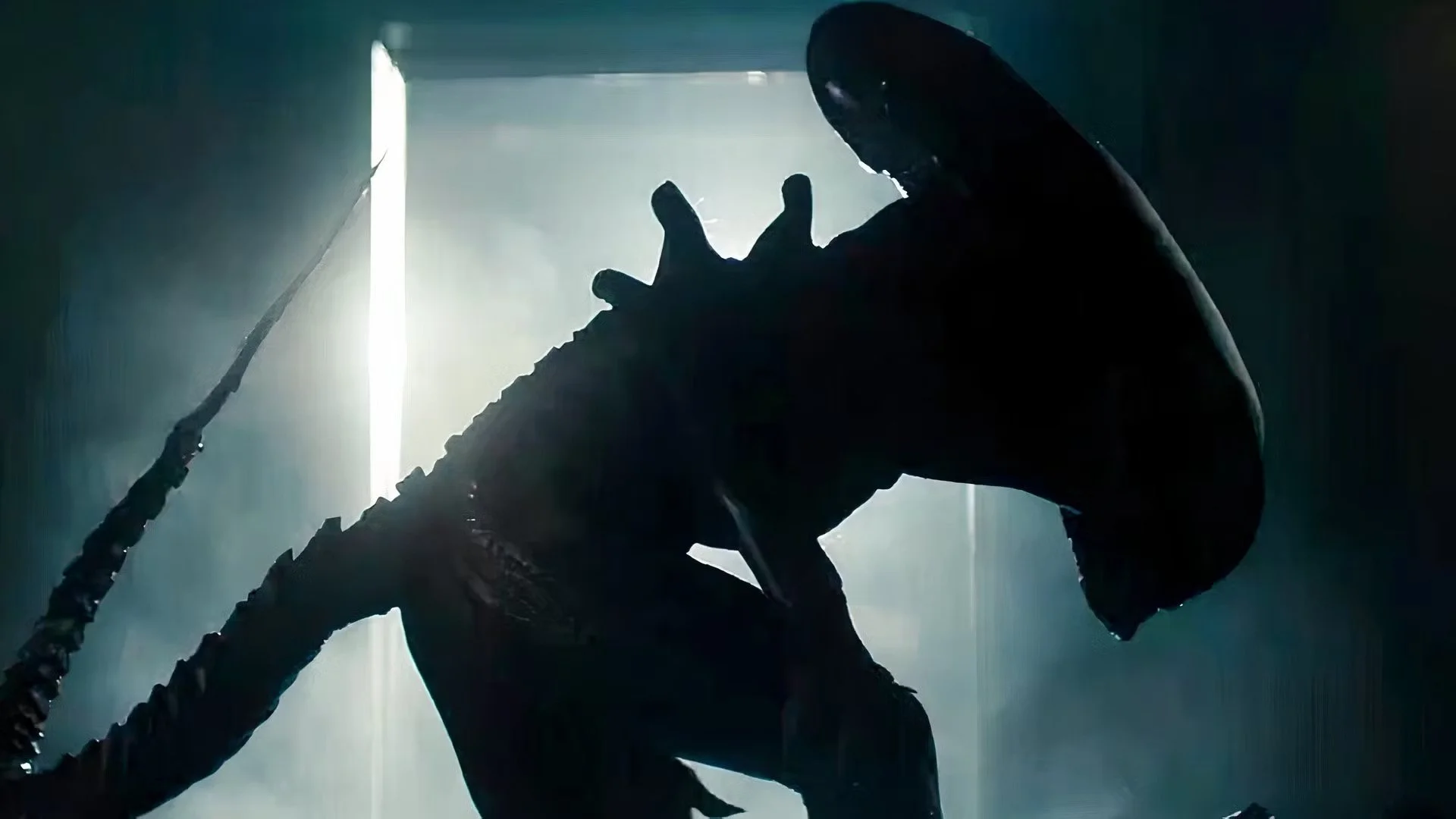
Thoughts on TV shows and my current viewing habits.
This so-called recurring post is certainly becoming quite irregular, as It’s been over a year since I wrote the last instalment of The Idiot Box. I noted back then how I was watching less television and to be frank that hasn’t really changed. Although there are plenty of well written and entertaining shows out there, too often choosing to watch one effectively places you in an opened ended social contract. For example, I watched the first season of The Agency, which is a superior espionage drama. It ended with the main story completed and a few plot lines open for another season. A second season has just been released and I have learned from a blog post by Wilhelm Arcturus, that this season ends on a cliffhanger. Oh dear. Do I really want to get on another TV show treadmill? Nope. I like TV shows that have self-contained seasons. So I guess I’ll be skipping The Agency. Shame. I liked the Jack Black cover of a U2 song that they use on the title credits.

Sometime in August 1979, I was travelling with my father by train to London, when I first saw posters advertising the Ralph Bakshi animated version of J. R. R. Tolkien’s The Lord of the Rings. The film had been released in the US the previous November and I aware of its existence because I had read articles about it production in Starburst magazine. Even at the age of 11 I was interested in genre films and television, having been raised on Doctor Who and Ray Harryhausen’s back catalogue of fantasy movies. Furthermore, I was familiar with Tolkien’s first novel, The Hobbit, as my father had read it to me when I was younger. I was impressed by the poster in that way that only an 11 year old can be. Why was Gandalf do gigantic? Also the A rating was enigmatic. Most animated films were usually rated U. Yet despite my interest, I didn’t see The Lord of the Rings at the cinema during the summer holidays.
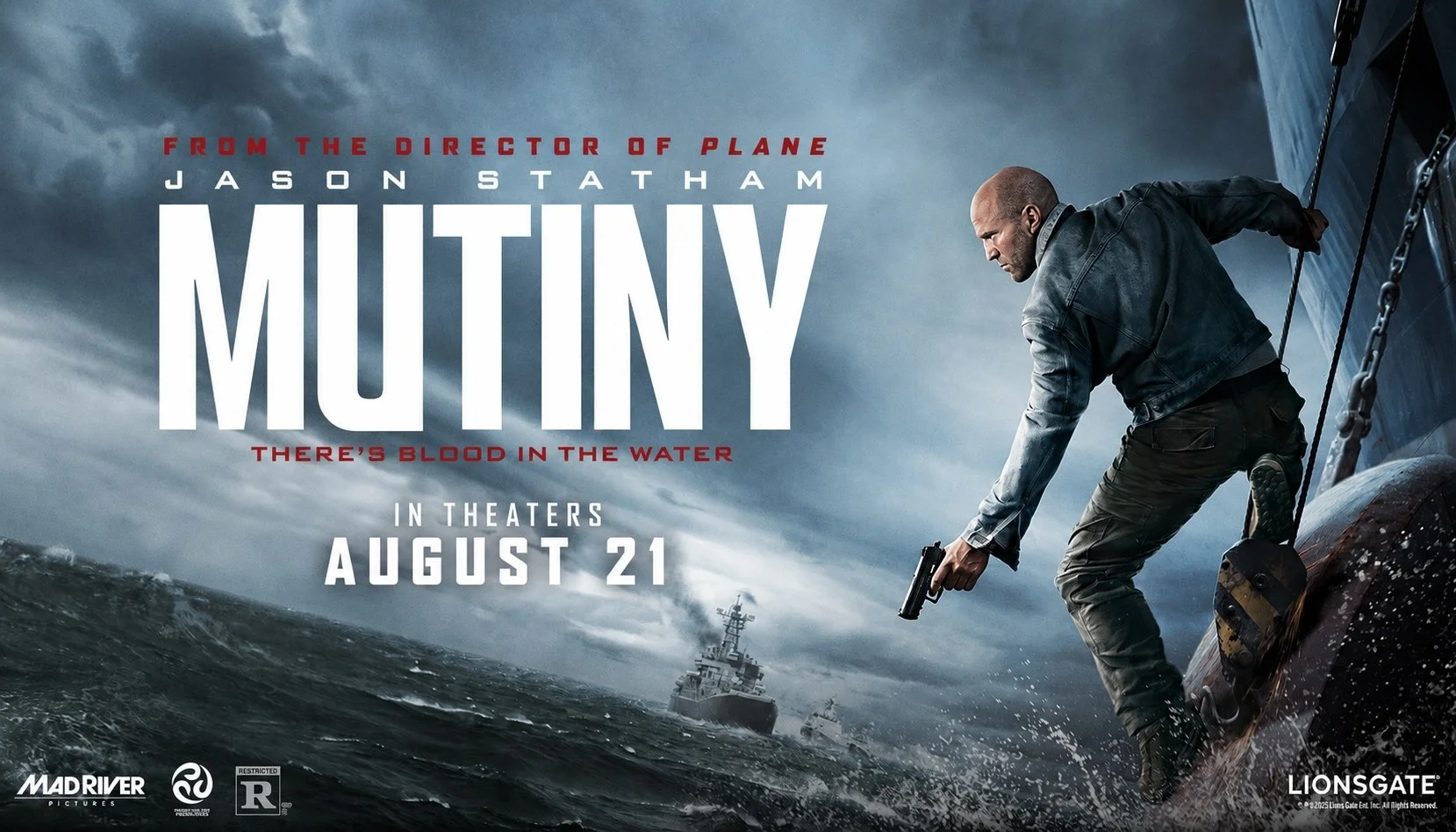
Jason Statham is an exemplar of the US mantra of “staying in your lane”. He makes action movies and occasionally strays into action comedies. His formula broadly works and is sufficiently lucrative to keep Mr. Statham employed. Therefore, if you watch a film in which he stars, you have a fairly good idea of what you’ll be getting. Of late, the criteria for his action vehicles have become more succinct. Jason Statham will play an innocuous character, such as a construction foreman or a bee keeper. Something terrible will subsequently befall another character who Mr. Statham has an emotional connection with in some capacity. He will subsequently hunt down those responsible and meet out death and violence. At some point the villain of the story will enquire as to how this innocuous person is so lethal. Research will then show that our Jason is in fact an ex-police officer/special forces operative/international assassin. There’s then a showdown and the villain dies. Job done.
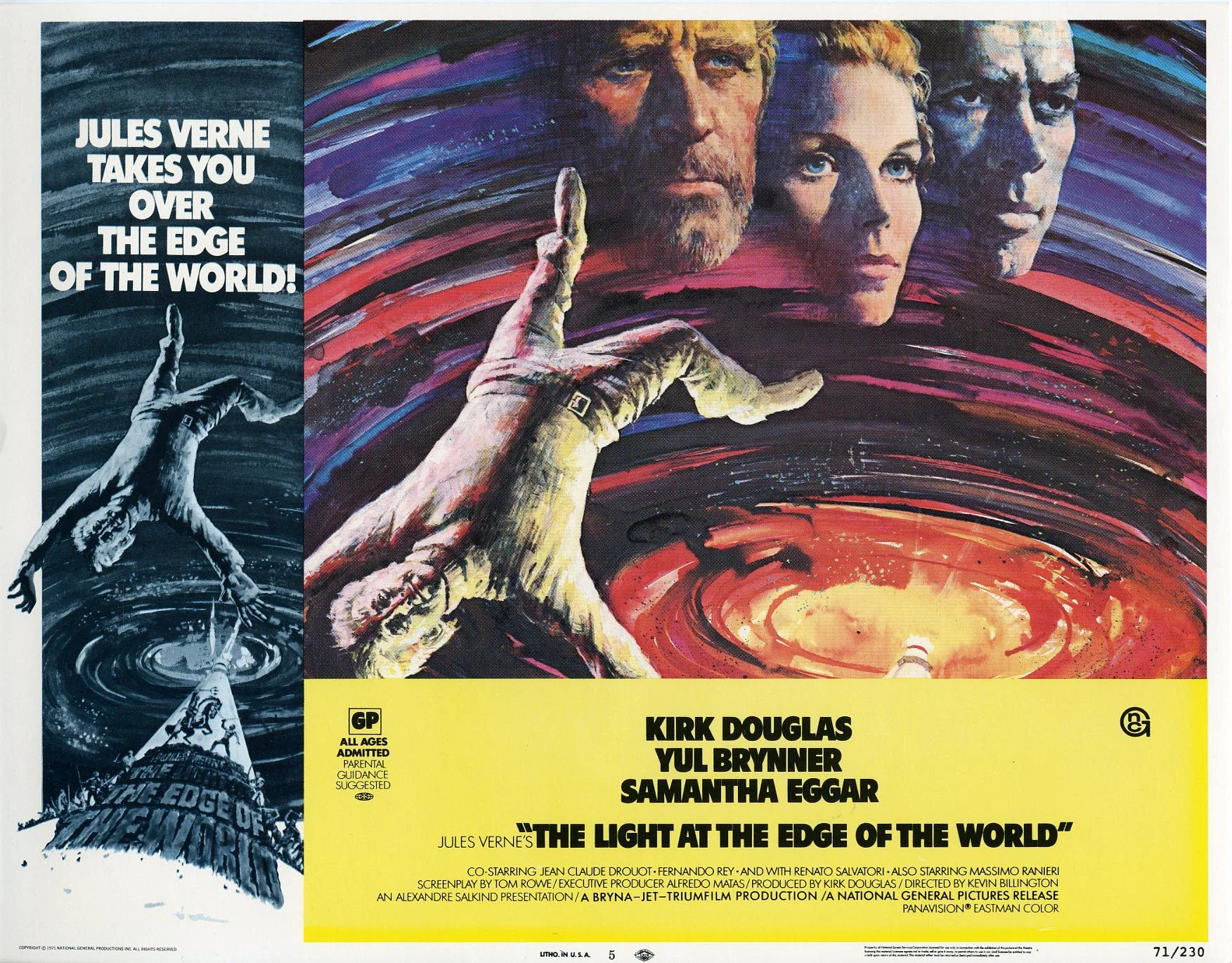
The Light at the Edge of the World presented itself as an action movie upon its release in 1971. Based upon a story by Jules Verne, the Spanish American co-production was driven by its star Kirk Douglas, who curiously hired British director Kevin Billington to helm the project. This tale of a lighthouse keeper fighting a war of attrition against a group of pirates that have captured his island, was market as an adventure film ostensibly in the idiom of the authors previous works and as a pirate movie. MGM bought the rights to distribute the film in the UK on the misunderstanding that it was a family friendly production. It was not and remains so. They subsequently had to cut 15 minutes of violence and torture as well as an undercurrent of sexual assault to secure a suitable rating. Conversely, the US distributors received an arbitrary PG rating, despite the fact this is one of a handful of films that honestly depicts pirates as murderers, rapists and worse.
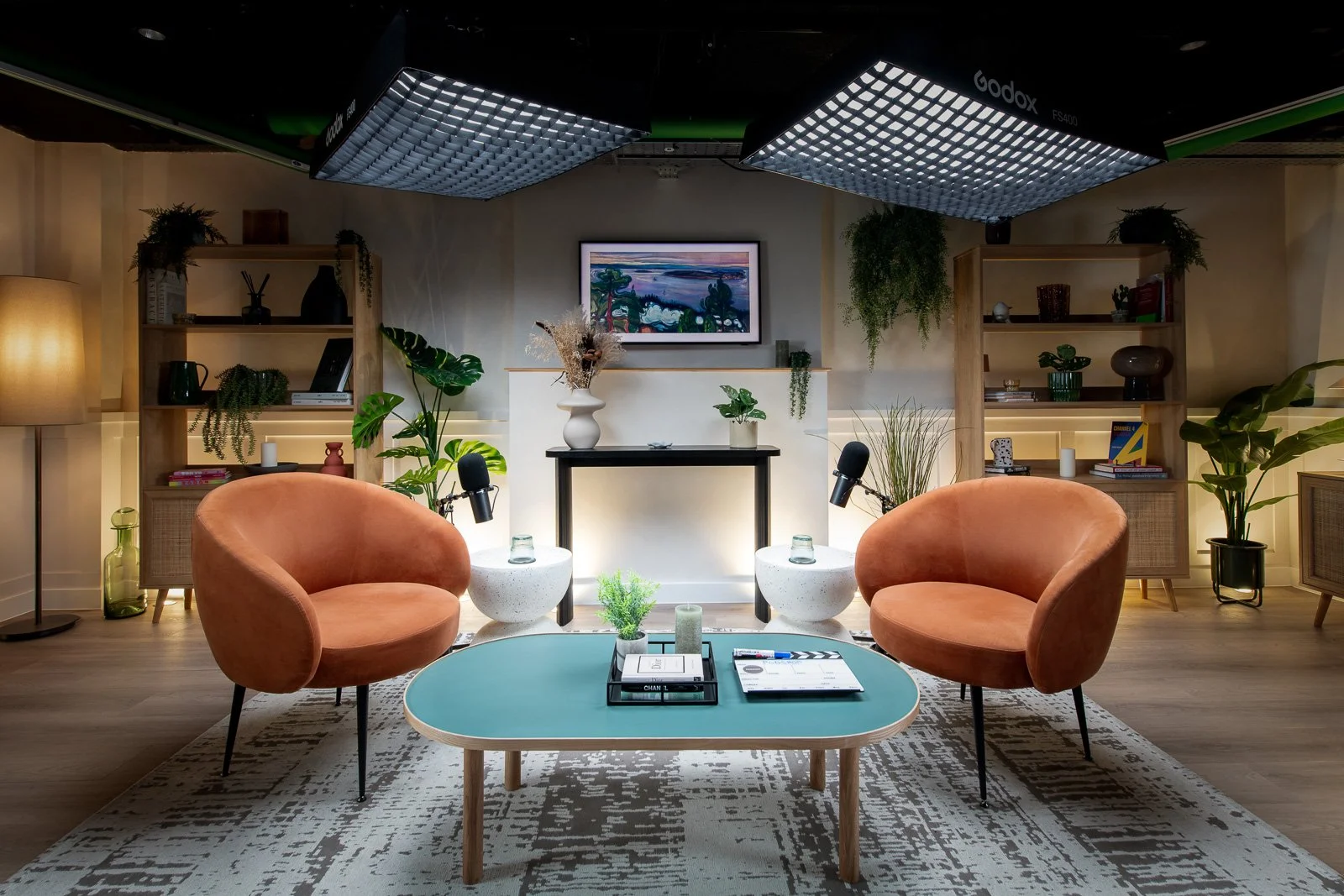
The initial podcast boom, which began circa 2005, started as an audio only medium. One of the reasons podcasting became so popular, especially among the fan community, was that you could get away with relatively low production standards. Anyone who had access to a basic microphone and a PC, could produce a show and upload it to iTunes, which was the primary platform at the time. Listeners were forgiving back then. Twenty years later and podcasting has been on a tempestuous journey. It started with the medium being accessible and democratised, sustaining a rich and diverse fan community via non-professional productions. However, slowly and inevitably it has been assimilated by corporate interests. Fan podcasts have given way to podcast production companies. The small, micro-budget, indie show has effectively been thrown out of their own party. Such shows still exist but they struggle to be heard.
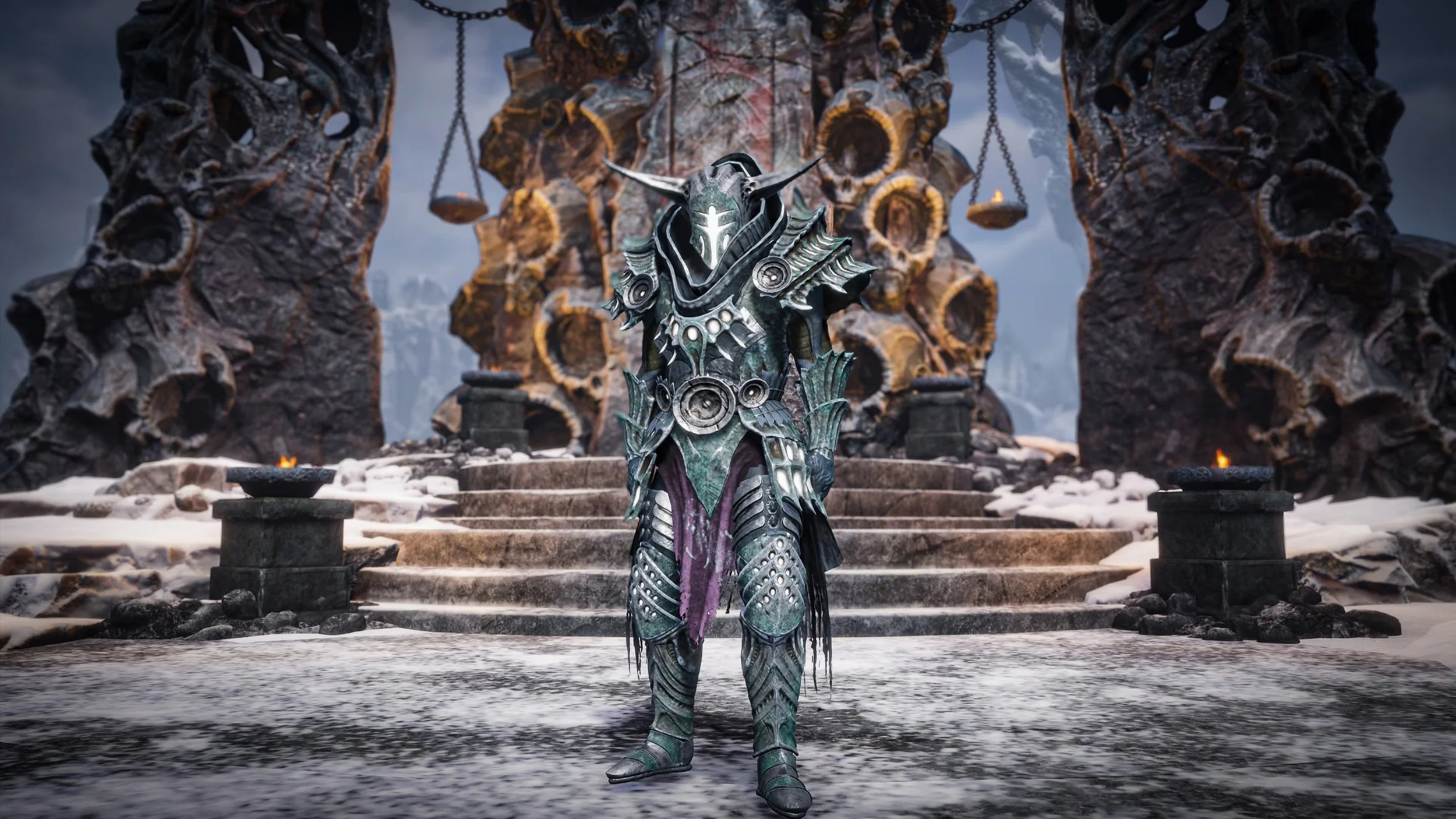
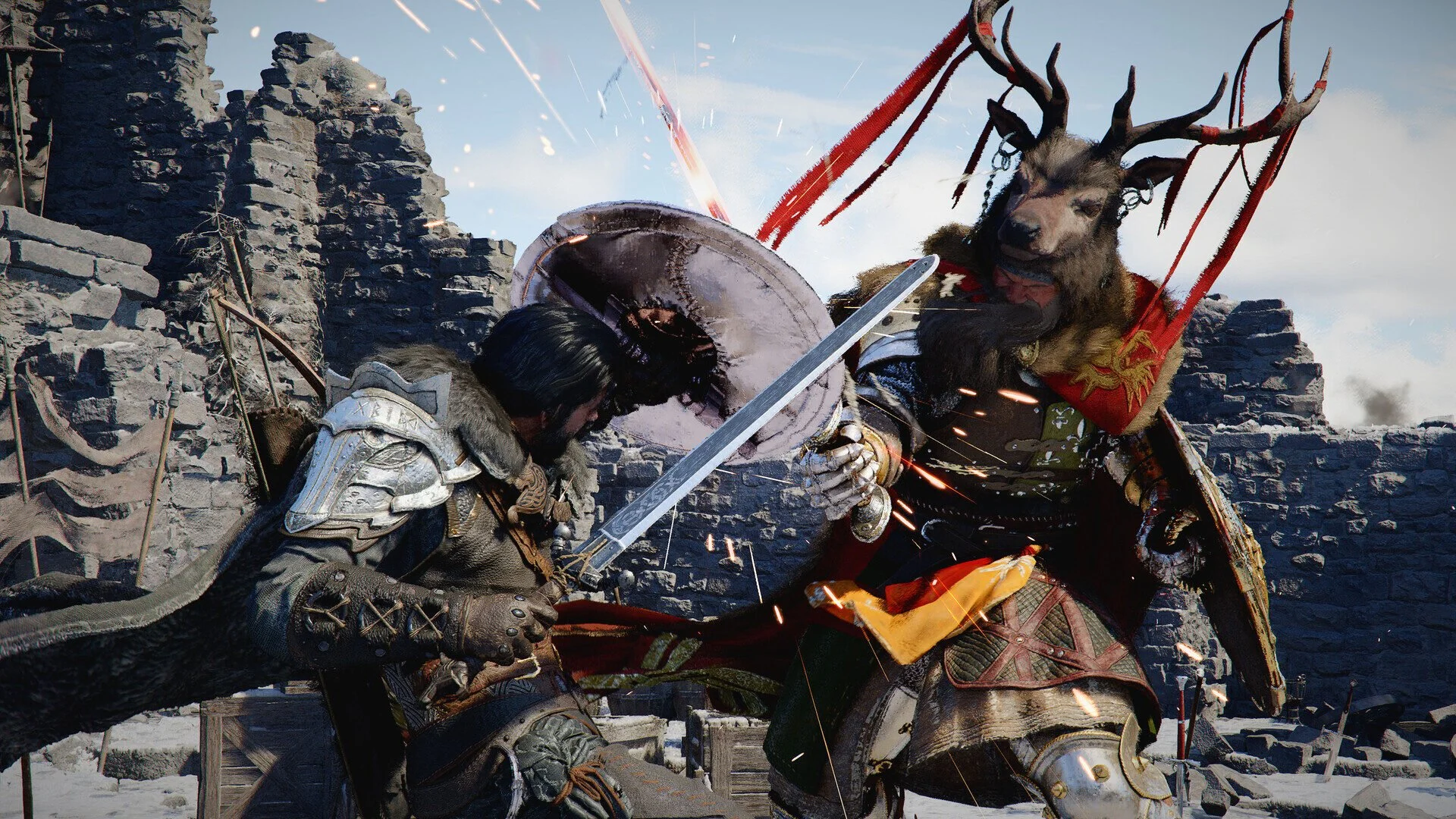
I recently completed the main story in Tainted Grail: The Fall of Avalon. In total I spent about sixty hours playing the game. I began at the start of the year, then took a break for a while but returned to it recently because I wanted to see if I could unlock a specific ending. I did manage to do this. Like so many other RPGs, Tainted Grail: the Fall of Avalon has a central storyline, along with a wealth of side quests, based around factions in specific zones. I think I possibly completed about a two thirds of these. However, once I finished the main story, my interest in the game began to wane. I finally left my character in the last major quest hub in case I wish to return at a future date. I then logged out of the game and uninstalled it from my PC to free up space for whatever I was to play next. In this case its The Sinking City 2. None of this is a negative reflection on Tainted Grail: the Fall of Avalon. I enjoyed the time I spent playing this quirky RPG. I simply had my fill and left to play something else.
Thinking Out Loud is a recurring post where I write about thoughts and ideas that have recently occurred to me. As ever the intention is not to develop these ideas into full blown blog posts, although they often the could be. Instead I just collate a few sentences to express my point and leave it at that. The idea being that if anyone else wants to pick up the conversation they can do so in the comments section below. On this occasion the various points are all technology based. I’ve been busy of late with several projects, such as building a new website and creating some widgets specifically for it. Like most technical projects things don’t often go as planned and problems occur unexpectedly. Hence, I thought why not make a themed instalment of Thinking Out Loud this time round? It’s something that I may well do this again in the future. As ever, feel free to make your thoughts known.