
More Screen Capture Software
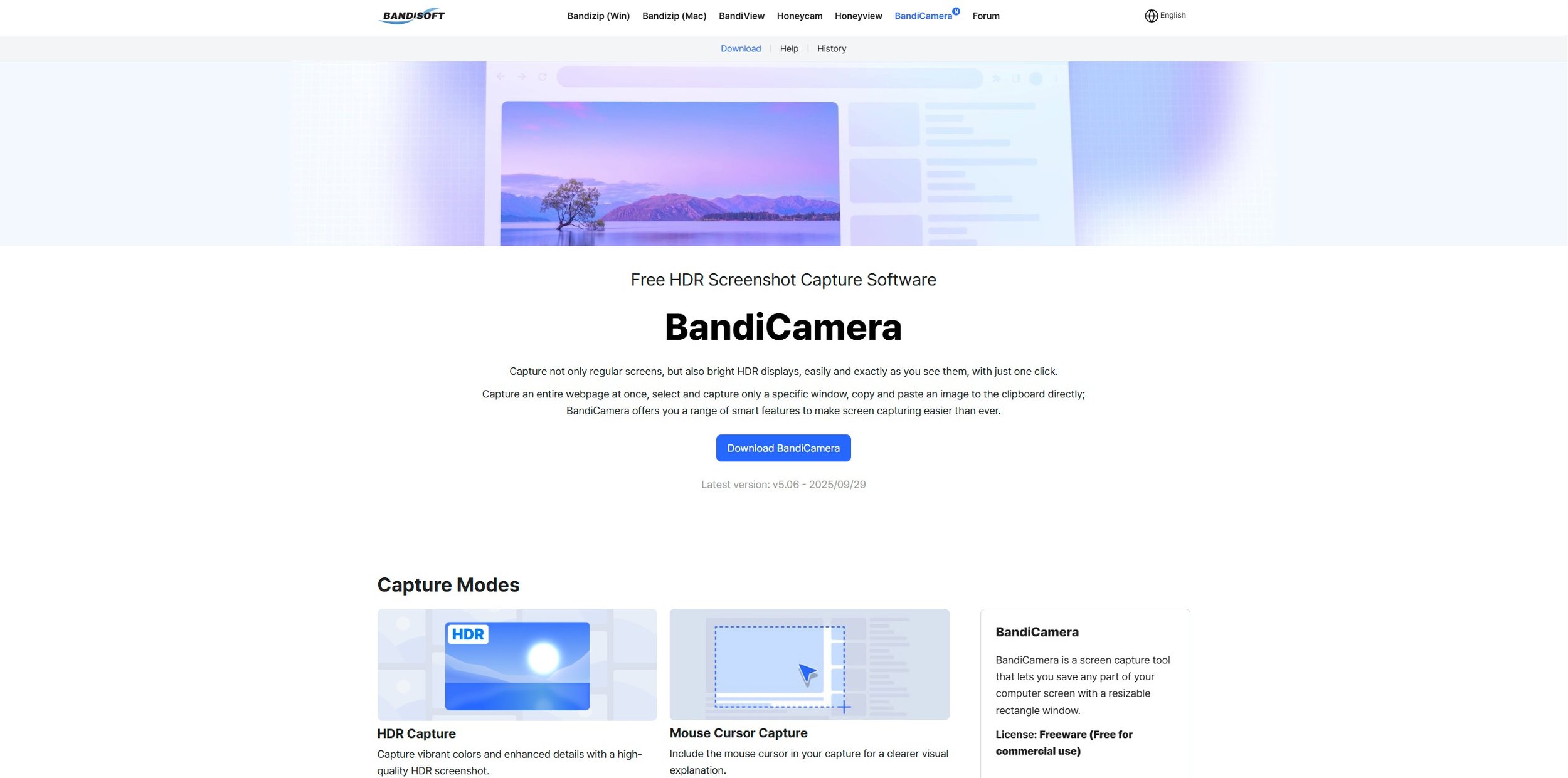
Last summer I wrote a post about my experiences using various screen capture software. At the time I was using Bandicam which suited all my needs. I had configured the software to launch at Windows start-up and had a hotkey assigned to capture images from my primary monitor. Hence I could quickly grab a screenshot from my desktop or when playing a game. However, this changed in November 2025, when I bought two new monitors. Both of which supported HDR (High Dynamic Range). Although they provide superior picture quality, HDR has a knock-on effect on Bandicam. Screen capture images and video look over exposed. Hence I had to stop using the software and find an alternative. Fortunately the same company has been developing an alternative product with HDR support; Bandi Camera. So I swapped to this software. The screenshots were far better but the functionality of the app was lacking.
Last summer I wrote a post about my experiences using various screen capture software. At the time I was using Bandicam which suited all my needs. I had configured the software to launch at Windows start-up and had a hotkey assigned to capture images from my primary monitor. Hence I could quickly grab a screenshot from my desktop or when playing a game. However, this changed in November 2025, when I bought two new monitors. Both of which supported HDR (High Dynamic Range). Although they provide superior picture quality, HDR has a knock-on effect on Bandicam. Screen capture images and video look over exposed. Hence I had to stop using the software and find an alternative. Fortunately the same company has been developing an alternative product with HDR support; Bandi Camera. So I swapped to this software. The screenshots were far better but the functionality of the app was lacking.
The main problem I have found with Bandi Camera is that to use it effectively you have to use a series of hotkeys. First it has to be maximised from the system tray and then you need to select which monitor you wish to take images of. Finally you have to choose whether you wish to capture a specific portion of the screen or the active window. It all works well but the process does not lend itself to “grabbing a screenshot on the fly”. I prefer just pressing a single key and not having to worry about anything else. Another issue is that the software takes two images when you take a screenshot. One in .jpg format and the other in .avif (or .jxr). I have no need for these more advanced formats. However, as there is not an excess of screen capture software with HDR support available at present, I have got by using Bandi Camera. It has the benefit of being free of charge at present.
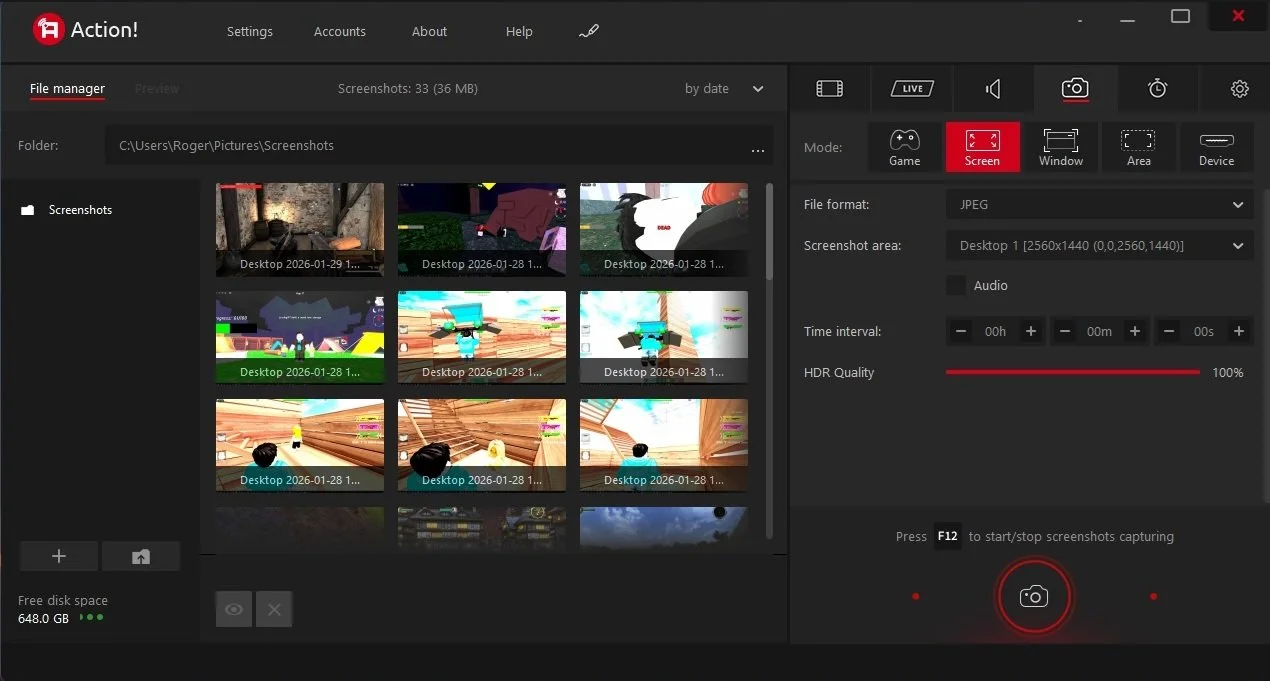
Recently while perusing software online, I discovered Action! This is a screen recorder, primarily designed to be an alternative to software such as OBR and XSplit. Not only does it record video footage of your desktop or game, it also can take screenshots. It is also notable that it supports HDR. So I purchased Action! for £20, which is a reasonable price for a single user lifetime license. I was pleasantly surprised at how easy the software was to configure and how straightforward the user interface is. Most importantly, I can take a screenshot of a specific monitor by pressing a single hotkey. Effectively I have returned to the functionality that Bandicam gave me, only this time I have HDR support. So far the quality of the screen captures has been fine, apart from those taken from Roblox. However, as that is not a major source of my video game blogging, I can live with this minor issue.
I have also spent some time experimenting with the screen recorder option, capturing video footage of various video games. Action! is certainly less complex than OBS and once properly configured to record HDR content, the results are good. However, there are a few bugs. If I set the software to capture an active game, most of the time it does so without any issues. However, when recording The Lord of the Rings Online, if I turned off the screen recorder HUD, a black box would still appear in the top right corner of the screen. This bug seems unique to LOTRO as it hasn’t occurred with any other game. I fixed the issue by selecting the screen instead of the game, as the source of the recording. Minor glitches notwithstanding, Action! Handles screenshots well, so as that is my primary requirement, I’ll continue to use it.
It’s funny how it is often the little things that become the proverbial straw that breaks the Camel’s back. I have been struggling for a while with the overall performance and functionality of my Windows 11 PC. The operating system is bloated, slow and buggy. It all too often commits that unpardonable sin of trying to do my thinking for me and enables some stupid feature by default. Despite having good specifications, my PC takes too long to boot up for my liking and is becoming too much of a wild card with regard to whether it will co-operate or not when I try and undertake a simple task. As someone who is very particular in their PC habits, IE I see my PC as a tool that I use on the terms that suit me. Hence, I find the faux enthusiasm that accompanies each uncalled for “improvement” that results in me losing agency, singularly antagonising. Then a minor issue arose recently that escalated into a thorn in my flesh and I decided that it was time that something must be done.
As the New Year is still young, I have embarked upon several new projects that I’ve been planning since Autumn last year. These undertakings have gone beyond the planning stage and are currently being implemented. The fun thing about the phrase “implemented” in this context is that it implies that it is by far the easiest and most straightforward part of the process. The initial brainstorming of ideas has been completed. A cogent and detailed plan has been written. The costing of materials and time required have been determined. These are the hard parts. All that remains is to “just do it”. It should be a piece of piss (a British phrase indicating that something is easy). It virtually “implements” itself. However, that is a load of bollocks. Because there is always scope for something to go wrong. It may well start as something minor and innocuous but it all too often ends in a “problem cascade”.

This time last year I made a decision to replace Microsoft Office or Office 365 as it is currently known. Mainly because I only use Outlook out of the entire suite of software. This project stalled because I couldn't easily import my existing email archive into Mozilla Thunderbird. Hence the status quo has been perpetuated. However, there is an ongoing cost associated with this software as well as some wider considerations about ethics and privacy which is why I have returned to this matter. Although this time I wish to replace not only Office 365 but all the other "production tools" I use to write and browse the internet. I have managed to make some progress towards this goal but it has been hard to adapt. Mainly because I had everything set up to my liking. Although alternatives are available, they're never exactly alike and require a lot of fine tuning to be deemed satisfactory.
Last summer I wrote a post about my experiences using various screen capture software. At the time I was using Bandicam which suited all my needs. I had configured the software to launch at Windows start-up and had a hotkey assigned to capture images from my primary monitor. Hence I could quickly grab a screenshot from my desktop or when playing a game. However, this changed in November 2025, when I bought two new monitors. Both of which supported HDR (High Dynamic Range). Although they provide superior picture quality, HDR has a knock-on effect on Bandicam. Screen capture images and video look over exposed. Hence I had to stop using the software and find an alternative. Fortunately the same company has been developing an alternative product with HDR support; Bandi Camera. So I swapped to this software. The screenshots were far better but the functionality of the app was lacking.
I take a lot of screen captures of video games and Windows apps, usually for blog posts. I use both Bandicam and Windows Snipping Tool to do this and have set up various hotkeys to make the process easy. Of late, the screen captures that I’ve taken have all suffered from washed out colours, regardless what tool I used to take them. I checked to see if both these apps needed to be updated but they are running the latest versions. Hence I was initially stumped as to why this problem had started happening. After some thought, I deduced that the only new elements in my PC hardware were my two new monitors. Both of which support HDR. Google Gemini quickly informed me that this was a known issue and taking screen captures from an HDR enabled device resulted in an excessively bright image that looked over exposed.
As part of our increasing dependency upon software, we have also grown accustomed to its associated foibles, especially the negative ones. Today, I upgraded my blog from Squarespace 7.0 to 7.1 and my PC operating system from Windows 10 to 11. I started early in the morning and ensured that all my personal data was backed up. My default expectation was that both processes would go wrong in some way, shape or form. Let’s take a moment to consider this mindset, which is born out of experience. It is now taken as read that whatever you upgrade, be it an app on your phone or a program on your PC, that it’s going to be problematic. It won’t be a seamless transition and you’ll end up having to do some sort of troubleshooting. Despite our lives becoming more dependent on such software, the quality of these products seems to be deteriorating. What a sorry state of affairs.
The ability to take a screen capture of a video game that you’re playing, or an open application or browser tab, is just something we take for granted. Windows 10/11 have a built-in tool called Snip & Sketch that is simple to use. Most of the games that I play have a specific hotkey for taking screenshots and a default directory to store them. Similarly, the latest builds of Windows also include the Xbox Game Bar software, which allows you to capture video from any application that you’re running on your PC. You can then edit via Clipchamp which is the successor to the old Windows Movie Maker. I believe the macOS comes with comparable default software. The absence of such apps today would be noticeable. However, there was a time when such things were not considered standard features.

Humans are creatures of habit. Often we find it easier to stick with the status quo, rather than try something new or make a change. I have used Microsoft Office throughout my career and it is a habit that has persisted into my retirement. However, overtime I have ceased to use much of the functionality Microsoft Office offers. Google Docs adequately caters for my needs. Yet I still subscribe to Microsoft Office, due to my affection for Outlook and the fact that I have 10 email addresses to manage. However, I don’t use half of the functionality that it provides, so it’s a bit like using a sledgehammer to crack a walnut. Furthermore, the monthly subscription for Microsoft Office is increasing due to the inclusion of Copilot AI assistant. So I’ve decided that it is time to say goodbye to Microsoft Office and to find myself a new email client. I shall also say adieu to the email archive I’ve been hoarding since 1997.
Screen Capture Software and HDR
I take a lot of screen captures of video games and Windows apps, usually for blog posts. I use both Bandicam and Windows Snipping Tool to do this and have set up various hotkeys to make the process easy. Of late, the screen captures that I’ve taken have all suffered from washed out colours, regardless what tool I used to take them. I checked to see if both these apps needed to be updated but they are running the latest versions. Hence I was initially stumped as to why this problem had started happening. After some thought, I deduced that the only new elements in my PC hardware were my two new monitors. Both of which support HDR. Google Gemini quickly informed me that this was a known issue and taking screen captures from an HDR enabled device resulted in an excessively bright image that looked over exposed.
I take a lot of screen captures of video games and Windows apps, usually for blog posts. I use both Bandicam and Windows Snipping Tool to do this and have set up various hotkeys to make the process easy. Of late, the screen captures that I’ve taken have all suffered from washed out colours, regardless what tool I used to take them. I checked to see if both these apps needed to be updated but they are running the latest versions. Hence I was initially stumped as to why this problem had started happening. After some thought, I deduced that the only new elements in my PC hardware were my two new monitors. Both of which support HDR. Google Gemini quickly informed me that this was a known issue and taking screen captures from an HDR enabled device resulted in an excessively bright image that looked over exposed.
HDR, or High Dynamic Range, is a technology that improves image and video quality by creating a greater contrast between the brightest and darkest parts of an image. This allows for more realistic pictures with a wider range of colours, deeper blacks and brighter whites, while also preserving detail in both highlights and shadows. It is commonly used in 4K televisions and is supported by streaming services like Netflix and Amazon Prime Video. 4K UHD Blu-ray supports HDR but regular Blu-ray does not, instead using the older Standard Dynamic Range. HDR is also a feature on the latest Smartphones. Furthermore, HDR is common in many contemporary video game titles and as such gaming monitors now support the process. Hence capturing an image from any of these sources is potentially going to run into these issues with regard to colour balance and contrast.
Bandicam screen capture without HDR support
Why does this happen? Mainly because most screen capture software has been designed to capture content in the older Standard Dynamic Range (SDR) format and has been incrementally updated over the years. The fundamental mismatch between the wide brightness and colour range of HDR displays and the technical limitations of traditional capture methods leads to screenshots and recordings that appear dim, washed out, or overexposed. Fortunately, there are specific screen capture apps that have subsequently been designed to support HDR. Bandisoft, the software developer that makes Bandicam, has another product called BandiCamera which is HDR compliant and works in an identical fashion to Bandicam. However, it is purely a screen capture tool producing still images. At present it does not support video capture.
BandiCamera screen capture with HDR support
So far BandiCamera, which is free to download, has proven a good solution to the problem. Screen captures of both video games and websites no longer suffer from the overexposed and washed out look that previously blighted them. Screen captures can be saved in .PNG, .JPG and .AVIF formats. However, BandiCamera lacks some of the features found in Bandicam, which can be configured to take pictures of a specific monitor or any active game executable file. BandiCamera has various hotkeys that can be assigned to specific tasks, one of which allows you to “find capture target”. This works fine when you’re taking a screen capture from a website or YouTube video. However, it is not so good for grabbing a screenshot on the fly while playing a video game. Hopefully future releases will address this and add further functionality.
Update: During the course of researching this issue, I discovered after I had downloaded and installed BandiCamera, that Windows Snipping Tool already has a setting called “HDR screenshot colour corrector”. This can be toggled on or off accordingly. It does a similar job of compensating for HDR’s vivid colour palette, although the results are not quite as comprehensive as BandiCamera. The obvious benefit is that this is a tool that comes with Windows 11.
I turned on my laptop this morning for the first time in 4 months. I knew it was that long because I hadn’t connected the laptop to the new Netgear router that I bought at the end of April. Unsurprisingly, as I haven’t used this device for a while there were multiple Windows updates to be installed. This process took over an hour, so while the various updates were being downloaded and installed, I turned my attention to my Amazon Echo Dot which loiters in the corner of our lounge, doing very little to justify its existence. At present this device is mainly used as a glorified timer for cooking, which seems a bit of a waste given it’s alleged capabilities. Hence, I decided to see if I could increase its functionality while waiting for Windows to do its update thing. More on this later. Let us for the meantime return to the small matter of the operating system updates. Once they were completed, I immediately installed Chris Titus Tech’s Windows Utility and started removing unnecessary features and bloat, as well as disabling invasive services.
Before we begin, let me clearly state that this is not a comprehensive installation guide for installing Steam OS on your PC. Mainly because the variety of hardware that can be present in any PC makes each installation a somewhat bespoke affair. Hence I have decided to provide a list of bullet points of the various steps and issues I encountered during my installation, last week. Consider it advance warning of things you may encounter if you install this operating system. As ever, if this is something that you are intending to do, I would advise allowing yourself a suitable amount of time so you can accommodate any issues should they arise. It is entirely possible that this may be a two hour job for the technically literate running the most generic or commonplace hardware. However, I suspect that a lot of people undertaking this project will run into variations of the same problems that I encountered.

I am intrigued by the growth of the IndieWeb, owning your domain and static websites. I certainly agree with the notion of not relying on big corporations and I have an ongoing project to divest my dependency on software produced by major market players. However, although I own my own domain, my website is hosted by Squarespace. I’ve not really had any problems with them over the last 11 years and I would describe our business relationship as equitable. However, the monthly subscription price has increased over time and is likely to keep on doing so. It has crossed my mind as to whether there is a suitable alternative. However, if I were to migrate Contains Moderate Peril elsewhere I suspect it would be logistically complex and problematic.

I like learning new skills and starting projects. I regularly undertake such things with varying results. However, if they don’t work out that’s not a problem. You have to try something to see if you like it. I’ll add “within sensible parameters” as a caveat to the last statement. And it’s perfectly fine to discover that something isn’t for you. I like certain genres of video games, music, films and books. I am comfortable wearing certain types of clothes and not others. I’m picky about colours. I’ll even go so far as to say that I won’t drink out of any mug that’s just lying around. If I don’t like the joke, logo or overall aesthetic of it, I ain’t using it. However, I digress. Let’s get things back on track and talk about projects. This year I have wound down several websites and have decided not to move forward with making YouTube videos. I have focused my energy on improving my website and adding functionality. I am also trying to broaden the scope of my writing.
It’s funny how it is often the little things that become the proverbial straw that breaks the Camel’s back. I have been struggling for a while with the overall performance and functionality of my Windows 11 PC. The operating system is bloated, slow and buggy. It all too often commits that unpardonable sin of trying to do my thinking for me and enables some stupid feature by default. Despite having good specifications, my PC takes too long to boot up for my liking and is becoming too much of a wild card with regard to whether it will co-operate or not when I try and undertake a simple task. As someone who is very particular in their PC habits, IE I see my PC as a tool that I use on the terms that suit me. Hence, I find the faux enthusiasm that accompanies each uncalled for “improvement” that results in me losing agency, singularly antagonising. Then a minor issue arose recently that escalated into a thorn in my flesh and I decided that it was time that something must be done.
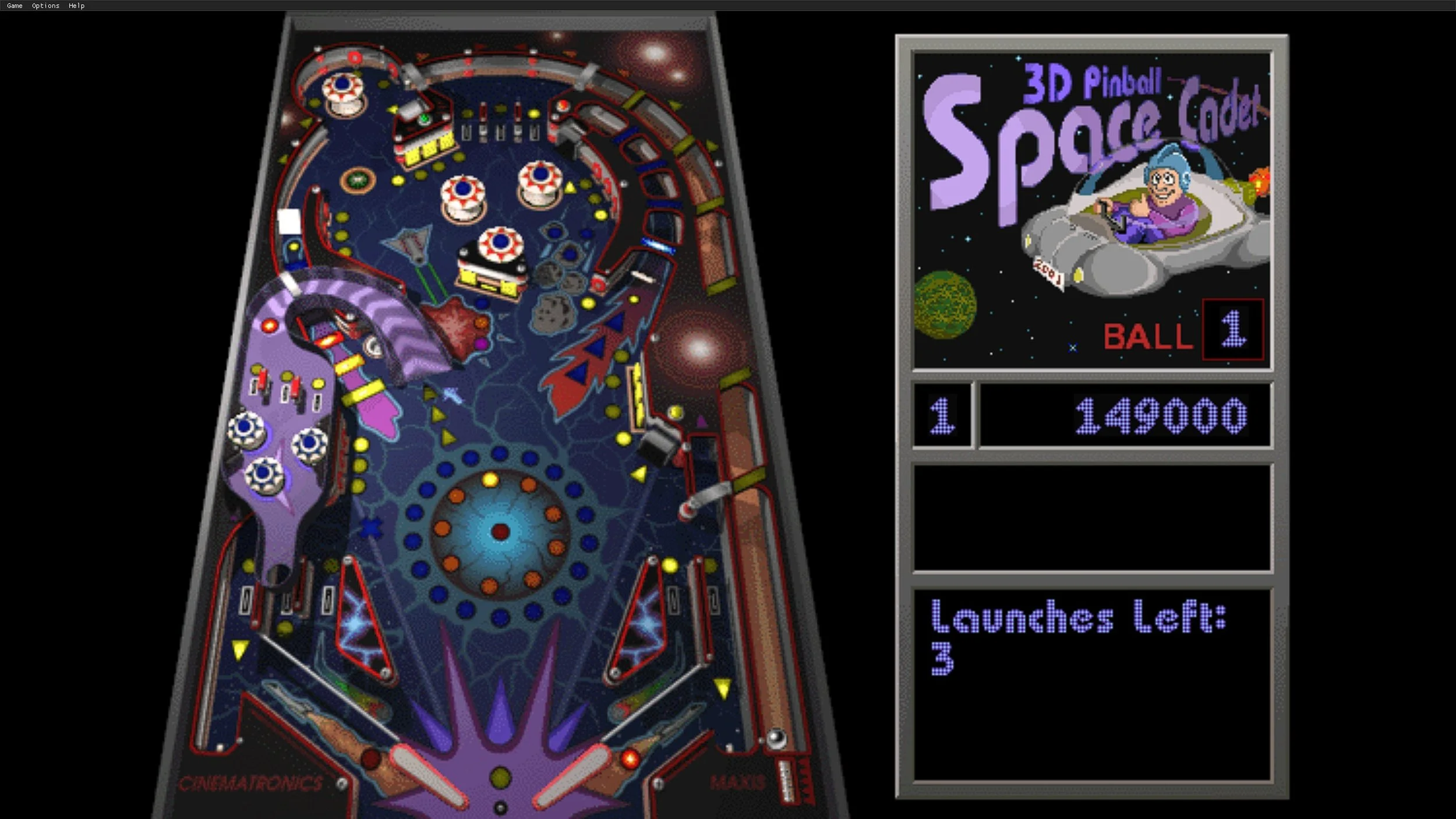
This is a post about the power of nostalgia and how sometimes, interacting with something from your past, be it physically or mentally, can produce a very strong and tangible emotional reaction. In some instances, this can be the result of something that you have specifically set out to do. On other occasions you can wander into a sense of nostalgia purely by chance. Today I experienced a very strong sense of nostalgia while watching a YouTube video and then again when I sought to replicate what I had seen. The video showed someone installing Windows 95 on to an old 486 PC from that era. The Window’s start up sound really touched a nerve (but in a good way) and then when the guy in the video launched Space Cadet 3D Pinball, a game that shipped with the operating system, I felt a strong compulsion to track down a copy and install the game myself, thus revisiting something that was an integral part of my life in 1995.

For the last few months I have being using Google Gemini. I subscribed so I could access a wider spectrum of services and evaluate it effectively. I also wanted to dispel some of the hysteria that accompanies any conversation about Large Language Models and Artificial Intelligence. The results were initially interesting and Google Gemini proved useful when researching material for blog posts. It is good at providing summaries about well documented subjects. I wrote a post about food banks recently and it distilled a lot of data into a manageable amount, which was ideal for my article. Google Gemini has also produced some visual basic scripting and simple batch files that have allowed me to automate processes on my PC. Such as changing the default monitor, or screen resolution at the click of an icon. However, I found this AI struggled with in-depth software troubleshooting and that its ability to create images varies greatly depending on the subject.

The UK Government has formerly announced its intention to ban under-16s from using social media. This is due to increasing public pressure that “something must be done” about the perceived iniquities of many online platforms. However, as with most complex social problems of this nature, no one has any clear or practical ideas as to what that “something” is. It remains a nebulous, non-specific panacea and clearly someone else’s job to identify and implement. As ever, why choose a nuanced and multifaceted solution to a complex problem, when it is far easier and politically expedient to just “ban” something. The former requires effort and a degree of thinking. If such an approach fails it also means that those who came up with it now carry the can. The latter dumps the problem in the lap of various third parties, who can then be conveniently blamed when the ill conceived policy fails.

Yesterday we changed internet service providers. We moved from EE (formerly BT) to Plusnet. The transition went surprisingly well, mainly due to the existing infrastructure remaining the same. We’ve had fibre to the premises (FTTP) since 2022 so this was essentially an administrative change. The previous ISP terminated their service at 1:30 AM in the morning, while I was playing Star Trek Online. By 6:30 AM I received a message from Plusnet that the new service was live. It took about an hour to configure the new Netgear Nighthawk RS100 router (I bought my own) and get all our household devices attached to the new network. The connection is running at exactly the same speed and stability as it had under the previous supplier. At present a 1Gbps connection is sufficient for our needs. The main factor that has driven this change is cost. We are currently paying £28 per month for internet access which is a competitive price in the UK.

In 1990 I was working at the DWP (Department for Work and Pensions). I had just taken the role of Computer Support Officer where I administered user access to the mainframe and provided first line support to staff using the terminals. That summer the office moved to a PC based network and the project was undertaken by the newly formed Siemens Nixdorf company. To cut a long story short I befriended one of the contract engineers and over the next 9 months he became an unofficial mentor to me. Technically he was only supposed to train me in the most basic of fashions but he liked the fact that I was always asking questions and effectively ended up schooling me in PC and server architecture, network administration and the associated protocols. For me this was the best way to learn. It was not a case of coming to grips with theory in a classroom environment. It was learning by doing and having direct and exclusive access to a source of knowledge and experience.
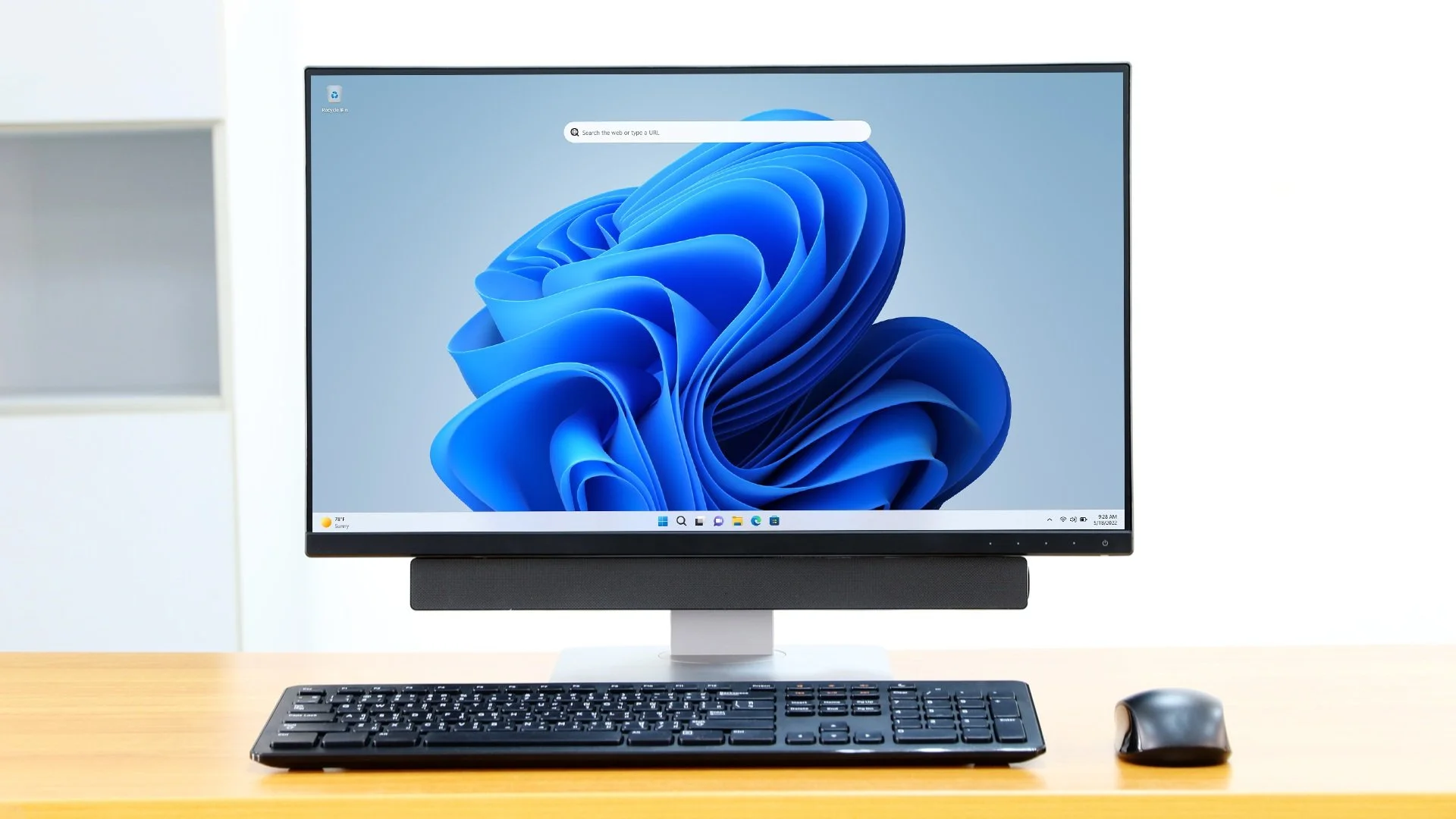
My Windows 11 PC is a cobbled together mess of upgrades, customisations and workarounds. It seems okay at first glance, mainly because my desktop is well organised and I don’t allow too many apps to start on boot up. But beneath this superficial veneer of efficiency and optimisation is a bloated mess. Every Windows update adds yet more spurious features which slows performance and tries to harvest your data. Windows is no longer a user friendly operating system that you buy and use without impediment. It is now a sprawling live service that actively gets in the way of your productivity so that it can make a buck off your inconvenience. There was a time when you could quickly learn its processes and foibles, so you could customise it into the tool you needed. Nowadays I have to continuously use third party tools to get Windows to do many of the things I want, or to access functionality that Microsoft has obtusely decided to restrict.
As the New Year is still young, I have embarked upon several new projects that I’ve been planning since Autumn last year. These undertakings have gone beyond the planning stage and are currently being implemented. The fun thing about the phrase “implemented” in this context is that it implies that it is by far the easiest and most straightforward part of the process. The initial brainstorming of ideas has been completed. A cogent and detailed plan has been written. The costing of materials and time required have been determined. These are the hard parts. All that remains is to “just do it”. It should be a piece of piss (a British phrase indicating that something is easy). It virtually “implements” itself. However, that is a load of bollocks. Because there is always scope for something to go wrong. It may well start as something minor and innocuous but it all too often ends in a “problem cascade”.
This time last year I made a decision to replace Microsoft Office or Office 365 as it is currently known. Mainly because I only use Outlook out of the entire suite of software. This project stalled because I couldn't easily import my existing email archive into Mozilla Thunderbird. Hence the status quo has been perpetuated. However, there is an ongoing cost associated with this software as well as some wider considerations about ethics and privacy which is why I have returned to this matter. Although this time I wish to replace not only Office 365 but all the other "production tools" I use to write and browse the internet. I have managed to make some progress towards this goal but it has been hard to adapt. Mainly because I had everything set up to my liking. Although alternatives are available, they're never exactly alike and require a lot of fine tuning to be deemed satisfactory.
Last summer I wrote a post about my experiences using various screen capture software. At the time I was using Bandicam which suited all my needs. I had configured the software to launch at Windows start-up and had a hotkey assigned to capture images from my primary monitor. Hence I could quickly grab a screenshot from my desktop or when playing a game. However, this changed in November 2025, when I bought two new monitors. Both of which supported HDR (High Dynamic Range). Although they provide superior picture quality, HDR has a knock-on effect on Bandicam. Screen capture images and video look over exposed. Hence I had to stop using the software and find an alternative. Fortunately the same company has been developing an alternative product with HDR support; Bandi Camera. So I swapped to this software. The screenshots were far better but the functionality of the app was lacking.
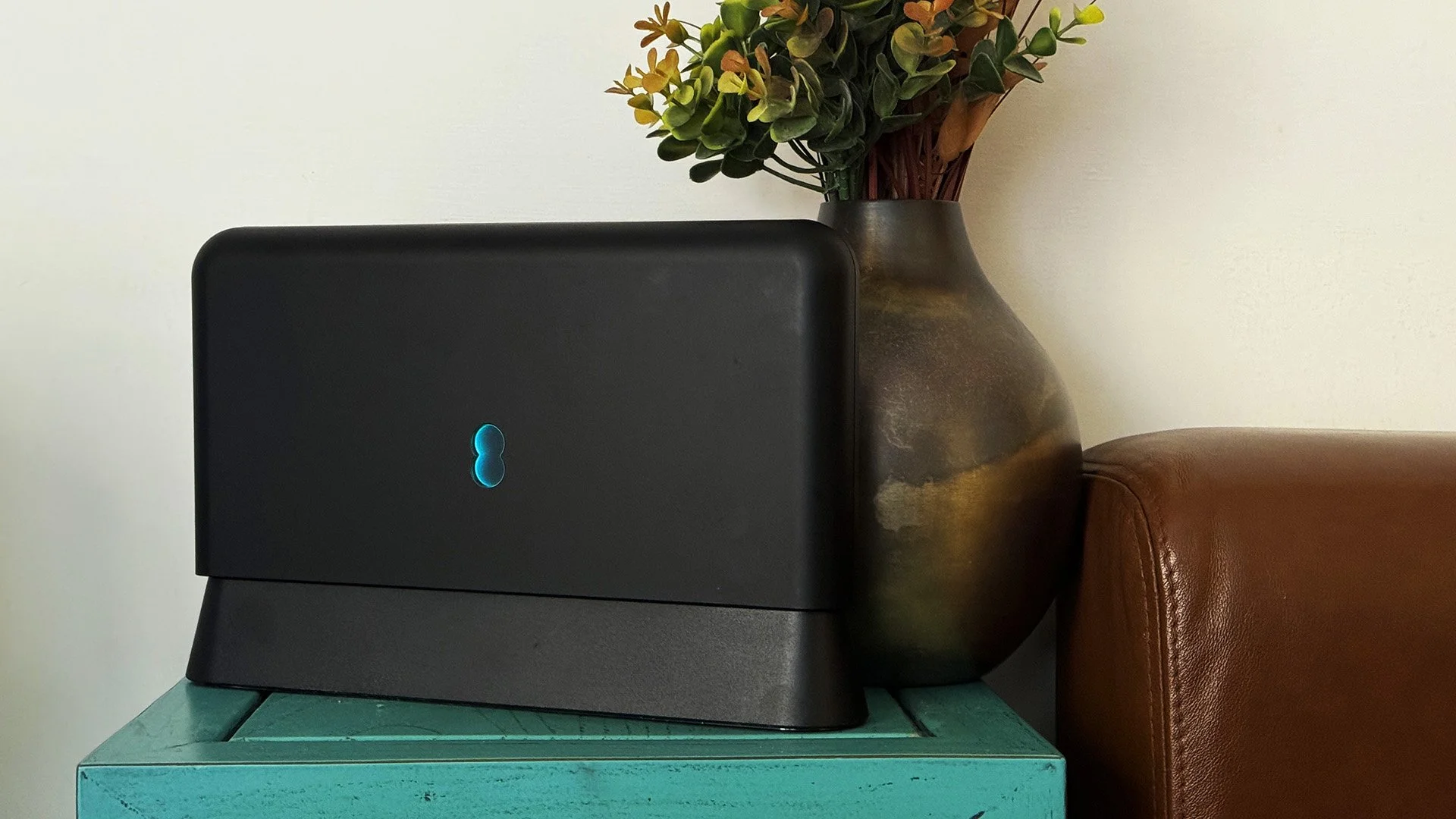
Our home has a 1 Gbps “fibre to the premises” internet connection. It has proven reliable since it was installed in June 2022. Our internet service provider EE (part of the BT group) are neither the best of worst suppliers. The monthly cost is not especially competitive and so we may be looking to move providers next Easter. However, that is a matter for the future. For the present there is a more immediate issue. Starting on Friday 21st November, our internet connection has started randomly dropping. Furthermore, both the Wi-Fi extender in the lounge and the wireless printer in my office have become disconnected from the network. It was as if their details had been erased from the router. I suspected that a recent firmware upgrade may be the culprit although EE denies it. However there are posts online from other customers with similar technical issues.

A couple of times a year, Mrs P asks me to copy onto her laptop, all the pictures that I’ve taken over recent months, as well as those that have been shared with us via WhatsApp. She then diligently whittles them down into a manageable amount which we then print off and put in our photo album. Yes we’re of the generation that still likes to print off hard copies of photos and from time to time look at them nostalgically. We have several albums with photographs in chronological order and numerous frames placed around the house, filled with pictures of family. The bulk of the photos are 4x6 inches (10x15 cm). We use an online photo printing service for the majority of our pictures and visit a local store with a self-service photographic department to print off specific pictures for bespoke frames. The original photos, now neatly organised, are backed up and archived.
I take a lot of screen captures of video games and Windows apps, usually for blog posts. I use both Bandicam and Windows Snipping Tool to do this and have set up various hotkeys to make the process easy. Of late, the screen captures that I’ve taken have all suffered from washed out colours, regardless what tool I used to take them. I checked to see if both these apps needed to be updated but they are running the latest versions. Hence I was initially stumped as to why this problem had started happening. After some thought, I deduced that the only new elements in my PC hardware were my two new monitors. Both of which support HDR. Google Gemini quickly informed me that this was a known issue and taking screen captures from an HDR enabled device resulted in an excessively bright image that looked over exposed.
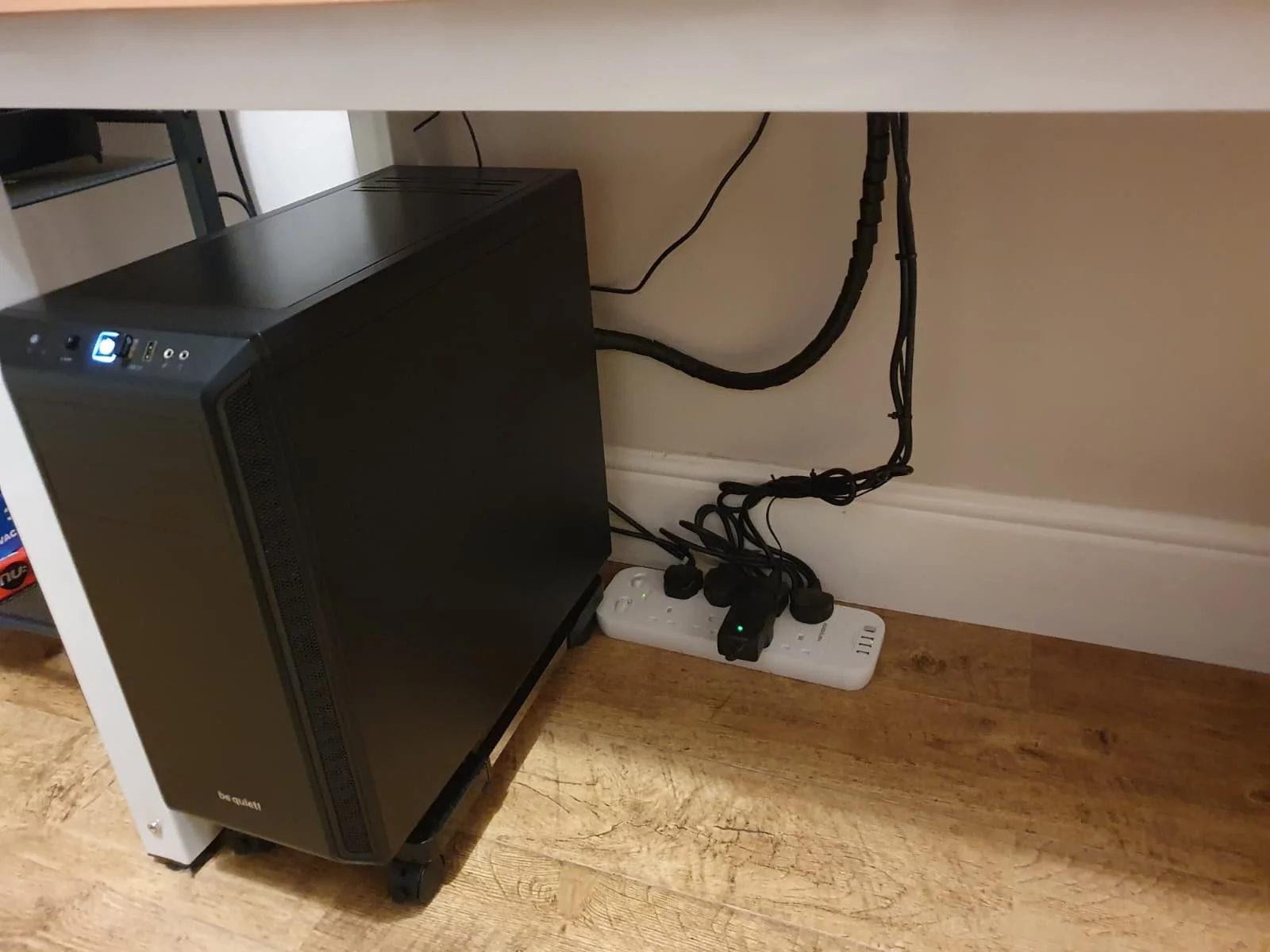
I recently bought two new monitors and a stand for my PC tower case. Today I thought I’d take the opportunity to disconnect every peripheral, clear my desk and then after a thorough clean, reassemble everything ensuring good cable management. I even went so far as to buy a new power extension lead so I could reorganise where everything was plugged in and therefore be able to isolate specific hardware. It seemed such a simple, straightforward task on paper. The reality was much different. It took me over three hours to sort out, mainly due to the fact that I don’t “bend” so well these days. During this Herculean task, my watch kept on notifying me that my heart rate was “high”. However, I regularly took breaks and fortified myself with gin for medicinal reasons. I am pleased with the results of this task.
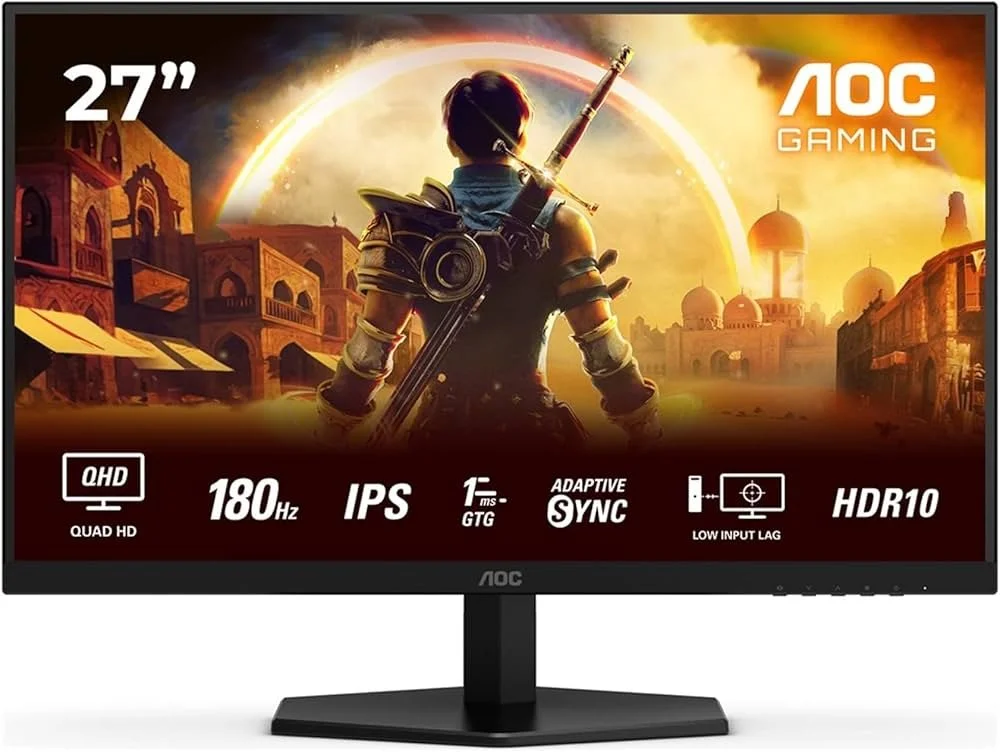
I use two monitors with my PC, as I find having the additional screen “real estate” invaluable when writing or playing games. Both monitors that I’ve been using up to now are somewhat old and they are not exactly the same size or resolution, although both are FHD. I have previously written about the problems I’ve had trying to get certain games and programs to display on specific monitors and the lengths I’ve had to go to to resolve this issue. To cut a long story short, I recently decided to replace both monitors with larger models with a higher resolution. Mainly because my eyesight is not what it used to be. I see best when working with a bright screen that can produce clear text. New monitors would also address my ongoing screen output problem. Hence, I set myself a reasonable budget and began researching appropriate replacements.

In July the UK Government introduced the Online Safety Act which requires age checks for accessing sexually explicit content online. As a result of this, Pornhub, the 19th most visited site on the internet, has reported a 77% decline in UK traffic. Furthermore, according to the UK regulatory body, OFCOM (The Office of Communications), overall visits to pornographic websites from the UK have fallen by 33%. Naturally, those who championed this legislation are claiming a moral and political victory. However, once you consider what these facts actually mean, they paint a somewhat different and potentially more worrying picture. It would be staggeringly naïve to think that UK visitors to Pornhub have ceased visiting such sites due to the age verification requirements. The more likely explanation is that UK porn consumers are now using VPNs to circumnavigate these restrictions and that this traffic to Pornhub is now recorded as coming from elsewhere.
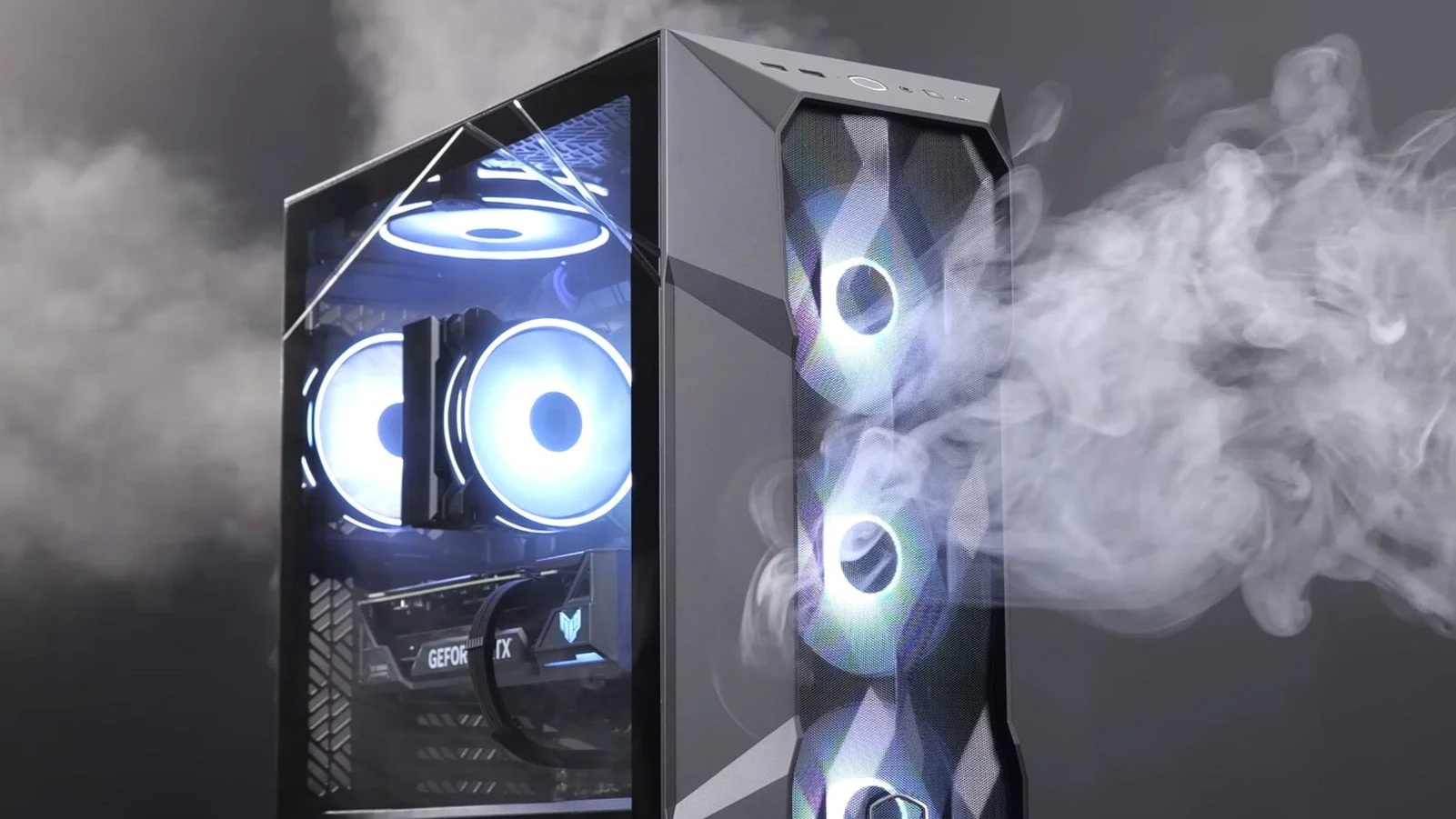
It may be a case of preaching to the Choir but dust contamination in your PC causes overheating, decreased performance, and potential hardware failure. This mainly occurs due to dust restricting airflow, impeding components such as heat sinks and creating short circuits from conductive particles. Fluff builds up and restricts cooling fans, forcing them to work harder. Heat build can lead to issues like system crashes, lagging, and even permanent damage to the motherboard and CPU. Over time, it can shorten the lifespan of the computer and in severe cases, poses a fire hazard. When I used to work in IT contracting, I used to see the effects of dust contamination all the time. PC placed on carpet tiles or on top of desks and surrounded by other objects. I remember one PC replacement project I was working on where we found an old PC with a dead mouse in it. It was desiccated by the heat.

Usually I don’t have a problem with internet access when Mrs P and I are travelling. My phone data plan is sufficient for Google Maps and social media usage. Once we reach our hotel, it’s just a question of connecting to the free Wi-Fi or if need be, buying upgraded access. It’s seldom that expensive. When I went on holiday to Croatia this summer, I bought a bespoke data plan before arriving that granted me extra internet access. Our hotel in Makarska also had very robust internet access. Hence, regardless of being out and about or by the pool, I never had any issues getting online. The ubiquity of internet access means we often take it for granted. I seldom go to places in the UK or abroad that don’t have advanced IT infrastructure. Until this week.
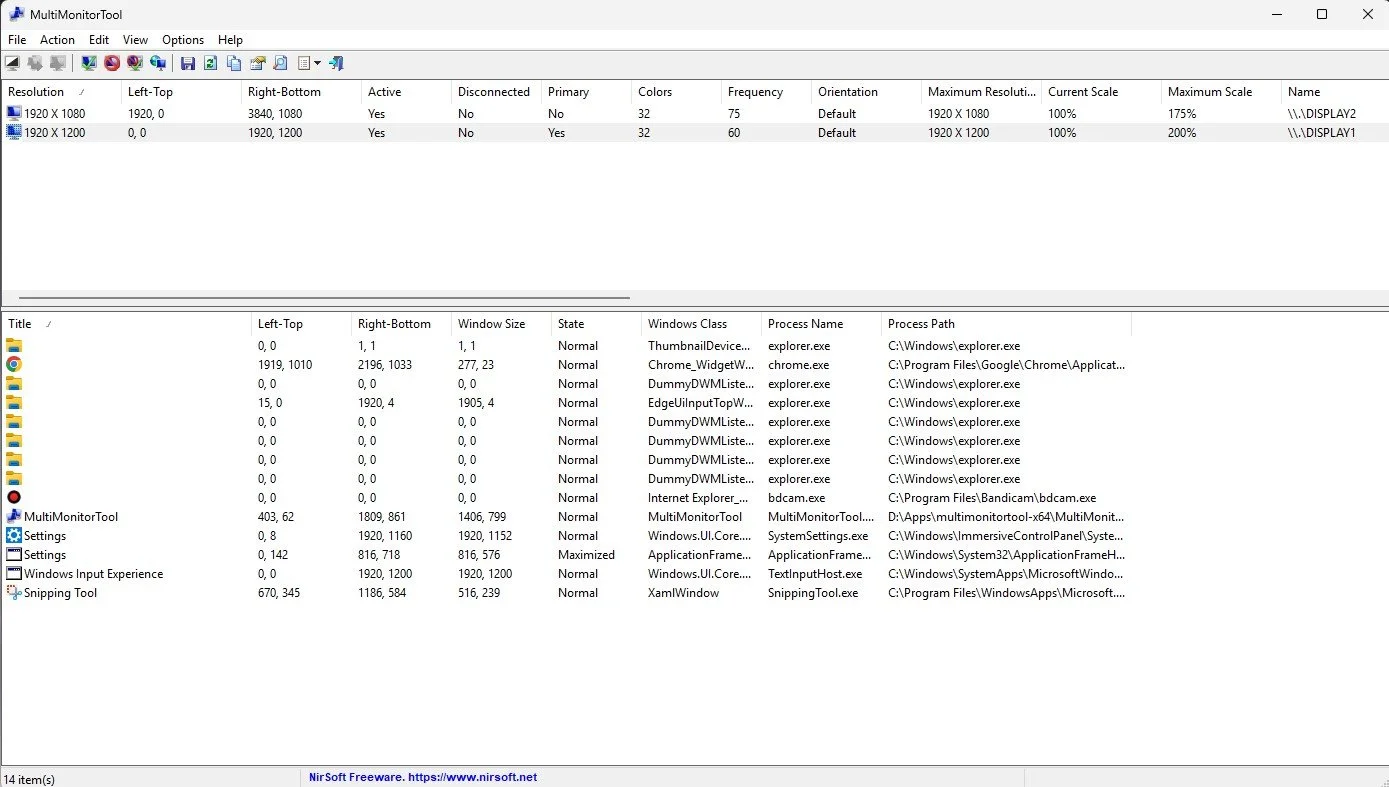
Back in January, I was very pleased because I had finally found some open source software, DisplayMagician, which allowed me to quickly and easily alter my display profile and run specific games and applications on my second monitor. Prior to this I would find that some programs just wouldn’t stay put, once they were dragged or otherwise cajoled to display on the monitor of my choice. They would continuously snap back to the primary display, regardless of my actions. DisplayMagician solved this issue and did so with aplomb. Or it did, until last weekend when I upgraded my PC from Windows 10 to 11. Then it stopped working. I therefore did some digging online and it became apparent that this is a known issue that is currently being addressed by its creator, Terry McDonald.
As part of our increasing dependency upon software, we have also grown accustomed to its associated foibles, especially the negative ones. Today, I upgraded my blog from Squarespace 7.0 to 7.1 and my PC operating system from Windows 10 to 11. I started early in the morning and ensured that all my personal data was backed up. My default expectation was that both processes would go wrong in some way, shape or form. Let’s take a moment to consider this mindset, which is born out of experience. It is now taken as read that whatever you upgrade, be it an app on your phone or a program on your PC, that it’s going to be problematic. It won’t be a seamless transition and you’ll end up having to do some sort of troubleshooting. Despite our lives becoming more dependent on such software, the quality of these products seems to be deteriorating. What a sorry state of affairs.
The ability to take a screen capture of a video game that you’re playing, or an open application or browser tab, is just something we take for granted. Windows 10/11 have a built-in tool called Snip & Sketch that is simple to use. Most of the games that I play have a specific hotkey for taking screenshots and a default directory to store them. Similarly, the latest builds of Windows also include the Xbox Game Bar software, which allows you to capture video from any application that you’re running on your PC. You can then edit via Clipchamp which is the successor to the old Windows Movie Maker. I believe the macOS comes with comparable default software. The absence of such apps today would be noticeable. However, there was a time when such things were not considered standard features.
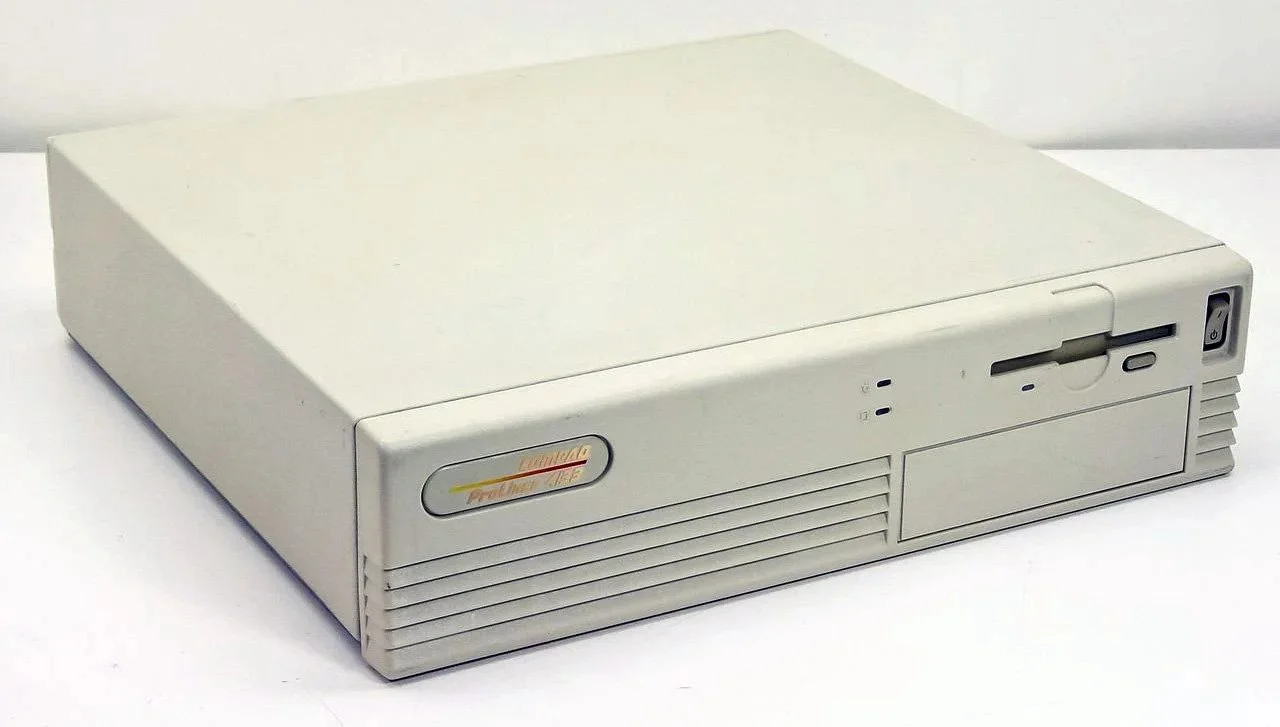
30 years ago, in early 1995, I bought my first PC, a second hand Compaq Prolinea 4/33. It had an Intel 486 DX processor, 340MB HDD, 4MB RAM, 3½-inch floppy disk drive and a 14-inch monitor with a screen resolution of 1024 x 768. It ran Windows 3.11 installed via MS-DOS 6.22. It didn’t come with a soundcard or a CD-ROM drive. I believe I paid around £750 or so at the time, which was approximately half its original retail price. This model was 2 or 3 years old when I bought it. However, at this time, PC specifications did not change as quickly as they do these days. Hence, this was a good starting point for someone new to computing. I subsequently upgraded the processor to a 486 DX2, increased the RAM to 16MB and installed a Creative Labs Sound Blaster AWE32 soundcard and CD-ROM drive.
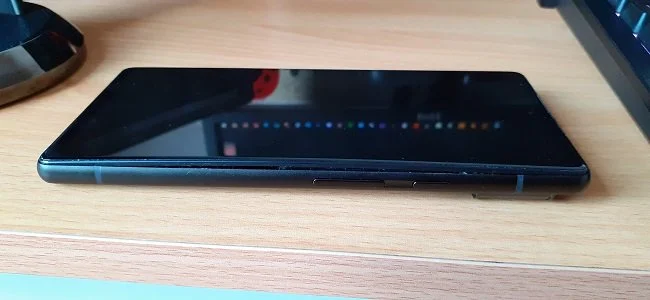
Three months ago, I wrote a blog post regarding how I wasn’t going to replace my phone because I was pretty much done with the endless treadmill that is “upgrade culture”. At the time my Google Pixel 6 was three years old but continued to serve all my smartphone needs. So I signed up for a new “SIM only” contract with Vodafone and went about my business, feeling somewhat pleased with myself. However, “needs must when the devil vomits into your kettle”, to quote Blackadder. I recently noticed that the screen on my phone was coming away from the main enclosure. There was a distinct curve along the right hand edge, as if there was something inside the phone applying pressure outwards. Sadly, that is precisely what was happening. I searched online to see if this was a known issue and was subsequently introduced to the problem known as battery bulge.

I had a novel experience (at least for me) this morning. I went to the cashpoint (that’s an ATM for those outside the UK) at my local supermarket, only to find it out of service. I had an imminent haircut appointment and no cash to pay my barber, who doesn’t take card payments. Fortunately, the supermarket did “cashback” so I bought a loaf of bread and some milk, paid £23 for them and was given £20 in cash. It’s a useful facility that I have never used until today. Usually I just make sure that I have a float of cash available but today the cashpoint being unavailable threw a spanner in the works. If the store did not do “cashback” then I would have had to reschedule my haircut. This minor hiccup got me thinking about our dependence on technology in our daily lives. A point that was further brought home, as my barber told me he had recently visited Spain and was affected by the national power outage.

I last bought a new phone in March 2022. At the time I decided to move away from Samsung after a decade of brand loyalty and try the Google Pixel 6. Let it suffice to say that I have found this handset to be most satisfactory. I like the size. It fits into the front pocket of my jeans. Its overall performance is very good and it has no issue running any of the apps that I regularly use. Subsequent software updates have improved some aspects of the camera, which initially had a poor zoom. Overall the good points of the Google Pixel 6 outweigh its flaws. Hence despite being 3 years old I am happy to keep using it. I have looked at what the subsequent iterations of the Google Pixel have to offer and I really don’t see any significant improvements or benefits. So despite being offered a handset upgrade by Vodafone, I have decided against one.

Have you ever embarked upon a tech related task that you consider to be a relatively simple undertaking, only to find it slowly becoming more complex and more involved as you progress. For instance, configuring software, upgrading your PC or changing internet service providers. I’m sure the answer is yes, because this seems to be life’s default position these days. Every endeavour starts with a simple premise, only to become bogged down in additional requirements and unforeseen issues that weren’t apparent at the beginning. The icing on the cake is often a cost that hadn’t been anticipated. To get the job done you have to put your hand in your pocket and pay someone or buy something. It is a pain in the butt, annoying and sadly, all too common these days.
Screen Capture Software
The ability to take a screen capture of a video game that you’re playing, or an open application or browser tab, is just something we take for granted. Windows 10/11 have a built-in tool called Snip & Sketch that is simple to use. Most of the games that I play have a specific hotkey for taking screenshots and a default directory to store them. Similarly, the latest builds of Windows also include the Xbox Game Bar software, which allows you to capture video from any application that you’re running on your PC. You can then edit via Clipchamp which is the successor to the old Windows Movie Maker. I believe the macOS comes with comparable default software. The absence of such apps today would be noticeable. However, there was a time when such things were not considered standard features.
The ability to take a screen capture of a video game that you’re playing, or an open application or browser tab, is just something we take for granted. Windows 10/11 have a built-in tool called Snip & Sketch that is simple to use. Most of the games that I play have a specific hotkey for taking screenshots and a default directory to store them. Similarly, the latest builds of Windows also include the Xbox Game Bar software, which allows you to capture video from any application that you’re running on your PC. You can then edit via Clipchamp which is the successor to the old Windows Movie Maker. I believe the macOS comes with comparable default software. The absence of such apps today would be noticeable. However, there was a time when such things were not considered standard features.
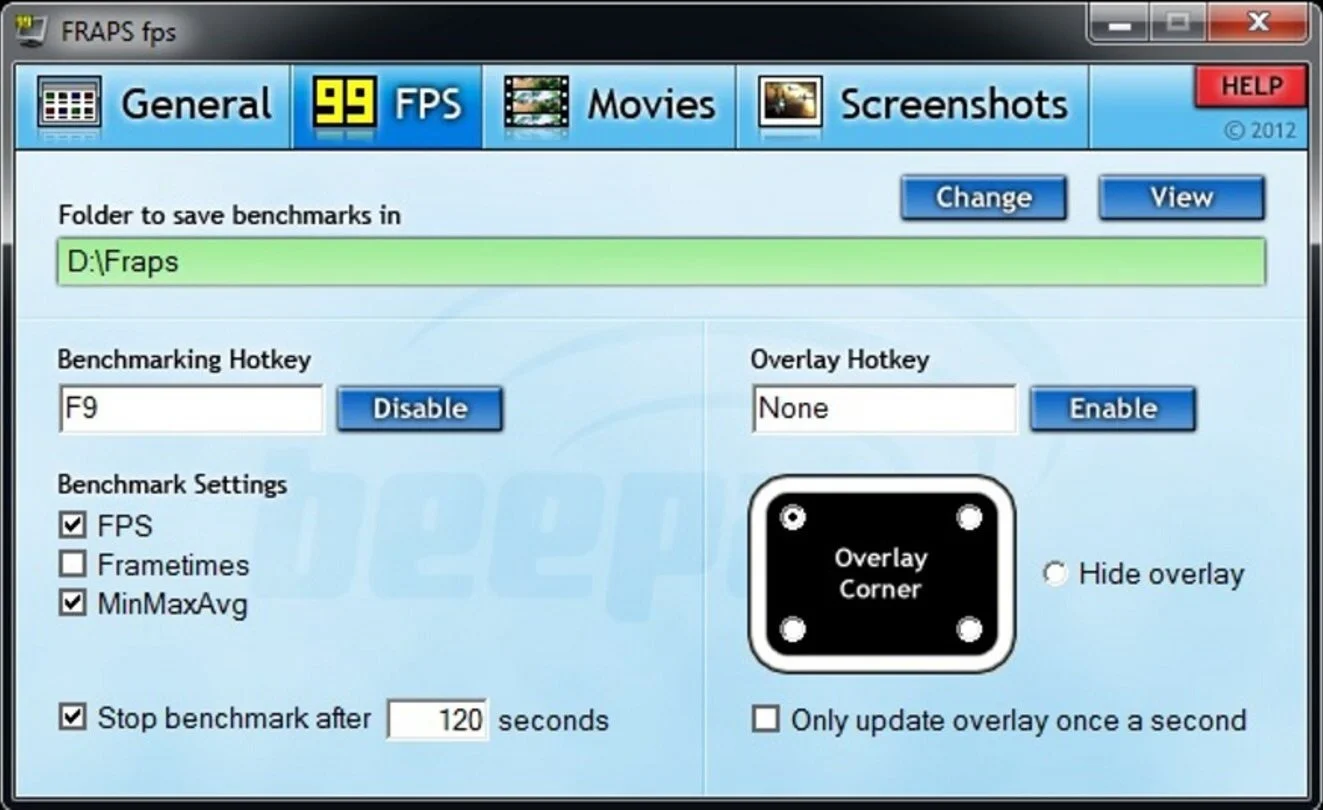
It was around the early 2000s’ while I was creating fan websites based on particular video games, that I became aware of a need for specific screen capture software. The single player games in question had no native screen shot option. So I was using the Print Screen button on my keyboard and then pasting the content into Microsoft Paint. As a process, it broadly worked and indeed still does to a degree but was not exactly convenient. It was about this time I discovered Fraps. Software that could capture both screenshots and as well as providing a benchmarking service. For $40 you could purchase a lifetime subscription, which I duly did. It proved to be a very useful app and was continuously supported and revised up until 2013. I continued using Fraps until 2019 and only stopped because some contemporary games were not compatible, resulting in screenshots of a black screen.
In 2019, after researching a suitable replacement, I decided upon buying Bandicam. I used the free demo version for a while and found that the app was easy to use, especially with regard to switching between two monitors. It also had a more robust video capture facility, taking advantage of more contemporary codecs such as HEVC, affording smaller output files. As recording video footage was both watermarked and restricted to 10 minutes in the demo version, I bought a full license and have been using Bandicam ever since. I use it prodigiously from taking screenshots in-game to taking captures of open web pages and apps. I do the latter for things like bookings or timetables. Information that I can quickly post into a WhatsApp group discussion. The video capture facility is adequate for taking short clips for subreddits etc. It also comes with Bandicut bundles with it, which provides simple editing services.
However, due to many games now shipping with anti-cheat software, even Bandicam can be blocked on occasions from taking screenshots or video capture. This happened to me recently during the first Battlefield 6 Beta test. It was at this point, I started experimenting with the AMD Adrenalin software that accompanies my graphics card. It does so much more than just manage driver updates. It can fine tune game graphics, such as sharpening images and upscaling. It can also take screen and video captures and being integral GPU software, can often bypass anti-cheat related problems. Furthermore, it can screen capture in a variety of image formats and be configured to take a series of pictures, with minimal impact to the running of the game. My only complaint is that the default hotkey combination for a screen capture requires three keys to be pressed.
Recently, I’ve dabbled with posting video game footage to YouTube. This introduced me to such software as OBS and Xsplit Broadcaster. Recording a video game or other activities from your Windows desktop provides me with the option to take screencaptures directly from the video file. This is useful as it affords me a lot more time to be able to select the content that I wish to screencapture. This can be something simple like choosing an appropriate picture for a YouTube thumbnail or taking a series of screenshots to document a specific task or process. It is interesting that in the space of just two decades, the idea of being able to take pictures or video of as you work or play on your PC, has gone from being a specialist requirement, to just an everyday tool. But such is the pace of change in the twenty-first century.
I turned on my laptop this morning for the first time in 4 months. I knew it was that long because I hadn’t connected the laptop to the new Netgear router that I bought at the end of April. Unsurprisingly, as I haven’t used this device for a while there were multiple Windows updates to be installed. This process took over an hour, so while the various updates were being downloaded and installed, I turned my attention to my Amazon Echo Dot which loiters in the corner of our lounge, doing very little to justify its existence. At present this device is mainly used as a glorified timer for cooking, which seems a bit of a waste given it’s alleged capabilities. Hence, I decided to see if I could increase its functionality while waiting for Windows to do its update thing. More on this later. Let us for the meantime return to the small matter of the operating system updates. Once they were completed, I immediately installed Chris Titus Tech’s Windows Utility and started removing unnecessary features and bloat, as well as disabling invasive services.
Before we begin, let me clearly state that this is not a comprehensive installation guide for installing Steam OS on your PC. Mainly because the variety of hardware that can be present in any PC makes each installation a somewhat bespoke affair. Hence I have decided to provide a list of bullet points of the various steps and issues I encountered during my installation, last week. Consider it advance warning of things you may encounter if you install this operating system. As ever, if this is something that you are intending to do, I would advise allowing yourself a suitable amount of time so you can accommodate any issues should they arise. It is entirely possible that this may be a two hour job for the technically literate running the most generic or commonplace hardware. However, I suspect that a lot of people undertaking this project will run into variations of the same problems that I encountered.
I am intrigued by the growth of the IndieWeb, owning your domain and static websites. I certainly agree with the notion of not relying on big corporations and I have an ongoing project to divest my dependency on software produced by major market players. However, although I own my own domain, my website is hosted by Squarespace. I’ve not really had any problems with them over the last 11 years and I would describe our business relationship as equitable. However, the monthly subscription price has increased over time and is likely to keep on doing so. It has crossed my mind as to whether there is a suitable alternative. However, if I were to migrate Contains Moderate Peril elsewhere I suspect it would be logistically complex and problematic.
I like learning new skills and starting projects. I regularly undertake such things with varying results. However, if they don’t work out that’s not a problem. You have to try something to see if you like it. I’ll add “within sensible parameters” as a caveat to the last statement. And it’s perfectly fine to discover that something isn’t for you. I like certain genres of video games, music, films and books. I am comfortable wearing certain types of clothes and not others. I’m picky about colours. I’ll even go so far as to say that I won’t drink out of any mug that’s just lying around. If I don’t like the joke, logo or overall aesthetic of it, I ain’t using it. However, I digress. Let’s get things back on track and talk about projects. This year I have wound down several websites and have decided not to move forward with making YouTube videos. I have focused my energy on improving my website and adding functionality. I am also trying to broaden the scope of my writing.
It’s funny how it is often the little things that become the proverbial straw that breaks the Camel’s back. I have been struggling for a while with the overall performance and functionality of my Windows 11 PC. The operating system is bloated, slow and buggy. It all too often commits that unpardonable sin of trying to do my thinking for me and enables some stupid feature by default. Despite having good specifications, my PC takes too long to boot up for my liking and is becoming too much of a wild card with regard to whether it will co-operate or not when I try and undertake a simple task. As someone who is very particular in their PC habits, IE I see my PC as a tool that I use on the terms that suit me. Hence, I find the faux enthusiasm that accompanies each uncalled for “improvement” that results in me losing agency, singularly antagonising. Then a minor issue arose recently that escalated into a thorn in my flesh and I decided that it was time that something must be done.
This is a post about the power of nostalgia and how sometimes, interacting with something from your past, be it physically or mentally, can produce a very strong and tangible emotional reaction. In some instances, this can be the result of something that you have specifically set out to do. On other occasions you can wander into a sense of nostalgia purely by chance. Today I experienced a very strong sense of nostalgia while watching a YouTube video and then again when I sought to replicate what I had seen. The video showed someone installing Windows 95 on to an old 486 PC from that era. The Window’s start up sound really touched a nerve (but in a good way) and then when the guy in the video launched Space Cadet 3D Pinball, a game that shipped with the operating system, I felt a strong compulsion to track down a copy and install the game myself, thus revisiting something that was an integral part of my life in 1995.
For the last few months I have being using Google Gemini. I subscribed so I could access a wider spectrum of services and evaluate it effectively. I also wanted to dispel some of the hysteria that accompanies any conversation about Large Language Models and Artificial Intelligence. The results were initially interesting and Google Gemini proved useful when researching material for blog posts. It is good at providing summaries about well documented subjects. I wrote a post about food banks recently and it distilled a lot of data into a manageable amount, which was ideal for my article. Google Gemini has also produced some visual basic scripting and simple batch files that have allowed me to automate processes on my PC. Such as changing the default monitor, or screen resolution at the click of an icon. However, I found this AI struggled with in-depth software troubleshooting and that its ability to create images varies greatly depending on the subject.
The UK Government has formerly announced its intention to ban under-16s from using social media. This is due to increasing public pressure that “something must be done” about the perceived iniquities of many online platforms. However, as with most complex social problems of this nature, no one has any clear or practical ideas as to what that “something” is. It remains a nebulous, non-specific panacea and clearly someone else’s job to identify and implement. As ever, why choose a nuanced and multifaceted solution to a complex problem, when it is far easier and politically expedient to just “ban” something. The former requires effort and a degree of thinking. If such an approach fails it also means that those who came up with it now carry the can. The latter dumps the problem in the lap of various third parties, who can then be conveniently blamed when the ill conceived policy fails.
Yesterday we changed internet service providers. We moved from EE (formerly BT) to Plusnet. The transition went surprisingly well, mainly due to the existing infrastructure remaining the same. We’ve had fibre to the premises (FTTP) since 2022 so this was essentially an administrative change. The previous ISP terminated their service at 1:30 AM in the morning, while I was playing Star Trek Online. By 6:30 AM I received a message from Plusnet that the new service was live. It took about an hour to configure the new Netgear Nighthawk RS100 router (I bought my own) and get all our household devices attached to the new network. The connection is running at exactly the same speed and stability as it had under the previous supplier. At present a 1Gbps connection is sufficient for our needs. The main factor that has driven this change is cost. We are currently paying £28 per month for internet access which is a competitive price in the UK.
In 1990 I was working at the DWP (Department for Work and Pensions). I had just taken the role of Computer Support Officer where I administered user access to the mainframe and provided first line support to staff using the terminals. That summer the office moved to a PC based network and the project was undertaken by the newly formed Siemens Nixdorf company. To cut a long story short I befriended one of the contract engineers and over the next 9 months he became an unofficial mentor to me. Technically he was only supposed to train me in the most basic of fashions but he liked the fact that I was always asking questions and effectively ended up schooling me in PC and server architecture, network administration and the associated protocols. For me this was the best way to learn. It was not a case of coming to grips with theory in a classroom environment. It was learning by doing and having direct and exclusive access to a source of knowledge and experience.
My Windows 11 PC is a cobbled together mess of upgrades, customisations and workarounds. It seems okay at first glance, mainly because my desktop is well organised and I don’t allow too many apps to start on boot up. But beneath this superficial veneer of efficiency and optimisation is a bloated mess. Every Windows update adds yet more spurious features which slows performance and tries to harvest your data. Windows is no longer a user friendly operating system that you buy and use without impediment. It is now a sprawling live service that actively gets in the way of your productivity so that it can make a buck off your inconvenience. There was a time when you could quickly learn its processes and foibles, so you could customise it into the tool you needed. Nowadays I have to continuously use third party tools to get Windows to do many of the things I want, or to access functionality that Microsoft has obtusely decided to restrict.
As the New Year is still young, I have embarked upon several new projects that I’ve been planning since Autumn last year. These undertakings have gone beyond the planning stage and are currently being implemented. The fun thing about the phrase “implemented” in this context is that it implies that it is by far the easiest and most straightforward part of the process. The initial brainstorming of ideas has been completed. A cogent and detailed plan has been written. The costing of materials and time required have been determined. These are the hard parts. All that remains is to “just do it”. It should be a piece of piss (a British phrase indicating that something is easy). It virtually “implements” itself. However, that is a load of bollocks. Because there is always scope for something to go wrong. It may well start as something minor and innocuous but it all too often ends in a “problem cascade”.
This time last year I made a decision to replace Microsoft Office or Office 365 as it is currently known. Mainly because I only use Outlook out of the entire suite of software. This project stalled because I couldn't easily import my existing email archive into Mozilla Thunderbird. Hence the status quo has been perpetuated. However, there is an ongoing cost associated with this software as well as some wider considerations about ethics and privacy which is why I have returned to this matter. Although this time I wish to replace not only Office 365 but all the other "production tools" I use to write and browse the internet. I have managed to make some progress towards this goal but it has been hard to adapt. Mainly because I had everything set up to my liking. Although alternatives are available, they're never exactly alike and require a lot of fine tuning to be deemed satisfactory.
Last summer I wrote a post about my experiences using various screen capture software. At the time I was using Bandicam which suited all my needs. I had configured the software to launch at Windows start-up and had a hotkey assigned to capture images from my primary monitor. Hence I could quickly grab a screenshot from my desktop or when playing a game. However, this changed in November 2025, when I bought two new monitors. Both of which supported HDR (High Dynamic Range). Although they provide superior picture quality, HDR has a knock-on effect on Bandicam. Screen capture images and video look over exposed. Hence I had to stop using the software and find an alternative. Fortunately the same company has been developing an alternative product with HDR support; Bandi Camera. So I swapped to this software. The screenshots were far better but the functionality of the app was lacking.
Our home has a 1 Gbps “fibre to the premises” internet connection. It has proven reliable since it was installed in June 2022. Our internet service provider EE (part of the BT group) are neither the best of worst suppliers. The monthly cost is not especially competitive and so we may be looking to move providers next Easter. However, that is a matter for the future. For the present there is a more immediate issue. Starting on Friday 21st November, our internet connection has started randomly dropping. Furthermore, both the Wi-Fi extender in the lounge and the wireless printer in my office have become disconnected from the network. It was as if their details had been erased from the router. I suspected that a recent firmware upgrade may be the culprit although EE denies it. However there are posts online from other customers with similar technical issues.
A couple of times a year, Mrs P asks me to copy onto her laptop, all the pictures that I’ve taken over recent months, as well as those that have been shared with us via WhatsApp. She then diligently whittles them down into a manageable amount which we then print off and put in our photo album. Yes we’re of the generation that still likes to print off hard copies of photos and from time to time look at them nostalgically. We have several albums with photographs in chronological order and numerous frames placed around the house, filled with pictures of family. The bulk of the photos are 4x6 inches (10x15 cm). We use an online photo printing service for the majority of our pictures and visit a local store with a self-service photographic department to print off specific pictures for bespoke frames. The original photos, now neatly organised, are backed up and archived.
I take a lot of screen captures of video games and Windows apps, usually for blog posts. I use both Bandicam and Windows Snipping Tool to do this and have set up various hotkeys to make the process easy. Of late, the screen captures that I’ve taken have all suffered from washed out colours, regardless what tool I used to take them. I checked to see if both these apps needed to be updated but they are running the latest versions. Hence I was initially stumped as to why this problem had started happening. After some thought, I deduced that the only new elements in my PC hardware were my two new monitors. Both of which support HDR. Google Gemini quickly informed me that this was a known issue and taking screen captures from an HDR enabled device resulted in an excessively bright image that looked over exposed.
I recently bought two new monitors and a stand for my PC tower case. Today I thought I’d take the opportunity to disconnect every peripheral, clear my desk and then after a thorough clean, reassemble everything ensuring good cable management. I even went so far as to buy a new power extension lead so I could reorganise where everything was plugged in and therefore be able to isolate specific hardware. It seemed such a simple, straightforward task on paper. The reality was much different. It took me over three hours to sort out, mainly due to the fact that I don’t “bend” so well these days. During this Herculean task, my watch kept on notifying me that my heart rate was “high”. However, I regularly took breaks and fortified myself with gin for medicinal reasons. I am pleased with the results of this task.
I use two monitors with my PC, as I find having the additional screen “real estate” invaluable when writing or playing games. Both monitors that I’ve been using up to now are somewhat old and they are not exactly the same size or resolution, although both are FHD. I have previously written about the problems I’ve had trying to get certain games and programs to display on specific monitors and the lengths I’ve had to go to to resolve this issue. To cut a long story short, I recently decided to replace both monitors with larger models with a higher resolution. Mainly because my eyesight is not what it used to be. I see best when working with a bright screen that can produce clear text. New monitors would also address my ongoing screen output problem. Hence, I set myself a reasonable budget and began researching appropriate replacements.
In July the UK Government introduced the Online Safety Act which requires age checks for accessing sexually explicit content online. As a result of this, Pornhub, the 19th most visited site on the internet, has reported a 77% decline in UK traffic. Furthermore, according to the UK regulatory body, OFCOM (The Office of Communications), overall visits to pornographic websites from the UK have fallen by 33%. Naturally, those who championed this legislation are claiming a moral and political victory. However, once you consider what these facts actually mean, they paint a somewhat different and potentially more worrying picture. It would be staggeringly naïve to think that UK visitors to Pornhub have ceased visiting such sites due to the age verification requirements. The more likely explanation is that UK porn consumers are now using VPNs to circumnavigate these restrictions and that this traffic to Pornhub is now recorded as coming from elsewhere.
It may be a case of preaching to the Choir but dust contamination in your PC causes overheating, decreased performance, and potential hardware failure. This mainly occurs due to dust restricting airflow, impeding components such as heat sinks and creating short circuits from conductive particles. Fluff builds up and restricts cooling fans, forcing them to work harder. Heat build can lead to issues like system crashes, lagging, and even permanent damage to the motherboard and CPU. Over time, it can shorten the lifespan of the computer and in severe cases, poses a fire hazard. When I used to work in IT contracting, I used to see the effects of dust contamination all the time. PC placed on carpet tiles or on top of desks and surrounded by other objects. I remember one PC replacement project I was working on where we found an old PC with a dead mouse in it. It was desiccated by the heat.
Usually I don’t have a problem with internet access when Mrs P and I are travelling. My phone data plan is sufficient for Google Maps and social media usage. Once we reach our hotel, it’s just a question of connecting to the free Wi-Fi or if need be, buying upgraded access. It’s seldom that expensive. When I went on holiday to Croatia this summer, I bought a bespoke data plan before arriving that granted me extra internet access. Our hotel in Makarska also had very robust internet access. Hence, regardless of being out and about or by the pool, I never had any issues getting online. The ubiquity of internet access means we often take it for granted. I seldom go to places in the UK or abroad that don’t have advanced IT infrastructure. Until this week.
Back in January, I was very pleased because I had finally found some open source software, DisplayMagician, which allowed me to quickly and easily alter my display profile and run specific games and applications on my second monitor. Prior to this I would find that some programs just wouldn’t stay put, once they were dragged or otherwise cajoled to display on the monitor of my choice. They would continuously snap back to the primary display, regardless of my actions. DisplayMagician solved this issue and did so with aplomb. Or it did, until last weekend when I upgraded my PC from Windows 10 to 11. Then it stopped working. I therefore did some digging online and it became apparent that this is a known issue that is currently being addressed by its creator, Terry McDonald.
As part of our increasing dependency upon software, we have also grown accustomed to its associated foibles, especially the negative ones. Today, I upgraded my blog from Squarespace 7.0 to 7.1 and my PC operating system from Windows 10 to 11. I started early in the morning and ensured that all my personal data was backed up. My default expectation was that both processes would go wrong in some way, shape or form. Let’s take a moment to consider this mindset, which is born out of experience. It is now taken as read that whatever you upgrade, be it an app on your phone or a program on your PC, that it’s going to be problematic. It won’t be a seamless transition and you’ll end up having to do some sort of troubleshooting. Despite our lives becoming more dependent on such software, the quality of these products seems to be deteriorating. What a sorry state of affairs.
The ability to take a screen capture of a video game that you’re playing, or an open application or browser tab, is just something we take for granted. Windows 10/11 have a built-in tool called Snip & Sketch that is simple to use. Most of the games that I play have a specific hotkey for taking screenshots and a default directory to store them. Similarly, the latest builds of Windows also include the Xbox Game Bar software, which allows you to capture video from any application that you’re running on your PC. You can then edit via Clipchamp which is the successor to the old Windows Movie Maker. I believe the macOS comes with comparable default software. The absence of such apps today would be noticeable. However, there was a time when such things were not considered standard features.
30 years ago, in early 1995, I bought my first PC, a second hand Compaq Prolinea 4/33. It had an Intel 486 DX processor, 340MB HDD, 4MB RAM, 3½-inch floppy disk drive and a 14-inch monitor with a screen resolution of 1024 x 768. It ran Windows 3.11 installed via MS-DOS 6.22. It didn’t come with a soundcard or a CD-ROM drive. I believe I paid around £750 or so at the time, which was approximately half its original retail price. This model was 2 or 3 years old when I bought it. However, at this time, PC specifications did not change as quickly as they do these days. Hence, this was a good starting point for someone new to computing. I subsequently upgraded the processor to a 486 DX2, increased the RAM to 16MB and installed a Creative Labs Sound Blaster AWE32 soundcard and CD-ROM drive.
Three months ago, I wrote a blog post regarding how I wasn’t going to replace my phone because I was pretty much done with the endless treadmill that is “upgrade culture”. At the time my Google Pixel 6 was three years old but continued to serve all my smartphone needs. So I signed up for a new “SIM only” contract with Vodafone and went about my business, feeling somewhat pleased with myself. However, “needs must when the devil vomits into your kettle”, to quote Blackadder. I recently noticed that the screen on my phone was coming away from the main enclosure. There was a distinct curve along the right hand edge, as if there was something inside the phone applying pressure outwards. Sadly, that is precisely what was happening. I searched online to see if this was a known issue and was subsequently introduced to the problem known as battery bulge.
I had a novel experience (at least for me) this morning. I went to the cashpoint (that’s an ATM for those outside the UK) at my local supermarket, only to find it out of service. I had an imminent haircut appointment and no cash to pay my barber, who doesn’t take card payments. Fortunately, the supermarket did “cashback” so I bought a loaf of bread and some milk, paid £23 for them and was given £20 in cash. It’s a useful facility that I have never used until today. Usually I just make sure that I have a float of cash available but today the cashpoint being unavailable threw a spanner in the works. If the store did not do “cashback” then I would have had to reschedule my haircut. This minor hiccup got me thinking about our dependence on technology in our daily lives. A point that was further brought home, as my barber told me he had recently visited Spain and was affected by the national power outage.
I last bought a new phone in March 2022. At the time I decided to move away from Samsung after a decade of brand loyalty and try the Google Pixel 6. Let it suffice to say that I have found this handset to be most satisfactory. I like the size. It fits into the front pocket of my jeans. Its overall performance is very good and it has no issue running any of the apps that I regularly use. Subsequent software updates have improved some aspects of the camera, which initially had a poor zoom. Overall the good points of the Google Pixel 6 outweigh its flaws. Hence despite being 3 years old I am happy to keep using it. I have looked at what the subsequent iterations of the Google Pixel have to offer and I really don’t see any significant improvements or benefits. So despite being offered a handset upgrade by Vodafone, I have decided against one.
Have you ever embarked upon a tech related task that you consider to be a relatively simple undertaking, only to find it slowly becoming more complex and more involved as you progress. For instance, configuring software, upgrading your PC or changing internet service providers. I’m sure the answer is yes, because this seems to be life’s default position these days. Every endeavour starts with a simple premise, only to become bogged down in additional requirements and unforeseen issues that weren’t apparent at the beginning. The icing on the cake is often a cost that hadn’t been anticipated. To get the job done you have to put your hand in your pocket and pay someone or buy something. It is a pain in the butt, annoying and sadly, all too common these days.
Screenshots and Photo Mode
Despite its many flaws, Cyberpunk 2077 launched with a very comprehensive “photo mode”. Developer’s CD Projekt Red put a lot of resources into creating the game's aesthetic and recognised that players would want to explore it and record how their avatars interact with it. The ability to take screen captures is a selling point for many games, especially in the RPG and MMORPG genres. It allows players to keep a permanent record of their activities over time and also adds another social aspect to proceedings. Players love to share screenshots that showcase their avatars and record events they’ve participated in. Some fan sites are predicated purely upon in-game photos. Either highlighting the various cosmetic items that are available or capturing the beauty of the virtual world. I still have screenshots from The Lord of the Rings Online going back to the day I started playing in December 2008.
Despite its many flaws, Cyberpunk 2077 launched with a very comprehensive “photo mode”. Developer’s CD Projekt Red put a lot of resources into creating the game's aesthetic and recognised that players would want to explore it and record how their avatars interact with it. The ability to take screen captures is a selling point for many games, especially in the RPG and MMORPG genres. It allows players to keep a permanent record of their activities over time and also adds another social aspect to proceedings. Players love to share screenshots that showcase their avatars and record events they’ve participated in. Some fan sites are predicated purely upon in-game photos. Either highlighting the various cosmetic items that are available or capturing the beauty of the virtual world. I still have screenshots from The Lord of the Rings Online going back to the day I started playing in December 2008.
There is a surprising amount of skill involved in composing a good screenshot and it is not just a case of point and click. Framing and the “rule of thirds” are important factors. A Google search will provide you with plenty of common sense advice. However it helps immensely if a player can readily swap from third person to first person perspective. There will be times when you do not want or need your own avatar in the picture that you are taking. Thankfully most major MMOs have the facility to easily change between camera views and to turn off the user interface. However, photo mode, found in single player games, provides a far greater degree of creative freedom. It allows the game to be paused and the in-game camera to be detached from its preset configurations and to navigate in three dimensions around the desired image.
Considering that so many games these days have a business model based around the sale of cosmetic items, it comes as no surprise that gamers want to take in-game selfies. It has to be said that the MMORPG genre, especially the role playing community, has a somewhat vain streak running through it. After all it is your avatar that is at the centre of the game. Hence, it seems logical and good business sense to ensure that all games come with facilities to accommodate and support screen captures. Where possible I’d personally like to see the more comprehensive photo mode supported. This really appeals to me in the same way as drawing and painting does. There is immense satisfaction to be had in trying to compose and frame a shot. It is something I can happily spend hours on. And then there is the option of post processing although that can be a somewhat contentious issue. Does it enhance the image at the expense of the game?
Sadly, some games still lack integral screenshot support or do not have a specific photo mode. Furthermore, some even go so far as to actively block third party screen capture apps from working. For years I used the screen capture program FRAPS but some Ubisoft games see it as a security threat and consider its activity suspicious. So I found myself having to use for a while the screen capturing tool that comes with Nvidia’s GeForce experience software, to take pictures in certain games. Fortunately, I subsequently discovered Bandicam which offers a one stop screen and video capture solution, bypassing the issues caused by certain developer’s security protocols. There’s a free version that allows for unlimited screen captures without watermarks but it does restrict video capture to 10 minutes. The full version of the software cost $40.
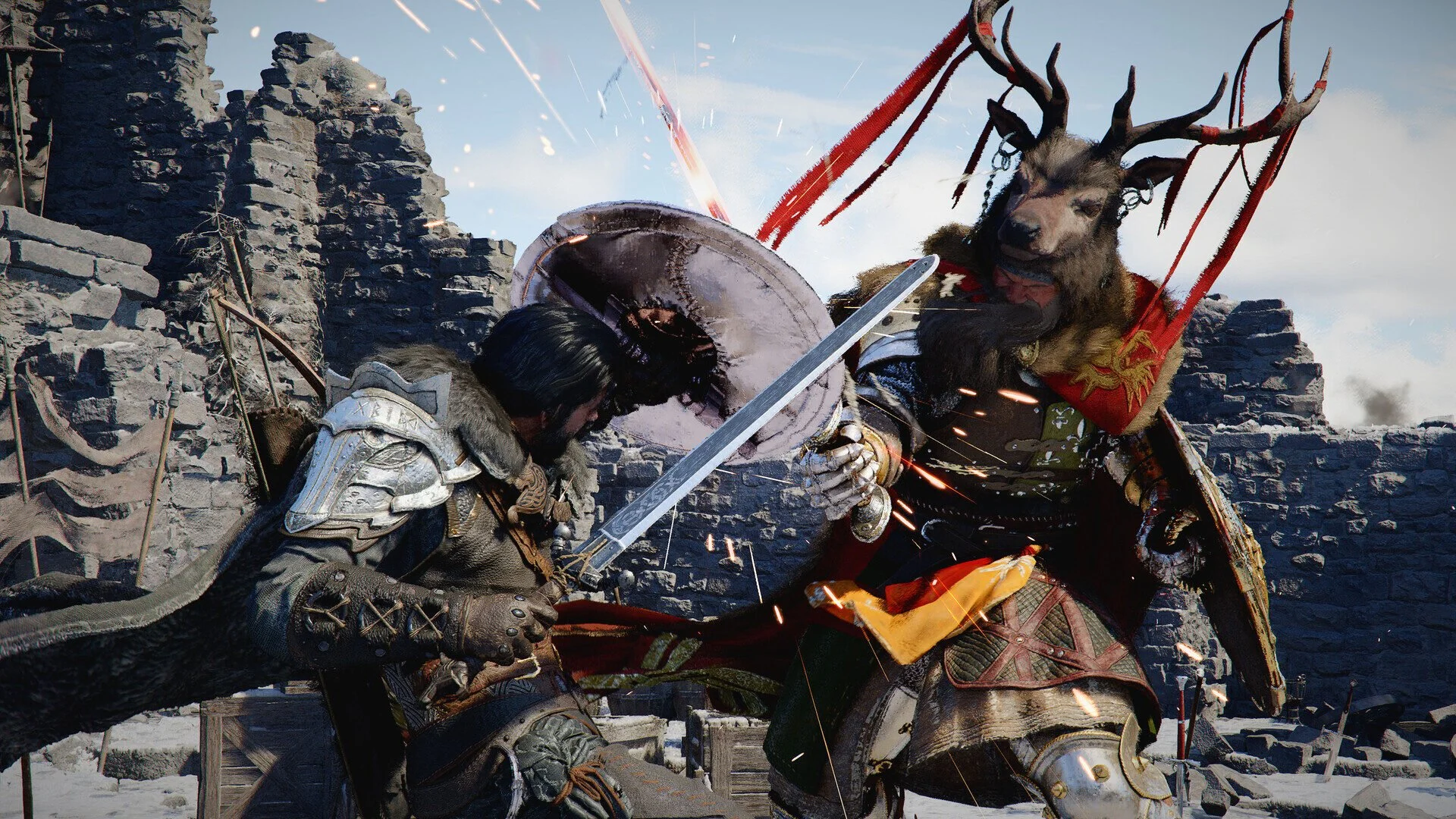
Some video games lend themselves to being set aside and resumed at a later date with zero consequences. These are often casual games with no major goals other than having fun while playing them. Fall Guys is a great example of this. You have a cartoony avatar that participates in zany group races, filled with obstacles. You run, jump, climb but the controls are far from difficult. You may well become skilled but such things are mitigated by the other players as they stumble around. You’re not at the mercy of apex players or “try hards”. It is not a game about winning and mastering techniques. The fun comes from playing it and the unique experience you have each time. I’ve been playing this game, on and off, since it’s launch in 2020 and in that time I have only ever won once (winning requires you to win a series of 4 to six individual races). However, whenever I pick up my controller and play Fall Guys, I have fun and the game lifts my spirits.
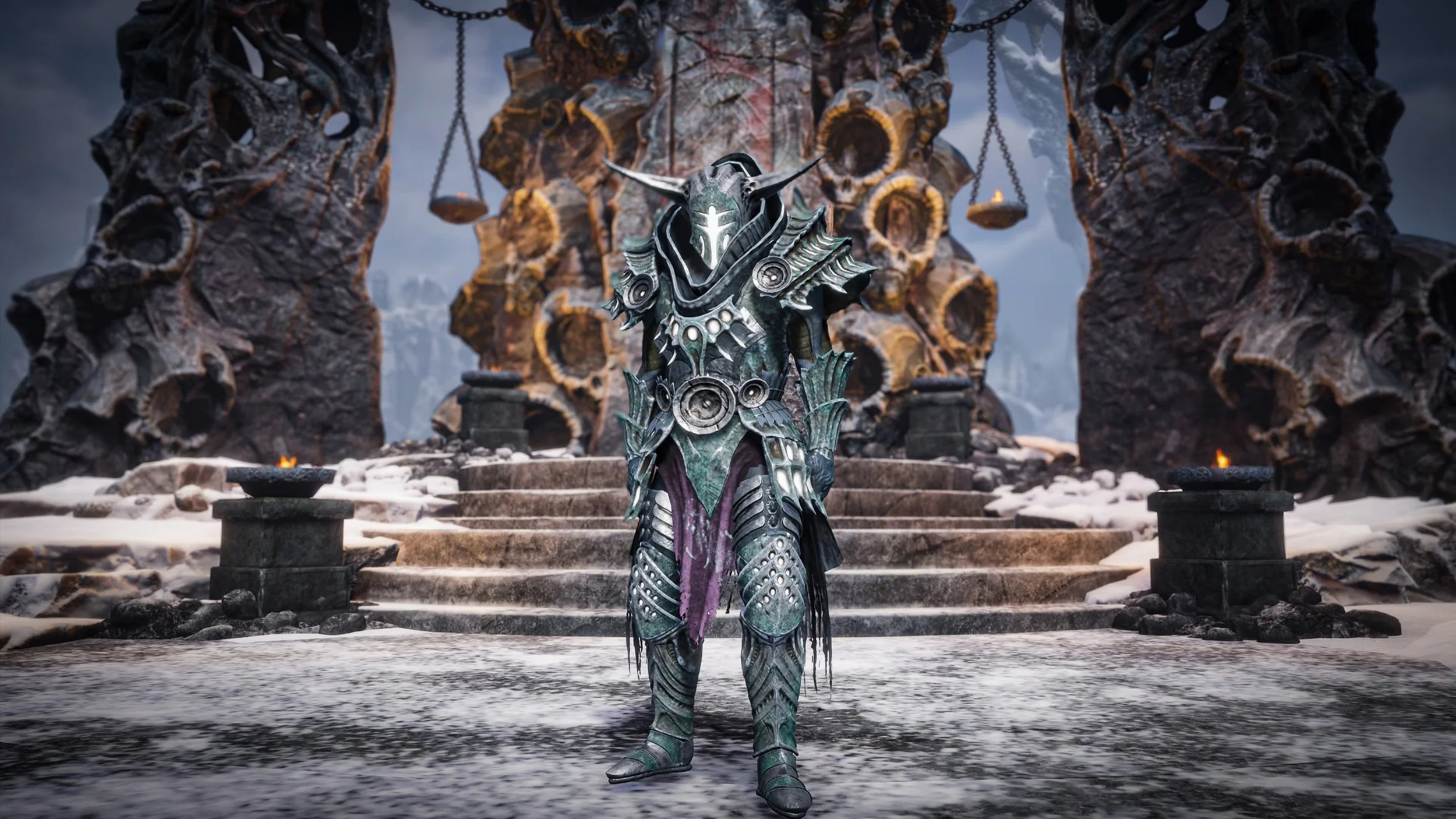
I recently completed the main story in Tainted Grail: The Fall of Avalon. In total I spent about sixty hours playing the game. I began at the start of the year, then took a break for a while but returned to it recently because I wanted to see if I could unlock a specific ending. I did manage to do this. Like so many other RPGs, Tainted Grail: the Fall of Avalon has a central storyline, along with a wealth of side quests, based around factions in specific zones. I think I possibly completed about a two thirds of these. However, once I finished the main story, my interest in the game began to wane. I finally left my character in the last major quest hub in case I wish to return at a future date. I then logged out of the game and uninstalled it from my PC to free up space for whatever I was to play next. In this case its The Sinking City 2. None of this is a negative reflection on Tainted Grail: the Fall of Avalon. I enjoyed the time I spent playing this quirky RPG. I simply had my fill and left to play something else.

On Tuesday 11th April, Aspyr Media rather surprisingly re-released The Lord of the Rings: War in the North, a co-op action-RPG from 2011. This game was delisted in late 2019, possibly due to changing rights ownership or a license expiring. Hence, I was somewhat discombobulated by the return of this title to all major gaming platforms. Mind you, the Embracer Group (through its subsidiary Middle-earth Enterprises) still controls the worldwide commercial and video game licensing rights for The Lord of the Rings and The Hobbit. Furthermore they have explicitly stated that they have plans for more games. It would appear this also means re-releasing and updating old favourites. It is also worth noting that they own Aspyr Media, which is also a bit of a giveaway. Let it suffice to say that this re-release and sparked enthusiastic online debate as to whether any other he Lord of the Rings themed games from the same era will receive a similar makeover. Judging by the internet chatter, there’s potentially a market for them.
The next expansion for the MMORG, The Lord of the Rings Online, was announced on the 1st August, via the gaming website MMORPG.The Wolves of Mordor, which will launch later in the year, appears ambitious in scope as it will include two new game systems as well as the obligatory story update. This expansion takes place in Draugardh located in the North East of Mordor, beyond the Plateau of Gorgoroth. It includes the new zones of Heledhris, Parth Rhavas and Nan Ogol. These vary environmentally ranging from the arid, volcanic and semi-tropical. Players will encounter the Daugrim in these regions, Werewolves but not in the modern sense. This is not the lycanthropy of Eastern European legends but in the established Tolkien idiom of fell spirits inhabiting the bodies of Wolves. The region also sees the return of the Woses and players can expect to encounter Elves and scouts from Gondor. As ever with LOTRO expansions, there will be new instances as well as a raid.
This is a post about the power of nostalgia and how sometimes, interacting with something from your past, be it physically or mentally, can produce a very strong and tangible emotional reaction. In some instances, this can be the result of something that you have specifically set out to do. On other occasions you can wander into a sense of nostalgia purely by chance. Today I experienced a very strong sense of nostalgia while watching a YouTube video and then again when I sought to replicate what I had seen. The video showed someone installing Windows 95 on to an old 486 PC from that era. The Window’s start up sound really touched a nerve (but in a good way) and then when the guy in the video launched Space Cadet 3D Pinball, a game that shipped with the operating system, I felt a strong compulsion to track down a copy and install the game myself, thus revisiting something that was an integral part of my life in 1995.
RV There Yet? is possibly the most entertaining game I’ve never played. My vicarious pleasure regarding this title has come exclusively from watching two popular YouTubers, JackFrags and WillFromWork, play through the game over a series of videos. It has been immensely amusing to watch and I have empathised a great deal as the group of four players has struggled with the game’s unpredictable mechanics and their own team’s dynamic. I could go and buy RV There Yet? myself but I doubt if I would ever have a gaming experience anywhere close to what I’ve watched online recently. So in some respects watching these videos has been an interesting alternative as I’ve been entertained, which ultimately is the point of video games. Perhaps there is a deeper philosophical point here that the game developers should reflect upon, as they’ve lost a potential sale. However, that is separate discussion for another day.

I don’t keep up with gaming news as much as I use to but several noteworthy announcement have come to my attention of late. Firstly, there’s an expansion, Songs of the Past, coming for the Witcher III: Wild Hunt in 2027. No doubt this is to pave the way for the Witcher IV. Next, I also found out about Hand of Fate: Horde. I liked this franchise and was saddened to learn that the original studio, Defiant Development, closed. Hence is was a pleasant surprise to see this new game being developed by members of the original studio. The third announcement was regarding Guild Wars 3. A new MMORPG in active development by a major studio is no small feat and is certainly good news for fans of this franchise and the genre per se. However, once you look beyond this news this announcement raises several questions and has certainly given me pause for thought. Let us take a few moments to consider them.
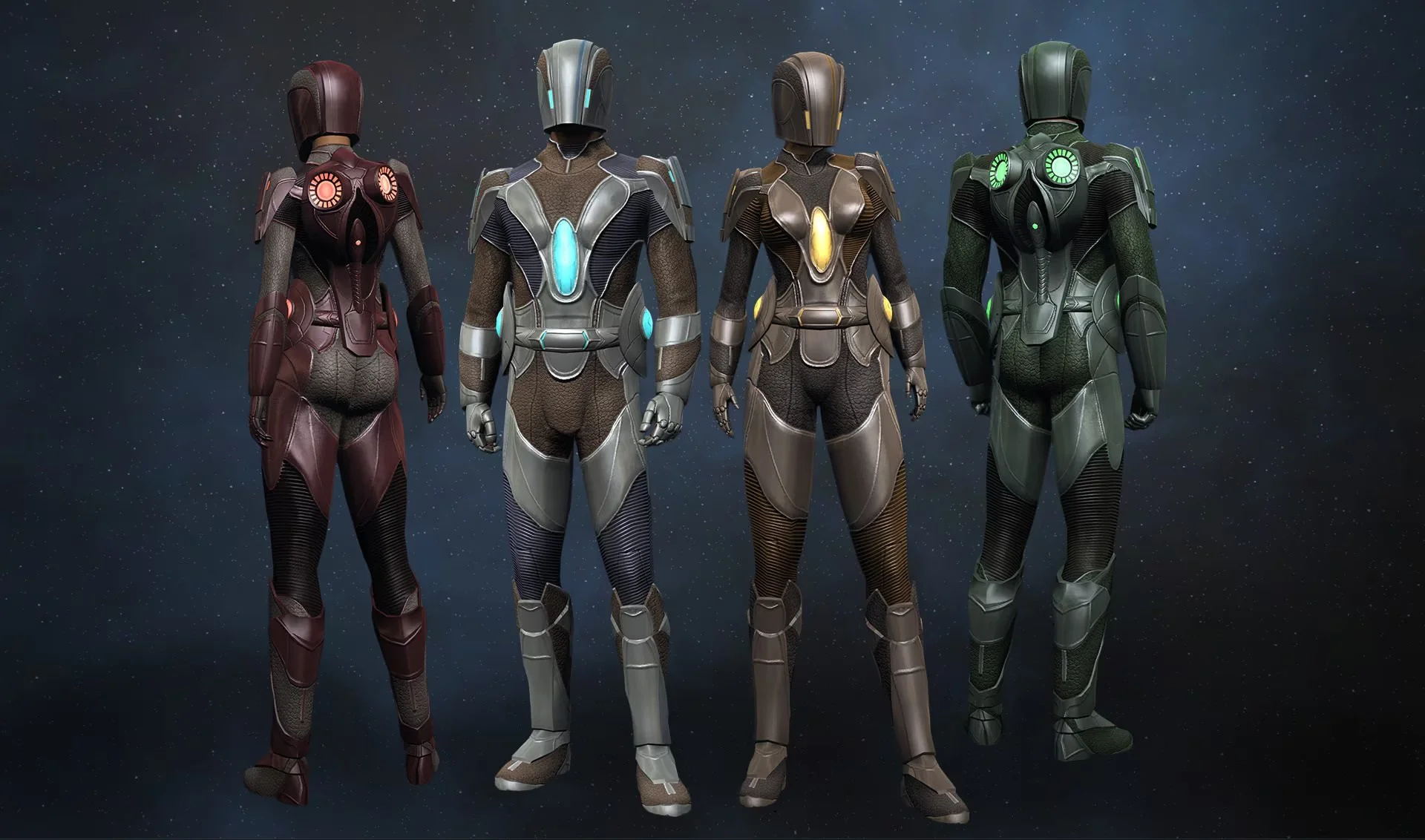
Star Trek Online has many in-game systems that are common to the MMORPG genre. The reputation system is one such example. In STO there are 13 reputation factions. Once a player has reached level 50 they may start progressing through the 6 reputation tiers of each one. Players gain progression through daily projects (20 hours in duration). Hourly projects are also available though they yield less reputation advancement and are limited to three times a day. Hence 20 hour projects are consider by default the most efficient way to gain rep. Projects require 30 Faction Specific Marks (earned via various activities in-game), 15,000 Energy Credits (standard in-game currency) and 2000 Expertise points. The most efficient way to tackle the reputation grind is to build up the necessary resources in advance and then at a designated time each day, start all 13 respective projects. Upon completion projects yield a player bound lockbox containing a random space or ground weapon, a console or Elite Marks which can be used to acquire faction gear.
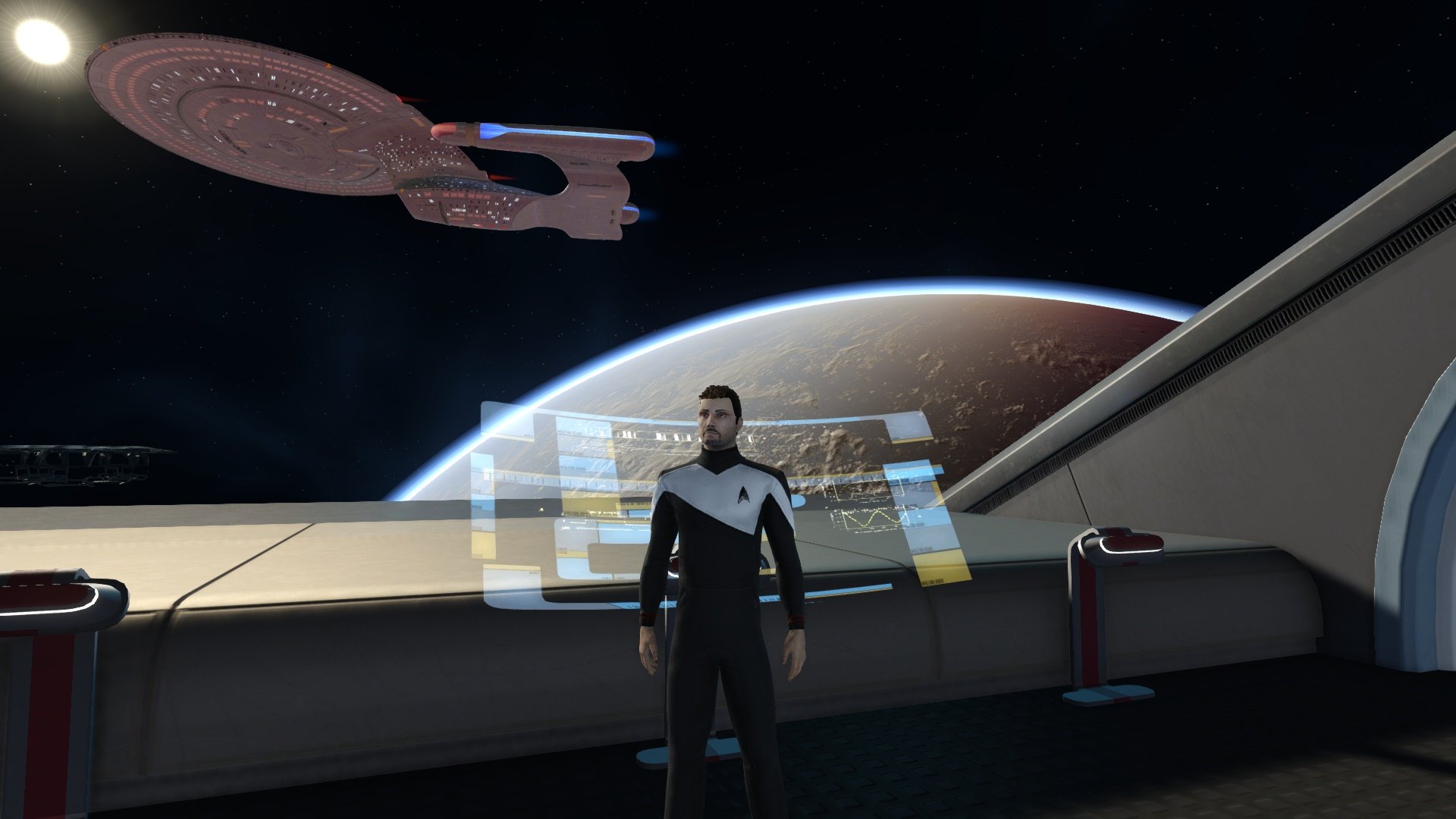
I was recently perusing my archive of old blog posts, when it struck me how much I’ve written about the MMORPG genre over the years. Naturally, there was far more material from between 2008 and 2012 as that was period when I immersed myself in the genre and was very enthusiastic about it. I was at a point in my life when I had the time to dedicate to such games and I was happy to participate in the social aspect of they offered. I would regularly play through group content and spend time socialising online with fellow guild members. My experience remains a textbook example of how online games can be more than the sum of their parts and that where you are at in your life has a major impact upon your overall enjoyment. As I read though various old posts it became clear that my experiences where specific to this particular part of my life and that they cannot be repeated. My relationship with the genre is very different now and that’s fine.
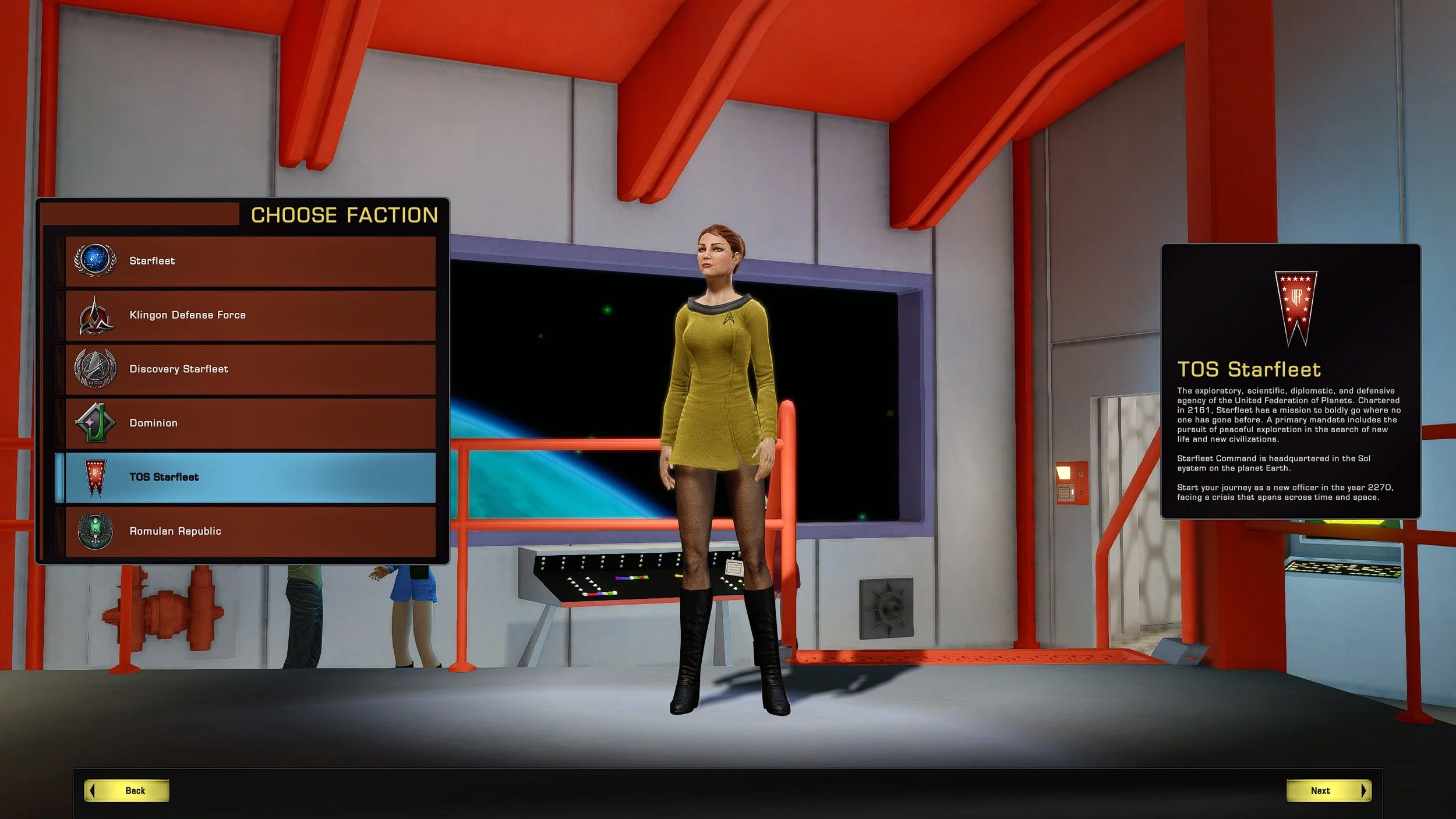
Creating alts is an integral aspect of the MMORPG genre. Many players will create a character of a specific class or faction, play it for a while, lose interest in it or they may decide that it is just not for them. Fortunately it is no effort at all to simply re-roll a new alt and set off once again. Furthermore, lots of players never reach level cap of the MMORPG that there playing. When the going get’s tough, so to speak, you can either soldier on for another 50 levels or simply create a new alt and return to the comfort of tried and tested content. Alts also give you the chance to secure an accolade or achievement that you previously missed. They are also of great benefit to the genres social aspects. Creating a new alt so you can play along with a friend who is just starting is great fun. Developer’s love them too as it means you’re still playing the game.
I recently took a break from Crimson Desert choosing instead to to play something familiar and easy going. As I’ve been logging into Star Trek Online daily to participate in the anniversary event, I decided to look through my various alts and see how far they had progressed through the game and what resources they had. At present I have twelve alts. My primary Captain was created in 2015 during the original Delta Recruit Event. I had previously played STO intermittently since its release in January 2010 but I never kept any of those characters. Hence this decade old Tactical Federation Captain has been my main focus when playing. The other eleven alts are the result of other recruitment events or whenever I wanted to try something different, such as playing a specific class or faction. I obviously played a lot of STO during the lockdown as several alts date from that period. Several had maximum reputation across all factions.
The action, open world RPG Crimson Desert has been patched five times since it launched on March 19th and there have also been multiple hotfixes. At first glance this isn’t anything unusual. New games have bugs and issues arise once a game is released and played across a much wider variety of hardware than in QA testing. However, if you read the patch notes that accompany these sizeable downloads it quickly becomes apparent that developer’s Pearl Abyss are not just addressing bugs and software glitches. They are actively engaging with their player base and responding to suggestions and requests from that community. Although this is not a unique approach, what is surprising is the speed and quantity in which these player driven changes are happening. There seems to be an active ongoing process to refine the game and eliminate some of its “rough edges” and the players are contributing to this process with their feedback.
According to my Steam statistics, I last played Starfield on 19th December 2023. I bought the game upon its release in September of that year and played in total for 136 hours. Starfield held my interest for three and a half month and I wrote seven blog posts about various aspects of the game. Although there were some engaging aspects to Starfield, I did feel that that the game was somewhat lacking in systems and content, at that point in its lifecycle. I also think that the marketing and player expectations associated with Starfield were overblown and unrealistic. The shadow of Skyrim looms large over all new Bethesda releases and they don’t seem able to quite recapture that magic. Hence, I inevitably drifted away from Starfield and to another game and was effectively “done” with it. I have not played the game since which seems to validate the theory that game are becoming increasingly more ephemeral.
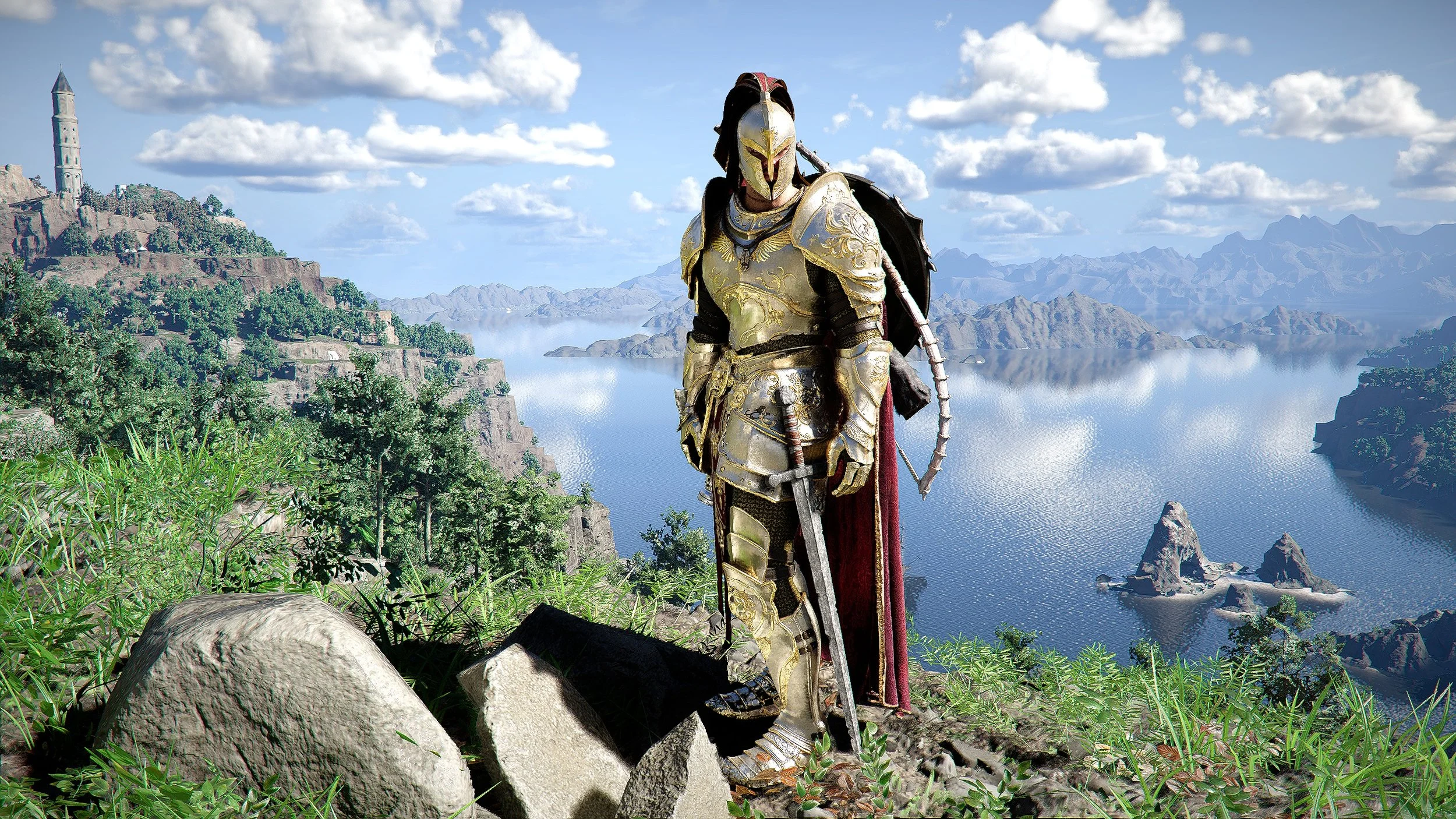
13 days after its release, market analysts estimate that Crimson Desert has already earned $200 million across the four main platforms (PC, PlayStation 5, and Xbox Series X and S). The game is certainly proving popular among gamers with the internet awash with live streams and “let’s play” videos. However, reviews are mixed both among gaming journalists and YouTube influencers. Common complaints about the game include that it is slow to start, the controls are poorly laid out on all platforms and that developer’s Pearl Abyss have done a poor job of explaining most aspects of the game to new players. Although such criticisms are true to a degree, I think these complaints highlight how many gamers are conditioned to expect new titles to follow a specific pattern with regard to pacing, narrative exposition and learning in-game systems. A pattern that Pearl Abyss has chosen to ignore, instead favouring an old school approach.
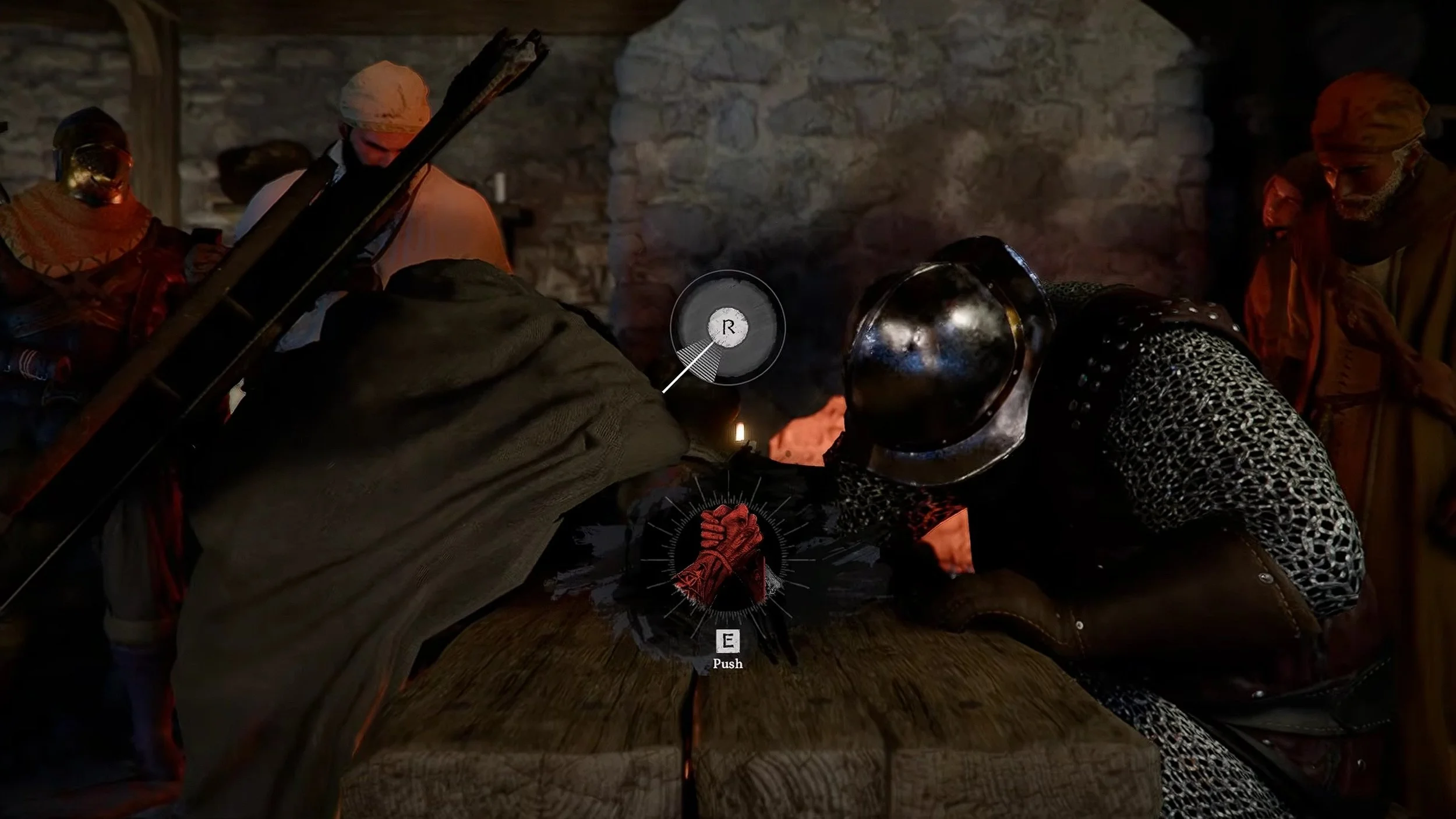
Early on Crimson Desert, the main quest requires the player to enter a tavern and arm wrestle a particularly strong guard. The arm wrestling match consists of a quick time event. If playing on PC you have to rapidly press the “E” key which turns a power meter from white to red. Then a white dial appears above the meter with a rotating hand. When the hand passes over a segment of the dial that is marked by hatching, the player must press the “R” key. The idea being the meter filling with red is you strength building (or waning) and the “R” key prompt indicates when to try and force your opponent’s arm. You will need to to continuously press the “E” key throughout the arm wrestling match and the “R” key about 4 times to win.
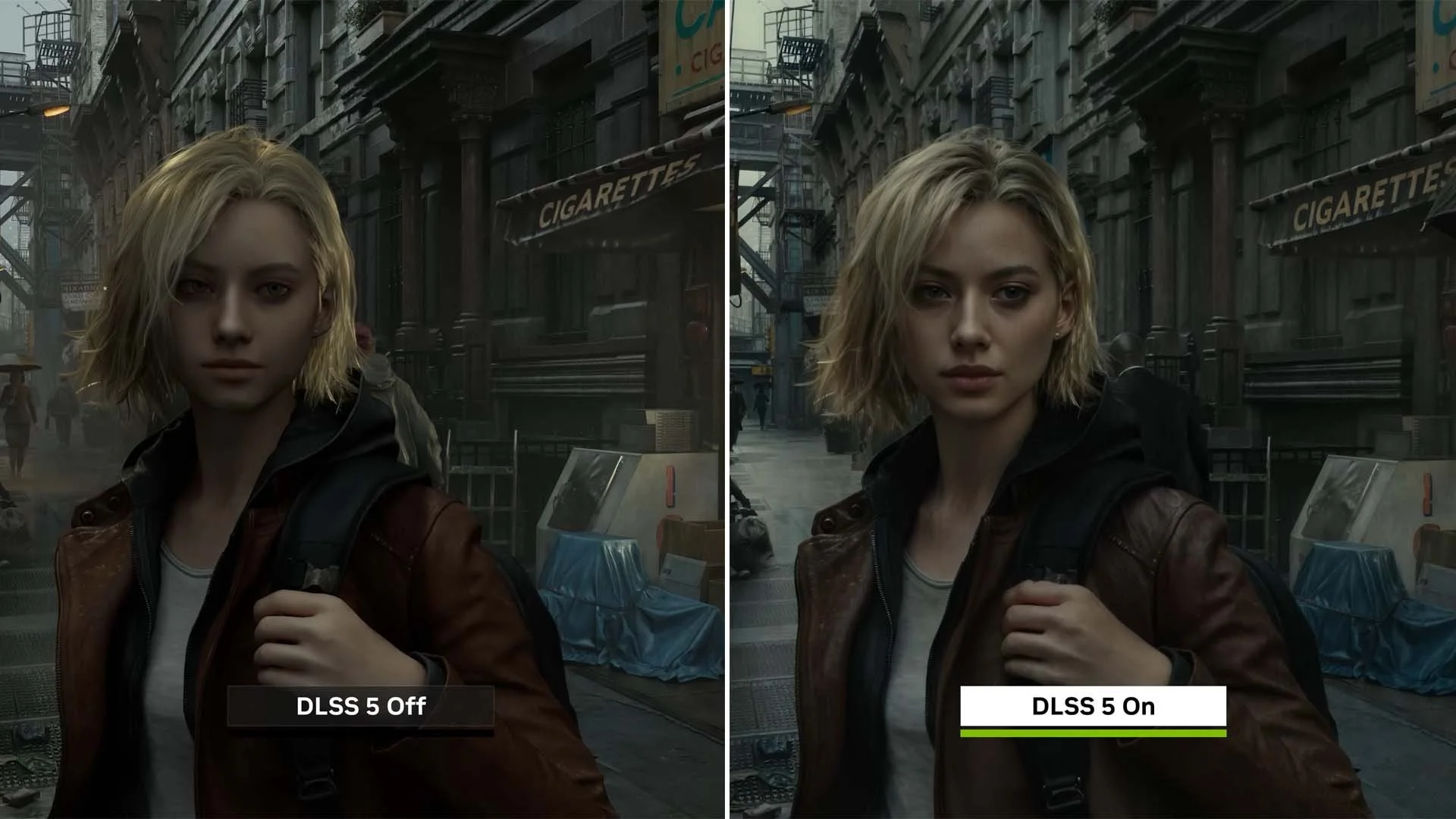
Earlier this week, Nvidia posted a video featuring their latest iteration of DLSS technology (Deep learning super sampling). DLSS 5 is an AI-powered “real-time neural rendering” process and unlike previous versions that focused on improving frame rates through upscaling or frame generation, DLSS 5 uses generative AI to “infuse” frames with photorealistic lighting and material details that the game engine never actually calculated. Let us pause for a moment and consider these words. Material detail that the game engine never actually calculated. Therein lies the rub. If you watch the aforementioned video or peruse the images posted here, it is abundantly clear what the technology does.

Last night, I spent the first 45 minutes after the launch of Crimson Desert, watching the 92GB pre-downloaded game files slowly decompressing and installing. I finally launched the game at about 10:50 PM GMT. I then waited a further 5 minutes while shaders were downloaded. It took me about 15 minutes or so to read through the various game settings and choose those that are optimal for my PC. I suspect even if you have a beast of a computer, you’re still going to have to spend some time tweaking settings. As for those players like myself with a gaming rig that is somewhere in the middle of the game’s specifications, be prepared to do a lot of fine tuning both within Crimson Desert itself and your Windows settings.
I have been aware of the online interest around the open world action game Crimson Desert for a while now. One of the things that has intrigued me about it is the scope of the game. The word “hype” has been bandied about by a few gaming websites. However, from what I have observed, developers Pearl Abyss have not been excessively hyperbolic themselves, with regard to the manner in which the game’s systems and mechanics have been marketed. Now that the press embargo has been lifted, the pre-release reviews seem to confirm that everything we’ve seen in promotional videos in the run up to the launch, is in fact present in the game. So far the initial critical response has been very positive and it has been hinted that the game may well be a genre milestone. Perhaps Crimson Desert is just a rare example of a game that has not had a rushed development and isn’t launching prematurely for business reasons.
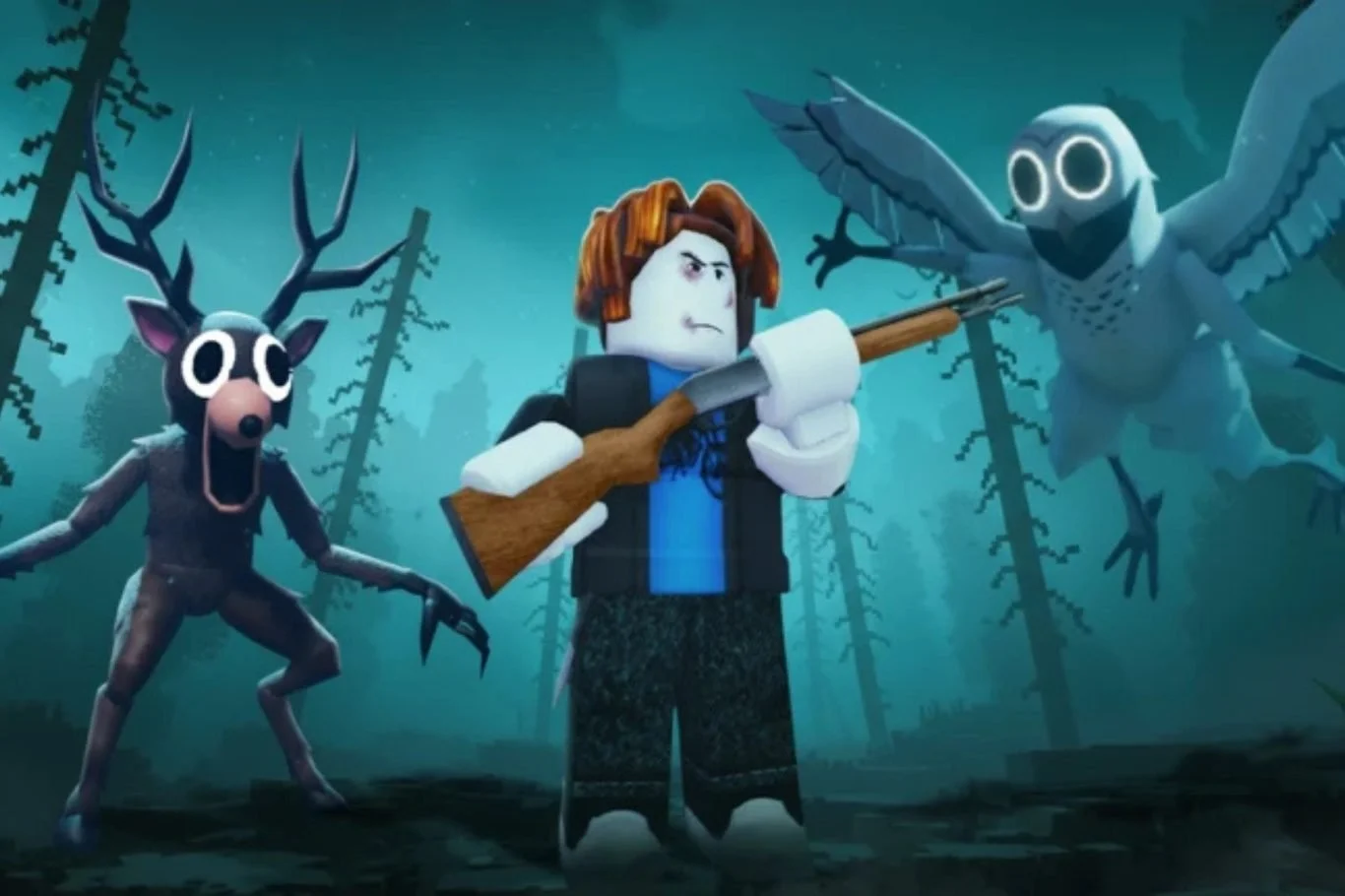
Video games as a genre are extremely poor at explaining themselves. When you buy a new game you’ll often find little or no information regarding the basic systems and mechanics. The industry assumes that their customers are by default familiar with the fundamentals of playing a modern video game. Hence if a game has a tutorial, it is often based around videos rather than detailed verbal instructions. You are are briefly shown a clip of a specific move being successfully undertaken but it is seldom shown in a wider context. The industry also expects the fan community to take on the role of curating and disseminating information about its games. The move away from forums and bespoke websites to Discord highlights this. Discord is a primarily a real time communication tool and not good at maintaining a historical data archive. If you want an answer to a specific gaming question, you’ll more than likely find it on YouTube in a video made by a fellow gamer.
I have written in the past about the video games we cannot play. The ones that require a keen understanding of a game’s mechanics, along with a strong degree of manual dexterity and situational awareness. Being 58 years old, I tend to have neither the co-ordination necessary to succeed or the patience to master such complex skill requirements. With this in mind, I recently watched a YouTube video for Chivalry 2 and thought, that looks like fun. The fact that it showed someone picking up a chicken and throwing it at an opponent is neither here nor there. However, after watching a few more videos I realised that combat in the game was complex and that, as usual, the reality of playing such a game would be different from my expectations. Hence, I came very close to not buying Chivalry 2. However, I eventually decided that I would, so I bought it for just under £10 from an online vendor.
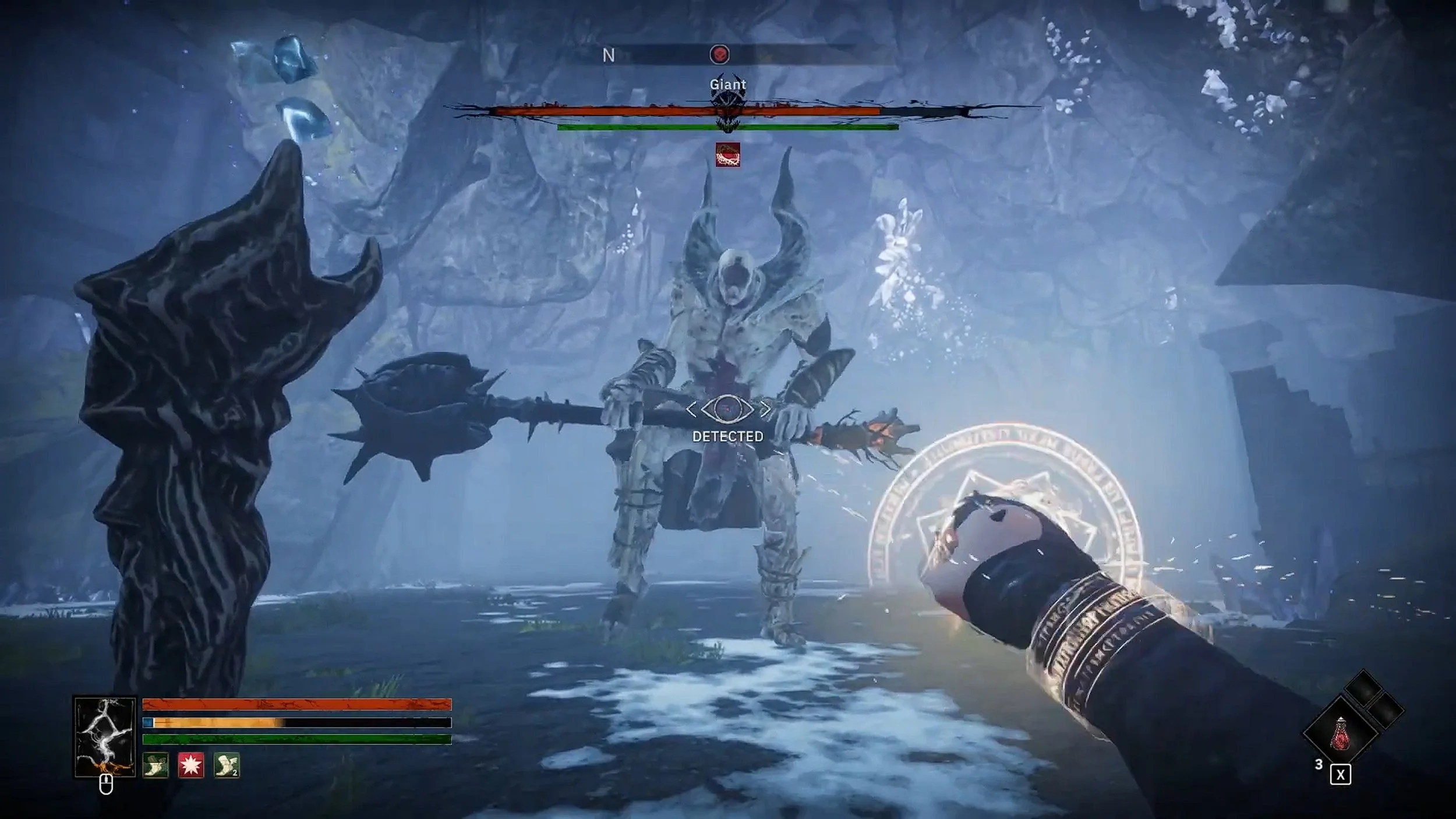
I decided to pursue a magic and spellcasting build in the RPG Tainted Grail: The Fall of Avalon after the story prologue. During the opening section of the game, the player is presented with a sufficient range of weapons to determine which type suits them best, although you can change at any time during the game. For me, casting spells feels right and is fun. Plus I have fond memories of the magic system in Two Worlds II and Skyrim. So once I started playing through the first zone, I started putting attribute and skill points into the appropriate trees to bolster my spells strengths and frequency. I also chose gear that would bolster those statistics further. The results have been surprising, as magic and spellcasting is not presented in the usual “glass cannon” style you find in some other RPGs. Here it offers robust DPS output and with the right gear and spell combination, a strong degree of survivability.
I originally bought Warhammer: Dark Omen in the summer of 1998. I played a demo copy via a magazine cover disc, which was a common means of promotion and marketing back then. Although I was at that point, unfamiliar with the Warhammer Universe, I found this game to be an excellent point of entry. The story did an excellent job of introducing players to “The Old World”, the political and power structure and major characters. I instantly liked both the aesthetic and the lore. Warhammer: Dark Omen was also the first real-time tactical wargame that I played and I spent numerous hours playing through the campaign. Overall, the game was a critical success, particularly on PC, but it struggled commercially upon its initial release and didn’t quite find the audience that it deserved. However, it has achieved status as a “cult classic” among gamers, leading to a recent re-release on GOG in late 2025.
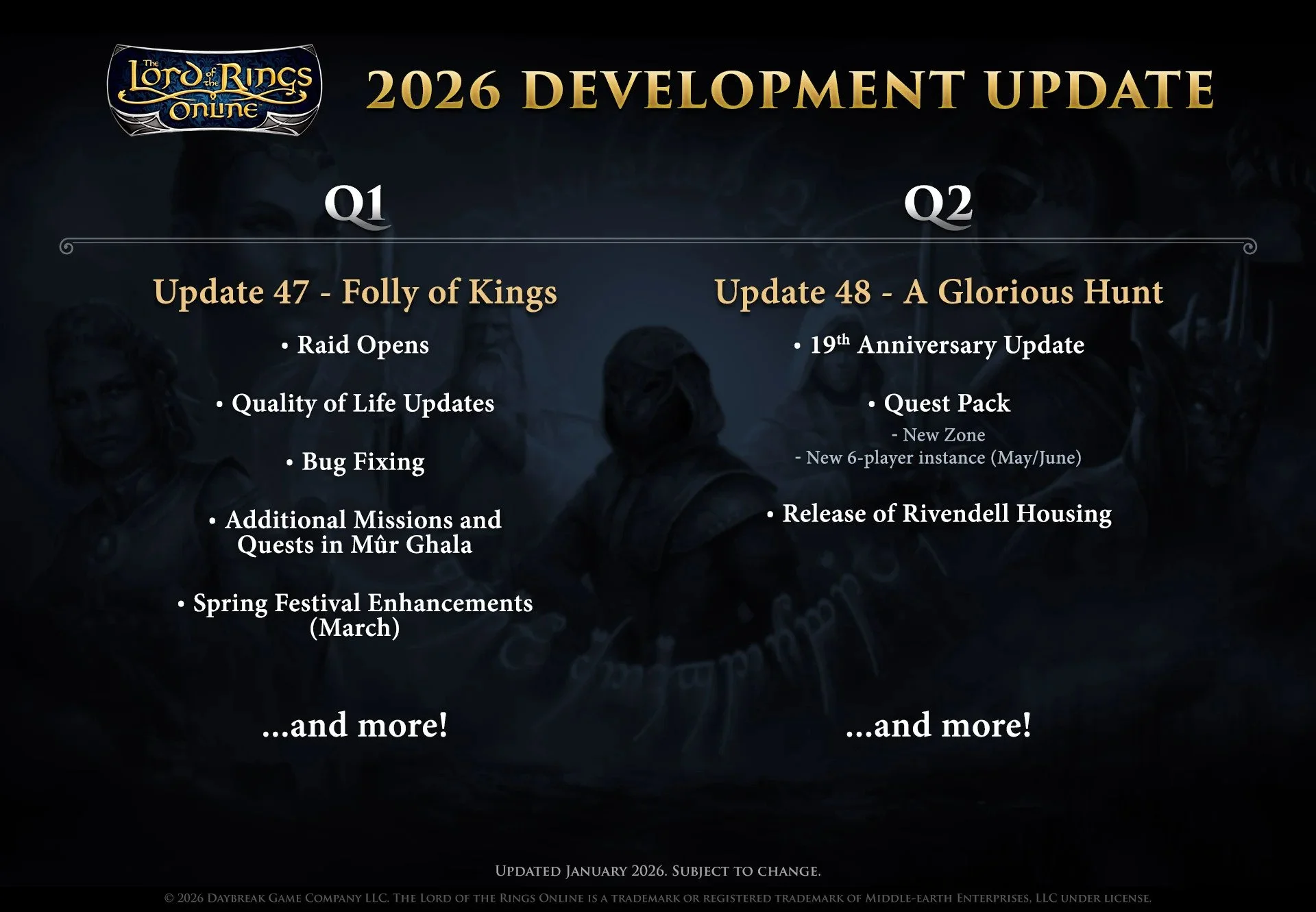
According to the recent “letter to the players”, Standing Stone Games will be adding a new zone to the MMORPG The Lord of the Rings Online in the second quarter of this year. Possibly around May or June. Having spent the last three expansions in the South of Middle-earth exploring the tropical Umbar and the deserts of Harad, I would certainly welcome a change of location. I have gradually warmed to these zones over the last eighteen months but I do find them so incongruous. They are so radically different to the European style content that has been the mainstay of the game for so long. Tolkien’s source text has plenty of detail regarding Eriador and Rhovanion. Information regarding Harad is scarce, hence it has afforded the developers a great deal of artistic freedom. Although exceedingly well realised these tropical zones have taken a while for me to get used to.
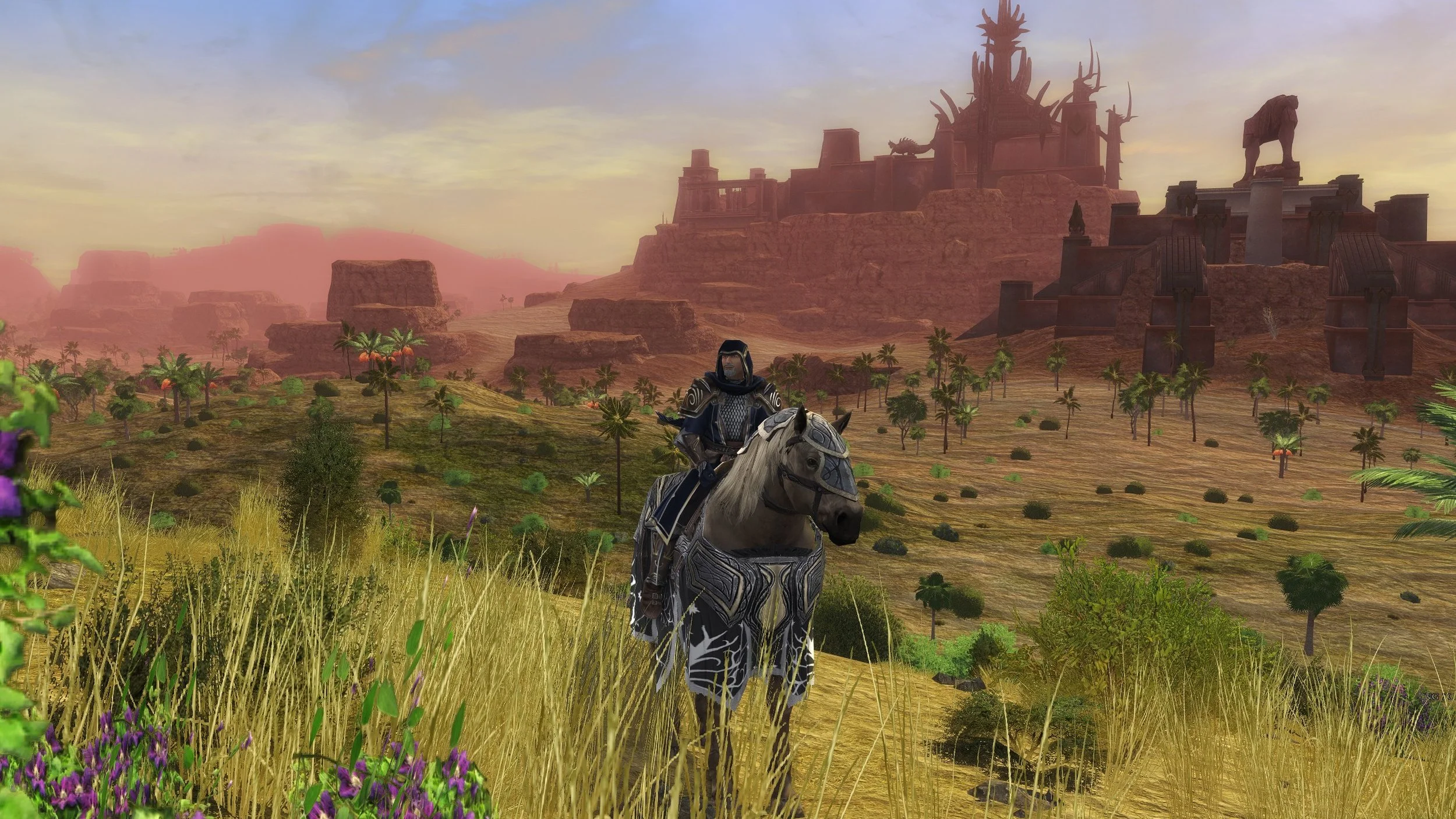
I’m not sure exactly when it started but I’ve recently noticed a graphical bug within the MMORPG The Lord of the Rings Online. This problem often occurs within caves or in areas where there are a lot of rocky surfaces. Hence it has become very apparent in the latest two expansions, set in Umbar and Harad. This graphical glitch causes some surface textures to appear to flash from light to dark intermittently. The resulting strobe effect is hard to ignore and very distracting. Fortunately, a quick online search showed that this is not a problem unique to my installation of LOTRO and is a known problem. Furthermore, there is a very simple workaround, which is to go into the Advanced Graphics setting and uncheck “Per Pixel Lighting”, which immediately remedies the problem. I have no idea why this has recently started to happen but at least it can be resolved.
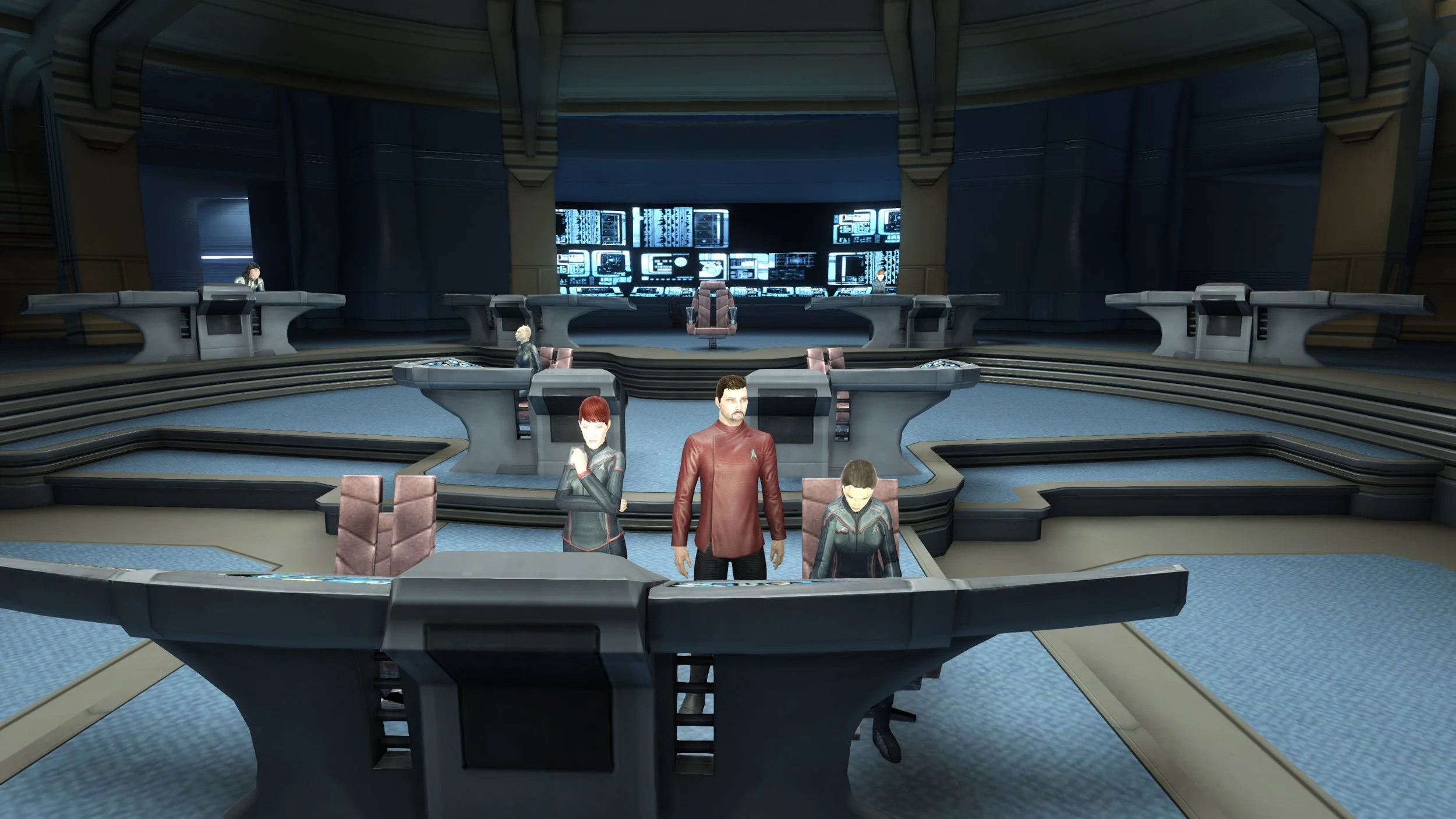
This year is the 60th anniversary of Star Trek. The original TV show was first broadcast in the US on September 8th 1966. If you search online you’ll find details of lots of related events. There are documentaries, conventions, new TV shows and even some video games in development. However, what you won’t find are any details regarding what will be happening with the MMORPG Star Trek Online. So far no road map for 2026 has been posted online by the developers but it is still quite early in the New Year. That being the case, I am not especially optimistic about there being any major plans waiting to be revealed. It is not as if DECA Games have demonstrated or stated any major ambitions for STO beyond keeping the endless events treadmill going and regularly adding content to the in-game store, during their development tenure. The ongoing story arc drags on inexorably and is as dull as ditchwater.
I first played The Elder Scrolls V: Skyrim in June 2013. This was over 18 months after the game’s initial release and the base game and DLC were bundled together in a “Legendary” edition. Although a seasoned gamer at the time, familiar with the RPG genre with such titles as Mass Effect and Grand Theft Auto IV, I had not played a game from this franchise before. It only took a few hours of gameplay to realise that this was a special title. The scope of the story, the art design and the size of the world were immediately notable. Tamriel was immersive in a way I had not experienced with other titles. Often simply traversing the terrain and watching the dawn break while the game soundtrack swelled, was sufficient to hold my attention. I instantly picked up on the voice acting of Christopher Plummer and Max Von Sydow. All of which indicated that this was a gaming landmark.
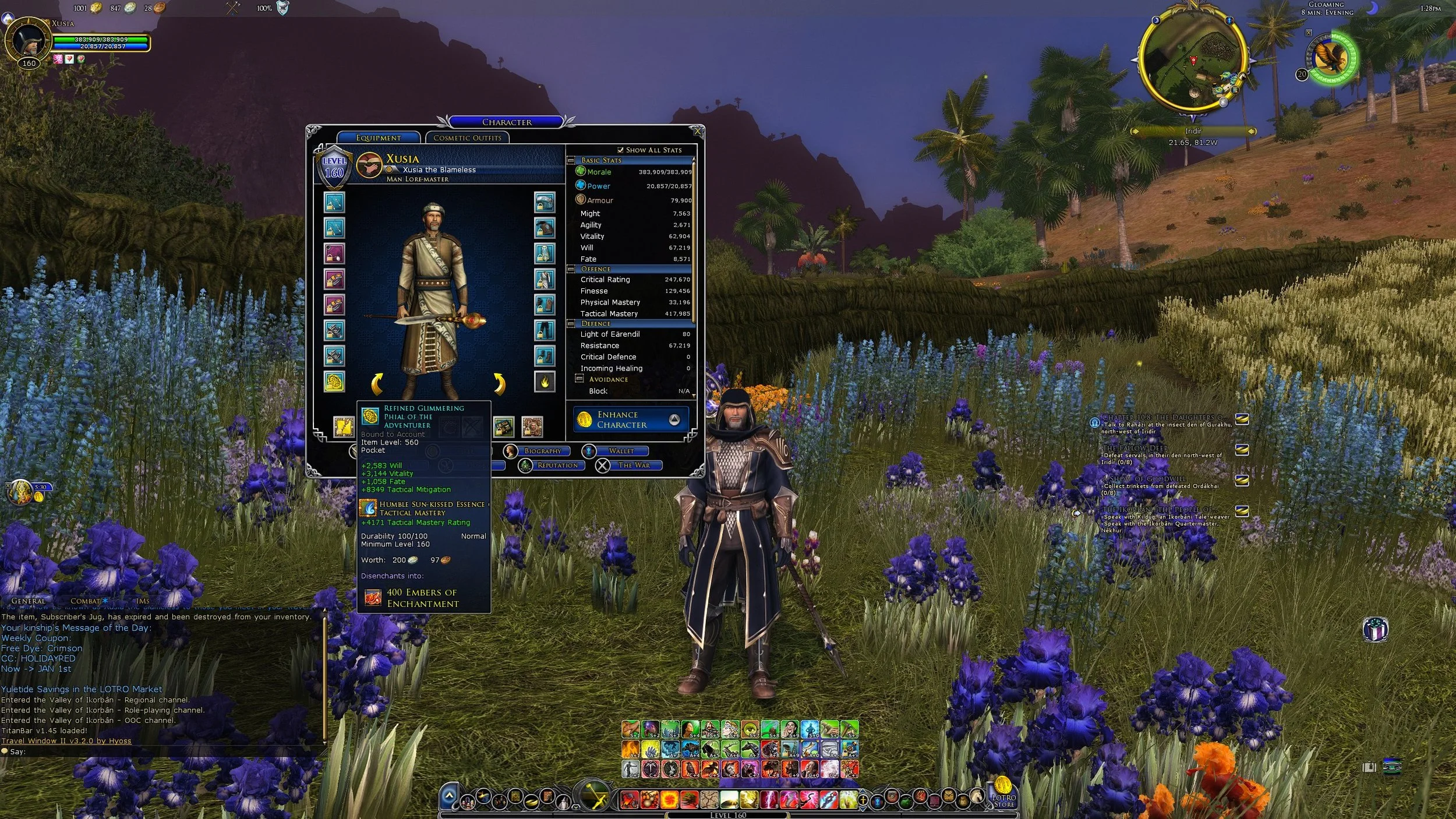
The latest expansion for the MMORPG The Lord of the Rings Online, Kingdoms of Harad, launched on December 3rd. With this release the level cap was raised from 150 to 160. It should also be noted that the cap for virtue traits was also raised from 96 to 100. Naturally these changes meant that there is a requirement to replace all armour and jewellery once the new cap is reached. Similarly Legendary Items have to be reforged and any traceries upgraded or replaced. If you follow the Epic Story it will lead you from quest hub to quest hub. The main quest rewards, along with those from side quests will provide adequate gear as you slowly progress towards the new level cap. The new raids, instances and missions/delvings then provide a means to acquire higher quality level 160 gear. LOTRO and indeed, many other MMOs are consistent in this methodology.
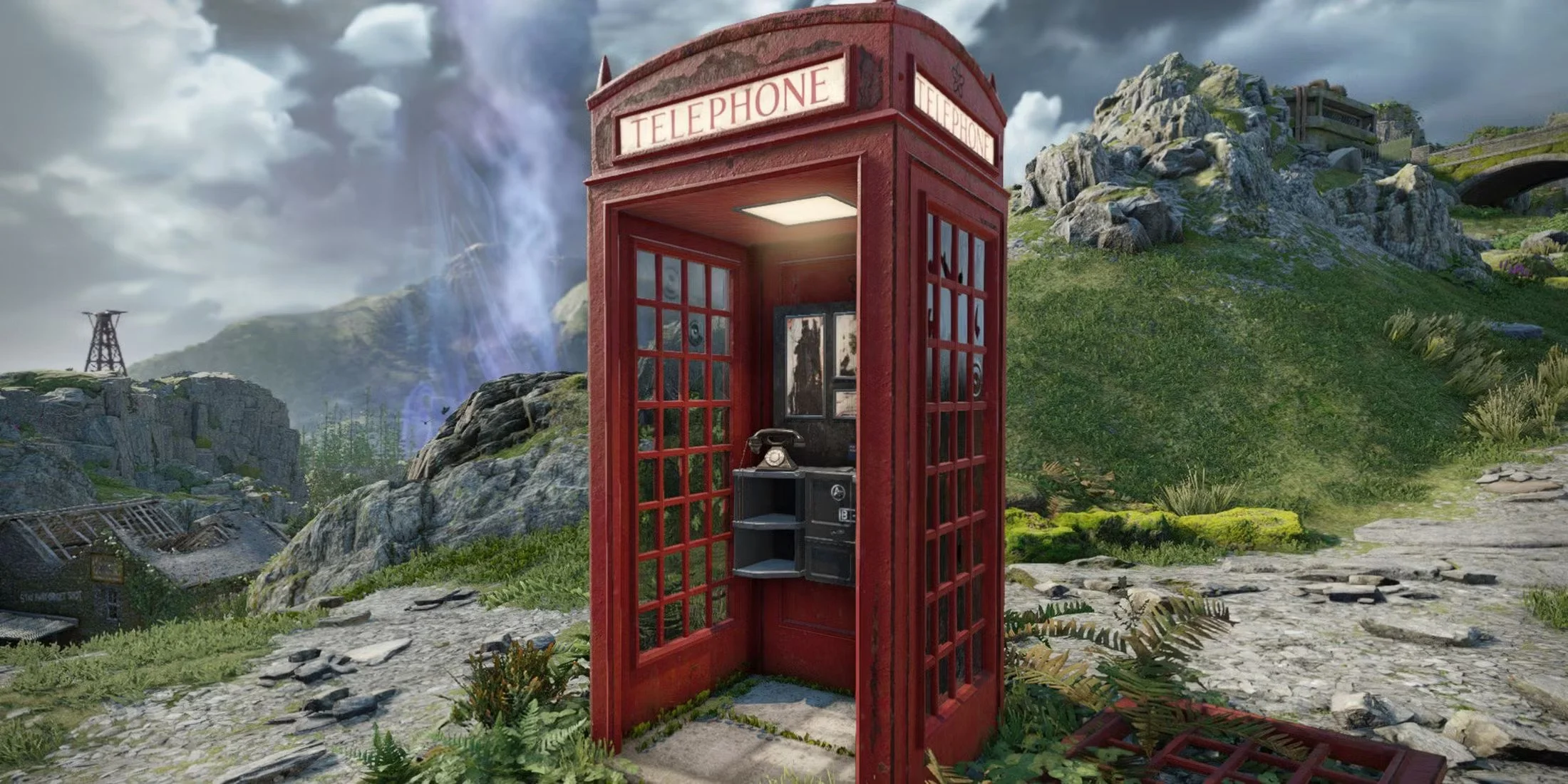
It is customary in a post such as this to list the various games that I’ve played over the last twelve months and share my thoughts on them. Wider analysis of the video game industry is also de rigeur. Unfortunately, I don’t really feel disposed to do either of those two things. My thoughts on the games I’ve played have already been published and can easily be accessed via the links at the bottom of this post. As for the video game industry, it suffers the same flaws as music, TV and cinema. There is creativity and innovation out there but it is often drowned out by mainstream products which are demonstrably inferior due to their inherent mediocrity. As for the business side of things, we once again clearly see the failings of the corporate management class. Sadly, they do not face the consequences of the mistakes that they make.
I turned on my laptop this morning for the first time in 4 months. I knew it was that long because I hadn’t connected the laptop to the new Netgear router that I bought at the end of April. Unsurprisingly, as I haven’t used this device for a while there were multiple Windows updates to be installed. This process took over an hour, so while the various updates were being downloaded and installed, I turned my attention to my Amazon Echo Dot which loiters in the corner of our lounge, doing very little to justify its existence. At present this device is mainly used as a glorified timer for cooking, which seems a bit of a waste given it’s alleged capabilities. Hence, I decided to see if I could increase its functionality while waiting for Windows to do its update thing. More on this later. Let us for the meantime return to the small matter of the operating system updates. Once they were completed, I immediately installed Chris Titus Tech’s Windows Utility and started removing unnecessary features and bloat, as well as disabling invasive services.