
More Screen Capture Software
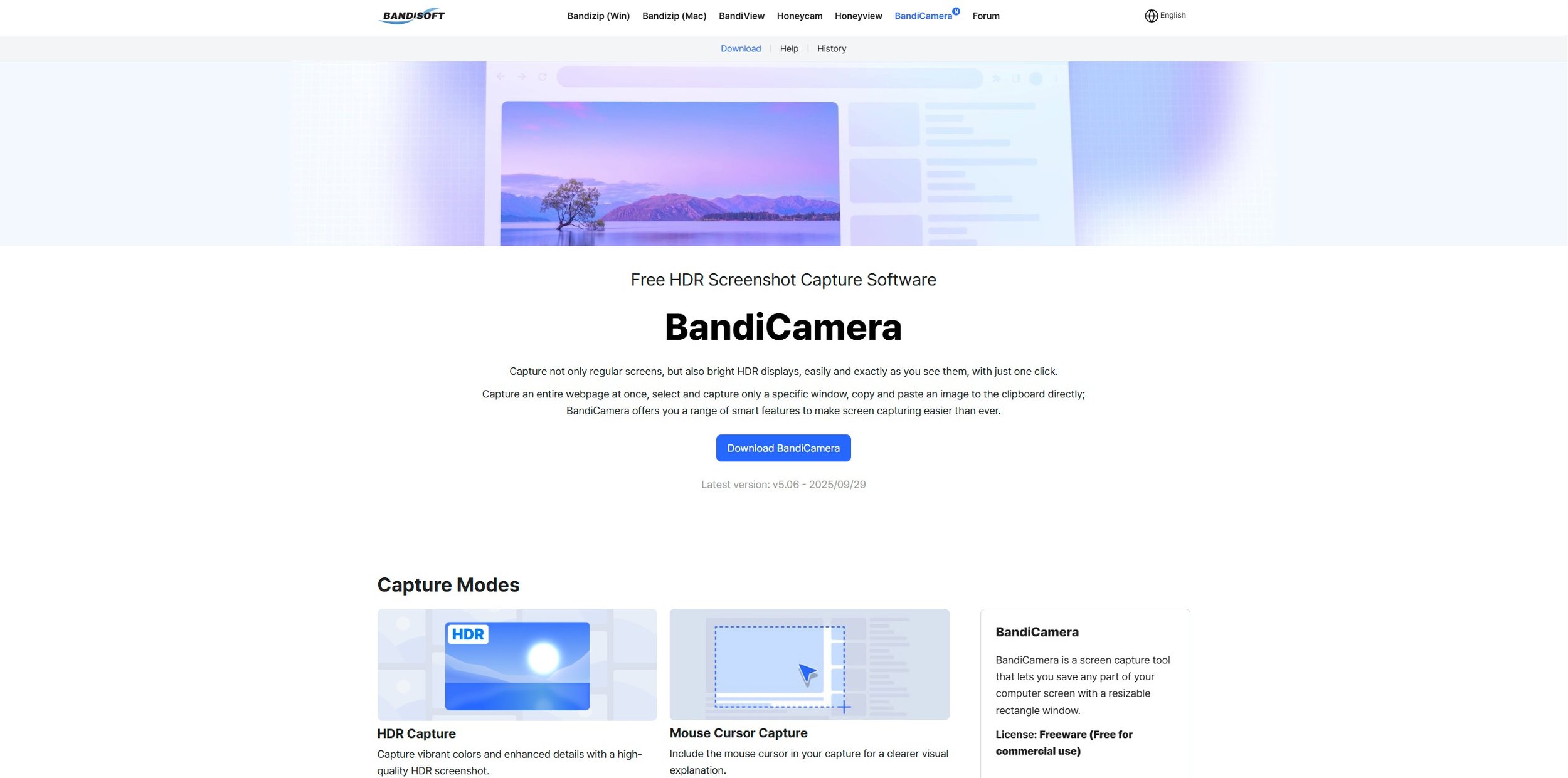
Last summer I wrote a post about my experiences using various screen capture software. At the time I was using Bandicam which suited all my needs. I had configured the software to launch at Windows start-up and had a hotkey assigned to capture images from my primary monitor. Hence I could quickly grab a screenshot from my desktop or when playing a game. However, this changed in November 2025, when I bought two new monitors. Both of which supported HDR (High Dynamic Range). Although they provide superior picture quality, HDR has a knock-on effect on Bandicam. Screen capture images and video look over exposed. Hence I had to stop using the software and find an alternative. Fortunately the same company has been developing an alternative product with HDR support; Bandi Camera. So I swapped to this software. The screenshots were far better but the functionality of the app was lacking.
Last summer I wrote a post about my experiences using various screen capture software. At the time I was using Bandicam which suited all my needs. I had configured the software to launch at Windows start-up and had a hotkey assigned to capture images from my primary monitor. Hence I could quickly grab a screenshot from my desktop or when playing a game. However, this changed in November 2025, when I bought two new monitors. Both of which supported HDR (High Dynamic Range). Although they provide superior picture quality, HDR has a knock-on effect on Bandicam. Screen capture images and video look over exposed. Hence I had to stop using the software and find an alternative. Fortunately the same company has been developing an alternative product with HDR support; Bandi Camera. So I swapped to this software. The screenshots were far better but the functionality of the app was lacking.
The main problem I have found with Bandi Camera is that to use it effectively you have to use a series of hotkeys. First it has to be maximised from the system tray and then you need to select which monitor you wish to take images of. Finally you have to choose whether you wish to capture a specific portion of the screen or the active window. It all works well but the process does not lend itself to “grabbing a screenshot on the fly”. I prefer just pressing a single key and not having to worry about anything else. Another issue is that the software takes two images when you take a screenshot. One in .jpg format and the other in .avif (or .jxr). I have no need for these more advanced formats. However, as there is not an excess of screen capture software with HDR support available at present, I have got by using Bandi Camera. It has the benefit of being free of charge at present.
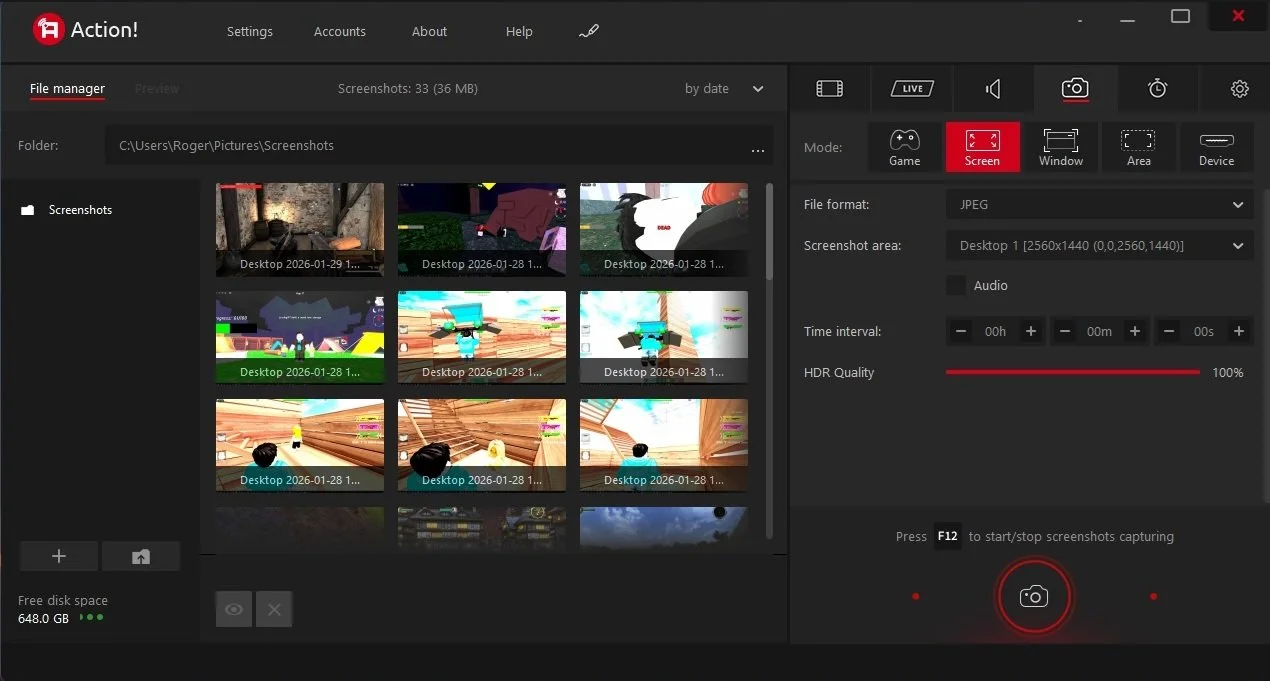
Recently while perusing software online, I discovered Action! This is a screen recorder, primarily designed to be an alternative to software such as OBR and XSplit. Not only does it record video footage of your desktop or game, it also can take screenshots. It is also notable that it supports HDR. So I purchased Action! for £20, which is a reasonable price for a single user lifetime license. I was pleasantly surprised at how easy the software was to configure and how straightforward the user interface is. Most importantly, I can take a screenshot of a specific monitor by pressing a single hotkey. Effectively I have returned to the functionality that Bandicam gave me, only this time I have HDR support. So far the quality of the screen captures has been fine, apart from those taken from Roblox. However, as that is not a major source of my video game blogging, I can live with this minor issue.
I have also spent some time experimenting with the screen recorder option, capturing video footage of various video games. Action! is certainly less complex than OBS and once properly configured to record HDR content, the results are good. However, there are a few bugs. If I set the software to capture an active game, most of the time it does so without any issues. However, when recording The Lord of the Rings Online, if I turned off the screen recorder HUD, a black box would still appear in the top right corner of the screen. This bug seems unique to LOTRO as it hasn’t occurred with any other game. I fixed the issue by selecting the screen instead of the game, as the source of the recording. Minor glitches notwithstanding, Action! Handles screenshots well, so as that is my primary requirement, I’ll continue to use it.

I turned on my laptop this morning for the first time in 4 months. I knew it was that long because I hadn’t connected the laptop to the new Netgear router that I bought at the end of April. Unsurprisingly, as I haven’t used this device for a while there were multiple Windows updates to be installed. This process took over an hour, so while the various updates were being downloaded and installed, I turned my attention to my Amazon Echo Dot which loiters in the corner of our lounge, doing very little to justify its existence. At present this device is mainly used as a glorified timer for cooking, which seems a bit of a waste given it’s alleged capabilities. Hence, I decided to see if I could increase its functionality while waiting for Windows to do its update thing. More on this later. Let us for the meantime return to the small matter of the operating system updates. Once they were completed, I immediately installed Chris Titus Tech’s Windows Utility and started removing unnecessary features and bloat, as well as disabling invasive services.