
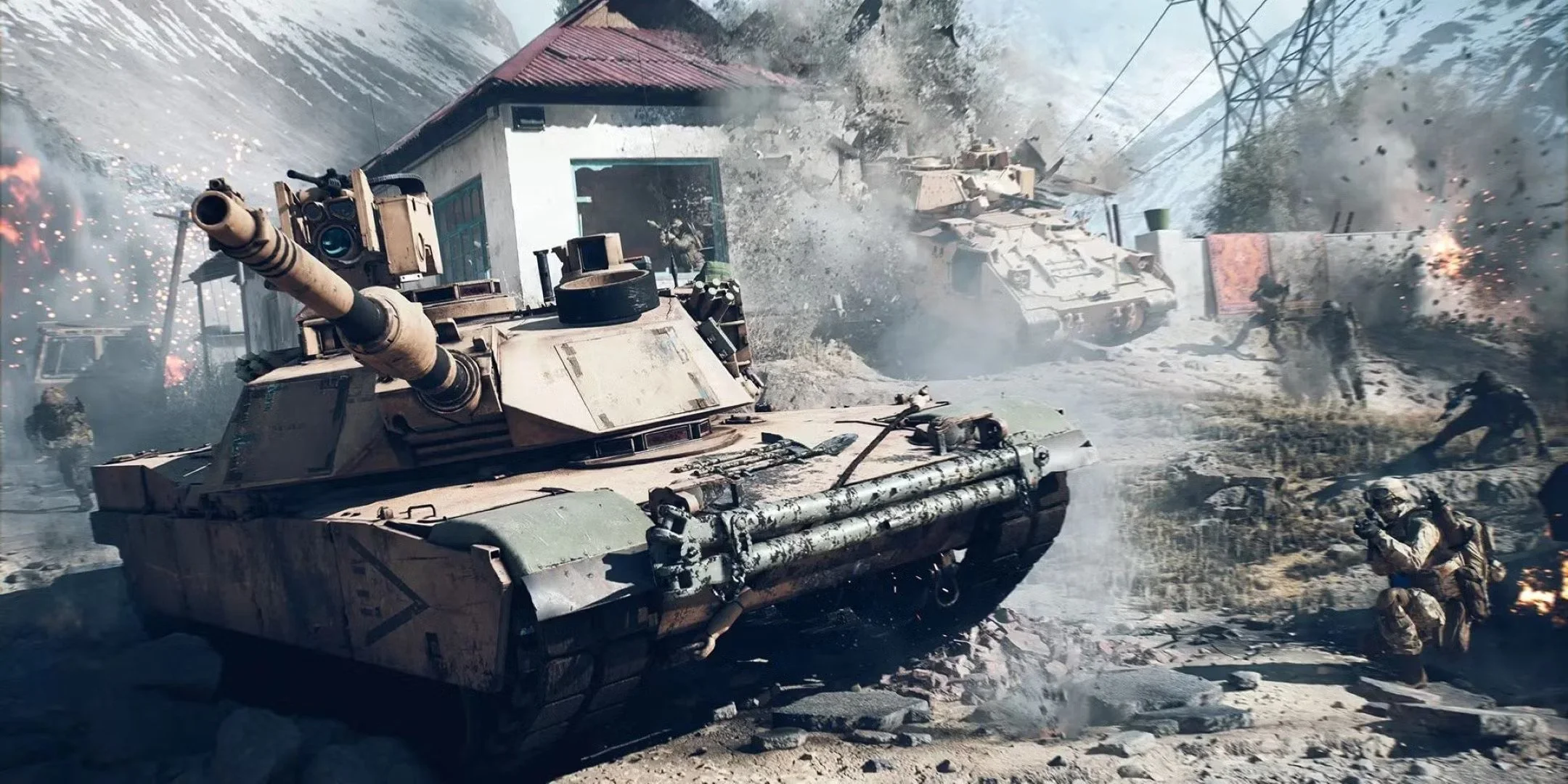
Battlefield 6: More Tips
Multiplayer gameplay in Battlefield 6 is often fast, chaotic and disorientating. There are numerous controls to learn and game mechanics to familiarise yourself with. It can be a struggle at times to try and navigate your keyboard while under fire. Often you will lose in a gunfight simply because you don’t know about something important that could help you out or save your life. Like many other online games, it all comes down to experience. So here are some further tips regarding gameplay, settings and online etiquette, that will broaden your knowledge of Battlefield 6 and hopefully improve your online experience. As ever these tips are in no particular order. Some may be self-evident, others not. They’re written from the perspective of a PC player but are applicable to all platforms.
Multiplayer gameplay in Battlefield 6 is often fast, chaotic and disorientating. There are numerous controls to learn and game mechanics to familiarise yourself with. It can be a struggle at times to try and navigate your keyboard while under fire. Often you will lose in a gunfight simply because you don’t know about something important that could help you out or save your life. Like many other online games, it all comes down to experience. So here are some further tips regarding gameplay, settings and online etiquette, that will broaden your knowledge of Battlefield 6 and hopefully improve your online experience. As ever these tips are in no particular order. Some may be self-evident, others not. They’re written from the perspective of a PC player but are applicable to all platforms.
Any class can drag and heal another incapacitated player. This is essential to conserving tickets.
Interact with Support players by pressing E, LS to replenish ammo. Alternatively request ammo by using the radial menu.
Take the high ground in combat. It is easier to spot enemies and direct your squad from elevated positions. It is easier to fire down on an enemy for an enemy to fire up.
Within the game’s graphic settings lower the World Brightness from 50 to 40. It improves visual clarity.
Do not take vehicles without allowing other players the option of joining you. A solo player cannot drive as well as fire primary and secondary weapons. Vehicles have both an offensive use, as well as providing team transportation.
Use the combat roll to negate or reduce fall damage. Just press jump while dropping down from a building. For distances under 8 metres and you sustain no damage.
Do not use a sniper rifle outside of the Recon class as it randomly misses shots by design.
Charge your defibrillators by pressing the trigger on your mouse or controller before reviving players, as it brings them back with more health.
Suppressed weapons do not show as a red dot on the minimap at 15 metres distance, when fired. Players firing suppressed weapons in your line of sight do not show a red dot above their heads.
Use the tactical ladder to access windows, climb walls and to reach elevated cover.
Support class ammo bags are proximity-based and will resupply ammo in the AoE radius. The bag also provides a low, passive heal over time. Ammo bags can also be used to boost your initial stock of grenades and RPGs.
Initiation Breakthrough is a tutorial game mode featuring enemy bots, designed for new players to learn the basics of the game. It becomes unavailable between levels 10 to 20, depending on how much you use it.
Turn on Helicopter Control Assist within the game settings, as it allows the helicopter to hover automatically when no player input is applied.
When driving a tank, you can toggle between two different types of ammunition. Choose between anti-personnel or armour piercing, when in combat.
When on fire, extinguish flames by going prone and crawling.
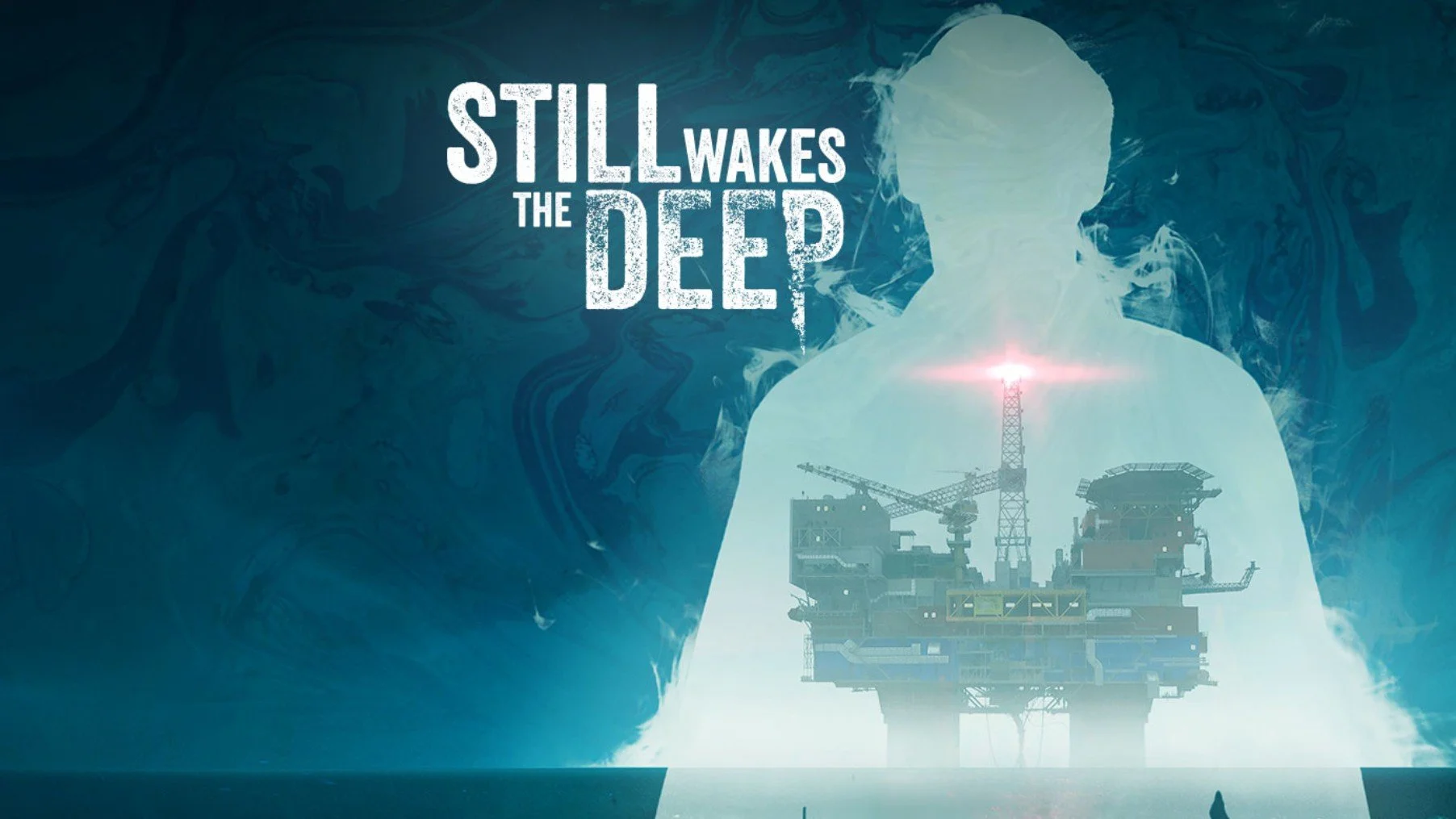
In the wake of Disco Elysium, I’ve been playing through several other games that have a focus on narrative and plot. I began with Call of Cthulhu which I shall write about in a separate post. Let it suffice to say that although I enjoyed the game, I wasn’t quite satisfied. This is not necessarily the game’s fault, as it makes a good attempt at depicting Lovecraftian Cosmic Horror. It’s just that any game following hard on the heels of one of the best RPG’s I’ve ever played, is likely to come up short in comparison. So I looked through my game library and found that I had Still Wakes The Deep, which enjoys a good reputation for having a strong story. I subsequently played through the game over two late night sessions and was left suitably impressed. So much so that I’ve bought the additional DLC, Siren’s Rest, in the hope that it maintains the quality of its predecessor.
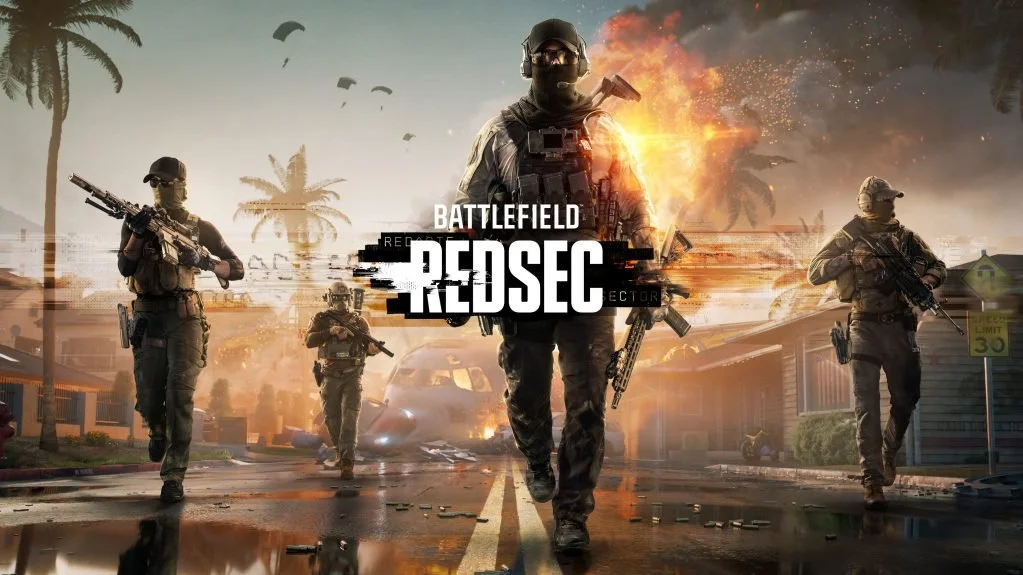
The Battlefield 6 Battle Royale game mode, known officially as Battlefield REDSEC, was released today at 15;00 on all platforms. REDSEC, which is short for “Redacted Sector,” offers an interesting take on the Battle Royale genre, blending familiar elements from games such as Fortnight and Warzone, while maintaining those unique aspects of Battlefield. Hence, you will find missions, loot crates and an ever decreasing environment, as well as the squad class dynamics and the destructible environment. The map offers both urban areas as well as open countryside thus supporting multiple play styles. Furthermore, REDSEC includes two additional modes. Gauntlet and Portal. Although it has launched alongside the first season of Battlefield 6 (which comes with an optional season pass), REDSEC is available to download as a standalone mode and is free-to-play.

One aspect of Battlefield 6 that some players struggle with is unlocking and levelling up new weapons. Players begin the game with a selection of weapons from each class but you then have to actively play with each of them to unlock specific attachments via Mastery XP. Further weapons become available as players gain experience and increase their overall Career Rank. Players who are well versed in playing the FPS genre will naturally progress faster. The downside to this is that new players equipped with a base weapon end up going up against seasoned players with superior firearms. Both Mastery and Career Rank XP are doled out according to team and individual performance in each game you play. It is a slow grind for players to unlock weapon and vehicle resources. Double XP tokens go some way to address this issue but they do not mitigate the progression speed, which exists by design.
Multiplayer gameplay in Battlefield 6 is often fast, chaotic and disorientating. There are numerous controls to learn and game mechanics to familiarise yourself with. It can be a struggle at times to try and navigate your keyboard while under fire. Often you will lose in a gunfight simply because you don’t know about something important that could help you out or save your life. Like many other online games, it all comes down to experience. So here are some further tips regarding gameplay, settings and online etiquette, that will broaden your knowledge of Battlefield 6 and hopefully improve your online experience. As ever these tips are in no particular order. Some may be self-evident, others not. They’re written from the perspective of a PC player but are applicable to all platforms.
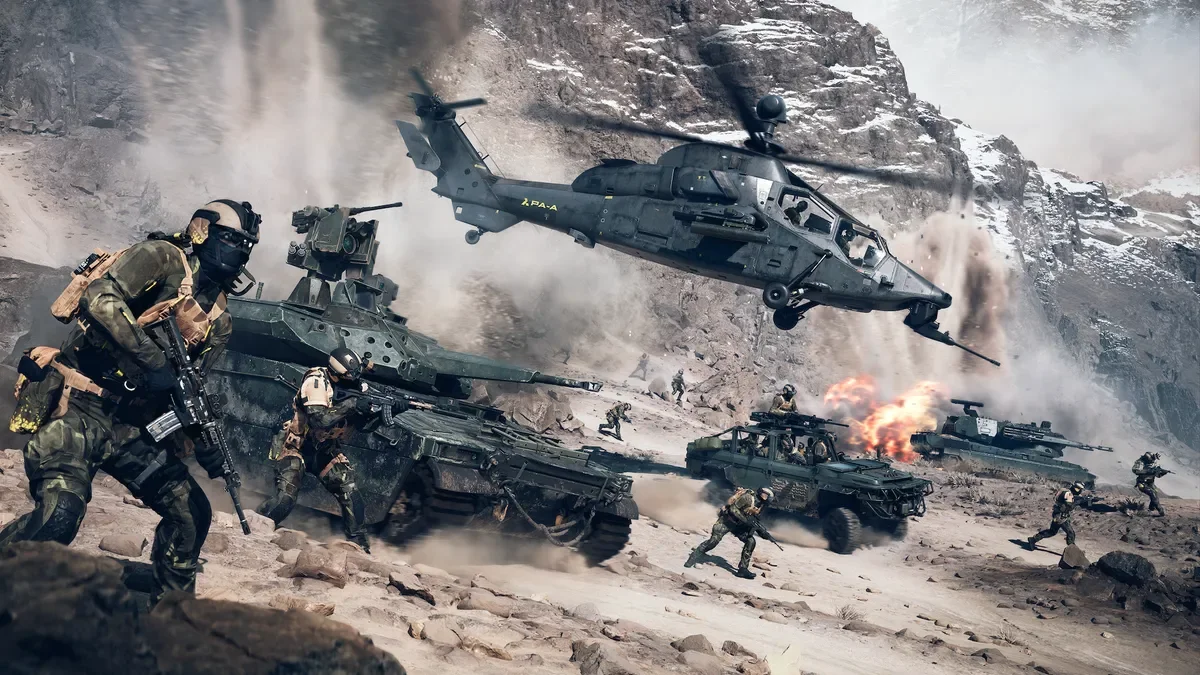
Although Battlefield 6 is a straightforward and self-explanatory multiplayer FPS, there are a great deal of controls, systems and game mechanics to master. Simply learning your controller or keyboard layout takes some time. There is also a lot of information about the game that, if known, can greatly improve your online experience. These can range from simple changes to default settings to understanding how weapons handle in-game and how to control them effectively. Hence, I thought it would be useful to new or returning players, to collate a list of tips for Battlefield 6. Some are quite obvious where others may not be quite so well known. They’re in no particular order. Hopefully you’ll find them useful.
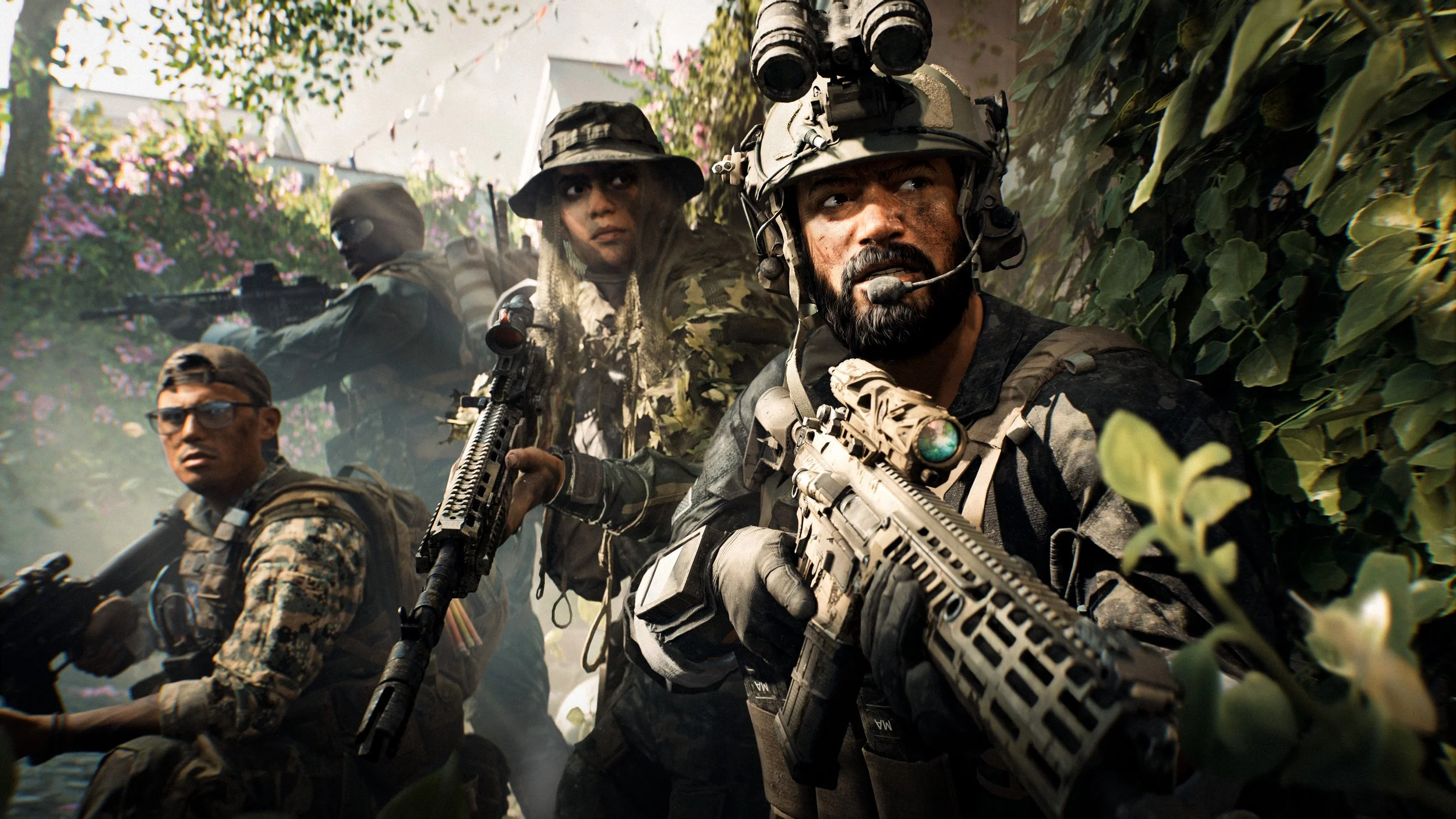
When Battlefield 2042 launched on 19th November 2021, it was a complete dog’s dinner. There were technical issues, including widespread bugs, poor performance and inconsistent hit registration. The launch was also criticized for the removal of core gameplay features like the class system, a scoreboard, and a server browser, which led to the game being considered unfinished and incomplete at release. Although developers, Battlefield Studios, worked hard to address many of the issues arising from the launch, the net result was that the franchise’s reputation was harmed. However, the beta testing of Battlefield 6 throughout August this year, has done much to restore the franchise’s good standing with a game that has clearly returned to a formula that works.
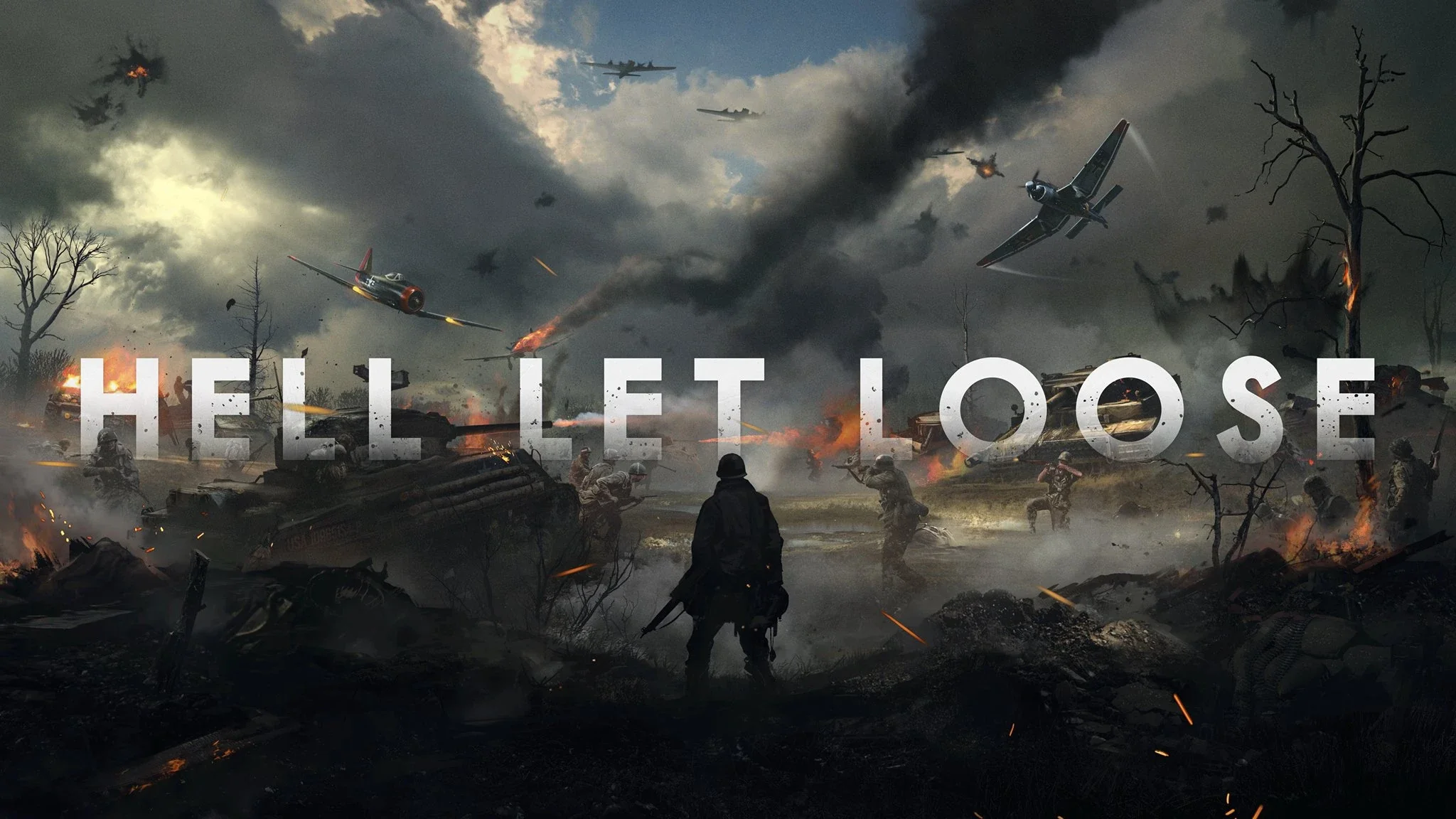
I bought Hell Let Loose last night. A decision I suspect that I shall regret. Despite the fact that I know that the YouTube videos of this game are carefully curated and therefore not truly representative of the reality of its gameplay, I felt compelled to try this World War II multiplayer tactical first-person shooter. From time to time I find a game that really appeals to me as a concept and I want to play it. However, more often than not these are online multiplayer games and as such the human element is distinctly “variable”. Hence the idealised gameplay that I imagine is a far cry from what playing the game is really like. I’m sure I am not alone in this mindset. Sometimes I have to just “get it out of my system” and the only real way to do that is buy the game in question, be disappointed and then move on.

The second Battlefield 6 Open Beta test started earlier today. A 7.6GB download added additional maps, new game modes and also resolved some technical issues. I was able to select my second monitor to display the game this time round and also made some basic performance related tweaks. The colour grading is still an issue for me and I struggle at times to correctly identify players and objects at distance due to the muted palette. Minor gripes aside, the game still performs well and all the game modes have something to offer. King of the Hill and some of the other close quarters maps are a little too intense for my skill level but I still had fun with projectiles and explosives. I still prefer the Conquest mode with its bigger maps and greater variety of gameplay options.
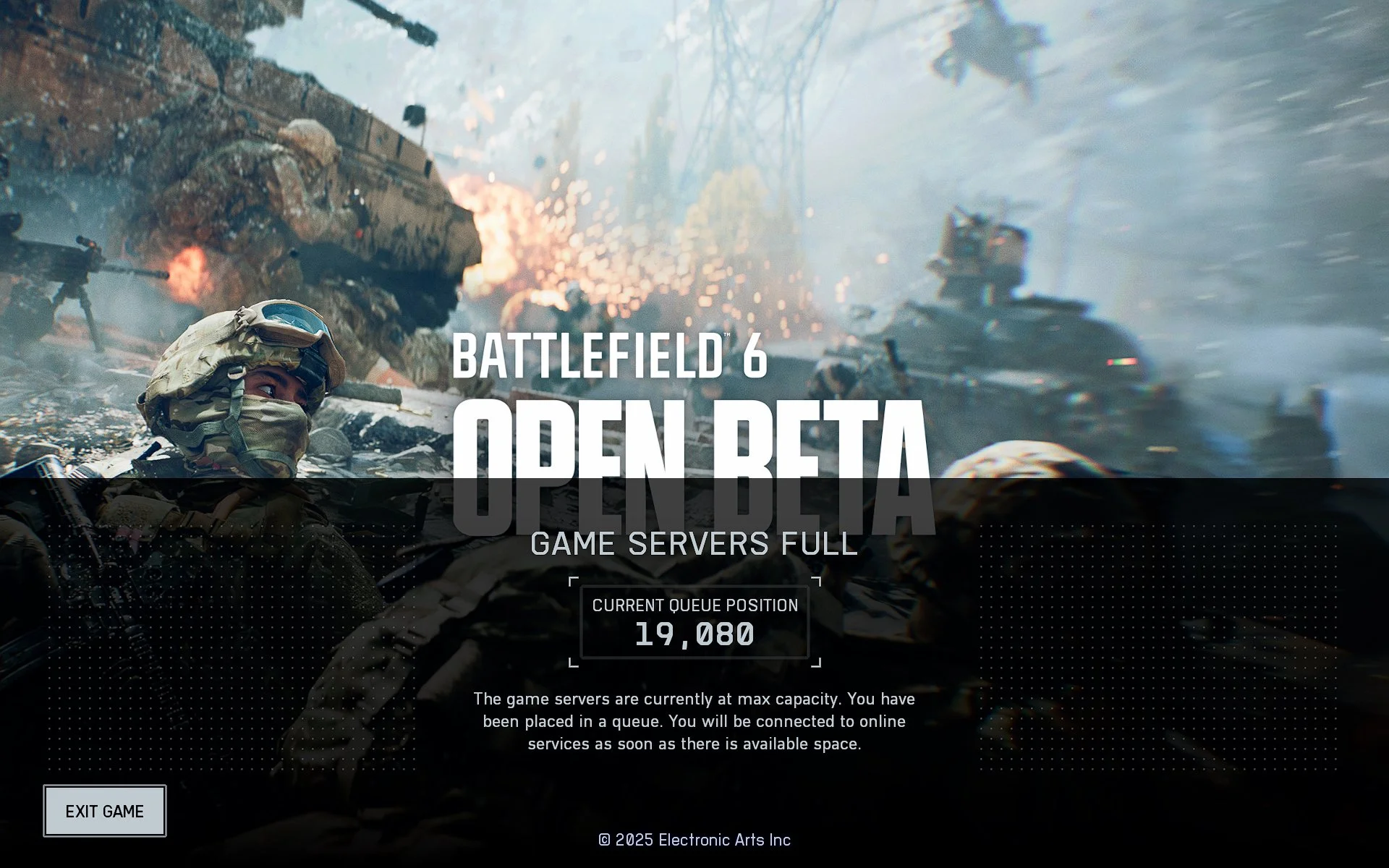
I spent several hours today trying Battlefield 6 during its first Open Beta weekend. Trying being an apt word as I experienced some technical difficulties during that time. There were server queues as there often are during test periods, which took 5-10 minutes to clear. I also found that when a multiplayer game ended the client would often freeze, requiring me to use the task manager to shutdown the .exe file . As I then had to restart the entire game it meant having to rejoin the server queue again. Furthermore, despite various methods, I could not get Battlefield 6 to display on my second monitor. Although there is a clear option within the graphics settings, I could not get the game to output to my Dell S2421H monitor. If I used the Windows + Shift + → key combination, the game would briefly appear on the second monitor then instantly snap back to the first. I also could not take any screen captures or use OBS to capture video. I believe this is down to the game’s anticheat software.
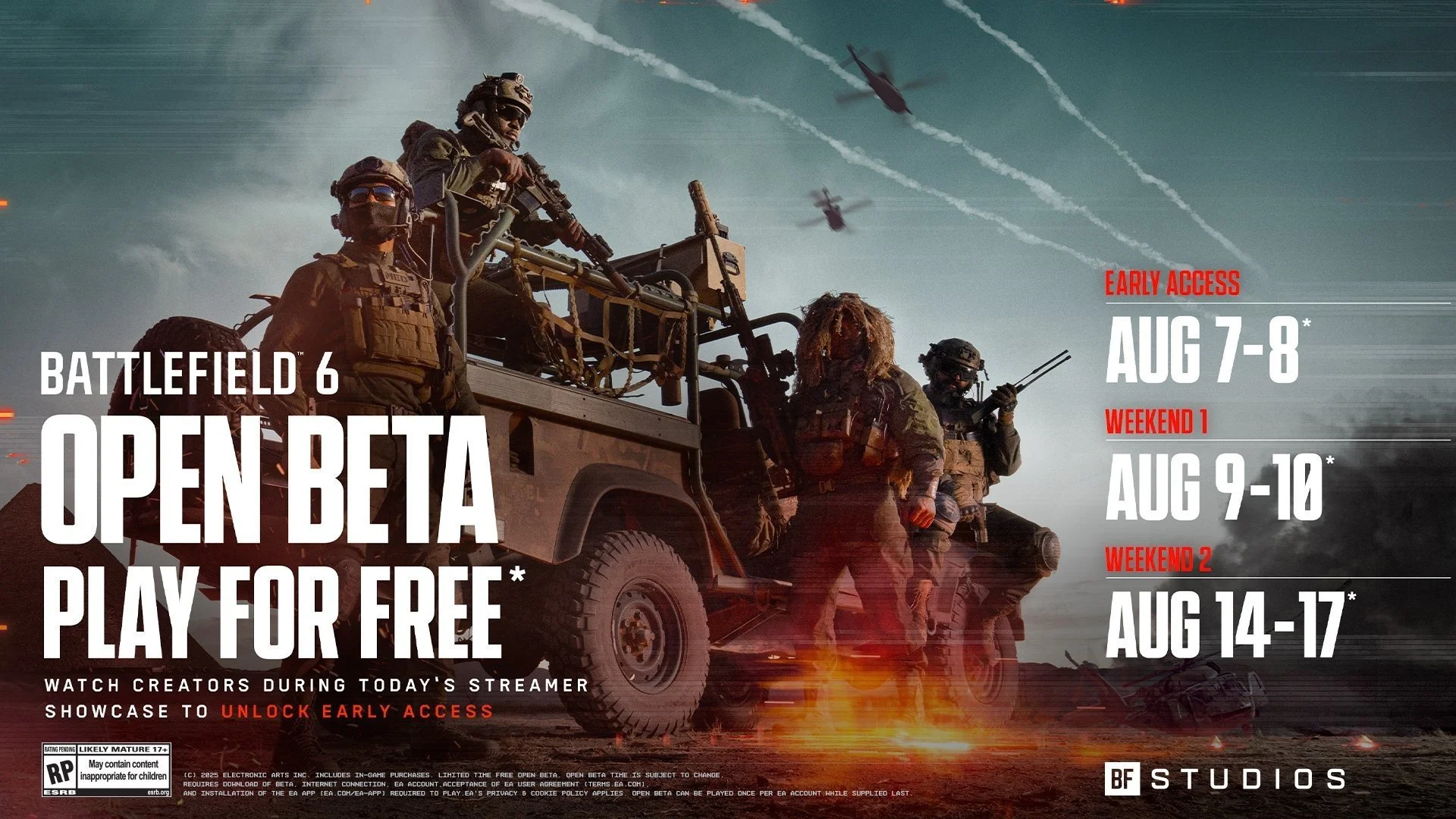
I was reading through my RSS feed this morning and found a post by Heartless Gamer, regarding how Battlefield 6 requires Secure Boot enabled on your PC. If it is not, then the game will not launch and you’ll get an error message. Naturally, this raised several questions. First off, what is Secure Boot and do I have it on my PC? Well apparently it is a security feature that protects a computer from malware during the startup process, by verifying the digital signatures of bootloaders and other software components before they are allowed to run. By using the msinfo32 command in the Run Window, I determined that I do indeed have it and went directly to the BIOS and enabled it. The next question to address was, why have I not been invited to the open beta for Battlefield 6? I subsequently checked the EA Game Launcher and discovered that I had. So I installed the game.
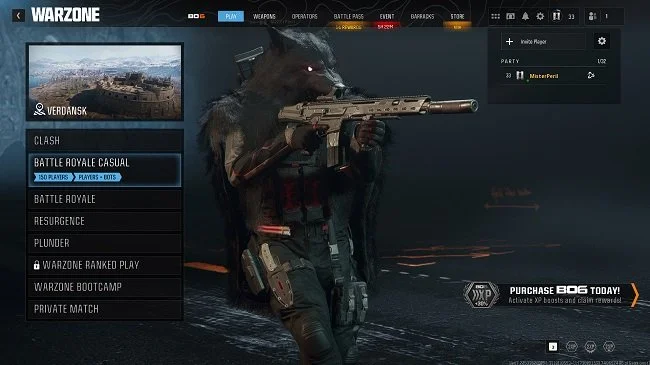
Warzone added a new “casual mode” to its Battle Royale at the start of Season 4. This reduced the number of real players in-game and substituted them with AI bots. The ratio is approximately one fifth real players, four fifths bots. This new mode for Battle Royale solos, duos and quads was well received, especially among the mainstream players who are more focused on fun than progression. Veteran players who still wanted the challenge of playing against real players were free to continue playing the traditional BR modes. Hence all parties were pleased as they were both being catered for. However, and there is always a “however” when it comes to Call of Duty, the developers saw fit to remove the standard solo Battle Royale mode, leaving just the Battle Royale Casual mode with AI bots. Subsequently, a lot of players were perplexed and annoyed, as taking away choice is seldom good customer service. As a result of subsequent backlash, the mode was added back to the game mid-season.
I have written about “games we cannot play” several times over the years. By this I mean video games that we lack the skill, coordination and patience to master. For example, I often struggle with video games that are primarily designed for consoles and are therefore intended to be played via a game controller. I also don’t want to have to spend an excess of time (a very subjective thing) to learn how to play a video game. Hence there are games that I am interested in but have accepted that I will never play because I cannot or will not do what is required to play them effectively. However, in this post I want to discuss a tangential point. Games which have the potential to be exceptionally entertaining but that entertainment depends on a lot of factors that exist outside of the game itself. Hence you may never get the experience you desire which is often the one that was marketed.
There has been a resurgence of people playing Star Wars Battlefront II recently. Possibly because the game was discounted on many outlets on May 4th and may be due to the success of Andor season 2. There’s a lot more people streaming it as well as videos on YouTube. Whatever the reason, it is always good to see a deserving game enjoying a renaissance. Star Wars Battlefront II was blighted at launch, back in November 2017 by some egregious business decisions and it took nearly a year for the game to recover from the negative publicity and player animosity. Setting this historical debacle aside for one moment, there was always a handsome and engaging game to be found. One that used the licensed intellectual property well. Which is why I recently reinstalled the game and resumed playing its multiplayer mode.
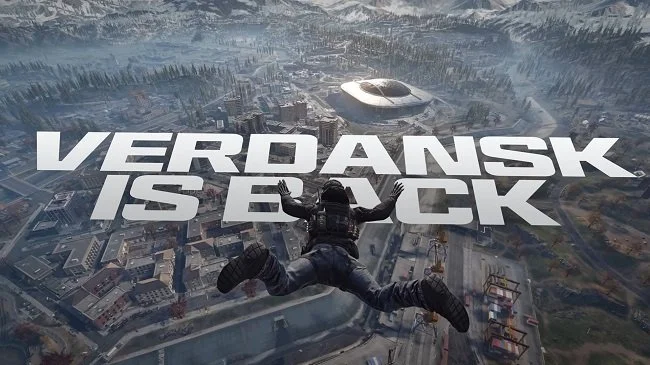
When the Battle Royale Call of Duty: Warzone launched on March 10th 2020, the Verdansk map was one of the key elements of the game’s success. The subsequent lockdown due to the global pandemic was also a major shot in the arm for the game, with so many gamers being home. The Verdansk map along with the gameplay mechanics of the game at the time were a perfect combination and so Warzone was “just so”. It allowed both skilled and unskilled players to play together, without one group dominating the other. Gunfights could be intense but there were periods of downtime when traversing the map. Players also couldn’t continuously respawn if defeated, so there was a requirement to play with a degree of caution and strategy. I enjoyed the game immensely despite not being the biggest fan of PVP based gaming. It was a broadly equitable experience but sadly it didn’t remain that way.

I decided to play Call of Duty today as I wanted some undemanding entertainment. I was not surprised when the game client began an update, as I have not played for about three months. Hence, there was obviously new content to install. However, when I saw the size of the download, I knew this was more than just a season update. I therefore checked the Battle.net client and discovered that the game was installing Black Ops 6, the latest version of Call of Duty that is released on 25th October. A game I have decided not to buy for a multitude of reasons. Fortunately, you can modify your game installation on the fly, so I unchecked a few boxes and the download stopped. However, I was annoyed by the hubris of this “download by default” policy, so I decided to uninstall my existing installation of Modern Warfare 3 as it is no longer a mainstay of my gaming activities.
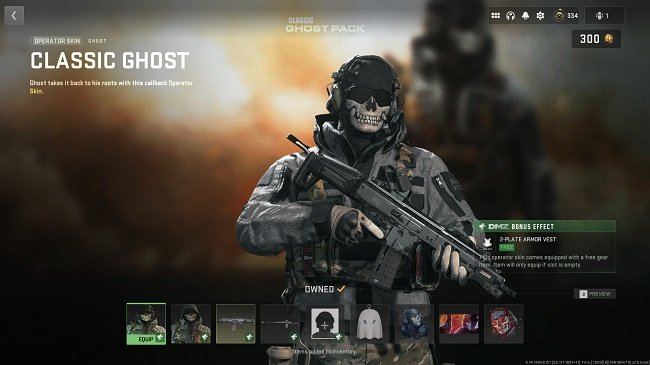
For those who are not familiar with this latest niche piece of “gaming outrage”, it regards the extraction shooter Warzone 2.0 DMZ, which is part of the Call of Duty franchise. When you enter the game (either solo or in a squad), you use gear that you have previously collected. A key part of the game is looting and upgrading your weapon, bullet proof vest (there are 3 tiers) and sundry support items. If you die, then you lose all the equipment you are currently carrying. With this in mind, Activision have recently added two purchasable gear bundles to the game store. One comes with a medium size backpack by default. The other comes with a 2 plate vest (tier 2) and two weapons that only have a 15 minute cooldown. This does offer a degree of convenience. Furthermore, the second bundle is tied to the Ghost operator skin, who within the game’s canon is an iconic figure. Hence there has been a great deal of debate over the rectitude of these bundles.

I have always dismissed hunting games as “not my thing”. Perhaps that stems from my ambivalent views about hunting per se. Yet after recently watching a YouTube video for The Hunter: Call of the Wild, I revised my opinion. The footage showed a slow and thoughtful game and I was also surprised to see that there was a campaign with a story. Hence I decided to step outside of my comfort zone and give the game a try. The base edition can be purchased for £20 on Steam and there is a wealth of optional DLC. I bought a bundle that included some additional maps, weapons packs and a dog that can be used for tracking. I also bought a quad bike as this is invaluable for traversing the open world, which is enormous. As ever with steam, the installation was easy and hassle free and within an hour I found myself exploring Layton Lake District, which is based upon the Pacific Northwest geographic region.
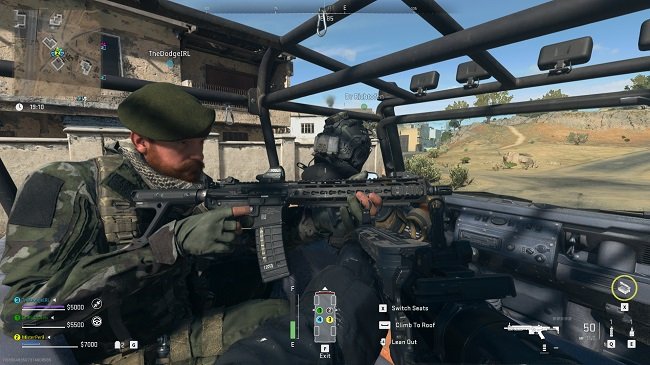
I like an analogy as a literary device, so here’s one for you. Video games are like parties. How so? In the following ways. They quite never live up to your expectations. The best ones are the ones you never go to, according to the “anecdotes” you’re told afterwards. And there’s always someone crying and throwing up at 2:00 AM. Okay, the last one isn’t quite relevant but the overall sentiment of the first two is sound. The reason I have used this visual metaphor is because both parties and multiplayer video games sell themselves on the alleged quality of their respective social dynamic. They supposedly offer you fun with your friends and a unique, memorable experience. However, the reality is a lot more lacklustre. Warzone 2.0 DMZ is a prime example. What enjoyment there is to be had in playing this game is offset by the iniquities of many of its players as they race to the proverbial bottom.
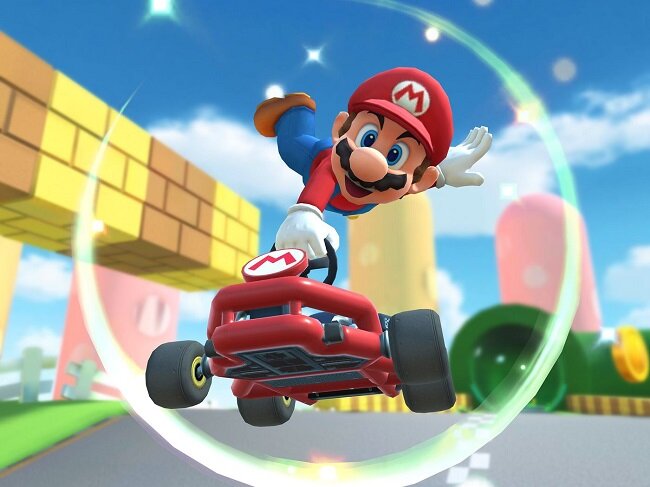
I want to talk about how we choose a new game from the countless titles that are currently available. I am going to be candid about how I do this as well as my own personal biases and prejudices. Because I am not open to playing any type of game. Like so many other aspects of life, I have very clear likes and dislikes that can only be tempered so far with logic and rational thinking. Video games as far as I’m concerned are supposed to be engaging, entertaining and inherently enjoyable. I don’t mind a degree of challenge and I’ll grind to achieve a specific goal, if I feel the reward to effort ratio is acceptable. I will on occasions attempt to step tentatively out of my comfort zone. However, there are some things that I simply don’t like, so they will not be considered. I think the best analogy for this is food. There are certain meals that I have tried (sometimes several times) and disliked, so they won’t ever be eaten again. Then there are other meals that contain ingredients I dislike or that are cooked in a style that I don’t enjoy. These are also off the proverbial table (no pun intended).
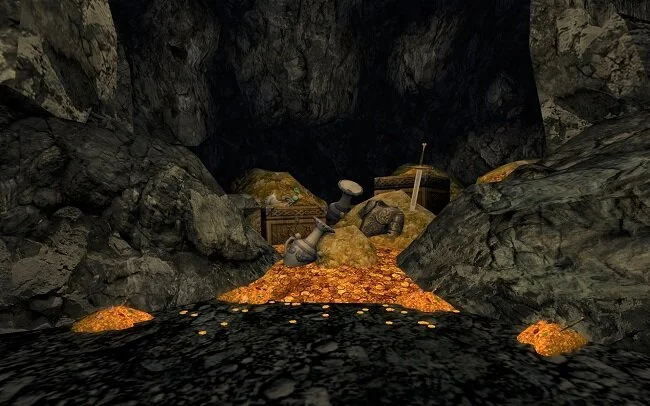
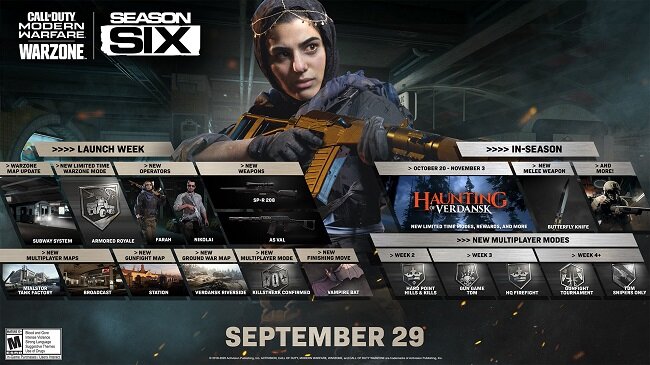
The last 31 days have gone by really fast, or at least that’s the way it feels. Despite having bought several new games recently and acquired yet more for free from the Epic Store, I did not embark on anything new throughout October. Due to the unexpectedly prompt release of the new “mini expansion” for The Lord of the Rings Online and the launch of a new event in Star Trek Online, I found myself focused upon the MMORPG genre, yet again. And after playing continuously for six months, Call of Duty Modern Warfare/Warzone has finally begun to lose its lustre. I didn’t especially enjoy the Halloween event, not that there was anything inherently wrong with it. It just wasn’t for me. I played a little Fall Guy: Ultimate Knockout but quickly discovered that the “season” system is just another gear treadmill, although the gear in this instance are novelty cosmetic outfits. I don’t want to be tied to too many games in this fashion (it’s bad enough with MMOs), so this is another title that has been relegated to occasional play when the fancy takes me.
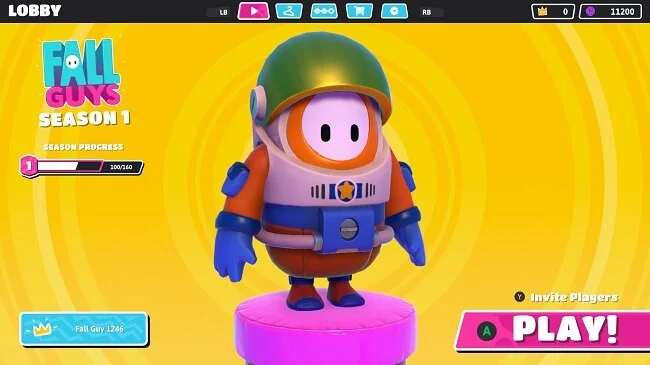
September has been a difficult month. A family crisis and subsequent bereavement meant that gaming got pushed down the daily agenda. However, after the various chores and duties were done I did need some downtime and means to relax. Hence I did play some games in a limited fashion. Nothing fancy, just stuff like Fall Guys: Ultimate Knockout and Gang Beasts, which are light-hearted and undemanding. I also took the time to log on to The Lord of the Rings Online test server and check out the preview of the forthcoming “mini-expansion”. Not only was this informative but it provided material for a blog post. But overall I didn’t really achieve anything substantial with my gaming throughout September. Gaming was relegated to being just a convenient diversion from the immediate problems I’ve been facing but as such, it did fulfil that role well.
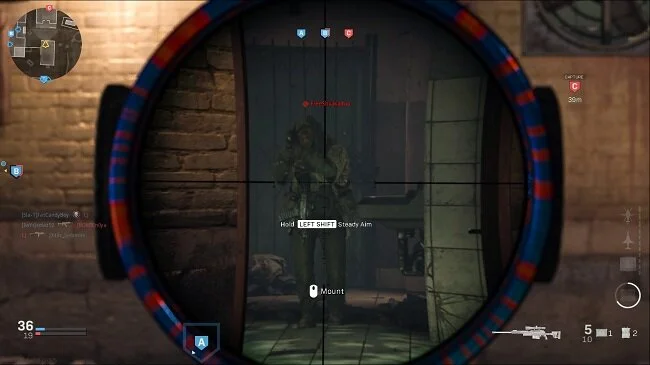
Developers do like to gate access to the best gear and equipment in video games. Often there will be an achievement or deed required to unlock the object that you desire. Now I have no objection to this concept in principle. It’s just that every now and then, the criteria required to access an item is beyond my abilities. Take Call of Duty Modern Warfare/Warzone. Infinity Ward recently added the Rytec AMR to the game. It is a semi-automatic sniper rifle that can use thermite and explosive rounds. It has a significantly higher rate-of-fire than the HDR and AX-5, and performs better at range than the Dragunov. I’ve been itching to get my hands on this weapon for a while. However, to unlock it, you have to complete the following achievement. "Get 2 quickscope kills using sniper or marksman rifles in 15 different matches". For me this is effectively one of the labours of Hercules.
I’m still somewhat shocked that August has been and gone. Even by 2020 standards it’s been an odd month. Due to illness in the family, my schedule has been turned on its head and subsequently there has not been as much time for gaming as I’ve previously enjoyed. However, I tried to put what time I had to good use. I attempted to return to the MMORPG The Lord of the Rings Online once again, to see if I could continue through the epic story. Sadly, the game has run into further server related issues, just as it did last month. Standing Stone Games community manager Jerry Snook was a little “snippy” in responding to players' concerns and at present there are no details regarding what the problem is and when it will be resolved. If this issue persists I suspect that it is going to do some genuine harm to both the player base and community relations. I hope matters improve for SSG and LOTRO over September.
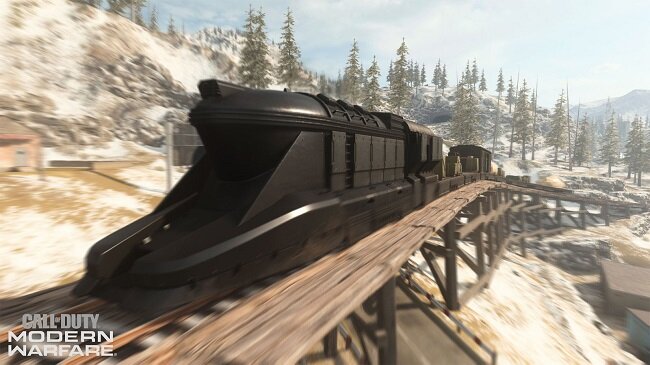
Adding a train to a Battle Royale game is hardly a new concept. Both Apex Legends and PlayerUnknown’s Battleground have successfully done this. So it was only a matter of time before one was added to Call of Duty Warzone. We were tipped off by the addition of train tracks last season. The launch of Season 5 this week finally made the “choo choo” a reality. I must admit, I’m quite surprised at how adding something as straightforward as a freight train has reinvigorated the game. That and the fact that you can now access the stadium seems to have really enthused the playerbase. Since Tuesday, whenever you play Warzone or one of its variants, a large number of players head straight to the stadium or the station where the armoured freight train starts its journey around the map. As a result of this, new players or those who aren’t so skilled in combat can navigate the outlying areas of Verdansk with a greater degree of freedom and safety. Everyone else is at either of those locations.
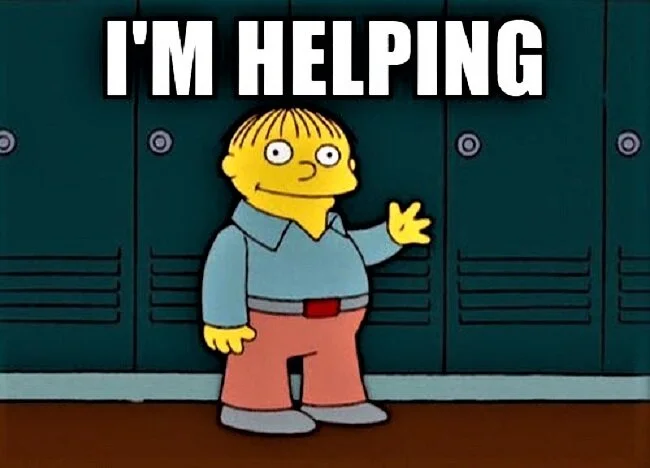
Video games can offer a great opportunity for personal growth. If you are the sort of player who likes to prove themselves and continuously test one’s mettle, then some titles can provide the challenge required to be the best of the best. Hence many games are competitive, have league tables and other formal structures for measuring success. It is one of the reasons why esports have become so popular. But this desire to excel and master a particular play style extends beyond competitive games. For some players part of a games allure is understanding the numbers and stats that drive the game mechanics. Because these are often the key to optimising your build and maximising DPS output. Hence you will find skilled and learned players in a variety of games across multiple genres. Although they are often motivated for different reasons, they all strive to be elite players.
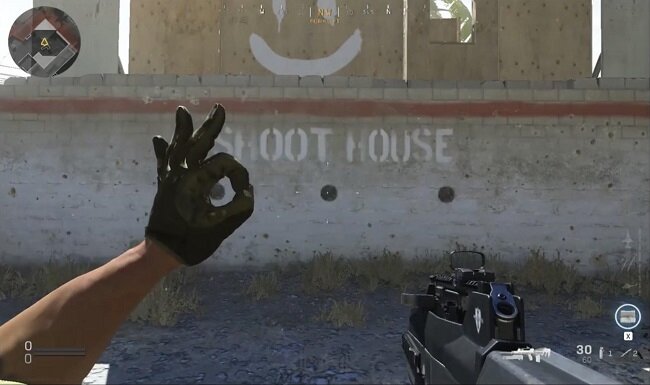
Call of Duty: Modern Warfare and Warzone have a wealth of customisation and cosmetics options. One of which is the ability to assign hand gestures to your character. These can be used as a means of giving instructions when playing in a squad but more often they’re just used for fun or humorously. Players will use them after a kill or sometimes make them part of a trick shot, such as making a gesture with the left hand while firing from the hip with the right. I’ve not noticed a lot of use of gestures while playing nor do I use them myself. It takes all my concentration to stay alive. However, they do seem to feature in the various CoD clip shows I watch on YouTube, so they’re more of an affectation used by “top tier” players. Recently, developers’ Infinity Ward removed the OK gesture from the game. This minor change was not mentioned in the patch notes and the gesture was replaced with a new one called "crush".
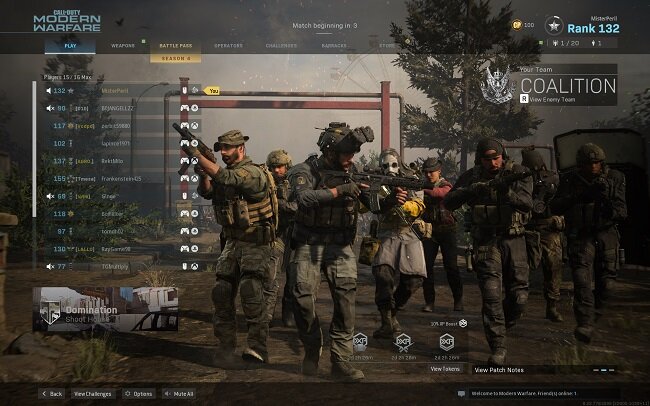
I was watching a YouTube video recently of someone trying the new Fennec SMG in Call of Duty Modern Warfare Multiplayer. It was a 5 versus 5 game and the player who made the video was clearly quite skilled. After quickly racking up multiple kills, 3 of the enemy team left mid game. He laughed and pointed out that they had “rage quit”, although that is just conjecture. They may have left the game for a multitude of reasons (a point I shall return to later). As ever this video began a train of thought which I would now like to explore. Multiplayer games often go hand in hand with a lot of informal social etiquette. Much of which stems from the original MMOs from two decades ago. However, these conventions are not in any way mandatory or enshrined in any games terms of service. Yet quitting in the middle of a multiplayer game is still frowned upon in certain quarters, often being seen as an act of selfishness and childish anger. However, like everything in life, I think it’s not as simple as that.
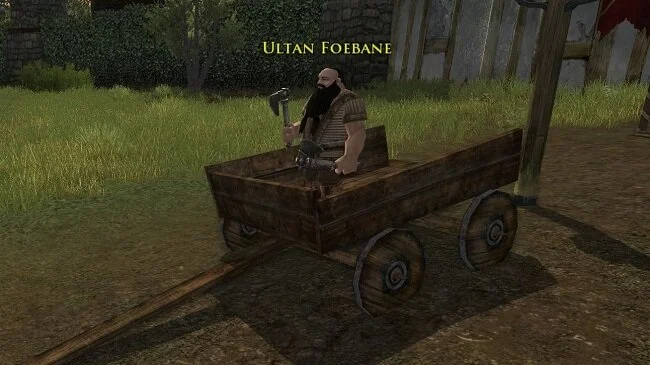
I stopped subscribing to The Lord of the Rings Online in June. I’ve always had a very cyclical relationship with this MMO and at present I feel I need a break from the games somewhat linear formula. Plus the new content scheduled for release centred around the wedding of Aragorn and Arwen doesn’t exactly sound enthralling. So I’ve left my primary character in Langflood and will return to the game later in the year when I feel the need to catch up with content. I have also abandoned the ongoing events in Star Trek Online as they’re getting too repetitive. I would like to see a new longterm story arc rather than just a continuous cycle of short term events and repeatable content. I don’t mind working towards a goal but it has to be something I want and the rewards offered in this MMO are getting a little too generic for my liking. I shall return to the game at some point as I’m a lifetime account holder and I’m curious to see how developer’s Cryptic overhauls the Klingon story arc.
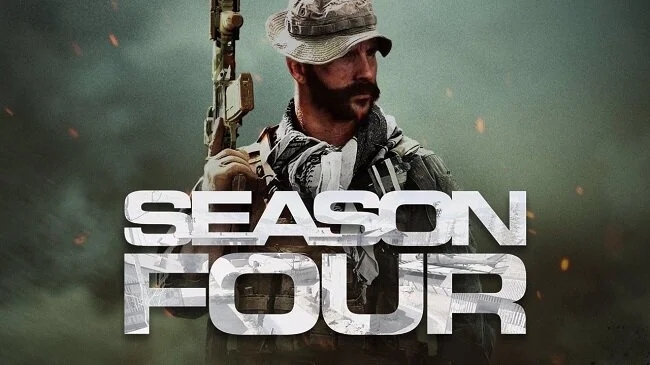
Setting aside the debate regarding the rectitude of the Battle Pass system in Call of Duty Modern Warfare, I certainly enjoyed Season 3. I managed to find multiplayer games that suit my ability along with loadouts that allow me to hit something every once in a while. It was very much a learning process but from April 12th to June10th, I slowly improved my performance and re-acquainted myself with the fact that the FPS genre can be fun. I finally got to try a Battle Royale game and was pleasantly surprised by how accessible they are. However, (and there’s always a however) Activision Blizzard seem to be hell bent on losing the good will they seemed to have gained in recent months. Today’s release of Season 4 has been blighted by major performance issues with the patch servers. Furthermore, the developers still insist in removing certain maps and game modes to promote new ones. This “lottery” which results in a lack of choice for many players is especially galling when you’ve just bought the new Battle Pass.
Battlefield 6: Tips
Although Battlefield 6 is a straightforward and self-explanatory multiplayer FPS, there are a great deal of controls, systems and game mechanics to master. Simply learning your controller or keyboard layout takes some time. There is also a lot of information about the game that, if known, can greatly improve your online experience. These can range from simple changes to default settings to understanding how weapons handle in-game and how to control them effectively. Hence, I thought it would be useful to new or returning players, to collate a list of tips for Battlefield 6. Some are quite obvious where others may not be quite so well known. They’re in no particular order. Hopefully you’ll find them useful.
Although Battlefield 6 is a straightforward and self-explanatory multiplayer FPS, there are a great deal of controls, systems and game mechanics to master. Simply learning your controller or keyboard layout takes some time. There is also a lot of information about the game that, if known, can greatly improve your online experience. These can range from simple changes to default settings to understanding how weapons handle in-game and how to control them effectively. Hence, I thought it would be useful to new or returning players, to collate a list of tips for Battlefield 6. Some are quite obvious where others may not be quite so well known. They’re in no particular order. Hopefully you’ll find them useful.
Do not fire your weapon continuously because the longer you fire, the more bullet spread (or bloom ) you will experience. Tap fire to reduce bloom. You can also switch to semi-auto or burst fire (if the weapon supports it) for increased accuracy.
Mount your weapon on both horizontal and vertical surfaces for stability. If your weapon has a bipod equipped, press the melee button while lying prone to mount on the ground.
Weapons are zeroed to 50 metres, apart from sniper rifles. Therefore when ADS firing at close range, aim lower, IE at the groin or abdomen, to hit the central body mass. Otherwise you will fire too high.
Hip firing at close quarters is quicker and potentially more accurate.
When in combat, go prone selectively and tactically as you don’t register on the minimap when shooting and there is less recoil.
Use the game audio to your advantage. The game’s sound design is very good at providing audio cues and indicating location. Using a headset greatly helps pinpoint sounds.
Use the minimap. Increase its size via settings and consult it regularly. It shows enemy locations as well as your squad mates and team. Use it to locate resources such as ammo supplies.
Spot enemies by aiming at them and pressing the Q, L1 or LB. It is easier using a drone on the Recon class as you just have to move the crosshairs over the target to mark them.
Use the mounted heavy weapons such as the machine guns and recoilless guns when targets present themselves. They are accurate and deadly if used effectively. If possible, have a squad mate cover you while using mounted weapons.
Whenever possible attack tanks from the rear, where their armour is weakest. If you’re a Recon class, be creative with the use of C4. IE attach to vehicles and drones etc.
Engineers can use smoke grenades to provide cover when advancing, retreating and reviving players. Remember that smoke can be countered by the use of thermal weapon optics.
When running, stow your weapons and run with your combat knife, defibrillators or engineer tool equipped, to go faster.
Beware sniper scope glint. White glint shows a sniper aiming. A rainbow glint indicates that you’re at the right range for a one shot kill.
The Support class can use deployable cover at strategic locations and chokepoints. Engineers can repair deployable cover.
Any class can change the default melee weapon from knife to a sledgehammer. Use them to get through walls and floors, providing alternate routes to a strategic target.
I have written in the past about the video games we cannot play. The ones that require a keen understanding of a game’s mechanics, along with a strong degree of manual dexterity and situational awareness. Being 58 years old, I tend to have neither the co-ordination necessary to succeed or the patience to master such complex skill requirements. With this in mind, I recently watched a YouTube video for Chivalry 2 and thought, that looks like fun. The fact that it showed someone picking up a chicken and throwing it at an opponent is neither here nor there. However, after watching a few more videos I realised that combat in the game was complex and that, as usual, the reality of playing such a game would be different from my expectations. Hence, I came very close to not buying Chivalry 2. However, I eventually decided that I would, so I bought it for just under £10 from an online vendor.
In the wake of Disco Elysium, I’ve been playing through several other games that have a focus on narrative and plot. I began with Call of Cthulhu which I shall write about in a separate post. Let it suffice to say that although I enjoyed the game, I wasn’t quite satisfied. This is not necessarily the game’s fault, as it makes a good attempt at depicting Lovecraftian Cosmic Horror. It’s just that any game following hard on the heels of one of the best RPG’s I’ve ever played, is likely to come up short in comparison. So I looked through my game library and found that I had Still Wakes The Deep, which enjoys a good reputation for having a strong story. I subsequently played through the game over two late night sessions and was left suitably impressed. So much so that I’ve bought the additional DLC, Siren’s Rest, in the hope that it maintains the quality of its predecessor.
The Battlefield 6 Battle Royale game mode, known officially as Battlefield REDSEC, was released today at 15;00 on all platforms. REDSEC, which is short for “Redacted Sector,” offers an interesting take on the Battle Royale genre, blending familiar elements from games such as Fortnight and Warzone, while maintaining those unique aspects of Battlefield. Hence, you will find missions, loot crates and an ever decreasing environment, as well as the squad class dynamics and the destructible environment. The map offers both urban areas as well as open countryside thus supporting multiple play styles. Furthermore, REDSEC includes two additional modes. Gauntlet and Portal. Although it has launched alongside the first season of Battlefield 6 (which comes with an optional season pass), REDSEC is available to download as a standalone mode and is free-to-play.
One aspect of Battlefield 6 that some players struggle with is unlocking and levelling up new weapons. Players begin the game with a selection of weapons from each class but you then have to actively play with each of them to unlock specific attachments via Mastery XP. Further weapons become available as players gain experience and increase their overall Career Rank. Players who are well versed in playing the FPS genre will naturally progress faster. The downside to this is that new players equipped with a base weapon end up going up against seasoned players with superior firearms. Both Mastery and Career Rank XP are doled out according to team and individual performance in each game you play. It is a slow grind for players to unlock weapon and vehicle resources. Double XP tokens go some way to address this issue but they do not mitigate the progression speed, which exists by design.
Multiplayer gameplay in Battlefield 6 is often fast, chaotic and disorientating. There are numerous controls to learn and game mechanics to familiarise yourself with. It can be a struggle at times to try and navigate your keyboard while under fire. Often you will lose in a gunfight simply because you don’t know about something important that could help you out or save your life. Like many other online games, it all comes down to experience. So here are some further tips regarding gameplay, settings and online etiquette, that will broaden your knowledge of Battlefield 6 and hopefully improve your online experience. As ever these tips are in no particular order. Some may be self-evident, others not. They’re written from the perspective of a PC player but are applicable to all platforms.
Although Battlefield 6 is a straightforward and self-explanatory multiplayer FPS, there are a great deal of controls, systems and game mechanics to master. Simply learning your controller or keyboard layout takes some time. There is also a lot of information about the game that, if known, can greatly improve your online experience. These can range from simple changes to default settings to understanding how weapons handle in-game and how to control them effectively. Hence, I thought it would be useful to new or returning players, to collate a list of tips for Battlefield 6. Some are quite obvious where others may not be quite so well known. They’re in no particular order. Hopefully you’ll find them useful.
When Battlefield 2042 launched on 19th November 2021, it was a complete dog’s dinner. There were technical issues, including widespread bugs, poor performance and inconsistent hit registration. The launch was also criticized for the removal of core gameplay features like the class system, a scoreboard, and a server browser, which led to the game being considered unfinished and incomplete at release. Although developers, Battlefield Studios, worked hard to address many of the issues arising from the launch, the net result was that the franchise’s reputation was harmed. However, the beta testing of Battlefield 6 throughout August this year, has done much to restore the franchise’s good standing with a game that has clearly returned to a formula that works.
I bought Hell Let Loose last night. A decision I suspect that I shall regret. Despite the fact that I know that the YouTube videos of this game are carefully curated and therefore not truly representative of the reality of its gameplay, I felt compelled to try this World War II multiplayer tactical first-person shooter. From time to time I find a game that really appeals to me as a concept and I want to play it. However, more often than not these are online multiplayer games and as such the human element is distinctly “variable”. Hence the idealised gameplay that I imagine is a far cry from what playing the game is really like. I’m sure I am not alone in this mindset. Sometimes I have to just “get it out of my system” and the only real way to do that is buy the game in question, be disappointed and then move on.
The second Battlefield 6 Open Beta test started earlier today. A 7.6GB download added additional maps, new game modes and also resolved some technical issues. I was able to select my second monitor to display the game this time round and also made some basic performance related tweaks. The colour grading is still an issue for me and I struggle at times to correctly identify players and objects at distance due to the muted palette. Minor gripes aside, the game still performs well and all the game modes have something to offer. King of the Hill and some of the other close quarters maps are a little too intense for my skill level but I still had fun with projectiles and explosives. I still prefer the Conquest mode with its bigger maps and greater variety of gameplay options.
I spent several hours today trying Battlefield 6 during its first Open Beta weekend. Trying being an apt word as I experienced some technical difficulties during that time. There were server queues as there often are during test periods, which took 5-10 minutes to clear. I also found that when a multiplayer game ended the client would often freeze, requiring me to use the task manager to shutdown the .exe file . As I then had to restart the entire game it meant having to rejoin the server queue again. Furthermore, despite various methods, I could not get Battlefield 6 to display on my second monitor. Although there is a clear option within the graphics settings, I could not get the game to output to my Dell S2421H monitor. If I used the Windows + Shift + → key combination, the game would briefly appear on the second monitor then instantly snap back to the first. I also could not take any screen captures or use OBS to capture video. I believe this is down to the game’s anticheat software.
I was reading through my RSS feed this morning and found a post by Heartless Gamer, regarding how Battlefield 6 requires Secure Boot enabled on your PC. If it is not, then the game will not launch and you’ll get an error message. Naturally, this raised several questions. First off, what is Secure Boot and do I have it on my PC? Well apparently it is a security feature that protects a computer from malware during the startup process, by verifying the digital signatures of bootloaders and other software components before they are allowed to run. By using the msinfo32 command in the Run Window, I determined that I do indeed have it and went directly to the BIOS and enabled it. The next question to address was, why have I not been invited to the open beta for Battlefield 6? I subsequently checked the EA Game Launcher and discovered that I had. So I installed the game.
Warzone added a new “casual mode” to its Battle Royale at the start of Season 4. This reduced the number of real players in-game and substituted them with AI bots. The ratio is approximately one fifth real players, four fifths bots. This new mode for Battle Royale solos, duos and quads was well received, especially among the mainstream players who are more focused on fun than progression. Veteran players who still wanted the challenge of playing against real players were free to continue playing the traditional BR modes. Hence all parties were pleased as they were both being catered for. However, and there is always a “however” when it comes to Call of Duty, the developers saw fit to remove the standard solo Battle Royale mode, leaving just the Battle Royale Casual mode with AI bots. Subsequently, a lot of players were perplexed and annoyed, as taking away choice is seldom good customer service. As a result of subsequent backlash, the mode was added back to the game mid-season.
I have written about “games we cannot play” several times over the years. By this I mean video games that we lack the skill, coordination and patience to master. For example, I often struggle with video games that are primarily designed for consoles and are therefore intended to be played via a game controller. I also don’t want to have to spend an excess of time (a very subjective thing) to learn how to play a video game. Hence there are games that I am interested in but have accepted that I will never play because I cannot or will not do what is required to play them effectively. However, in this post I want to discuss a tangential point. Games which have the potential to be exceptionally entertaining but that entertainment depends on a lot of factors that exist outside of the game itself. Hence you may never get the experience you desire which is often the one that was marketed.
There has been a resurgence of people playing Star Wars Battlefront II recently. Possibly because the game was discounted on many outlets on May 4th and may be due to the success of Andor season 2. There’s a lot more people streaming it as well as videos on YouTube. Whatever the reason, it is always good to see a deserving game enjoying a renaissance. Star Wars Battlefront II was blighted at launch, back in November 2017 by some egregious business decisions and it took nearly a year for the game to recover from the negative publicity and player animosity. Setting this historical debacle aside for one moment, there was always a handsome and engaging game to be found. One that used the licensed intellectual property well. Which is why I recently reinstalled the game and resumed playing its multiplayer mode.
When the Battle Royale Call of Duty: Warzone launched on March 10th 2020, the Verdansk map was one of the key elements of the game’s success. The subsequent lockdown due to the global pandemic was also a major shot in the arm for the game, with so many gamers being home. The Verdansk map along with the gameplay mechanics of the game at the time were a perfect combination and so Warzone was “just so”. It allowed both skilled and unskilled players to play together, without one group dominating the other. Gunfights could be intense but there were periods of downtime when traversing the map. Players also couldn’t continuously respawn if defeated, so there was a requirement to play with a degree of caution and strategy. I enjoyed the game immensely despite not being the biggest fan of PVP based gaming. It was a broadly equitable experience but sadly it didn’t remain that way.
I decided to play Call of Duty today as I wanted some undemanding entertainment. I was not surprised when the game client began an update, as I have not played for about three months. Hence, there was obviously new content to install. However, when I saw the size of the download, I knew this was more than just a season update. I therefore checked the Battle.net client and discovered that the game was installing Black Ops 6, the latest version of Call of Duty that is released on 25th October. A game I have decided not to buy for a multitude of reasons. Fortunately, you can modify your game installation on the fly, so I unchecked a few boxes and the download stopped. However, I was annoyed by the hubris of this “download by default” policy, so I decided to uninstall my existing installation of Modern Warfare 3 as it is no longer a mainstay of my gaming activities.
For those who are not familiar with this latest niche piece of “gaming outrage”, it regards the extraction shooter Warzone 2.0 DMZ, which is part of the Call of Duty franchise. When you enter the game (either solo or in a squad), you use gear that you have previously collected. A key part of the game is looting and upgrading your weapon, bullet proof vest (there are 3 tiers) and sundry support items. If you die, then you lose all the equipment you are currently carrying. With this in mind, Activision have recently added two purchasable gear bundles to the game store. One comes with a medium size backpack by default. The other comes with a 2 plate vest (tier 2) and two weapons that only have a 15 minute cooldown. This does offer a degree of convenience. Furthermore, the second bundle is tied to the Ghost operator skin, who within the game’s canon is an iconic figure. Hence there has been a great deal of debate over the rectitude of these bundles.
I have always dismissed hunting games as “not my thing”. Perhaps that stems from my ambivalent views about hunting per se. Yet after recently watching a YouTube video for The Hunter: Call of the Wild, I revised my opinion. The footage showed a slow and thoughtful game and I was also surprised to see that there was a campaign with a story. Hence I decided to step outside of my comfort zone and give the game a try. The base edition can be purchased for £20 on Steam and there is a wealth of optional DLC. I bought a bundle that included some additional maps, weapons packs and a dog that can be used for tracking. I also bought a quad bike as this is invaluable for traversing the open world, which is enormous. As ever with steam, the installation was easy and hassle free and within an hour I found myself exploring Layton Lake District, which is based upon the Pacific Northwest geographic region.
I like an analogy as a literary device, so here’s one for you. Video games are like parties. How so? In the following ways. They quite never live up to your expectations. The best ones are the ones you never go to, according to the “anecdotes” you’re told afterwards. And there’s always someone crying and throwing up at 2:00 AM. Okay, the last one isn’t quite relevant but the overall sentiment of the first two is sound. The reason I have used this visual metaphor is because both parties and multiplayer video games sell themselves on the alleged quality of their respective social dynamic. They supposedly offer you fun with your friends and a unique, memorable experience. However, the reality is a lot more lacklustre. Warzone 2.0 DMZ is a prime example. What enjoyment there is to be had in playing this game is offset by the iniquities of many of its players as they race to the proverbial bottom.
I want to talk about how we choose a new game from the countless titles that are currently available. I am going to be candid about how I do this as well as my own personal biases and prejudices. Because I am not open to playing any type of game. Like so many other aspects of life, I have very clear likes and dislikes that can only be tempered so far with logic and rational thinking. Video games as far as I’m concerned are supposed to be engaging, entertaining and inherently enjoyable. I don’t mind a degree of challenge and I’ll grind to achieve a specific goal, if I feel the reward to effort ratio is acceptable. I will on occasions attempt to step tentatively out of my comfort zone. However, there are some things that I simply don’t like, so they will not be considered. I think the best analogy for this is food. There are certain meals that I have tried (sometimes several times) and disliked, so they won’t ever be eaten again. Then there are other meals that contain ingredients I dislike or that are cooked in a style that I don’t enjoy. These are also off the proverbial table (no pun intended).
The last 31 days have gone by really fast, or at least that’s the way it feels. Despite having bought several new games recently and acquired yet more for free from the Epic Store, I did not embark on anything new throughout October. Due to the unexpectedly prompt release of the new “mini expansion” for The Lord of the Rings Online and the launch of a new event in Star Trek Online, I found myself focused upon the MMORPG genre, yet again. And after playing continuously for six months, Call of Duty Modern Warfare/Warzone has finally begun to lose its lustre. I didn’t especially enjoy the Halloween event, not that there was anything inherently wrong with it. It just wasn’t for me. I played a little Fall Guy: Ultimate Knockout but quickly discovered that the “season” system is just another gear treadmill, although the gear in this instance are novelty cosmetic outfits. I don’t want to be tied to too many games in this fashion (it’s bad enough with MMOs), so this is another title that has been relegated to occasional play when the fancy takes me.
September has been a difficult month. A family crisis and subsequent bereavement meant that gaming got pushed down the daily agenda. However, after the various chores and duties were done I did need some downtime and means to relax. Hence I did play some games in a limited fashion. Nothing fancy, just stuff like Fall Guys: Ultimate Knockout and Gang Beasts, which are light-hearted and undemanding. I also took the time to log on to The Lord of the Rings Online test server and check out the preview of the forthcoming “mini-expansion”. Not only was this informative but it provided material for a blog post. But overall I didn’t really achieve anything substantial with my gaming throughout September. Gaming was relegated to being just a convenient diversion from the immediate problems I’ve been facing but as such, it did fulfil that role well.
Developers do like to gate access to the best gear and equipment in video games. Often there will be an achievement or deed required to unlock the object that you desire. Now I have no objection to this concept in principle. It’s just that every now and then, the criteria required to access an item is beyond my abilities. Take Call of Duty Modern Warfare/Warzone. Infinity Ward recently added the Rytec AMR to the game. It is a semi-automatic sniper rifle that can use thermite and explosive rounds. It has a significantly higher rate-of-fire than the HDR and AX-5, and performs better at range than the Dragunov. I’ve been itching to get my hands on this weapon for a while. However, to unlock it, you have to complete the following achievement. "Get 2 quickscope kills using sniper or marksman rifles in 15 different matches". For me this is effectively one of the labours of Hercules.
I’m still somewhat shocked that August has been and gone. Even by 2020 standards it’s been an odd month. Due to illness in the family, my schedule has been turned on its head and subsequently there has not been as much time for gaming as I’ve previously enjoyed. However, I tried to put what time I had to good use. I attempted to return to the MMORPG The Lord of the Rings Online once again, to see if I could continue through the epic story. Sadly, the game has run into further server related issues, just as it did last month. Standing Stone Games community manager Jerry Snook was a little “snippy” in responding to players' concerns and at present there are no details regarding what the problem is and when it will be resolved. If this issue persists I suspect that it is going to do some genuine harm to both the player base and community relations. I hope matters improve for SSG and LOTRO over September.
Adding a train to a Battle Royale game is hardly a new concept. Both Apex Legends and PlayerUnknown’s Battleground have successfully done this. So it was only a matter of time before one was added to Call of Duty Warzone. We were tipped off by the addition of train tracks last season. The launch of Season 5 this week finally made the “choo choo” a reality. I must admit, I’m quite surprised at how adding something as straightforward as a freight train has reinvigorated the game. That and the fact that you can now access the stadium seems to have really enthused the playerbase. Since Tuesday, whenever you play Warzone or one of its variants, a large number of players head straight to the stadium or the station where the armoured freight train starts its journey around the map. As a result of this, new players or those who aren’t so skilled in combat can navigate the outlying areas of Verdansk with a greater degree of freedom and safety. Everyone else is at either of those locations.
Video games can offer a great opportunity for personal growth. If you are the sort of player who likes to prove themselves and continuously test one’s mettle, then some titles can provide the challenge required to be the best of the best. Hence many games are competitive, have league tables and other formal structures for measuring success. It is one of the reasons why esports have become so popular. But this desire to excel and master a particular play style extends beyond competitive games. For some players part of a games allure is understanding the numbers and stats that drive the game mechanics. Because these are often the key to optimising your build and maximising DPS output. Hence you will find skilled and learned players in a variety of games across multiple genres. Although they are often motivated for different reasons, they all strive to be elite players.
Call of Duty: Modern Warfare and Warzone have a wealth of customisation and cosmetics options. One of which is the ability to assign hand gestures to your character. These can be used as a means of giving instructions when playing in a squad but more often they’re just used for fun or humorously. Players will use them after a kill or sometimes make them part of a trick shot, such as making a gesture with the left hand while firing from the hip with the right. I’ve not noticed a lot of use of gestures while playing nor do I use them myself. It takes all my concentration to stay alive. However, they do seem to feature in the various CoD clip shows I watch on YouTube, so they’re more of an affectation used by “top tier” players. Recently, developers’ Infinity Ward removed the OK gesture from the game. This minor change was not mentioned in the patch notes and the gesture was replaced with a new one called "crush".
I was watching a YouTube video recently of someone trying the new Fennec SMG in Call of Duty Modern Warfare Multiplayer. It was a 5 versus 5 game and the player who made the video was clearly quite skilled. After quickly racking up multiple kills, 3 of the enemy team left mid game. He laughed and pointed out that they had “rage quit”, although that is just conjecture. They may have left the game for a multitude of reasons (a point I shall return to later). As ever this video began a train of thought which I would now like to explore. Multiplayer games often go hand in hand with a lot of informal social etiquette. Much of which stems from the original MMOs from two decades ago. However, these conventions are not in any way mandatory or enshrined in any games terms of service. Yet quitting in the middle of a multiplayer game is still frowned upon in certain quarters, often being seen as an act of selfishness and childish anger. However, like everything in life, I think it’s not as simple as that.
I stopped subscribing to The Lord of the Rings Online in June. I’ve always had a very cyclical relationship with this MMO and at present I feel I need a break from the games somewhat linear formula. Plus the new content scheduled for release centred around the wedding of Aragorn and Arwen doesn’t exactly sound enthralling. So I’ve left my primary character in Langflood and will return to the game later in the year when I feel the need to catch up with content. I have also abandoned the ongoing events in Star Trek Online as they’re getting too repetitive. I would like to see a new longterm story arc rather than just a continuous cycle of short term events and repeatable content. I don’t mind working towards a goal but it has to be something I want and the rewards offered in this MMO are getting a little too generic for my liking. I shall return to the game at some point as I’m a lifetime account holder and I’m curious to see how developer’s Cryptic overhauls the Klingon story arc.
Setting aside the debate regarding the rectitude of the Battle Pass system in Call of Duty Modern Warfare, I certainly enjoyed Season 3. I managed to find multiplayer games that suit my ability along with loadouts that allow me to hit something every once in a while. It was very much a learning process but from April 12th to June10th, I slowly improved my performance and re-acquainted myself with the fact that the FPS genre can be fun. I finally got to try a Battle Royale game and was pleasantly surprised by how accessible they are. However, (and there’s always a however) Activision Blizzard seem to be hell bent on losing the good will they seemed to have gained in recent months. Today’s release of Season 4 has been blighted by major performance issues with the patch servers. Furthermore, the developers still insist in removing certain maps and game modes to promote new ones. This “lottery” which results in a lack of choice for many players is especially galling when you’ve just bought the new Battle Pass.
LOTRO Tips
I am currently enjoying a renewed interest in the MMORPG The Lord of the Rings Online since I migrated all my characters from the old 32-bit servers to the new 64-bit replacements. I’ve created a new High Elf Lore-master on Peregrin server and am currently levelling them in a targeted play through of the Epic Story, supplemented by curated side quests. While playing recently, I realised the game UI on this alt wasn’t as I usually have it laid out. So I checked through the various documents on my PC and found a text file I had created many years ago that had a few hints and tips written down. I’ve added a few more and decided to share them as a blog post. I’m sure veteran players will be familiar with many of them but a lot of them are worth repeating. They may prove useful to those new to LOTRO or returning to the game after a long hiatus.
I am currently enjoying a renewed interest in the MMORPG The Lord of the Rings Online since I migrated all my characters from the old 32-bit servers to the new 64-bit replacements. I’ve created a new High Elf Lore-master on Peregrin server and am currently levelling them in a targeted play through of the Epic Story, supplemented by curated side quests. While playing recently, I realised the game UI on this alt wasn’t as I usually have it laid out. So I checked through the various documents on my PC and found a text file I had created many years ago that had a few hints and tips written down. I’ve added a few more and decided to share them as a blog post. I’m sure veteran players will be familiar with many of them but a lot of them are worth repeating. They may prove useful to those new to LOTRO or returning to the game after a long hiatus.
Saving and loading your customised interface:
Once you’ve arranged your LOTRO user interface to your liking simply type the following command in the chat window. /ui layout save X (X being the name of choice for this saved setting). You can then load this layout for any further alts by typing the following in the chat window. /ui layout load X
Filter loot, quests and sounds:
Alt + R opens the in-game filter windows. This allows you to filter out specific quests and their subsequent reminders. It can also be used to ignore unwanted loot. I use it to avoid lootboxes that frequently drop and fill your bags. It can also be used to filter out specific in-game sounds. This is especially handy if you find certain sounds annoying, such as Minstrels constantly yelling or the incessant whinnying of horses at stables.
Renaming pets and skirmish/landscape soldiers:
The Lore-master and Captain’s classes in LOTRO have combat pets that can be renamed by right clicking on them. Skirmish/landscape soldiers can similarly be renamed. Cosmetic pets cannot have their name altered in this fashion. However, you can rename them by typing the following command in the in-game chat window. /cpet rename X (X being your name of choice).
Checking to see how much time you have spent playing a specific alt:
Type the following command in the in-game chat window in chat to see how long you've played that specific character. /played
Select which quest icons are shown on the mini-map:
If you go into Options>UI Settings and tick “Show Trivial Quest Icons in Radar” the game will display the quest icons (rings) for those quests that are below your current level, on your mini-map.
Change the order of your alts on the character select screen:
If you want to sort your characters, prior to clicking on “Enter Middle-earth” click on the small triangle just below where it says “Page”. You can then choose between Name, Level, Class and Last login.
Quick travel skills:
Travelling around the various zones in LOTRO can be difficult at lower levels. Stable access is often gated by quests and reputation etc. There are some travel locations that are more useful than others due to the amount of locations they offer. Return to Glân Vraig is one such location. Based in the Ettenmoors, this skill can be earned at level 20 just by completing the tutorial quest in the Ettenmoors. It offers quick travel to West Bree, Thorin's Gate, Michel Delving and Rivendell. From Rivendell Stables numerous other travel locations are available. Return to Glân Vraig also has the advantage of only having a 5 minute cooldown. Players just starting out in LOTRO, may wish to purchase Return to Lalia's Market skill for 3 mithril coins. It teleports the player to the centre of Bree which is an important travel hub.
Disable combat music:
Whenever you aggro an enemy in LOTRO, the game plays combat music specific to that zone. These audio cues can be useful in notifying that you’ve triggered combat. However, it can also become quite annoying, especially if you’re focused on the ambient score. Hence, you can go into Options>Audio>Sound Features and check the “Disable Combat Music” button, if you wish.
The LOTRO keymap:
I have two monitors attached to my PC. I play LOTRO on the right hand screen and have the game’s default keymap as the desktop wallpaper on my left hand screen. Despite playing the game since 2008 I still forget many of the handy keyboard commands, so it is useful to have a visual reminder in my line of sight. You can find a large keymap image here.
Are video games becoming easier? It’s a perennial subject that is frequently discussed by those who play them. Often the question of whether they have actually become easier is not the focus of the debate, as it seems to be broadly recognised that it is the case. Instead, discussion of this matter tend to drift into the rectitude of this change. Debate’s of this nature are usually awash with subjective opinions and personal preferences which are then put forward as objective facts. It’s not just a question of video games becoming easier, it’s the fact that making them easier is “wrong” and those who want them as such are “not proper gamers” etc. The hours that have been lost to this pointless, tedious debate are uncountable. However, I digress. Let us return to the matter of video games becoming easier, because although fans discuss this a lot and have plenty to say, you don’t often hear from the developers on this subject.
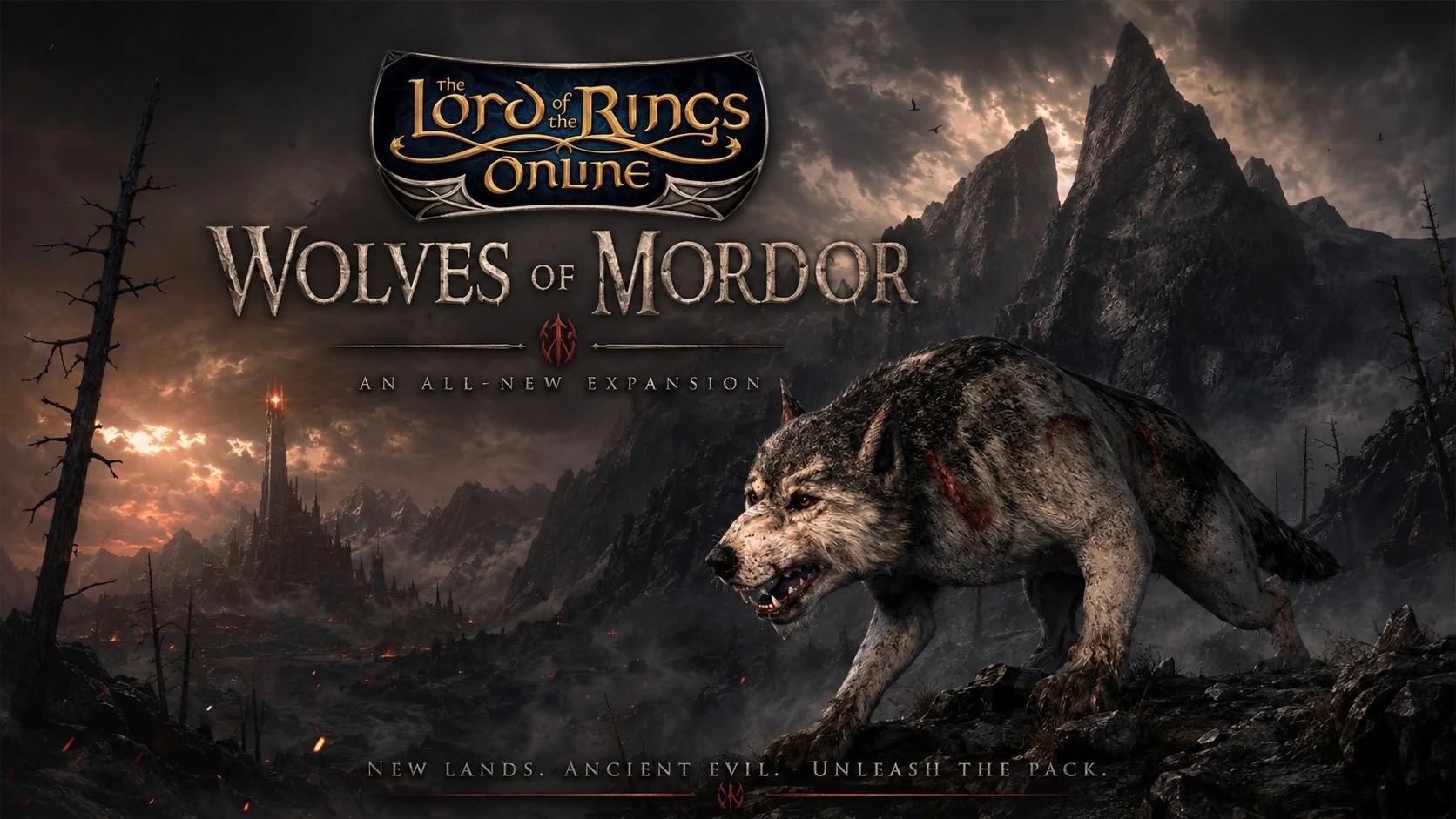
The next expansion for the MMORG, The Lord of the Rings Online, was announced on the 1st August, via the gaming website MMORPG.The Wolves of Mordor, which will launch later in the year, appears ambitious in scope as it will include two new game systems as well as the obligatory story update. This expansion takes place in Draugardh located in the North East of Mordor, beyond the Plateau of Gorgoroth. It includes the new zones of Heledhris, Parth Rhavas and Nan Ogol. These vary environmentally ranging from the arid, volcanic and semi-tropical. Players will encounter the Daugrim in these regions, Werewolves but not in the modern sense. This is not the lycanthropy of Eastern European legends but in the established Tolkien idiom of fell spirits inhabiting the bodies of Wolves. The region also sees the return of the Woses and players can expect to encounter Elves and scouts from Gondor. As ever with LOTRO expansions, there will be new instances as well as a raid.
I was recently perusing my archive of old blog posts, when it struck me how much I’ve written about the MMORPG genre over the years. Naturally, there was far more material from between 2008 and 2012 as that was period when I immersed myself in the genre and was very enthusiastic about it. I was at a point in my life when I had the time to dedicate to such games and I was happy to participate in the social aspect of they offered. I would regularly play through group content and spend time socialising online with fellow guild members. My experience remains a textbook example of how online games can be more than the sum of their parts and that where you are at in your life has a major impact upon your overall enjoyment. As I read though various old posts it became clear that my experiences where specific to this particular part of my life and that they cannot be repeated. My relationship with the genre is very different now and that’s fine.
Video games as a genre are extremely poor at explaining themselves. When you buy a new game you’ll often find little or no information regarding the basic systems and mechanics. The industry assumes that their customers are by default familiar with the fundamentals of playing a modern video game. Hence if a game has a tutorial, it is often based around videos rather than detailed verbal instructions. You are are briefly shown a clip of a specific move being successfully undertaken but it is seldom shown in a wider context. The industry also expects the fan community to take on the role of curating and disseminating information about its games. The move away from forums and bespoke websites to Discord highlights this. Discord is a primarily a real time communication tool and not good at maintaining a historical data archive. If you want an answer to a specific gaming question, you’ll more than likely find it on YouTube in a video made by a fellow gamer.
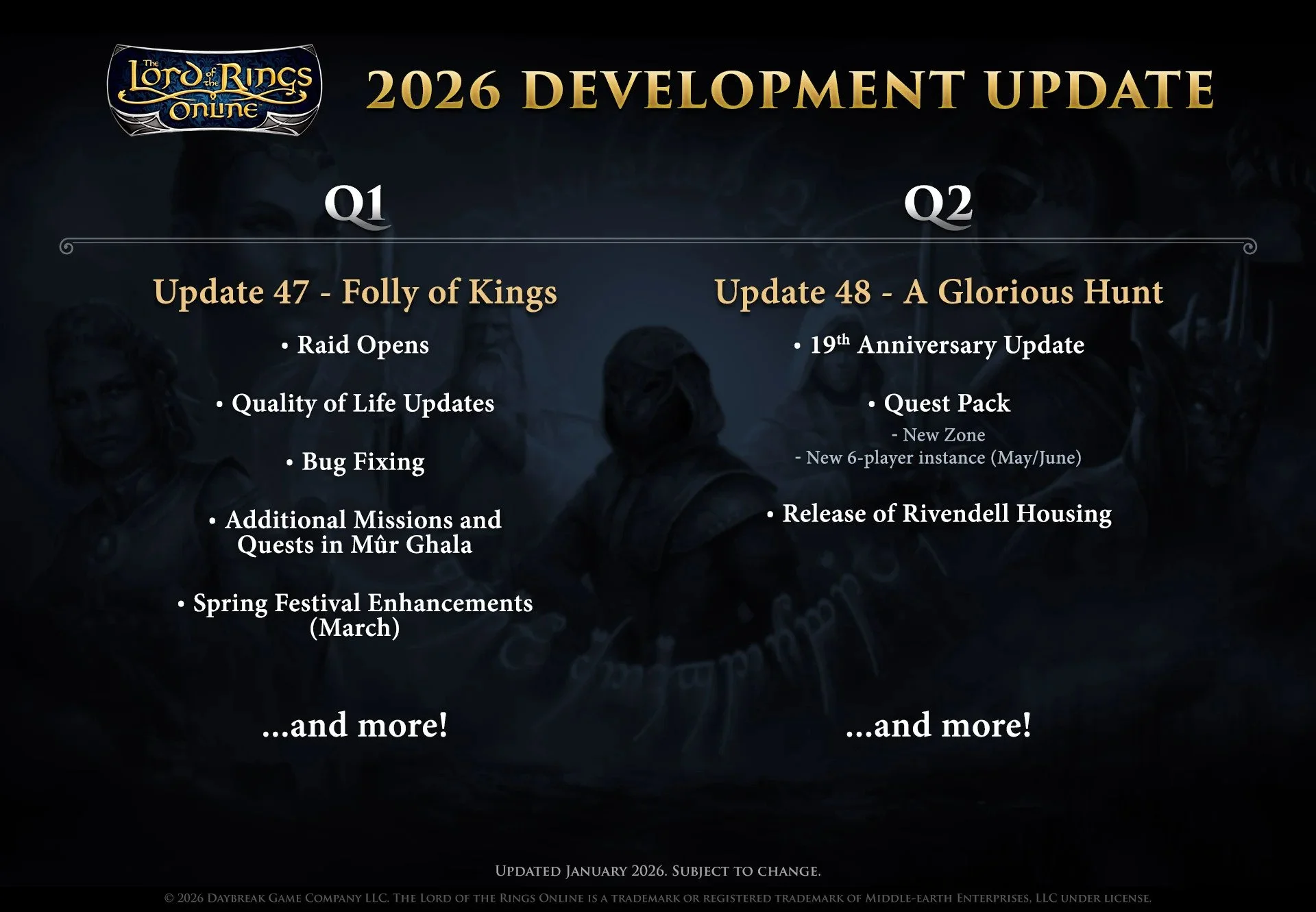
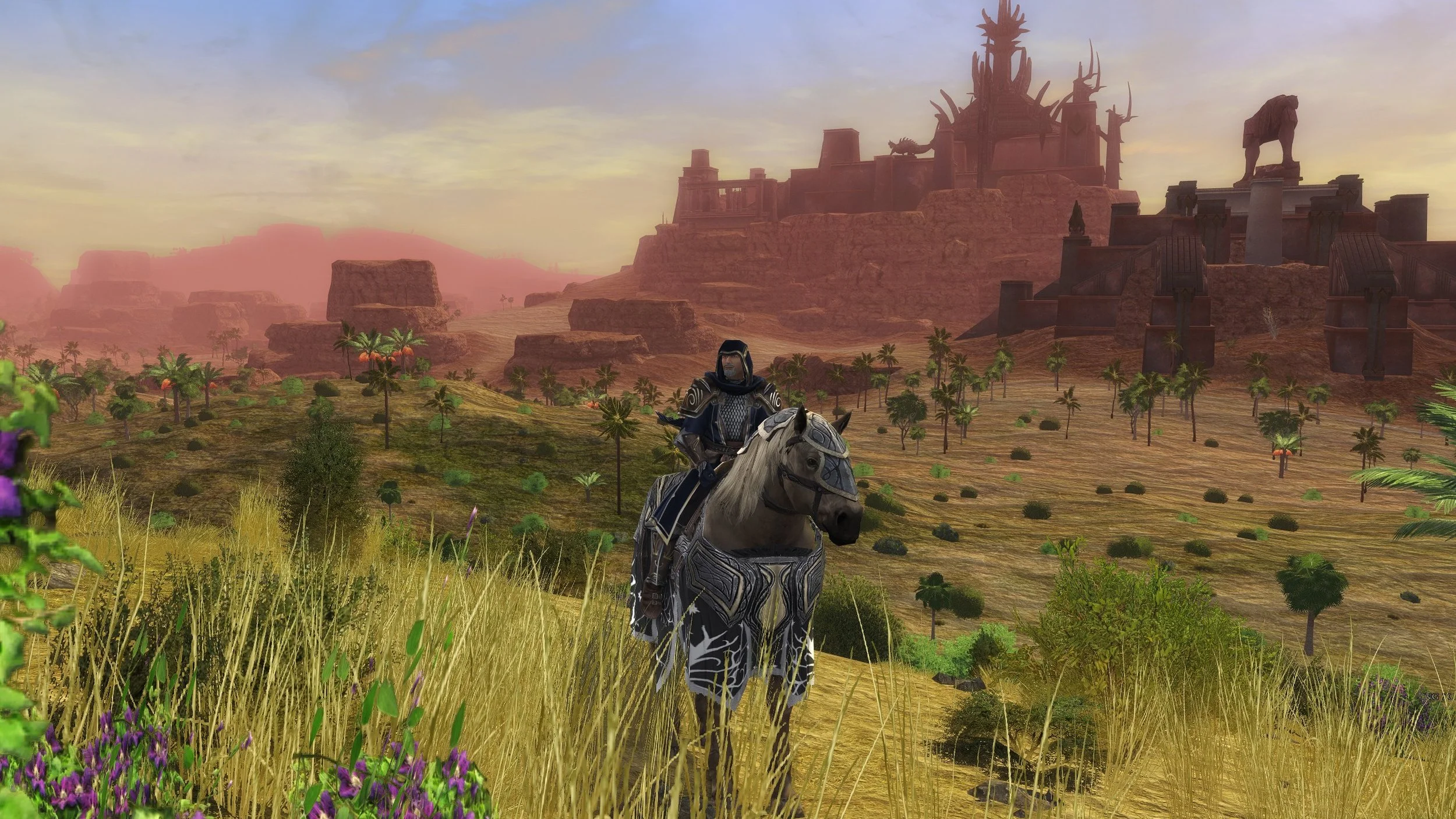
According to the recent “letter to the players”, Standing Stone Games will be adding a new zone to the MMORPG The Lord of the Rings Online in the second quarter of this year. Possibly around May or June. Having spent the last three expansions in the South of Middle-earth exploring the tropical Umbar and the deserts of Harad, I would certainly welcome a change of location. I have gradually warmed to these zones over the last eighteen months but I do find them so incongruous. They are so radically different to the European style content that has been the mainstay of the game for so long. Tolkien’s source text has plenty of detail regarding Eriador and Rhovanion. Information regarding Harad is scarce, hence it has afforded the developers a great deal of artistic freedom. Although exceedingly well realised these tropical zones have taken a while for me to get used to.
I’m not sure exactly when it started but I’ve recently noticed a graphical bug within the MMORPG The Lord of the Rings Online. This problem often occurs within caves or in areas where there are a lot of rocky surfaces. Hence it has become very apparent in the latest two expansions, set in Umbar and Harad. This graphical glitch causes some surface textures to appear to flash from light to dark intermittently. The resulting strobe effect is hard to ignore and very distracting. Fortunately, a quick online search showed that this is not a problem unique to my installation of LOTRO and is a known problem. Furthermore, there is a very simple workaround, which is to go into the Advanced Graphics setting and uncheck “Per Pixel Lighting”, which immediately remedies the problem. I have no idea why this has recently started to happen but at least it can be resolved.
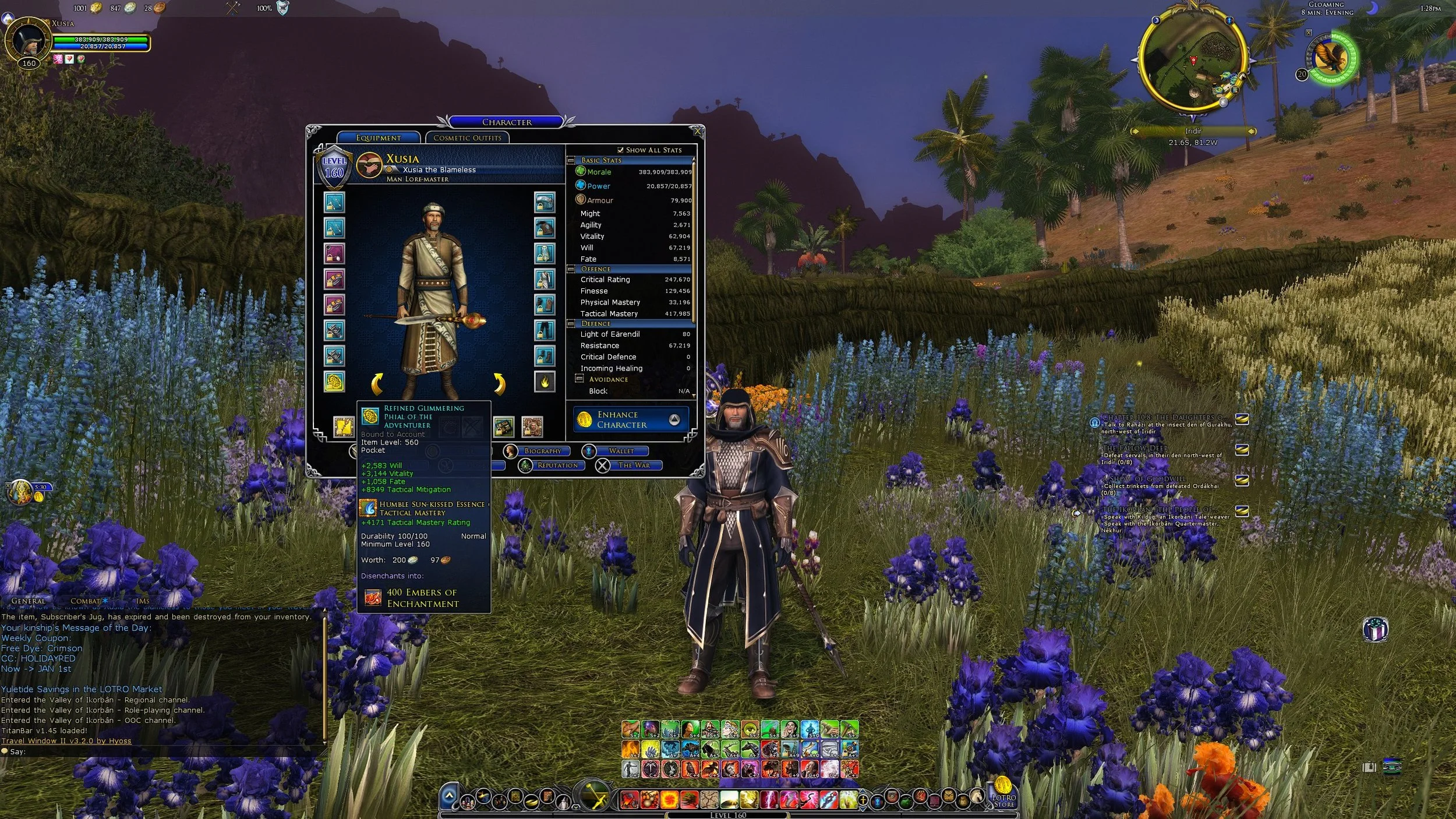
The latest expansion for the MMORPG The Lord of the Rings Online, Kingdoms of Harad, launched on December 3rd. With this release the level cap was raised from 150 to 160. It should also be noted that the cap for virtue traits was also raised from 96 to 100. Naturally these changes meant that there is a requirement to replace all armour and jewellery once the new cap is reached. Similarly Legendary Items have to be reforged and any traceries upgraded or replaced. If you follow the Epic Story it will lead you from quest hub to quest hub. The main quest rewards, along with those from side quests will provide adequate gear as you slowly progress towards the new level cap. The new raids, instances and missions/delvings then provide a means to acquire higher quality level 160 gear. LOTRO and indeed, many other MMOs are consistent in this methodology.
It is customary in a post such as this to list the various games that I’ve played over the last twelve months and share my thoughts on them. Wider analysis of the video game industry is also de rigeur. Unfortunately, I don’t really feel disposed to do either of those two things. My thoughts on the games I’ve played have already been published and can easily be accessed via the links at the bottom of this post. As for the video game industry, it suffers the same flaws as music, TV and cinema. There is creativity and innovation out there but it is often drowned out by mainstream products which are demonstrably inferior due to their inherent mediocrity. As for the business side of things, we once again clearly see the failings of the corporate management class. Sadly, they do not face the consequences of the mistakes that they make.
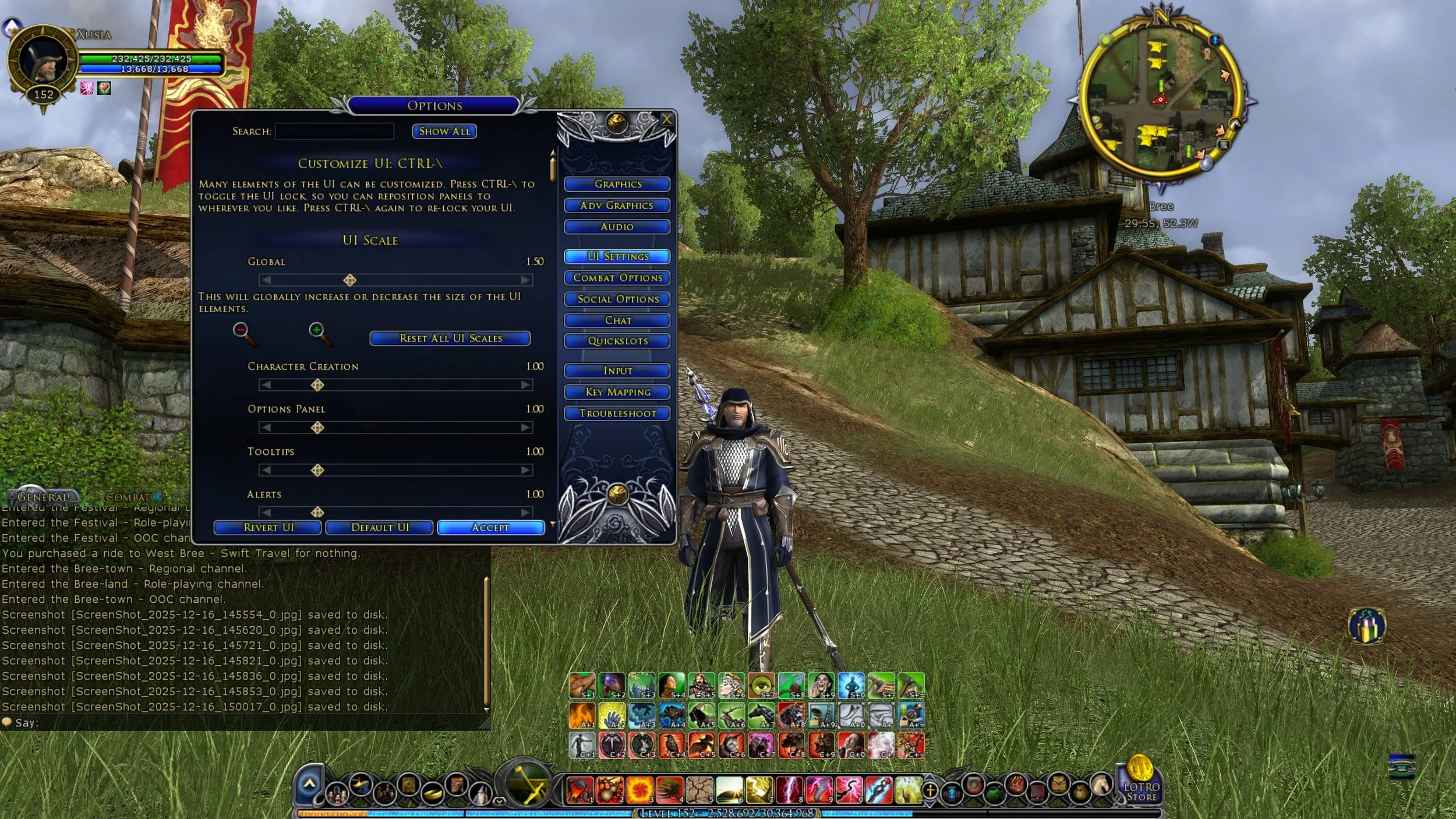
Today Standing Stone Games began beta testing Update 46.1 for the MMORPG The Lord of the Rings Online. The current preview on the Bullroarer test server is mainly for the new instance cluster that comes with the Kingdoms of Harad expansion which launched a few weeks ago. However, it would appear that this latest preview has another feature or note. One that should please LOTRO players. Contrary to what a lot of people thought, myself included, SSG have been working on a scaling UI for 2K and 4K monitors and the results are now available for testing from today Monday 15th through to Friday 19th December. Until now the main workaround to the lack of UI scaling has been to use either Nvidia or AMD graphics software to upscale the game from 1920 x 1080, or a third party app such as LosslessScaling. Having an official solution is a far better option.
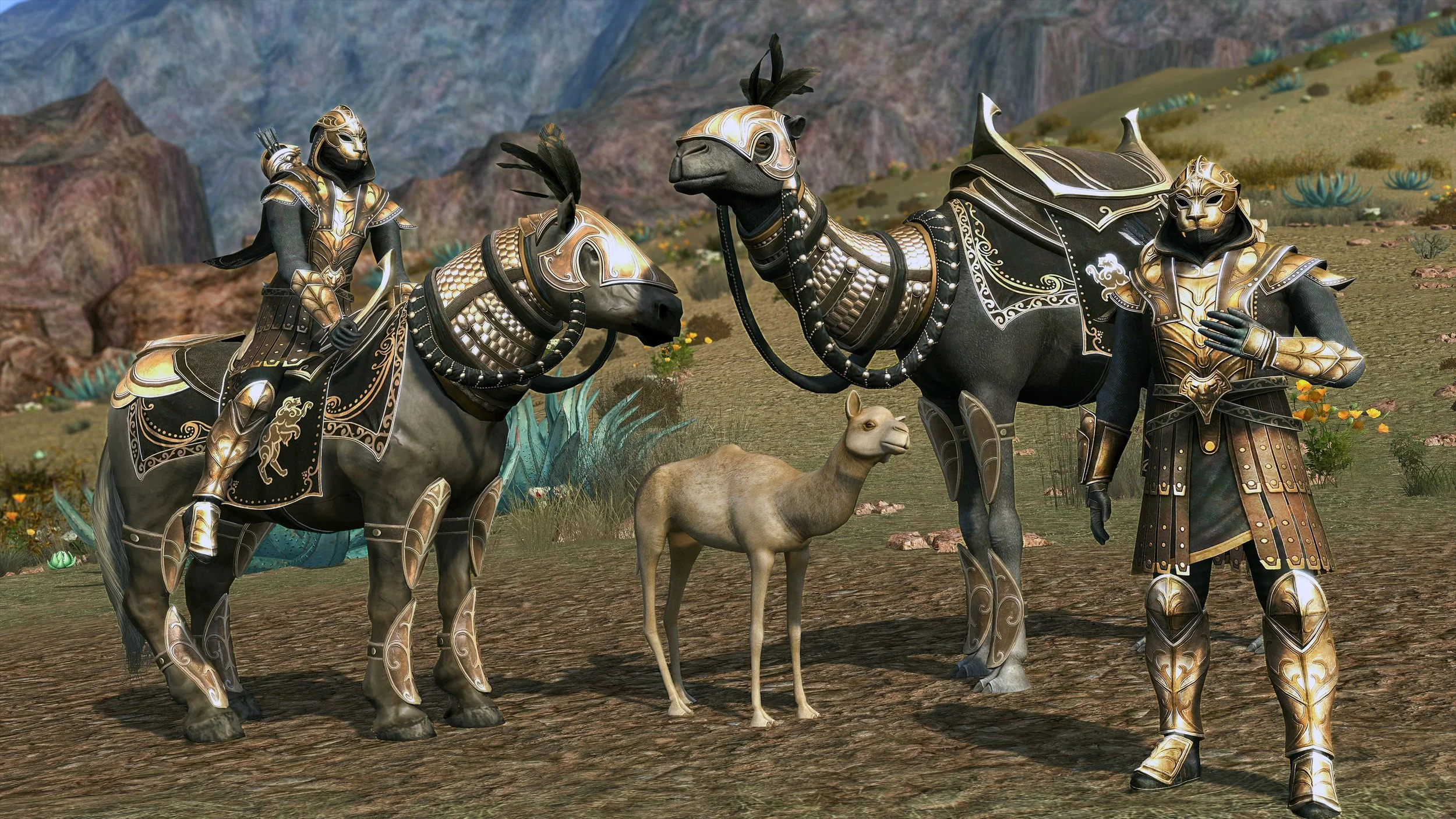
Kingdoms of Harad, the 13th expansion for the MMORPG The Lord of the Rings Online, was released today. Highlighting developer’s Standing Stone Games continuing commitment to this eighteen year old game. As 2025 draws to a close, I thought it would be prudent to reflect upon the current state of LOTRO and to consider what may come next year. Two words that I associated with this MMO are stable and consistent. The playerbase is loyal and dependable. Player numbers never greatly decline nor do they notably expand. LOTRO fills a very specific gaming niche and one of the reasons it retains its players is that there is no suitable alternative game. Although there is not a great deal of data in the public domain, it is generally accepted that LOTRO has an older player demographic and that many are consummate Tolkien fans.
The MMORPG The Lord of the Rings Online runs on a broad spectrum of PCs. From archaic laptops to high end gaming rigs, although it may require a bit of tweaking. At present, the optimal way to play the MMO is at a resolution of 1920x1080 (FHD) with the graphics setting maxed out. The graphics are sharp and the UI is readable. However, a growing number of gamers are now using 2K and 4K monitors. You can play LOTRO at higher resolutions such as 2560×1440 (QHD) and 3840x2160 (UHD) and the game looks great. However, the UI does not scale and so is very small on 2K and 4K monitors. The skill icons on the quickslots (shortcut bars) and the in-game text become difficult to see at these resolutions, which deters some players from using them. It is a known issue that Standing Stone Games are attempting to address but it is unlikely to be resolved any time soon.
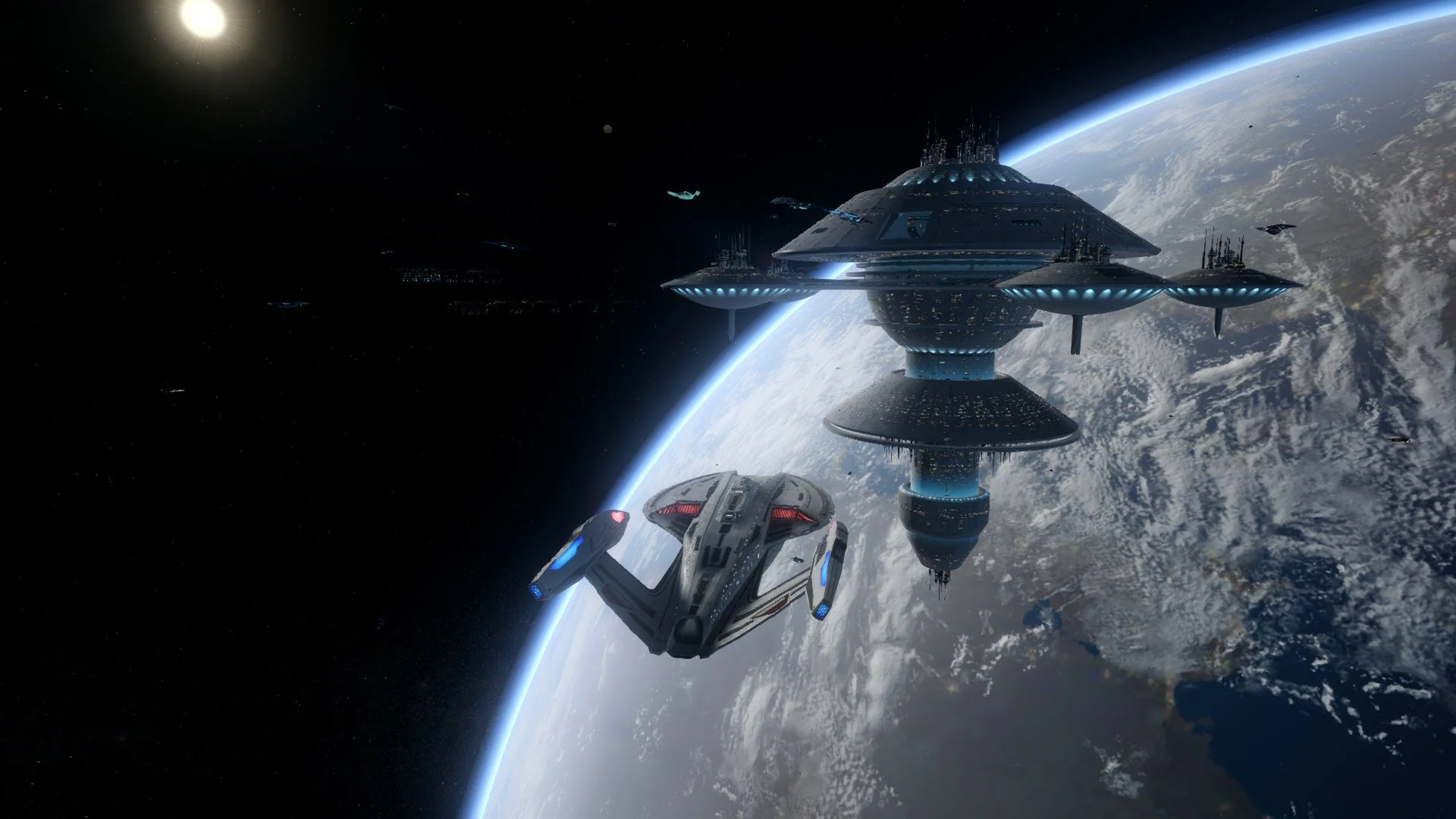
I recently read a post on Massively Overpowered about skills rotation in the MMORPG genre. I found the subsequent discussion in the comments fascinating. Mainly because I have never used a fixed rotation of skills in any of the MMORPGs that I play. I understand the reasoning behind such things and why some players want to optimise their combat performance. Using one’s skills in a specific order to maximise damage and manage their subsequent cooldown has a logical appeal. In Star Trek Online, some players go so far as to create keybinds for their rotations and assign it to a specific hotkey, which is then continuously pressed throughout combat. However, rotations are a blunt tool that lack flexibility, often being geared towards dealing with a single target or using an area of effect skill against a larger group. They may not be the optimal approach to combat when things do not go to plan.
Tolkien enthusiasts may recollect Athlon Games, a subsidiary of Leyou Technologies, announcing that it was developing a new MMORPG, based upon The Lord of the Rings, back in September 2018. The following summer, it was revealed that Amazon Game Studios was the partner developer for the project. In late 2020, Leyou Technologies (a Hong Kong-based company), was acquired by the Chinese conglomerate Tencent. This triggered a contract clause with the license holder, Middle-earth Enterprises, allowing them to terminate the existing arrangement if a new deal could not be met. Amazon and Tencent were unable to agree upon how to proceed with the project, leading Amazon to withdraw from negotiations. The project was subsequently scrapped. No details or images of the MMO have been released.
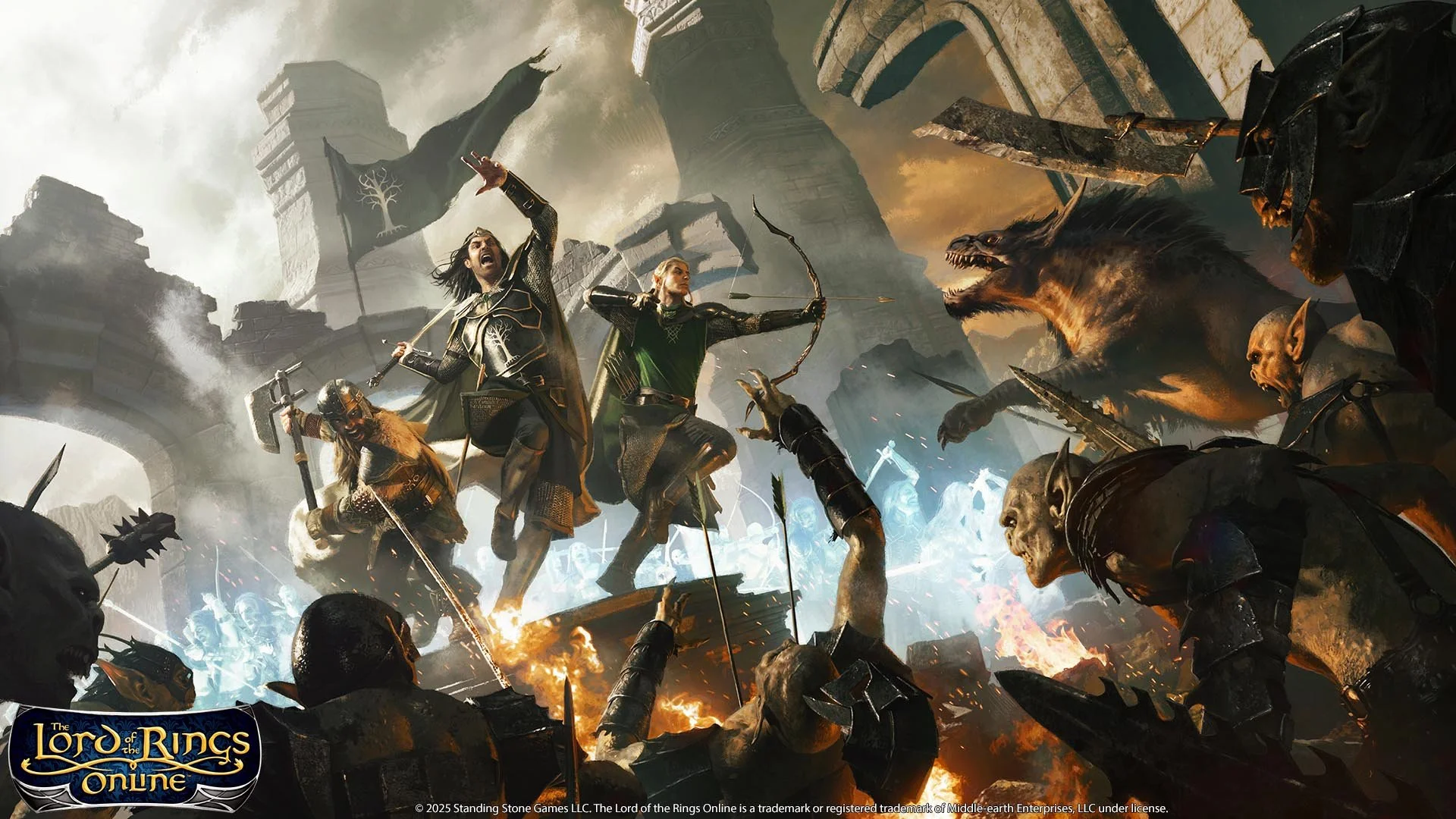
After a six month migration period, Standing Stone Games formally closed all their legacy 32-bit game servers for the MMORPG, The Lord of the Rings Online, on the 31st August 2025. Despite this planned closure being widely discussed via the game’s official forums, professional video game websites and fan blogs, many LOTRO players were unaware of this deadline. Hence many were unable to migrate their respective alts to the new 64-bit servers. Naturally those affected by these closures were upset, especially those with longstanding characters who didn’t relish the prospect of starting from scratch with a new alt. Thankfully, SSG have been true to their word and as of today, have re-opened these “dark worlds” to character transfers. If you have an alt trapped on one of the older game worlds, then now is the time to use the transfer wizard and move them to a new active game world.
MMORPG announced earlier today and it was subsequently confirmed by Standing Stone games, that the new expansion for The Lord of the Rings Online will be Kingdoms of Harad and that it will launch later in the year. The expansion will see the conclusion of the epic Song of Waves and Wind storyline and the level cap raised from 150 to 160. There will be a new region to explore, Mûr Ghala, comprising four zones. Adagîm, Idagâl, An Shêru and Kighân. The latter contains the main trading hub of Zajâna. Players will travel into the region with Gandalf the White, along with allies of the Kindred of Coins and Mizadi as they seek to counter the regional power struggle brought about by the fall of Sauron. Canonically, this takes place three months after the destruction of the ring, hence King Elessar and Eomer are busy with domestic affairs in their respective kingdoms.
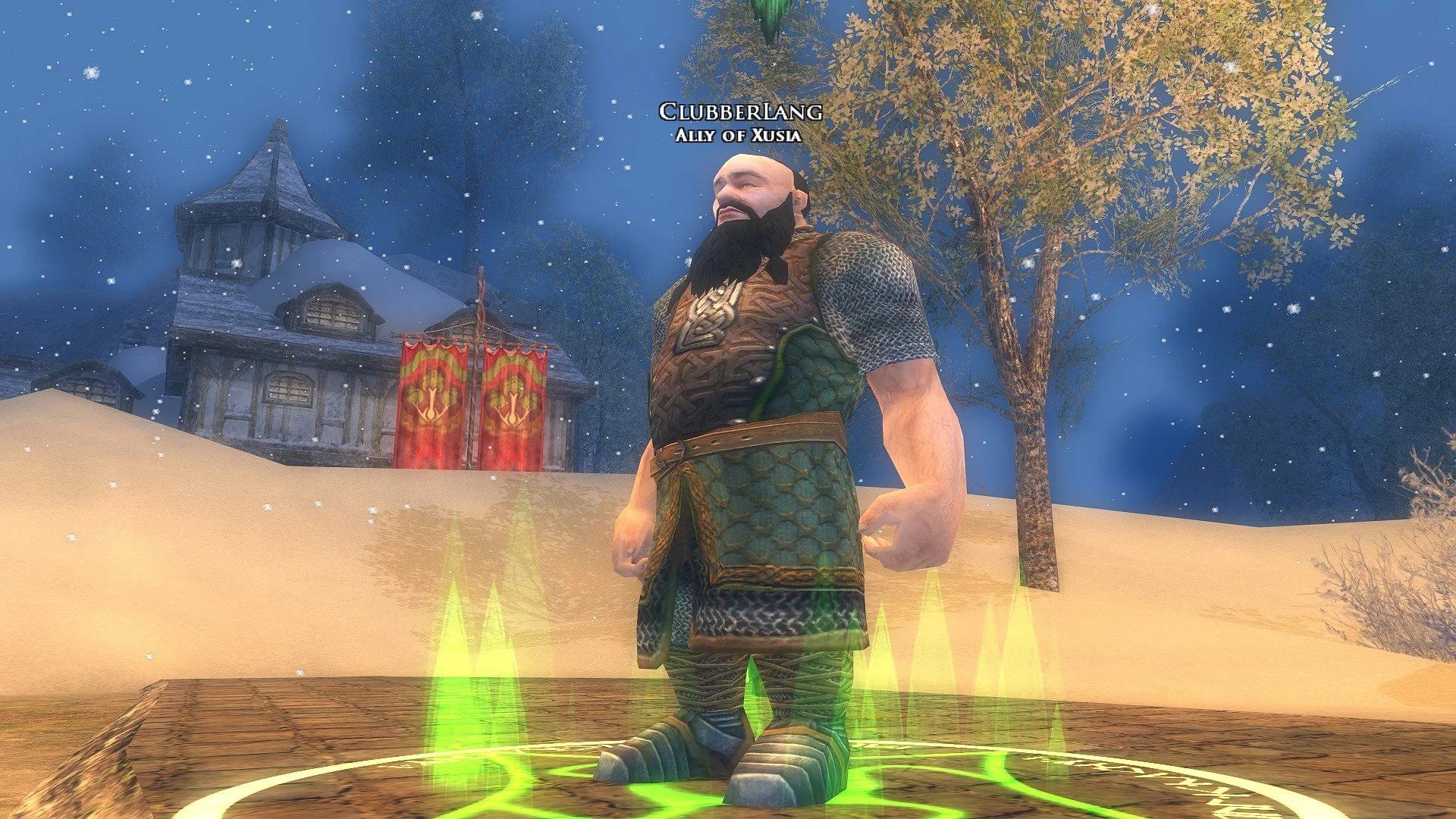
Skirmishes were added to the MMORPG The Lord of the Rings Online, in 2009 with the release of the Siege of Mirkwood expansion. Skirmishes are a repeatable and scalable combat system that allows players to access various instances for solo or group play from anywhere in the in-game world. Players can choose a Skirmish Soldier from a variety of classes to accompany them and provide healing, tank or additional DPS. On paper it’s a great system which is why many other MMOs offer something similar. I recently decided to tinker with my Skirmish Soldier build on my main character to see if I could optimise their performance. As my primary alt is a Lore-master, for the last few years I have had a Warrior as their Skirmish Soldier, to take some of the aggro from attacking mobs. I used the excellent guide by FibroJedi and swapped over a few Training and Personal Traits.
On 2nd August 2025, I was playing the MMORPG The Lord of the Rings Online, on my primary character, a level cap Lore-master. I decided to continue with one of the Allegiance Quest lines, specifically Durin’s Folk. I played through several quests and earned the appropriate tokens that advance the Allegiance system. I then handed these in to the NPC in the Hall Under the Mountain, expecting the next quest in the series “Chapter 3: Gimli’s Request” to be unlocked. An item appeared in my inventory that I then clicked on, which should have bestowed the quest. Unfortunately, nothing happened. Furthermore, the item vanished from my bag and therefore I could not attempt to click it again. I checked the LOTRO Wiki and then looked around the Hall Under the Mountain to see if any NPC had a ring icon above their head. As they did not, I surmised that this was a software glitch and logged a support ticket with Standing Stone Games.
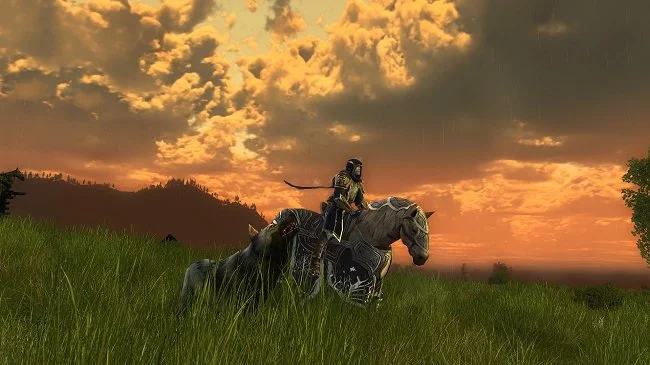
Let’s start with a quote from a classic Walter Hill film, The Warriors. “Can you count, suckers?” says Sirus. The gang leader was referring to the number of Police in New York City at the time. Whereas, for the purpose of this post, I am referencing how many Delving Writs a player needs to acquire 6 pieces of level cap armour in LOTRO. Because, next to the gear you get from endgame instances and raids, Delving gear is a good alternative.. It is marginally better than the items you can get from lootboxes. Hence, Delving armour is a good source of high end gear for the solo player. Through the miracle of mathematics, the number of Delving writs required to acquire a full set of this armour is 9,000. At first glance, that seems like a lot. If you then do some further research to put the number in context, you realise it is indeed a lot and a substantial undertaking.
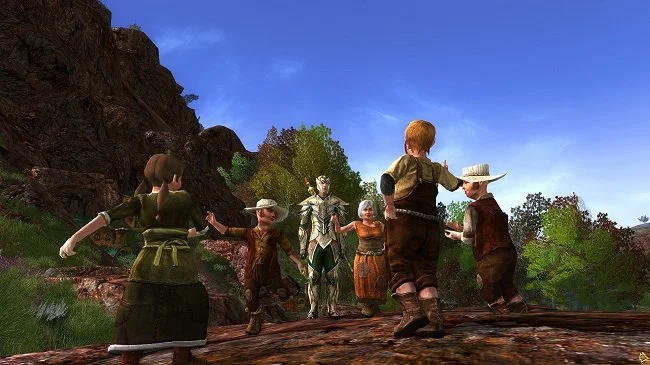
I am currently enjoying a renewed interest in the MMORPG The Lord of the Rings Online since I migrated all my characters from the old 32-bit servers to the new 64-bit replacements. I’ve created a new High Elf Lore-master on Peregrin server and am currently levelling them in a targeted play through of the Epic Story, supplemented by curated side quests. While playing recently, I realised the game UI on this alt wasn’t as I usually have it laid out. So I checked through the various documents on my PC and found a text file I had created many years ago that had a few hints and tips written down. I’ve added a few more and decided to share them as a blog post. I’m sure veteran players will be familiar with many of them but a lot of them are worth repeating. They may prove useful to those new to LOTRO or returning to the game after a long hiatus.
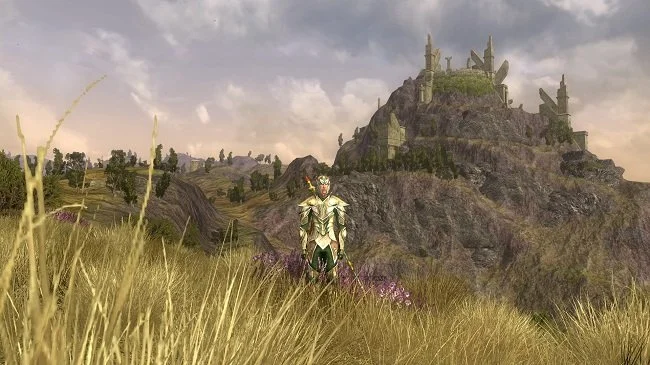
In mid-March, while the server migration debacle raged, I created a new alt for the MMORPG, The Lord of the Rings Online, on Peregrin server. The idea was to play casually through content focusing on enjoyment, rather than worrying about progression. I was to level at a pace that suited me and had no specific plans to develop my alt in any particular way. I have been playing LOTRO since 2008 and have a primary level-cap character that has been my main focus over the years. Hence I have previously experienced all story content from all the expansions and am therefore very familiar with what the game has to offer. Which is why I thought I’d do things differently this time. So I started my new Lore-master in Mossward in Swanfleet, the new starting area added to the game in 2022.
In massively multiplayer online games (MMOs), alts (short for alternate characters), are new characters created by a player in addition to their primary character (often called the “main”). Alts are often encouraged by developers as a means to keep players engaged with their game(s). Sometimes an MMO will actively reward the creation of alts either with access to exclusive content, or with additional skills or items previously unlocked by primary characters. As the myth that an MMO really begins at endgame still persists in gaming culture, some games sell boosts that will instantly raise the level of an alt to that of the current level cap. Creating alts is such a key aspect of the MMO genre, that some games will sell additional character slots, so that players can create further alts beyond the default amount allowed. There are many reasons why players create alts. Let us consider some.
I wrote a while ago that a lot of kinships from the MMORPG, The Lord of the Rings Online, would probably not survive the recent server migration. MMOs are social endeavours by nature, often with strong emotional ties but a lot of kinships (or guilds) have already fallen into decline, simply due to gaming entropy. Hence the migration has seen players leave existing kinships to move to the superior 64-bit servers, resulting in a lot of people who may be potentially looking for a new home. This is exactly what happened to me. I opted to move to Meriadoc server promptly, at the cost of leaving a kinship I have been a member of since 2009. However, the move presented me with an opportunity to remedy this problem myself. I subsequently set up my own kinship and decided to make it available to others.

The dust appears to have settled for the MMORPG The Lord of the Rings Online, after last month’s server transfer debacle. Despite the technical issues arising and subsequent delays to the migration timetable as well as the procurement of in-game housing, LOTRO seems to be enjoying a minor resurgence. Many former players are returning to the game and moving retired alts to new servers, due to the superior performance. The migration issues have also brought a lot of attention to this 18 year old game and it would appear there are many new players trying this Tolkien themed MMO. I was pleasantly surprised to see that a further two 64-bit servers, Grond (EU) and Sting (US), are to be added to the game to meet demand. As I predicted in my previous posts, LOTRO has a habit of bouncing back due to its unique niche in the gaming ecosystem.
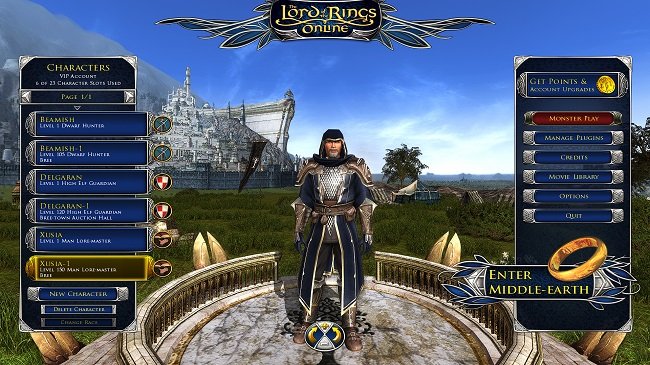
It has not been a good week for the MMORPG, The Lord of the Rings Online and its developer Standing Stone Games. The migration from legacy 32-bit servers to 64-bit servers has not gone smoothly. The transfer queue was overwhelmed by the sheer number of accounts and it has taken far longer than expected to process the backlog of requests. Today has been the fifth day of waiting to see if my 3 main characters from Laurelin server have successfully migrated to their new home on Meriadoc. When I checked this morning, the transfer wizard indicated that my characters were back where they originally came from. I therefore considered repeating the entire process. However, around midday, Community Manager Cordovan indicated that SSG had caught up with transfer requests made around 8:00 AM EST on Sunday 9th March. So I decided to be patient and wait a little longer.
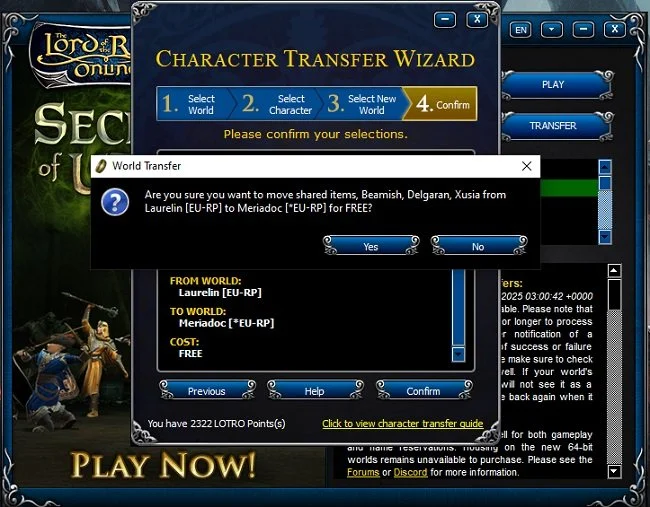
I’ve been busy this weekend, so it wasn’t until late afternoon today that I found time to sit down and attempt to migrate my characters from the old 32-bit server Laurelin, to the new 64-bit server Meriadoc. The “Great Server Migration” has not gone smoothly and the week has been a litany of changing deadlines and unfulfilled expectations. However, developer’s Standing Stone Games, have been “firefighting” issues on a daily basis and communicating regularly with the player base of the MMORPG, The Lord of the Rings Online. Sadly, a lot of players have not responded well to the ongoing technical difficulties and there is subsequently a lot of ill feeling on the official forums. I have chosen to adopt a more pragmatic outlook and to let events run their course.
Standing Stone Games were scheduled to open their new 64-bit servers for the MMORPG, The Lord of the Rings Online, today. However, when the free transfer service went live yesterday, it was quickly overwhelmed by the sheer number of players trying to migrate their alts from the older 32-bit servers to the new ones. Eventually SSG had to disable the transfer facility so that they could process the backlog. Hence today’s launch of the new servers has been postponed till tomorrow. In the meantime, the official LOTRO forum’s have gone into meltdown with irate players berating the developers for handling the migration poorly. True to form, SSG have been somewhat defensive and prickly in response to what they see as unjust criticism. Let it suffice to say that neither party has covered themselves in glory and there is a good chance that the technical problems will persist a while longer.

What Massively Overpowered calls LOTRO’s “Great Server Migration” began today. The MMORPG The Lord of the Rings Online has opened 4 new 64-bit servers in conjunction with the 2 existing 64-bit legendary servers and the long term plan is to migrate all current players over to them. Eventually, the 32-bit legacy servers will be shut down, however that is a long way off at present. As of today, VIP players can select a new server, log into it and create new characters with their desired names. These placeholder characters cannot be played at present but can be used to reserve names. Tomorrow, if all goes well, the new servers formally open and free transfers begin. Players can then delete placeholder characters and rename alts that they have migrated, thus restoring desired names. It should be noted that none of this is mandatory and players can remain on the old servers for the present.
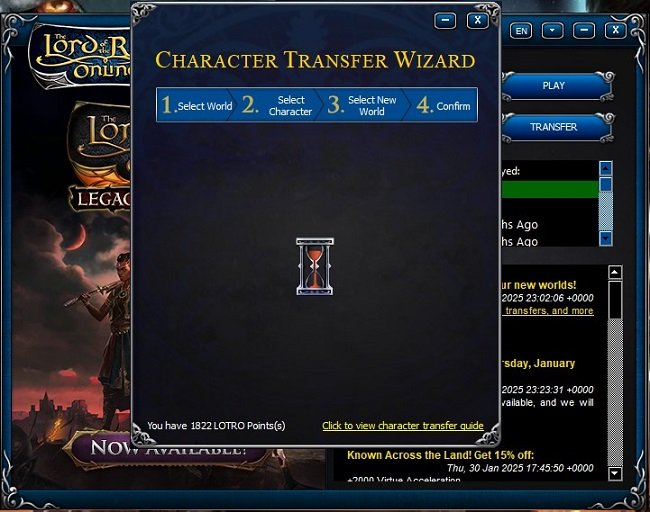
I have many pleasant memories associated with playing the MMORPG The Lord of the Rings Online during its first decade. A lot of them are due to the kinship (guild) that I have been a member of since 2009. I started playing LOTRO in December 2008 and it took me a while to find a suitable kinship but once I did, it made logging into the game a real pleasure. I was at a point in my life where I had sufficient time to play the game regularly and take part in kinship organised raids. It was also an added bonus to be able to spend some time and chat with some like minded people. I’m sure such an experience is not unique to me and that many LOTRO players have enjoyed similar periods of time. The lucky ones may still be enjoying a comparable kinship experience today.
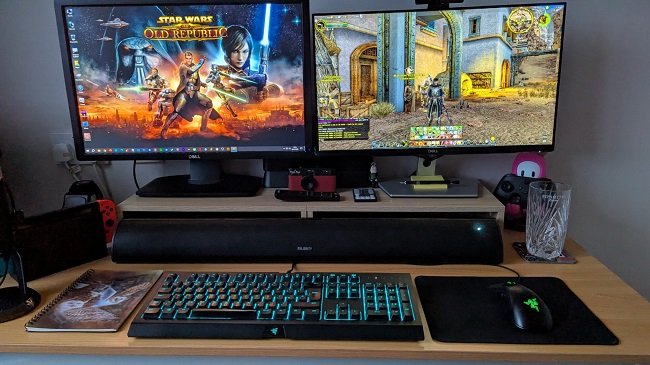
I have two monitors on my desk. The first (which is the primary monitor as far as my PC is concerned), is on the left and the second is on the right. The primary monitor is a 24 Dell U2412M, which has a resolution of 1920 x 1200. It therefore has an aspect ratio of 16:10 which adds a little extra desktop real estate, which I prefer when writing. The second monitor is a 24 inch Dell S2421H with a screen resolution of 1920 x 1080. It has an aspect ratio of 16:9 which is standard FHD. My chair is adjacent to the middle of my desk and I can turn according to each monitor I’m using. I tend to use the primary, larger monitor on the left for tasks such as writing via Google Docs and emails. The second monitor on the right is used for YouTube and gaming. This is because of its FHD format. I also have a Nintendo Switch connected to the second monitor for the same reason.

I always remember the sage wisdom of the great children’s TV character Huxley Pig. “If in panic, if in doubt. Run in circles, scream and shout”. Such was the initial reaction of players of the MMORPG The Lord of the Rings Online, when it was announced recently that there is to be a new 64-bit server rollout in Q1 of 2025. At first glance, new servers are surely a good thing? The 64-bit legendary servers, which were tested in 2024, have proven to be a success and do much to address the lag issues that plague the existing 32-bit servers. Surely this is what players want? Well, yes it is, in principle but new infrastructure ultimately raises the issue of server migrations. Developer’s Standing Stone Games intend to consolidate the player population in the long term with the addition of 4 new 64-bit servers. The 2 legendary servers will remain but the 32-bit legacy servers will eventually close.
I have written in the past about the video games we cannot play. The ones that require a keen understanding of a game’s mechanics, along with a strong degree of manual dexterity and situational awareness. Being 58 years old, I tend to have neither the co-ordination necessary to succeed or the patience to master such complex skill requirements. With this in mind, I recently watched a YouTube video for Chivalry 2 and thought, that looks like fun. The fact that it showed someone picking up a chicken and throwing it at an opponent is neither here nor there. However, after watching a few more videos I realised that combat in the game was complex and that, as usual, the reality of playing such a game would be different from my expectations. Hence, I came very close to not buying Chivalry 2. However, I eventually decided that I would, so I bought it for just under £10 from an online vendor.