
Installing Steam OS on a PC
Before we begin, let me clearly state that this is not a comprehensive installation guide for installing Steam OS on your PC. Mainly because the variety of hardware that can be present in any PC makes each installation a somewhat bespoke affair. Hence I have decided to provide a list of bullet points of the various steps and issues I encountered during my installation, last week. Consider it advance warning of things you may encounter if you install this operating system. As ever, if this is something that you are intending to do, I would advise allowing yourself a suitable amount of time so you can accommodate any issues should they arise. It is entirely possible that this may be a two hour job for the technically literate running the most generic or commonplace hardware. However, I suspect that a lot of people undertaking this project will run into variations of the same problems that I encountered.
Before we begin, let me clearly state that this is not a comprehensive installation guide for installing Steam OS on your PC. Mainly because the variety of hardware that can be present in any PC makes each installation a somewhat bespoke affair. Hence I have decided to provide a list of bullet points of the various steps and issues I encountered during my installation, last week. Consider it advance warning of things you may encounter if you install this operating system. As ever, if this is something that you are intending to do, I would advise allowing yourself a suitable amount of time so you can accommodate any issues should they arise. It is entirely possible that this may be a two hour job for the technically literate running the most generic or commonplace hardware. However, I suspect that a lot of people undertaking this project will run into variations of the same problems that I encountered.
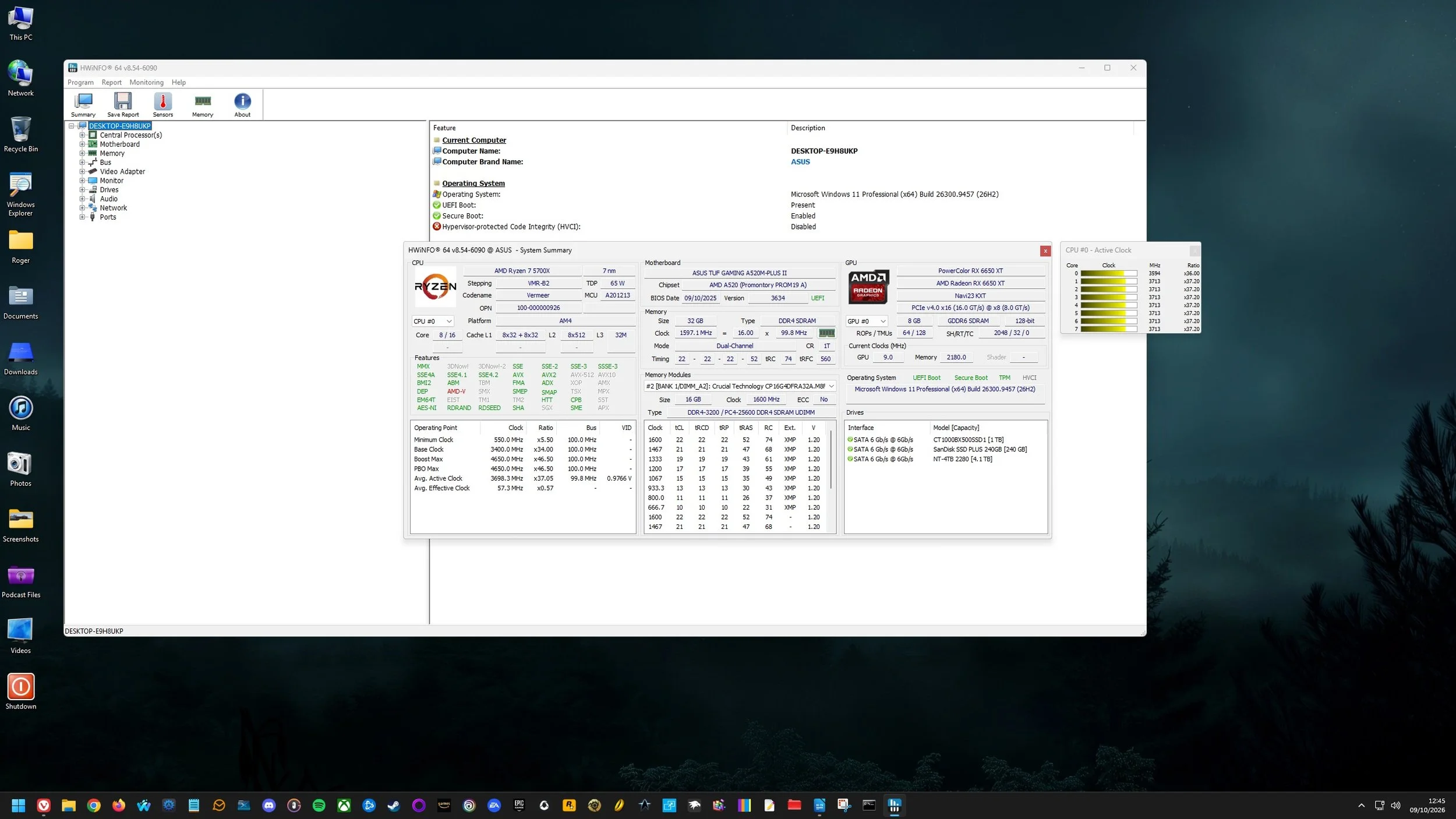
First off, here are the specifications of my humble PC. I have a Ryzen 7 5700X 8C/16T processor, and 32GB of RAM all running on a TUF Gaming A520M-PLUS II motherboard. My GPU is a Radeon RX 6650 XT 8GB. The C: drive is a 1TB Crucial SSD running Windows 11 Pro and I have an additional 4TB NVMe drive for all my data (games, documents, audio and video files). For this “experiment” I added an old 240GB SanDisk SSD to accommodate Steam OS. NB At present, Steam OS lacks native support for Nvidia graphics cards, although this may change in the immediate future.
I obtained the relevant installation files from Steam themselves. There is a recovery image available specifically for Steamdecks. I then used Rufus to create a bootable flashdrive with the installation files on. The plan was simple. Boot from the flashdrive, select the appropriate SSD, install the OS, reboot, log in to Steam OS and feel smug. However, as you would expect, that is not the way it panned out. There was many a hiccup, both big and small, along the way.
The Installer would not initially target the intended SanDisk SSD. Steam OS expected a NVMe drive, as that is what is in a Steamdeck, so the installer/repair script had to be edited to allow installation onto the SanDisk SSD.
Secure Boot had to be disabled in the BIOS before Steam OS could be installed. It should be noted that when using Windows 11, certain games such as Battlefield 6 require Secure Boot to be enabled. Hence, at present this means manually toggling Secure Boot depending on which operating system is being used. It also means that games that require Secure Boot to be on, cannot be played on Steam OS, as enabling it prevents Steam OS from loading.
Steam OS creates numerous partitions on the drive it is installed. This looks alarming in Windows Disk Management, but was normal for the Steam OS installation layout. Hence within Windows 11 you can hide the disks from view to avoid any confusion.
The PC initially booted into Steam OS by default, once it was installed. I changed the BIOS boot order so that Windows 11 once again booted automatically, with Steam OS selected manually through the motherboard boot menu. A load menu can be created if required.
Steam OS setup initially stalled while trying to detect which networks are available. By default it is looking for a wireless network, again because that is how a Steam deck connects. This complicated the first-run configuration, although I was eventually able to complete the setup using the console.
Input devices caused problems during installation/setup. The wireless mouse I was using was initially unavailable, requiring a USB mouse and keyboard to navigate.
Switching between Game Mode and Desktop Mode in Steam OS caused problems. The desktop shortcut intended to switch modes produced a blank screen, a startup jingle and then returned us to Desktop Mode instead.
SteamOS initially wanted to start in Game Mode. I successfully changed the system via the console so that it now boots into Desktop Mode by default. I am still experiencing issues trying to hot swap between modes.
SteamOS disagreed with the hardware clock, always setting the time an hour prior. When booting back into Windows 11, the bug persisted. I adjusted the Linux RTC/time configuration and subsequent testing showed Windows 11 retained the correct time.
Multi-monitor behaviour is somewhat anomalous. Steam OS considers the right-hand monitor the primary display, which is the exact opposite of Windows 11.
Despite all of these issues, Steam OS has been successfully installed independently of Windows 11, on its own SSD. It can be selected manually at boot. Post installation I had to make a few minor tweaks with regard to the keyboard layout and other language, time and measurement settings. By default Steam OS assumes US regionalisation. Overall, Steam OS runs well on my PC and has not objected to any of my hardware. I am currently adding a few recent games to see if they perform better, than in a Windows 11 environment. When in Desktop mode, Steam OS is like any other Linux distro and can be comfortably used for standard PC activities. I will try to use it for certain daily tasks and see how quickly I adapt and get used to it. It will be interesting to see how often the build is update by Steam.
Until fairly recently, I have maintained a somewhat casual approach to the system maintenance of my PC. “Casual” in this context is a subjective term. What I consider to be “casual” others may think to be robust or even rigorous. But I digress. I regularly undertake minor housekeeping such a clearing my web browser data, removing temporary or unwanted files and updating software. I also make sure that only essential services and programs start when I turn on my PC. I keep an orderly desktop and an intuitive filing system. However, I do very little with respect to maintaining the hardware inside my PC. I clean inside the case a couple of times a year and ensure that the fans are free from dust contamination but that’s about it. I have no idea if the installed RAM is running optimally or whether the processor is operating within the appropriate heat threshold. Does the thermal paste between it and the heat sink need replacing? Are all the cores enabled?
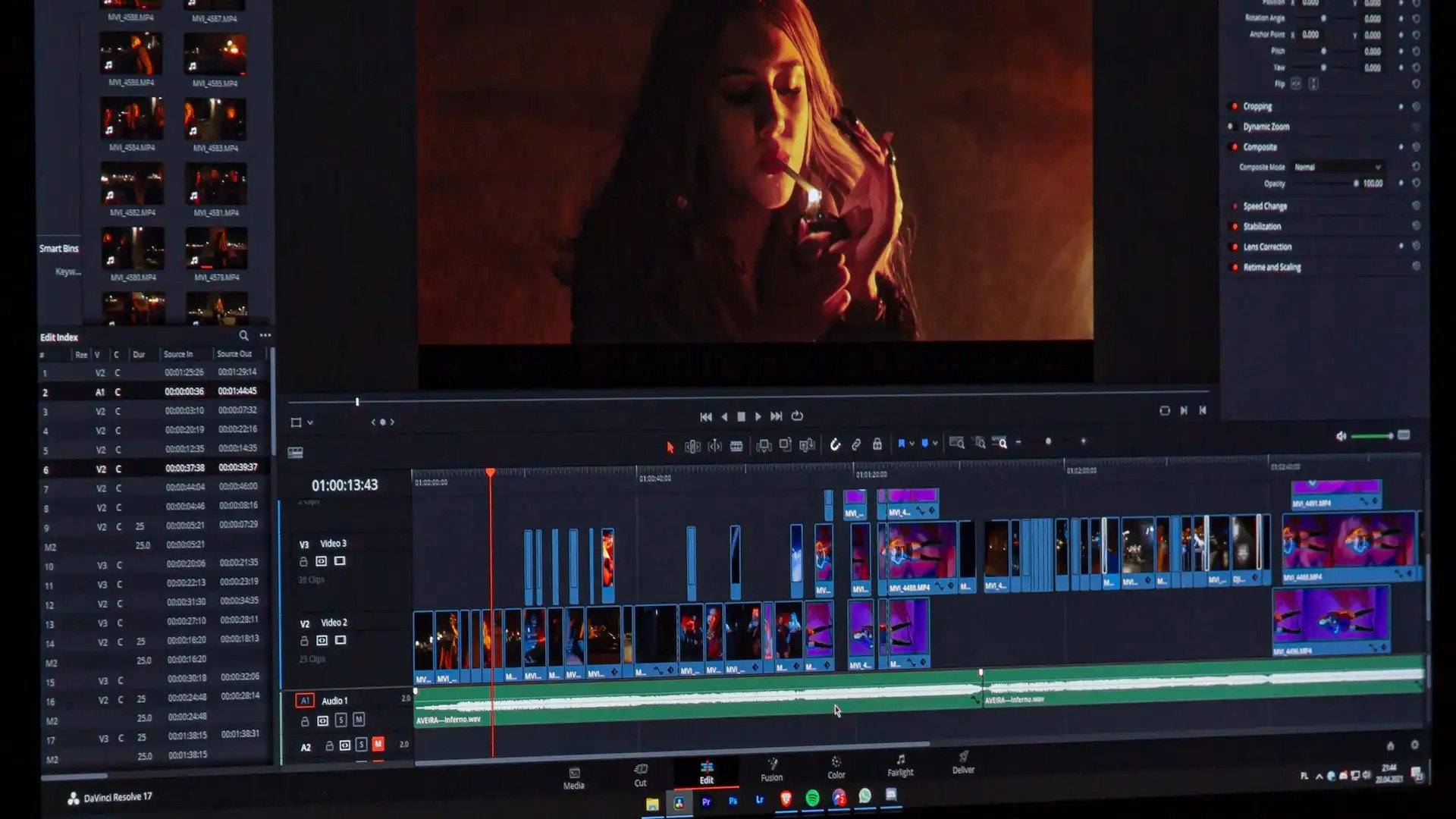
Last year, when I was looking for some suitable video editing software, I found that people would often recommended DaVinci Resolve. It is indeed an outstanding tool but totally beyond my needs. It is also a beast to run and occupies a substantial percentage of real estate on your SSD, so I dismissed this option for practical reasons. Let it suffice to say that finding a suitable product that met my requirements was quite difficult. Video editors often seem to be either quick and easy tools for clipping content on the fly, such as Bandicut (which is great for exactly that purpose) or huge, professional quality behemoths, used by people who work in the appropriate industry. DaVinci Resolve is a textbook example of this. It begs the question what products occupy the middle ground, assuming they exist.

Going forward, if I write any more posts about my use of AI, I am not going to add the following caveat. I will do it once more here, so everyone knows where we all stand. I am fully aware that AI has already taken jobs and will continue to do so. I also know that data centres are not environmentally friendly. As for the evil corporate billionaires that get rich from the situation, that also has not come as a surprise to me. I also believe that the AI market needs regulating and there should be legislation in place to ensure that AI is never directly linked to important government and civil infrastructure. That being said, I am not going to stop using AI at a domestic level over notions of ethical purity. All of the above criticisms can broadly be applied to the industrial revolution and society came to terms with that and survived it. The same goes for the computer revolution. Things change and we adapt. Plus, if you really wanted to protest and lobby against AI, the best time to do this was two decades ago.
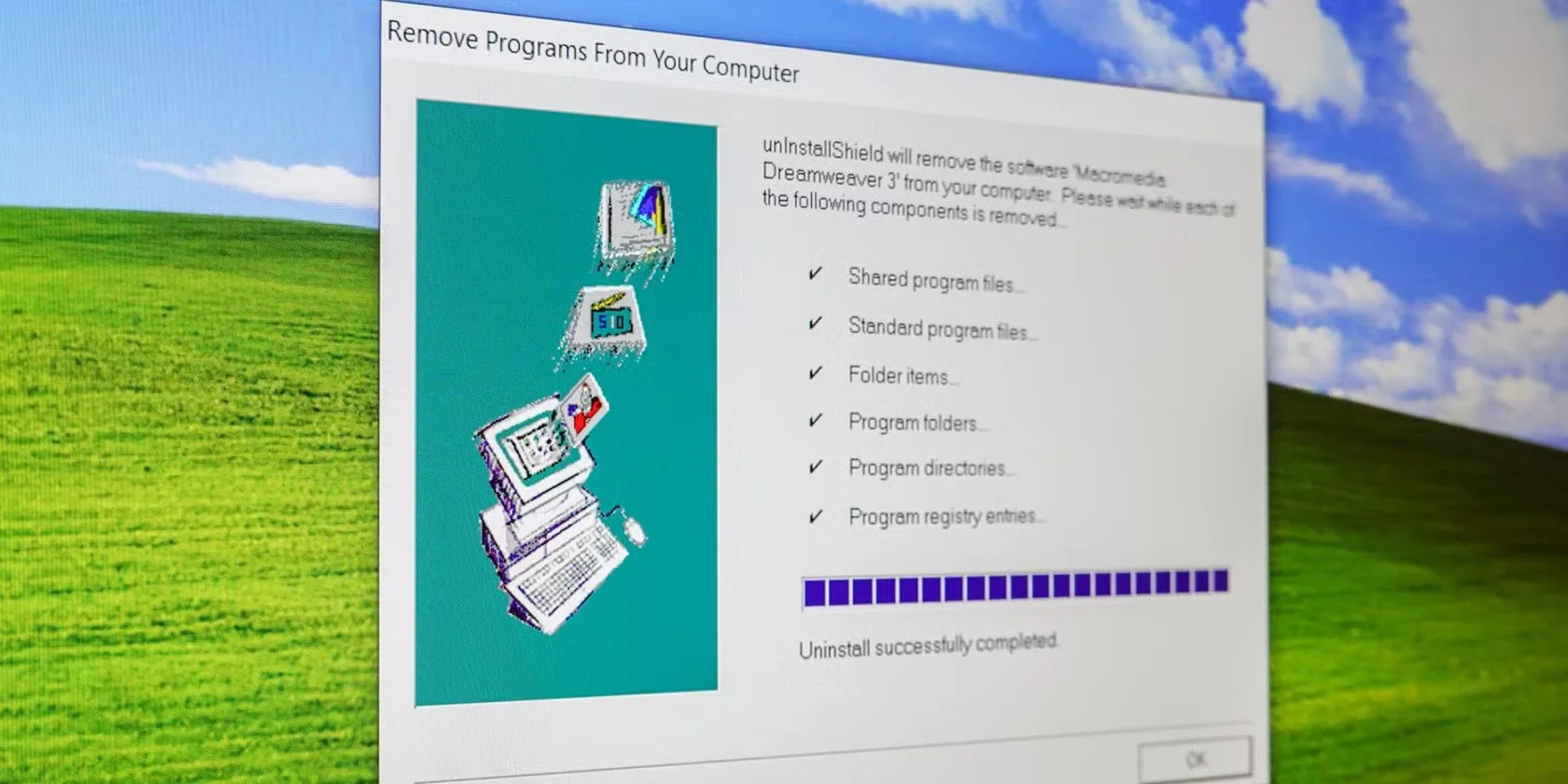
One of things I dislike with a passion about modern software is that you cannot cleanly uninstall it from your PC. Removing an unwanted or problematic program just leaves metaphorical muddy footprints throughout your PC. It makes my SSD feel like a crime scene with virtual brain matter spattered across the soft furnishings. Sadly, this is the price you pay for having a modern operating system with a registry, shared dependencies and a liking for temporary files and caches. It all makes me feel very nostalgic for the halcyon days of DOS, with self-contained programs sitting in a solitary folders. Often libraries and drivers lived in specific system paths or the same folder, avoiding conflicts. You could just delete stuff and it sodded off. You didn’t need two priests and holy water. Happy days.

Thinking Out Loud is a recurring post where I write about thoughts and ideas that have recently occurred to me. As ever the intention is not to develop these ideas into full blown blog posts, although they often the could be. Instead I just collate a few sentences to express my point and leave it at that. The idea being that if anyone else wants to pick up the conversation they can do so in the comments section below. On this occasion the various points are all technology based. I’ve been busy of late with several projects, such as building a new website and creating some widgets specifically for it. Like most technical projects things don’t often go as planned and problems occur unexpectedly. Hence, I thought why not make a themed instalment of Thinking Out Loud this time round? It’s something that I may well do this again in the future. As ever, feel free to make your thoughts known.
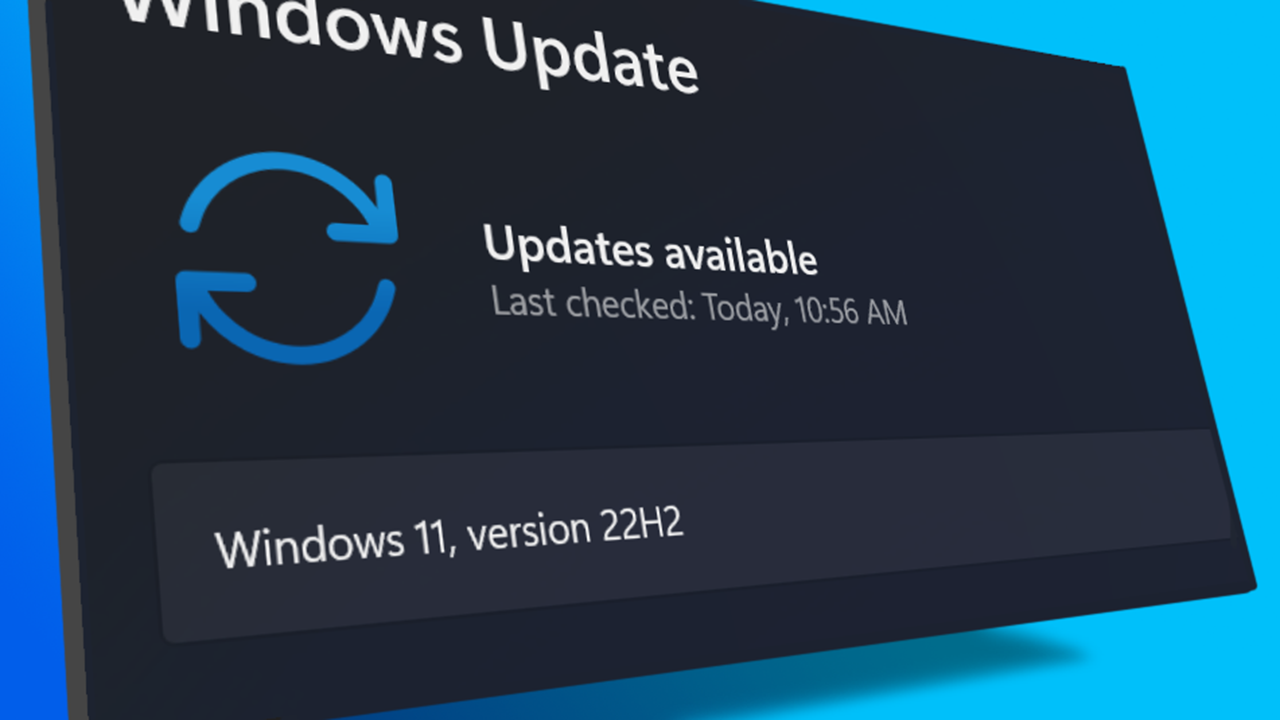
I turned on my laptop this morning for the first time in 4 months. I knew it was that long because I hadn’t connected the laptop to the new Netgear router that I bought at the end of April. Unsurprisingly, as I haven’t used this device for a while there were multiple Windows updates to be installed. This process took over an hour, so while the various updates were being downloaded and installed, I turned my attention to my Amazon Echo Dot which loiters in the corner of our lounge, doing very little to justify its existence. At present this device is mainly used as a glorified timer for cooking, which seems a bit of a waste given it’s alleged capabilities. Hence, I decided to see if I could increase its functionality while waiting for Windows to do its update thing. More on this later. Let us for the meantime return to the small matter of the operating system updates. Once they were completed, I immediately installed Chris Titus Tech’s Windows Utility and started removing unnecessary features and bloat, as well as disabling invasive services.
Before we begin, let me clearly state that this is not a comprehensive installation guide for installing Steam OS on your PC. Mainly because the variety of hardware that can be present in any PC makes each installation a somewhat bespoke affair. Hence I have decided to provide a list of bullet points of the various steps and issues I encountered during my installation, last week. Consider it advance warning of things you may encounter if you install this operating system. As ever, if this is something that you are intending to do, I would advise allowing yourself a suitable amount of time so you can accommodate any issues should they arise. It is entirely possible that this may be a two hour job for the technically literate running the most generic or commonplace hardware. However, I suspect that a lot of people undertaking this project will run into variations of the same problems that I encountered.

I am intrigued by the growth of the IndieWeb, owning your domain and static websites. I certainly agree with the notion of not relying on big corporations and I have an ongoing project to divest my dependency on software produced by major market players. However, although I own my own domain, my website is hosted by Squarespace. I’ve not really had any problems with them over the last 11 years and I would describe our business relationship as equitable. However, the monthly subscription price has increased over time and is likely to keep on doing so. It has crossed my mind as to whether there is a suitable alternative. However, if I were to migrate Contains Moderate Peril elsewhere I suspect it would be logistically complex and problematic.

I like learning new skills and starting projects. I regularly undertake such things with varying results. However, if they don’t work out that’s not a problem. You have to try something to see if you like it. I’ll add “within sensible parameters” as a caveat to the last statement. And it’s perfectly fine to discover that something isn’t for you. I like certain genres of video games, music, films and books. I am comfortable wearing certain types of clothes and not others. I’m picky about colours. I’ll even go so far as to say that I won’t drink out of any mug that’s just lying around. If I don’t like the joke, logo or overall aesthetic of it, I ain’t using it. However, I digress. Let’s get things back on track and talk about projects. This year I have wound down several websites and have decided not to move forward with making YouTube videos. I have focused my energy on improving my website and adding functionality. I am also trying to broaden the scope of my writing.
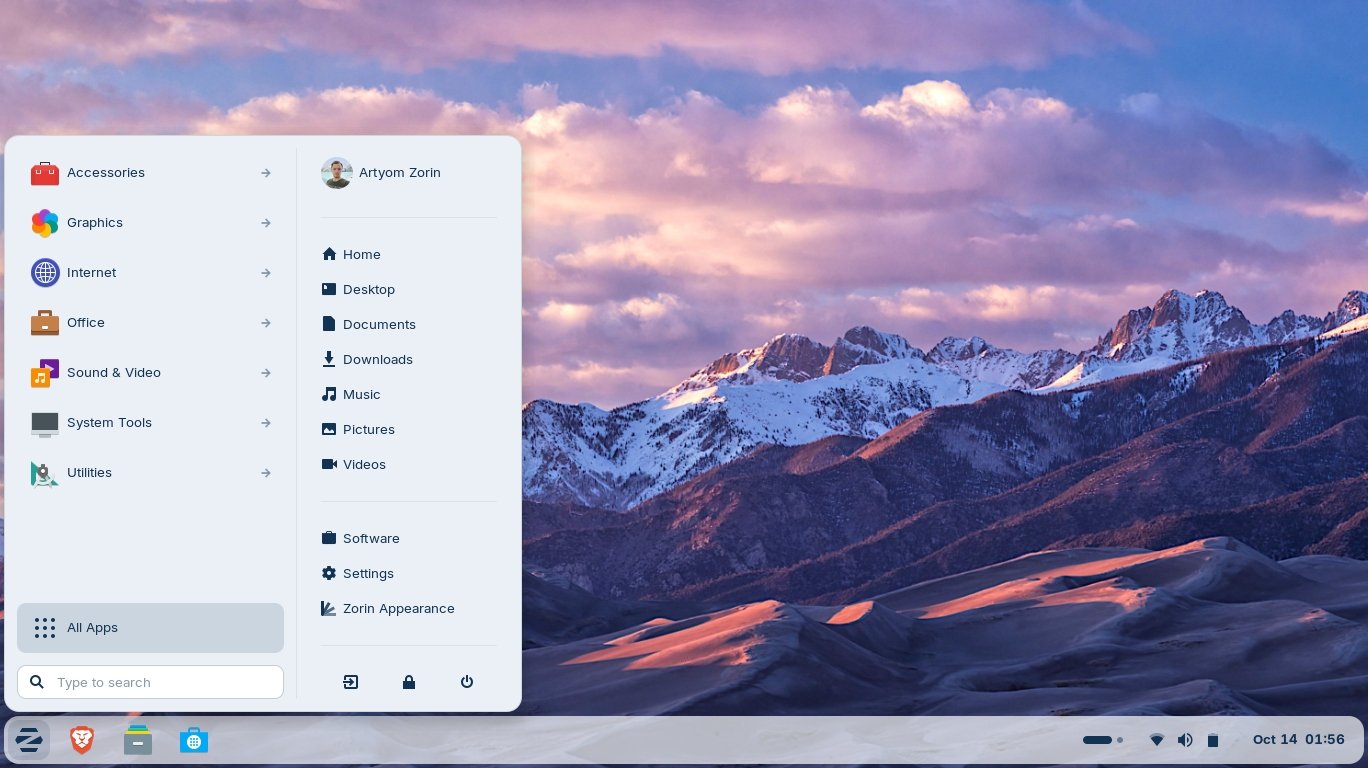
It’s funny how it is often the little things that become the proverbial straw that breaks the Camel’s back. I have been struggling for a while with the overall performance and functionality of my Windows 11 PC. The operating system is bloated, slow and buggy. It all too often commits that unpardonable sin of trying to do my thinking for me and enables some stupid feature by default. Despite having good specifications, my PC takes too long to boot up for my liking and is becoming too much of a wild card with regard to whether it will co-operate or not when I try and undertake a simple task. As someone who is very particular in their PC habits, IE I see my PC as a tool that I use on the terms that suit me. Hence, I find the faux enthusiasm that accompanies each uncalled for “improvement” that results in me losing agency, singularly antagonising. Then a minor issue arose recently that escalated into a thorn in my flesh and I decided that it was time that something must be done.

This is a post about the power of nostalgia and how sometimes, interacting with something from your past, be it physically or mentally, can produce a very strong and tangible emotional reaction. In some instances, this can be the result of something that you have specifically set out to do. On other occasions you can wander into a sense of nostalgia purely by chance. Today I experienced a very strong sense of nostalgia while watching a YouTube video and then again when I sought to replicate what I had seen. The video showed someone installing Windows 95 on to an old 486 PC from that era. The Window’s start up sound really touched a nerve (but in a good way) and then when the guy in the video launched Space Cadet 3D Pinball, a game that shipped with the operating system, I felt a strong compulsion to track down a copy and install the game myself, thus revisiting something that was an integral part of my life in 1995.

For the last few months I have being using Google Gemini. I subscribed so I could access a wider spectrum of services and evaluate it effectively. I also wanted to dispel some of the hysteria that accompanies any conversation about Large Language Models and Artificial Intelligence. The results were initially interesting and Google Gemini proved useful when researching material for blog posts. It is good at providing summaries about well documented subjects. I wrote a post about food banks recently and it distilled a lot of data into a manageable amount, which was ideal for my article. Google Gemini has also produced some visual basic scripting and simple batch files that have allowed me to automate processes on my PC. Such as changing the default monitor, or screen resolution at the click of an icon. However, I found this AI struggled with in-depth software troubleshooting and that its ability to create images varies greatly depending on the subject.

The UK Government has formerly announced its intention to ban under-16s from using social media. This is due to increasing public pressure that “something must be done” about the perceived iniquities of many online platforms. However, as with most complex social problems of this nature, no one has any clear or practical ideas as to what that “something” is. It remains a nebulous, non-specific panacea and clearly someone else’s job to identify and implement. As ever, why choose a nuanced and multifaceted solution to a complex problem, when it is far easier and politically expedient to just “ban” something. The former requires effort and a degree of thinking. If such an approach fails it also means that those who came up with it now carry the can. The latter dumps the problem in the lap of various third parties, who can then be conveniently blamed when the ill conceived policy fails.

Yesterday we changed internet service providers. We moved from EE (formerly BT) to Plusnet. The transition went surprisingly well, mainly due to the existing infrastructure remaining the same. We’ve had fibre to the premises (FTTP) since 2022 so this was essentially an administrative change. The previous ISP terminated their service at 1:30 AM in the morning, while I was playing Star Trek Online. By 6:30 AM I received a message from Plusnet that the new service was live. It took about an hour to configure the new Netgear Nighthawk RS100 router (I bought my own) and get all our household devices attached to the new network. The connection is running at exactly the same speed and stability as it had under the previous supplier. At present a 1Gbps connection is sufficient for our needs. The main factor that has driven this change is cost. We are currently paying £28 per month for internet access which is a competitive price in the UK.

In 1990 I was working at the DWP (Department for Work and Pensions). I had just taken the role of Computer Support Officer where I administered user access to the mainframe and provided first line support to staff using the terminals. That summer the office moved to a PC based network and the project was undertaken by the newly formed Siemens Nixdorf company. To cut a long story short I befriended one of the contract engineers and over the next 9 months he became an unofficial mentor to me. Technically he was only supposed to train me in the most basic of fashions but he liked the fact that I was always asking questions and effectively ended up schooling me in PC and server architecture, network administration and the associated protocols. For me this was the best way to learn. It was not a case of coming to grips with theory in a classroom environment. It was learning by doing and having direct and exclusive access to a source of knowledge and experience.
My Windows 11 PC is a cobbled together mess of upgrades, customisations and workarounds. It seems okay at first glance, mainly because my desktop is well organised and I don’t allow too many apps to start on boot up. But beneath this superficial veneer of efficiency and optimisation is a bloated mess. Every Windows update adds yet more spurious features which slows performance and tries to harvest your data. Windows is no longer a user friendly operating system that you buy and use without impediment. It is now a sprawling live service that actively gets in the way of your productivity so that it can make a buck off your inconvenience. There was a time when you could quickly learn its processes and foibles, so you could customise it into the tool you needed. Nowadays I have to continuously use third party tools to get Windows to do many of the things I want, or to access functionality that Microsoft has obtusely decided to restrict.

As the New Year is still young, I have embarked upon several new projects that I’ve been planning since Autumn last year. These undertakings have gone beyond the planning stage and are currently being implemented. The fun thing about the phrase “implemented” in this context is that it implies that it is by far the easiest and most straightforward part of the process. The initial brainstorming of ideas has been completed. A cogent and detailed plan has been written. The costing of materials and time required have been determined. These are the hard parts. All that remains is to “just do it”. It should be a piece of piss (a British phrase indicating that something is easy). It virtually “implements” itself. However, that is a load of bollocks. Because there is always scope for something to go wrong. It may well start as something minor and innocuous but it all too often ends in a “problem cascade”.

This time last year I made a decision to replace Microsoft Office or Office 365 as it is currently known. Mainly because I only use Outlook out of the entire suite of software. This project stalled because I couldn't easily import my existing email archive into Mozilla Thunderbird. Hence the status quo has been perpetuated. However, there is an ongoing cost associated with this software as well as some wider considerations about ethics and privacy which is why I have returned to this matter. Although this time I wish to replace not only Office 365 but all the other "production tools" I use to write and browse the internet. I have managed to make some progress towards this goal but it has been hard to adapt. Mainly because I had everything set up to my liking. Although alternatives are available, they're never exactly alike and require a lot of fine tuning to be deemed satisfactory.
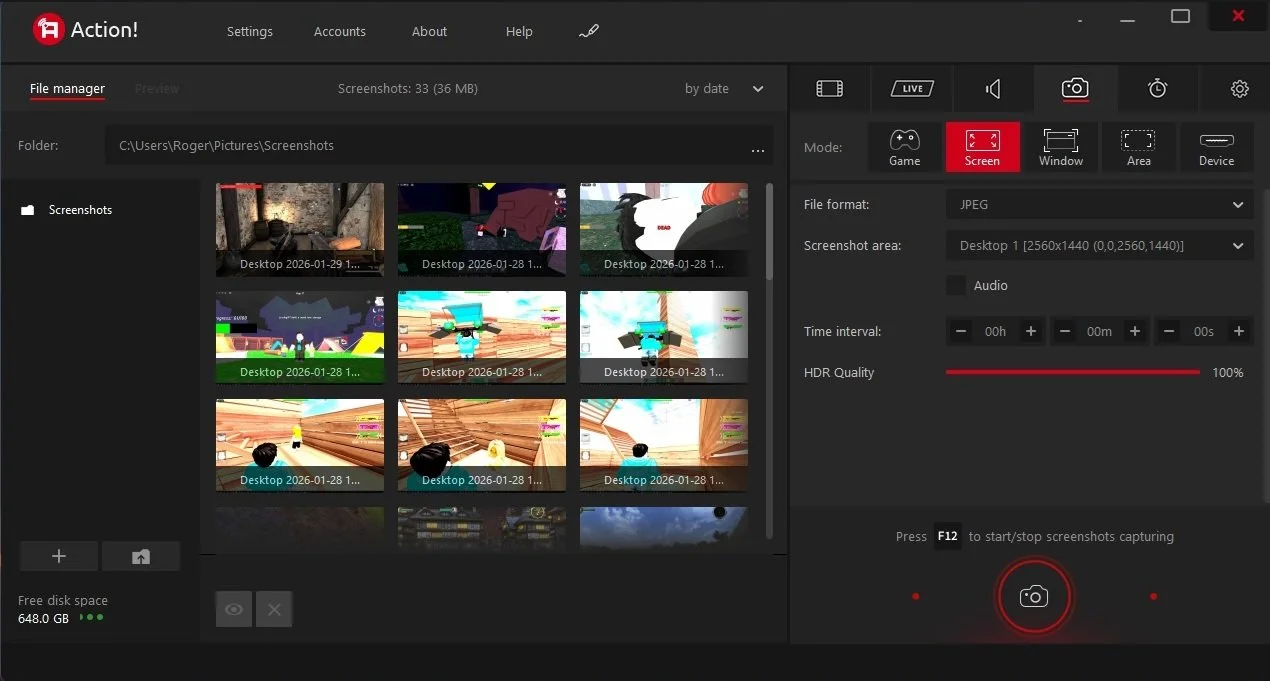
Last summer I wrote a post about my experiences using various screen capture software. At the time I was using Bandicam which suited all my needs. I had configured the software to launch at Windows start-up and had a hotkey assigned to capture images from my primary monitor. Hence I could quickly grab a screenshot from my desktop or when playing a game. However, this changed in November 2025, when I bought two new monitors. Both of which supported HDR (High Dynamic Range). Although they provide superior picture quality, HDR has a knock-on effect on Bandicam. Screen capture images and video look over exposed. Hence I had to stop using the software and find an alternative. Fortunately the same company has been developing an alternative product with HDR support; Bandi Camera. So I swapped to this software. The screenshots were far better but the functionality of the app was lacking.
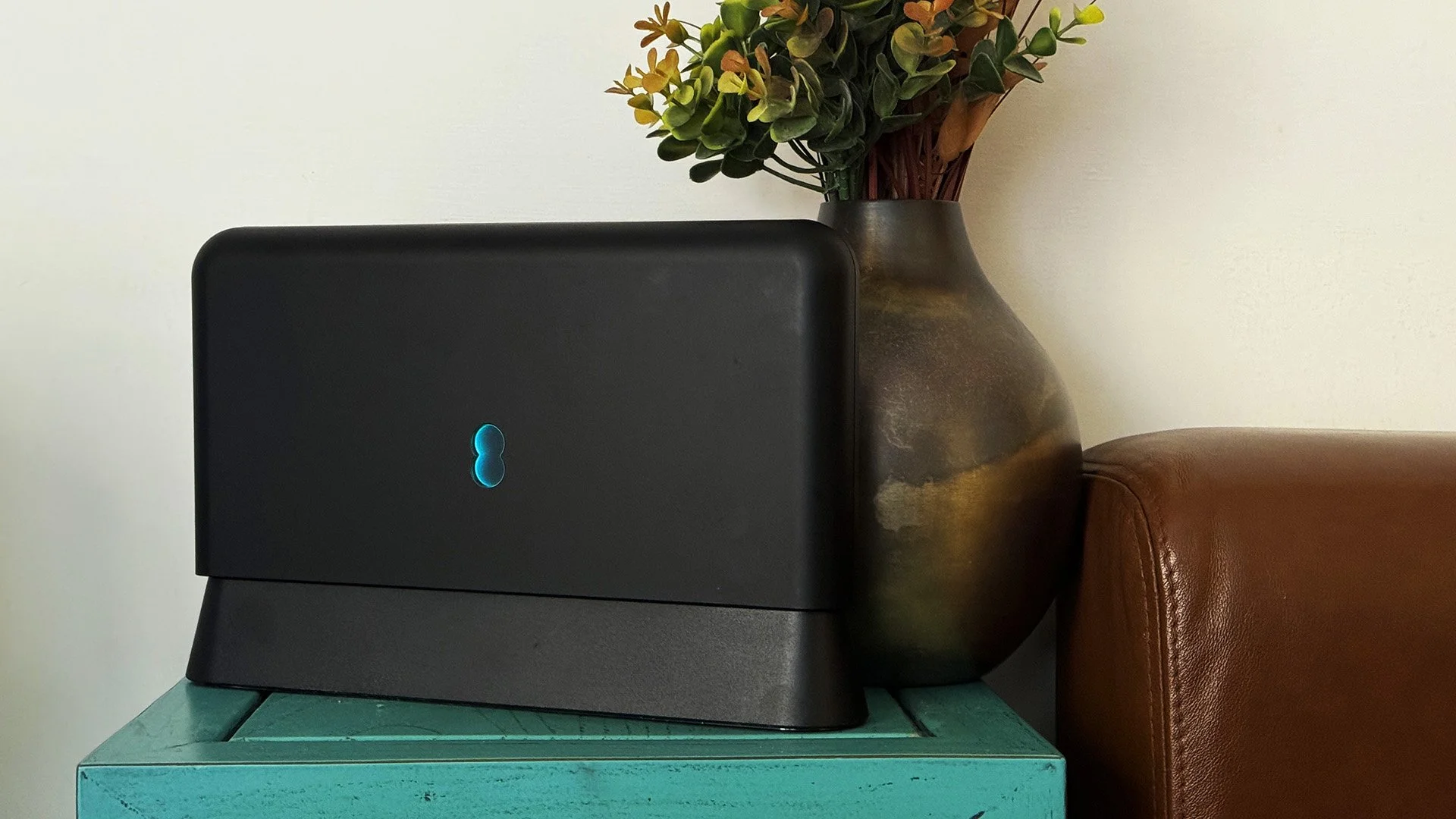
Our home has a 1 Gbps “fibre to the premises” internet connection. It has proven reliable since it was installed in June 2022. Our internet service provider EE (part of the BT group) are neither the best of worst suppliers. The monthly cost is not especially competitive and so we may be looking to move providers next Easter. However, that is a matter for the future. For the present there is a more immediate issue. Starting on Friday 21st November, our internet connection has started randomly dropping. Furthermore, both the Wi-Fi extender in the lounge and the wireless printer in my office have become disconnected from the network. It was as if their details had been erased from the router. I suspected that a recent firmware upgrade may be the culprit although EE denies it. However there are posts online from other customers with similar technical issues.

A couple of times a year, Mrs P asks me to copy onto her laptop, all the pictures that I’ve taken over recent months, as well as those that have been shared with us via WhatsApp. She then diligently whittles them down into a manageable amount which we then print off and put in our photo album. Yes we’re of the generation that still likes to print off hard copies of photos and from time to time look at them nostalgically. We have several albums with photographs in chronological order and numerous frames placed around the house, filled with pictures of family. The bulk of the photos are 4x6 inches (10x15 cm). We use an online photo printing service for the majority of our pictures and visit a local store with a self-service photographic department to print off specific pictures for bespoke frames. The original photos, now neatly organised, are backed up and archived.
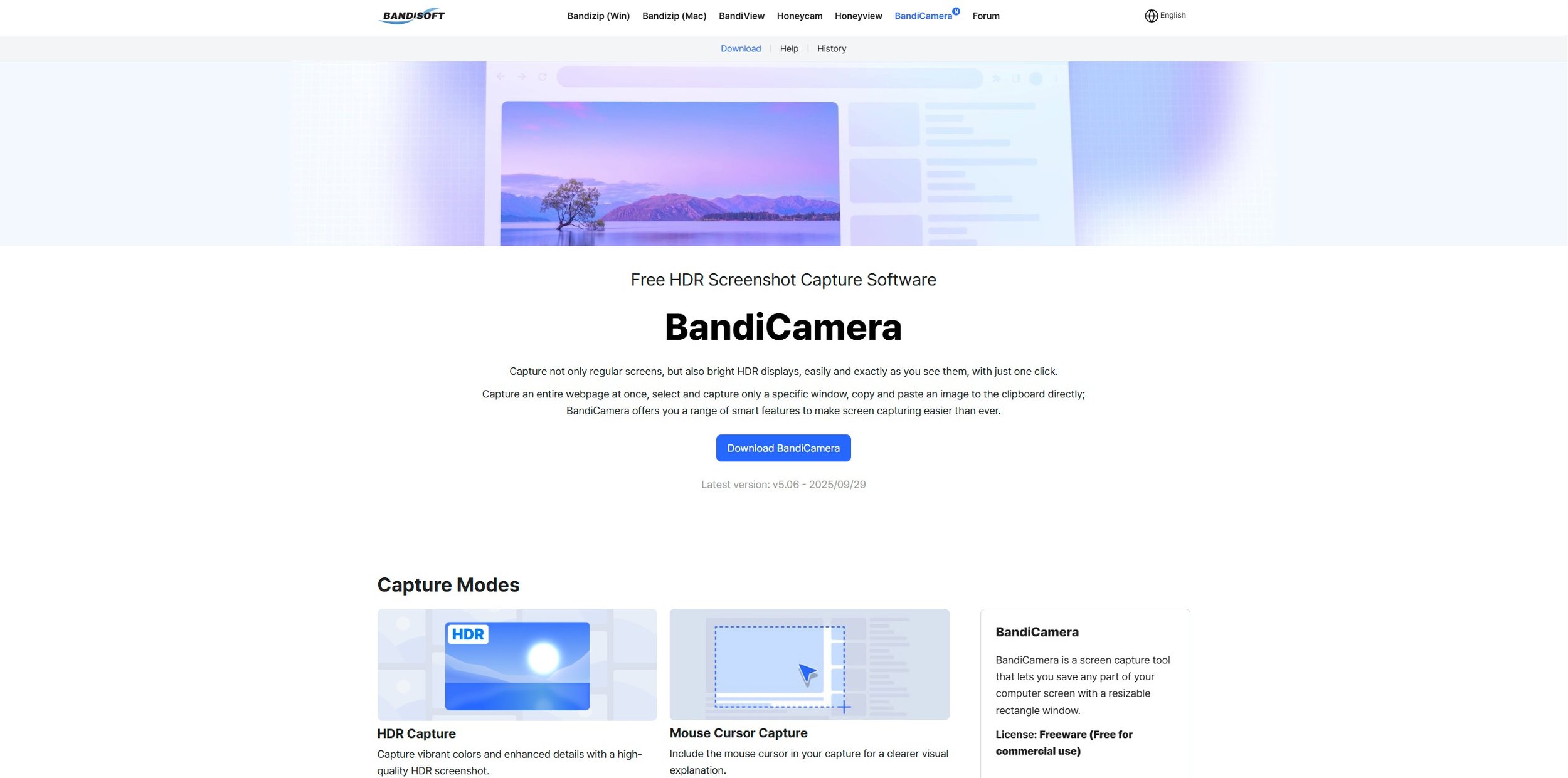
I take a lot of screen captures of video games and Windows apps, usually for blog posts. I use both Bandicam and Windows Snipping Tool to do this and have set up various hotkeys to make the process easy. Of late, the screen captures that I’ve taken have all suffered from washed out colours, regardless what tool I used to take them. I checked to see if both these apps needed to be updated but they are running the latest versions. Hence I was initially stumped as to why this problem had started happening. After some thought, I deduced that the only new elements in my PC hardware were my two new monitors. Both of which support HDR. Google Gemini quickly informed me that this was a known issue and taking screen captures from an HDR enabled device resulted in an excessively bright image that looked over exposed.
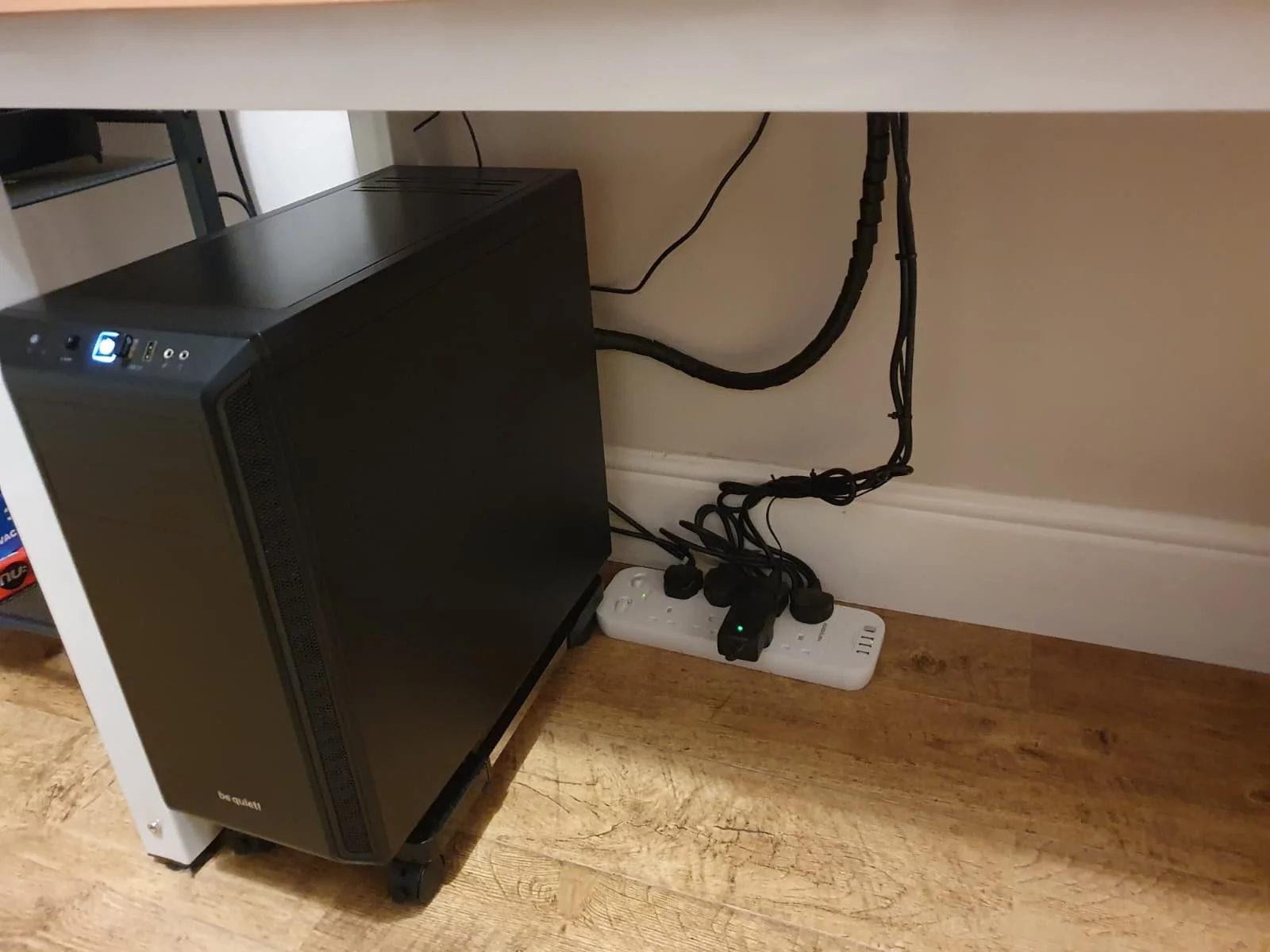
I recently bought two new monitors and a stand for my PC tower case. Today I thought I’d take the opportunity to disconnect every peripheral, clear my desk and then after a thorough clean, reassemble everything ensuring good cable management. I even went so far as to buy a new power extension lead so I could reorganise where everything was plugged in and therefore be able to isolate specific hardware. It seemed such a simple, straightforward task on paper. The reality was much different. It took me over three hours to sort out, mainly due to the fact that I don’t “bend” so well these days. During this Herculean task, my watch kept on notifying me that my heart rate was “high”. However, I regularly took breaks and fortified myself with gin for medicinal reasons. I am pleased with the results of this task.
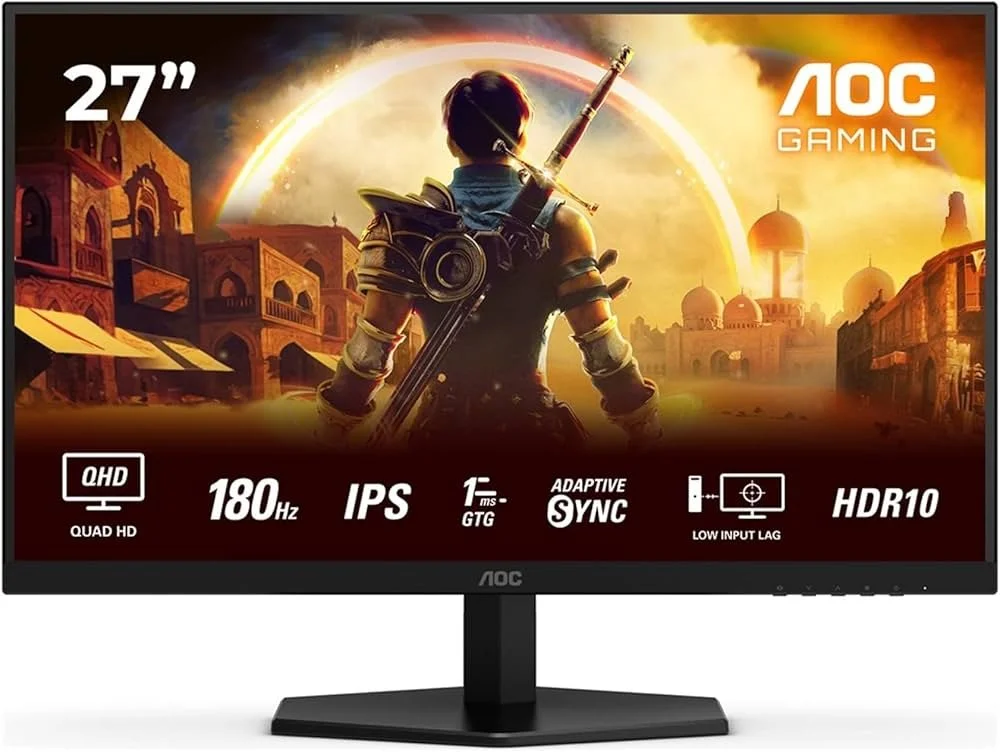
I use two monitors with my PC, as I find having the additional screen “real estate” invaluable when writing or playing games. Both monitors that I’ve been using up to now are somewhat old and they are not exactly the same size or resolution, although both are FHD. I have previously written about the problems I’ve had trying to get certain games and programs to display on specific monitors and the lengths I’ve had to go to to resolve this issue. To cut a long story short, I recently decided to replace both monitors with larger models with a higher resolution. Mainly because my eyesight is not what it used to be. I see best when working with a bright screen that can produce clear text. New monitors would also address my ongoing screen output problem. Hence, I set myself a reasonable budget and began researching appropriate replacements.

In July the UK Government introduced the Online Safety Act which requires age checks for accessing sexually explicit content online. As a result of this, Pornhub, the 19th most visited site on the internet, has reported a 77% decline in UK traffic. Furthermore, according to the UK regulatory body, OFCOM (The Office of Communications), overall visits to pornographic websites from the UK have fallen by 33%. Naturally, those who championed this legislation are claiming a moral and political victory. However, once you consider what these facts actually mean, they paint a somewhat different and potentially more worrying picture. It would be staggeringly naïve to think that UK visitors to Pornhub have ceased visiting such sites due to the age verification requirements. The more likely explanation is that UK porn consumers are now using VPNs to circumnavigate these restrictions and that this traffic to Pornhub is now recorded as coming from elsewhere.
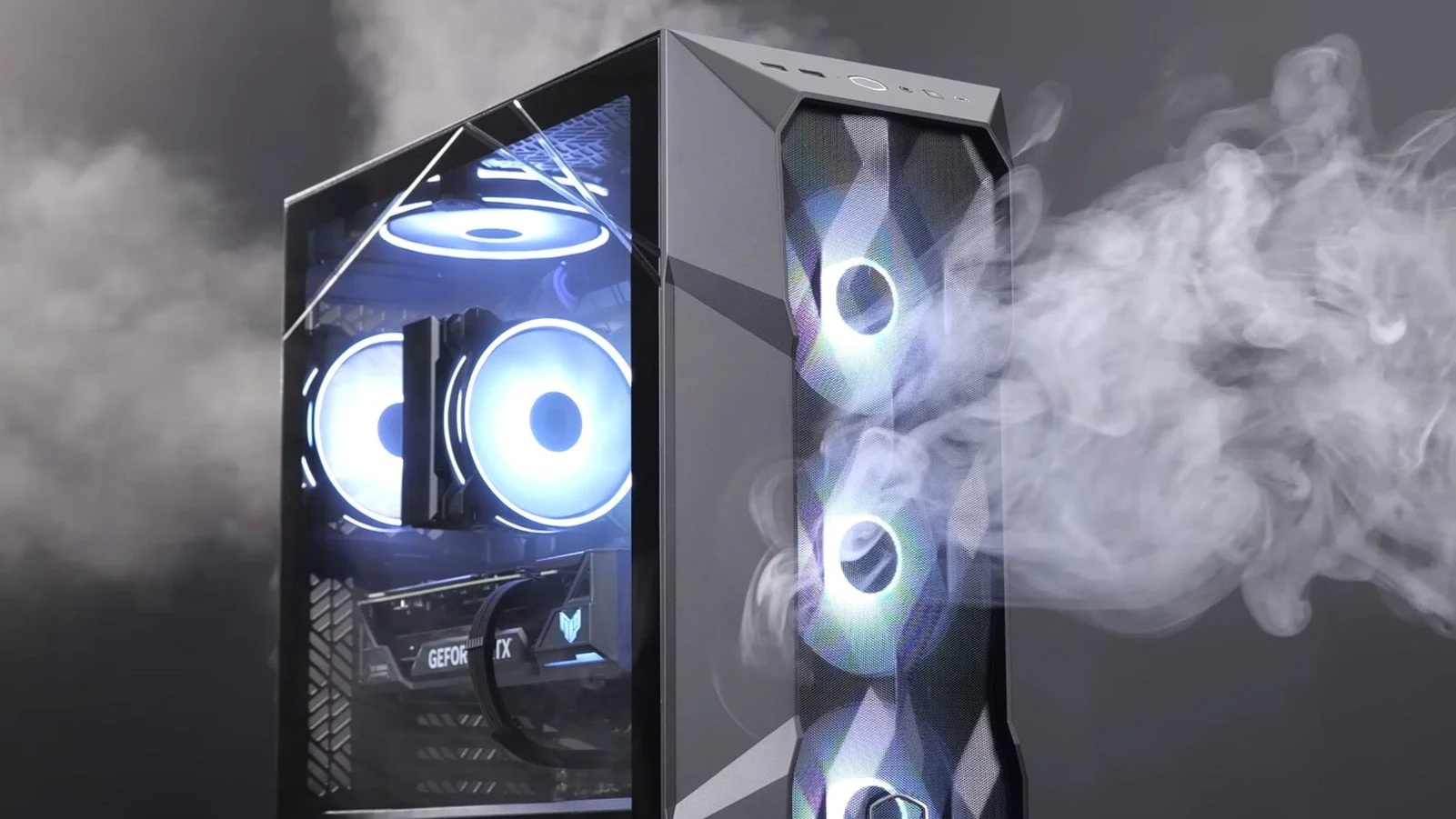
It may be a case of preaching to the Choir but dust contamination in your PC causes overheating, decreased performance, and potential hardware failure. This mainly occurs due to dust restricting airflow, impeding components such as heat sinks and creating short circuits from conductive particles. Fluff builds up and restricts cooling fans, forcing them to work harder. Heat build can lead to issues like system crashes, lagging, and even permanent damage to the motherboard and CPU. Over time, it can shorten the lifespan of the computer and in severe cases, poses a fire hazard. When I used to work in IT contracting, I used to see the effects of dust contamination all the time. PC placed on carpet tiles or on top of desks and surrounded by other objects. I remember one PC replacement project I was working on where we found an old PC with a dead mouse in it. It was desiccated by the heat.

Usually I don’t have a problem with internet access when Mrs P and I are travelling. My phone data plan is sufficient for Google Maps and social media usage. Once we reach our hotel, it’s just a question of connecting to the free Wi-Fi or if need be, buying upgraded access. It’s seldom that expensive. When I went on holiday to Croatia this summer, I bought a bespoke data plan before arriving that granted me extra internet access. Our hotel in Makarska also had very robust internet access. Hence, regardless of being out and about or by the pool, I never had any issues getting online. The ubiquity of internet access means we often take it for granted. I seldom go to places in the UK or abroad that don’t have advanced IT infrastructure. Until this week.
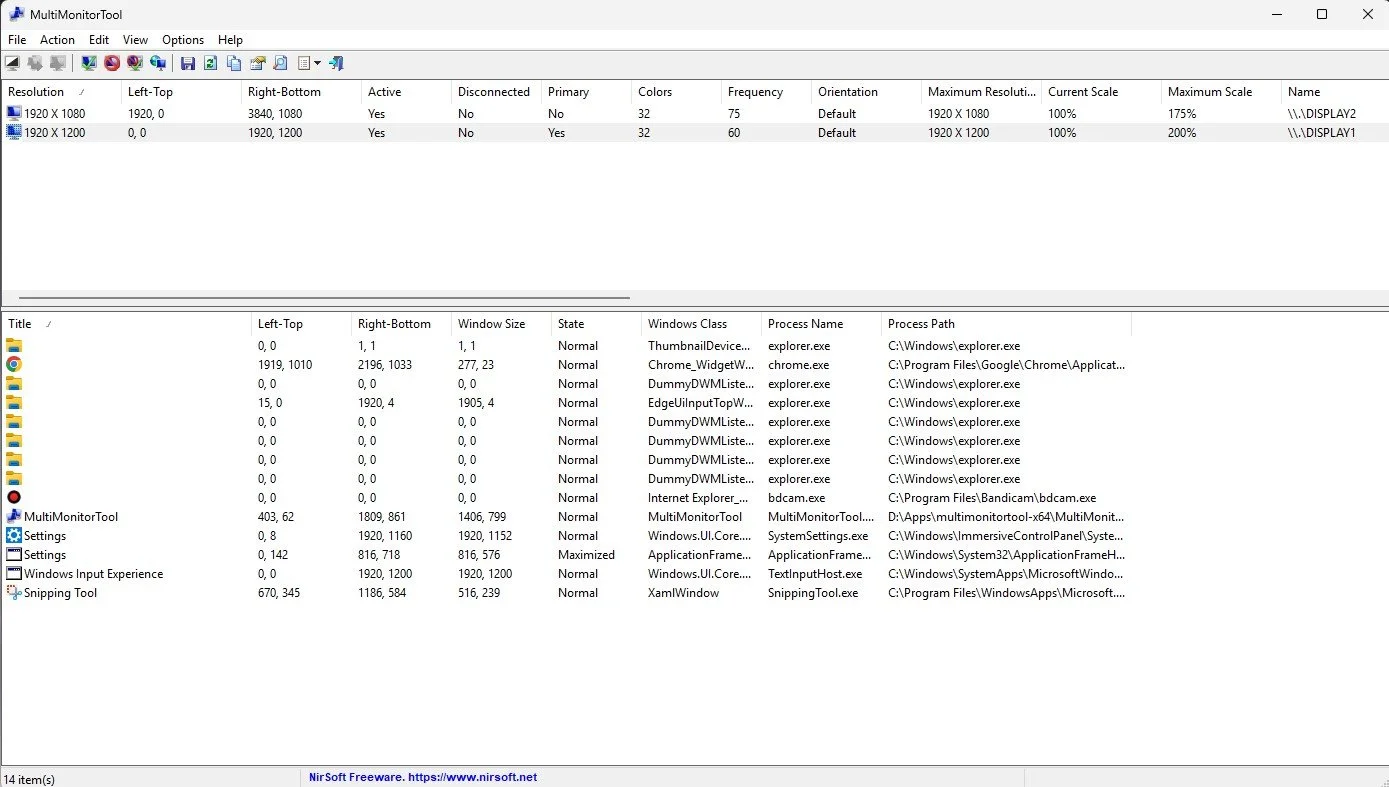
Back in January, I was very pleased because I had finally found some open source software, DisplayMagician, which allowed me to quickly and easily alter my display profile and run specific games and applications on my second monitor. Prior to this I would find that some programs just wouldn’t stay put, once they were dragged or otherwise cajoled to display on the monitor of my choice. They would continuously snap back to the primary display, regardless of my actions. DisplayMagician solved this issue and did so with aplomb. Or it did, until last weekend when I upgraded my PC from Windows 10 to 11. Then it stopped working. I therefore did some digging online and it became apparent that this is a known issue that is currently being addressed by its creator, Terry McDonald.

As part of our increasing dependency upon software, we have also grown accustomed to its associated foibles, especially the negative ones. Today, I upgraded my blog from Squarespace 7.0 to 7.1 and my PC operating system from Windows 10 to 11. I started early in the morning and ensured that all my personal data was backed up. My default expectation was that both processes would go wrong in some way, shape or form. Let’s take a moment to consider this mindset, which is born out of experience. It is now taken as read that whatever you upgrade, be it an app on your phone or a program on your PC, that it’s going to be problematic. It won’t be a seamless transition and you’ll end up having to do some sort of troubleshooting. Despite our lives becoming more dependent on such software, the quality of these products seems to be deteriorating. What a sorry state of affairs.
Recently, the remote control for my Media Player developed a fault. I was watching a film, when for no apparent reasons, the video jumped ahead about twenty minutes and then get stuck in a playback loop of a few seconds duration. At first I thought it was a glitch with the particular .mkv file I was watching but then the problem started happening on both video and YouTube content. I then noticed that when the fault occurred, the backlight on the remote came on and shimmered as it a button was being pressed continuously. Removing the batteries from the remote control for 30 seconds and the replacing them would then restore functionality. This indicated to me that the fault lay with the remote control and not the media player itself. I therefore decided to take the remote control apart to see if I could see any obvious problems. I did not, so I cleaned it and re-assembled it. Sadly the fault persisted, so I decided to replace the remote control.